Tag: Beams

  • TYPES OF BEAMS – Depending on how they are supported.

    According to the types of supports provided for the beams, they are classified as:
    1. Simply supported beam.
    2. Cantilever beam.
    3. Continuous beam.
    4. Overhanging beam.
    5. Fixed beam.

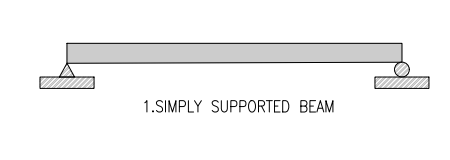
    1. SIMPLY SUPPOETED BEAM:
      This type of beam is supported at both ends consisting of pin support at one of the ends and roller support at the other end.
    2. CANTILEVER BEAM:
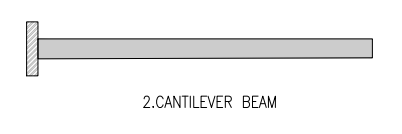
      A beam with one end free and the other end is fixed is called Cantilever.
    3. CONTINUOUS BEAM:
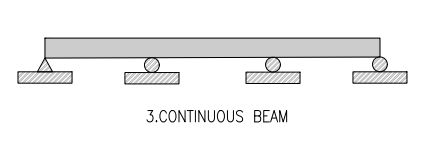
      A beam which is supported on more than two supports is called a continuous beam.
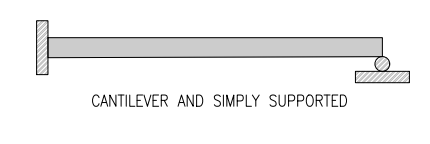
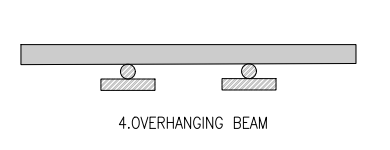
    4. OVERHANGING BEAM:
      Overhanging beam is the combination of cantilever and a simply supported beam. This type of beam in which the end portion of the beam extends more from the support. It’s divided in to two types.

    A) Single overhanging beam (This type of beam is extended beyond the support at one end only)
    B) Double overhanging beam. (This is of beam is extended beyond the support at both ends)
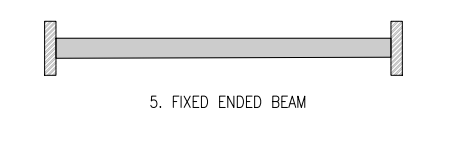
    1. FIXED BEAM:
      This type of beam is fixed at both ends it called fixed beam.

  • Extracting Bolt Distances of Single Part Drawings (Beams) With an Output In Excel – Part 3 (Tekla Open API)

    Some holes in a person-hole lid.

    In the last part we left off having obtained all the bolt distance and placing them in a domain object. In this instalment we will try to export all that data into an Excel Spreadsheet. Please note that the following code is untested – unfortunately there was a lightening storm in Melbourne which short circuited my flux capacitor which means I cannot connect to the TeklaServer – so rather than wait, I thought to get this code out to you.

    Which library to write to Excel?

    There are many libraries out there: XLS compatible and not:

    1. OpenXML libraries
    2. ClosedXML libraries
    3. NPOI
    4. EPPlus


    The consensus is that the worst of the above is still better than using Microsoft’s office interop dll. If you use that approach, you will need to ensure that MS Office is installed in your deployment machine, and secondly, be sure to dispose of all relevant objects. If you forget, then you’ll be leaking memory. This is a very important point.

    How to use ClosedXML in your code:

    1. Firstly download closedXML using NuGet Package Manager. That should add the relevant references.
    2. Secondly add the `using ClosedXML.Excel` directives.
    3. Then add the code snippets I’ve provided for you below:

    Notes on the code:

    * A significant change has been made – we are now filtering the SinglePartDrawings based on: (i) whether they are beams or not and (ii) whether they have the relevant profile – a reader wrote an email asking for this version of the code. I have left the previous version out there as well.

    * I’m not an expert with ClosedXML – I just wanted to get the code out there. So it’s a very hackish and non-elegant solution, but I hope it serves to illustrate the point.