Author: admin

  • Designing Bent Members

    Designing Bent Members

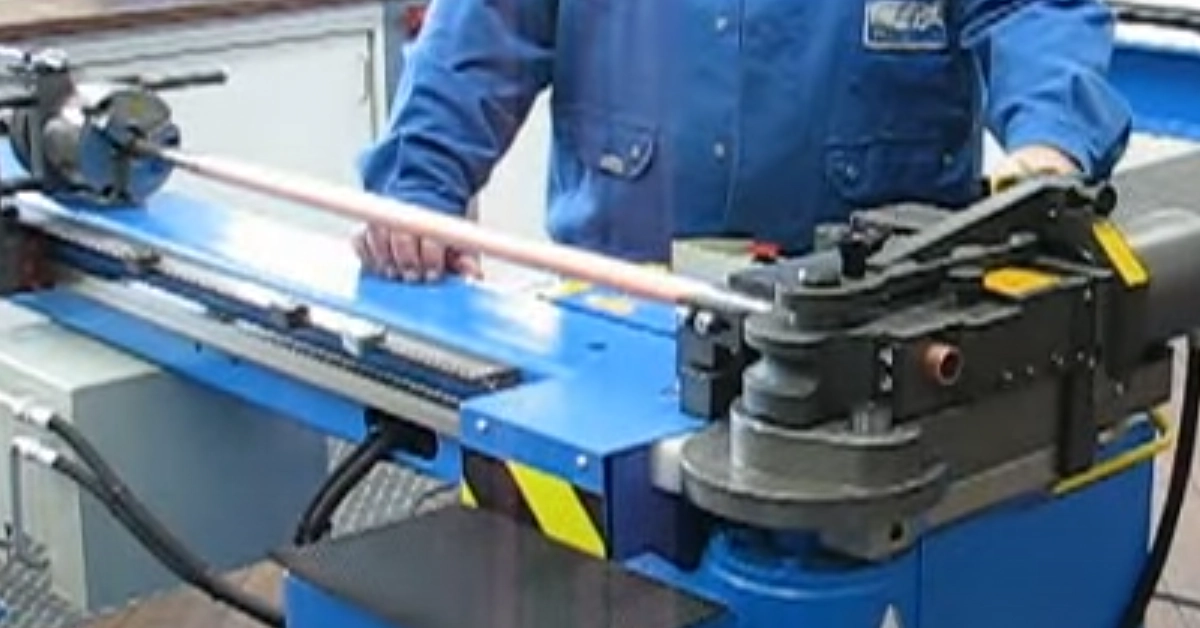
    Consider the below member: notice how it has two bends in it.

    BendingMachine

    When designing such a member the detailer needs to be aware of how these members are made.

    Check out this video for a beautiful explanation:

    That is just how handrails are produced. The steel members are bent around a radius set on a machine. If the design is too complex, then detailers need to be aware that fabricators may resort to welding two pieces of metal together to make it work.

  • How to add markup to Tekla BIMSight Model

    Key Points (BimSight is now dead)

    1. Select Plane
    2. Add Markup
    3. Add Note
    4. Make the note Public

  • Block Definitions and Block References Explained

    What is a block? What is a block reference? And what is the difference?

    Let’s use an analogy to help illustrate the concept.

    *Birth certificates are like your block table record, photocopies of your certificate are like block references.**

    (A) Block Definitions

    Imagine you have a really important document like your GREEN card/birth certificate etc. you have to keep this document locked away in your solicitor’s office. This green card is exactly like a block table record. You only have one of this document. But let’s just say you want to have many copies of your green card.

    (B) Block References

    Are you going to recreate a green card (and have many originals) so you can give one to the IRS, another to the department of immigration, another to the department of homeland security etc etc? No! Of course not: you are not going to recreate it; you are simply going to make photocopies of it. It makes sense because photocopies are cheap and easy and don’t cost (much) memory.
    The photocopies of your green card are like block references. you can have many photocopies of your green card, and you can paste them anywhere you want: on the street, in your home etc. you can even delete them. you can delete or destroy all of them, but you will still have your original green card located safely somewhere in your house, or your lawyers office (i.e. the block table record). If you destroy the original green card then guess what – you will no longer be able to make copies of it (i.e. you won’t be able to make any block references if you don’t have a block table record which it points to.)

    Summary:

    So you have the original birth certificate (block definition), and you’ve made a photo copy of your birth certificate (block reference).

    Where is it all located?

    The block definition is located in a place called the “block table”. Just because it is in the block table, doesn’t mean it will appear in your drawing. If you want to put it in your drawing then you need to create a block reference (which points to the block definition) and then you need to put the *block reference* into your drawing.

    How to add lines etc to your drawing – what is the model space?

    Imagine you are drawing on a piece of paper. if you want to have a line drawn on that paper, you have to add that line to the “model space”. The paper space is basically like some special 3d-glasses you wear to view all your drawings. Think of it like a camera lens, allowing you to see the same thing in many different shades/perspectives/views.

    Geometry can be added to a block definition

    Think of the block definition as a basket – it’s a basket you can add many things to. You can add, for example, lines, circles, text, all sorts of shapes into this basket. And when you are ready to draw, you can place photocopies of what’s in the basket, all over your drawing, perfectly replicating it.

    Getting more technical

    The “model space” is itself a block table record. And so is the paper space. When you want to add something to a drawing you will have to create a block reference and “append it” to either the model space or a paper space (or other layouts – but let’s not get into that).

  • Tekla–AutoCAD: Interoperability Tool

    Tekla – AutoCAD Interoperability Tool

    Tekla licenses are pricey. About $30k + maintenance per license. That’s expensive. And if you had 10 licenses, or perhaps even 50 licenses, what if I told you that you needed: 30-50% less licenses than you currently hold? That’s a huge cost saving. If you only need 5 licenses, then you’ve saved $150k instantly, plus maintenance. You can now do that.

    AutoCAD licenses are significantly cheaper than Tekla.

    But if only the work you did in AutoCAD could be transferred into Tekla? That would save you some licenses.

    That’s just what I’ve done here in my latest project. You can check it out here:

    Tekla – Autocad Interop. from Tek1 on Vimeo.

    Thanks for visiting this page.

  • Converting Engineering Components to Detailing Components (Tekla API)

    Has anyone every given you a  model created form an engineering license and asked you to produce shop drawings from it? Well that’s incredibly difficult to make possibly. Because you can’t easily number parts.

    So I created a macro which makes life much easier (and faster) too.

    Here is a demo of how it works:

    Tekla Macro – How to Convert Engineering Components To Detailing Components from Tek1 on Vimeo.

    I will post the code in another post.


  • Tekla Open API Resources

    1. The Open API Reference.

    This was produced by Trimble and is the go-to place for information about classes and methods etc. There are some code examples also given. You can download it all from here. There are some basic code examples in there which is well worth investigating.

    2. Trimble Open API Examples:

    Extremely valuable. Thank you Trimble! If you want to see older examples, you’ll have to revert to another branch in the tree.

    3. Tekla ExtraNet

    A fairly good resource, but the problem is that in order to have access there, you need to pay maintenance. Not everyone wants to do that. Plus the forum is extremely restrictive in terms of what you can and can’t post.

    4. Tek1 Blog on the API.

    There is a wealth of Tekla Open API articles and resources on this site: you can read them here. It will be growing and growing with increasingly sophisticated plug-ins and I’ll be providing the code for you in the above pages.

    5. Teklanology Blog:

    You can checkout a blog from my estimable colleague.

    And you can learn much from there. Mr Dale doesn’t post everyday, but when he does, it’s good. Here is his GitHub page as well.

    6. Software Solutions – Tekla Blog:

    This provides you with some handy code examples.

    7. Tekla Application Library

    I love to pay out Trimble for their API but I must give them credit where due – here is an application library they created. But unfortunately, the documentation is lacking. I’m convinced that if you know how to use it, it will save you time.

    8. Tekla & AutoCAD Blog

    Check it out here!

    In my opinion it is a very nice blog – but I am partial to it, I confess. Learn some powerful techniques to manipulate the API, even though certain objects/methods are not exposed – there are ways around it! If you have any more suggestions, please feel free to post them here. And I will share it to the world. [Disclosure warning: this is my personal blog 😉 ]

    9. Cad Support Blog

    Looks like quite a nice blog with a few code samples to aid in your learning.

    10. RazorCX

    These guys are good. You can learn something from them. They’ve sprung up overnight and are stealing my thunder + positing videos and code too. I better up my game!

    11. Chris Keyack Playlist

    Keyack, my estimable Tekla Open API colleague has spent time working inside Tekla itself – so I’m sure you can find many nuggets of wisdom there.

  • How to run AutoCAD Commands and Macros Without a Dialog Box (AutoCAD tips)

    Have you wondered how you can run AutoCAD Commands without a dialog box. It is simple – add a “-” in front of the the command name

    For example if you type in “layer” as a command into your Autocad command line your layer dialog box opens up. But if you type in “-layer” there will be no dialog box.

    This is useful if you are trying to create your own AutoCAD macro. Just in case you cannot find the manage button (in older versions of AutoCAD) try switching to another work space. You should then find it. Here is the video from CADD Microsystems showing you how to create AutoCAD macros:

  • ERP for Precast

    Here is where we are going with precast ERP System.

    This will be a cloud based ERP system, based on Dot net, Entity frame works, and Ruby on Rails.

    Hosted on amazon elastic cloud, it is fully scalable, highly available system.

    Think of how much administrative work you can save on ordering scheduling, etc.

    We extract data from Cad files. This data is available for purchasing, scheduling,  production control, and quality control.

    We can customize this App for your specific requirements.

    Call us to learn more about how we can tailor the solution for your needs.

    Also API s are provided where by your software can consume data provided by the API in Json or XML format.

    Full security features are incorporated.

     Part I – Intro https://vimeo.com/209052384
    • Part II – Data Extraction https://vimeo.com/209052515
    • Part III – Data Querying https://vimeo.com/209053220
    • Part IV – API in Action https://vimeo.com/209053445

  • Past Precast Projects

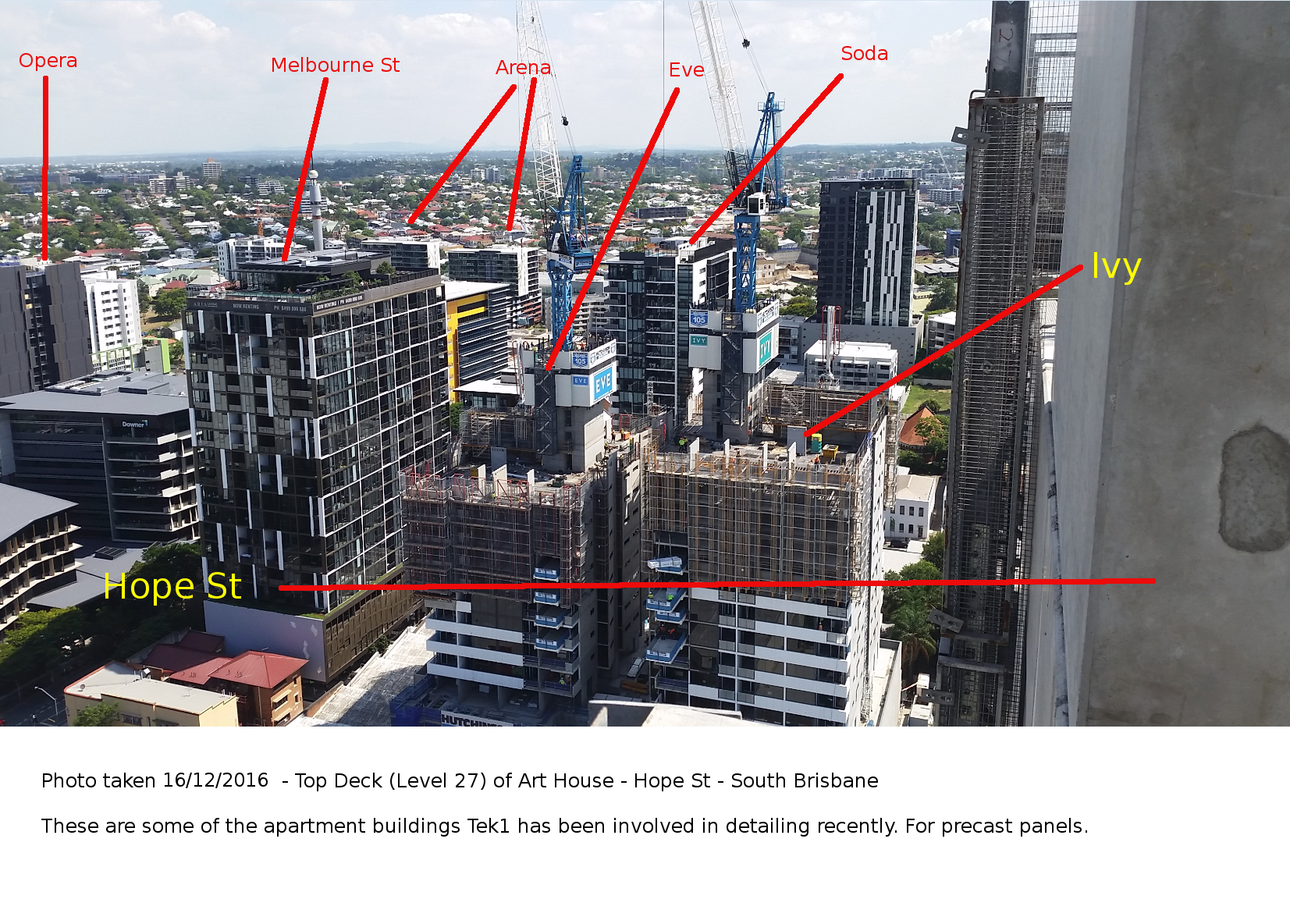
    Here are some of the projects we’ve been involved with in recent times – as of this photo (2016-2017). What’s cool about it is that they’re all in the same place at around the same time.

    Rarely will you ever see them so closely located together, let alone in the same photo. Personally I thought it was pretty cool. (Please click on the photo below to get a close-up view).

    The projects that we’ve been involved with in recent times. Either detailing or tracing.