Tag: Tekla API

  • Write Selected Beam Members to an Excel File (Tekla Open API – Tutorial)

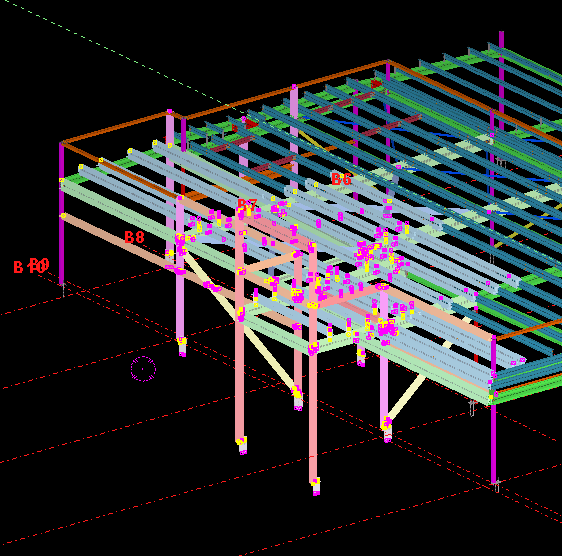
    Members. Looks good.
    Some nice looking steel. The picture has nothing to do with the Tekla API but it’s cool nonetheless.

    What is the task at hand? 

    1. The user selects some beams.
    2. We then want to collate the following information into various Excel spreadsheets:
      1. Name
      2. Profile
      3. Length and finally Weight
    3. We want two views: the first aggregates the beams by their name and finish, and the second merely lists all the beams selected with the information listed above (length/weight etc).


    WARNING: The code is very dirty. There’s a lot of repetition here. And I’ve gone up some cul de sacs incorrectly. But that’s ok. It’s code which works. We can worry about refactoring for another day – in fact, that will make for a very good exercise. Here is a link to where I document the refactoring process.


    I’ll walk you through the code:

    Here is the full code unencumbered by commentary:

  • Extracting Bolt Distances of Single Part Drawings (Beams) With an Output In Excel – Part 3 (Tekla Open API)

    Some holes in a person-hole lid.

    In the last part we left off having obtained all the bolt distance and placing them in a domain object. In this instalment we will try to export all that data into an Excel Spreadsheet. Please note that the following code is untested – unfortunately there was a lightening storm in Melbourne which short circuited my flux capacitor which means I cannot connect to the TeklaServer – so rather than wait, I thought to get this code out to you.

    Which library to write to Excel?

    There are many libraries out there: XLS compatible and not:

    1. OpenXML libraries
    2. ClosedXML libraries
    3. NPOI
    4. EPPlus


    The consensus is that the worst of the above is still better than using Microsoft’s office interop dll. If you use that approach, you will need to ensure that MS Office is installed in your deployment machine, and secondly, be sure to dispose of all relevant objects. If you forget, then you’ll be leaking memory. This is a very important point.

    How to use ClosedXML in your code:

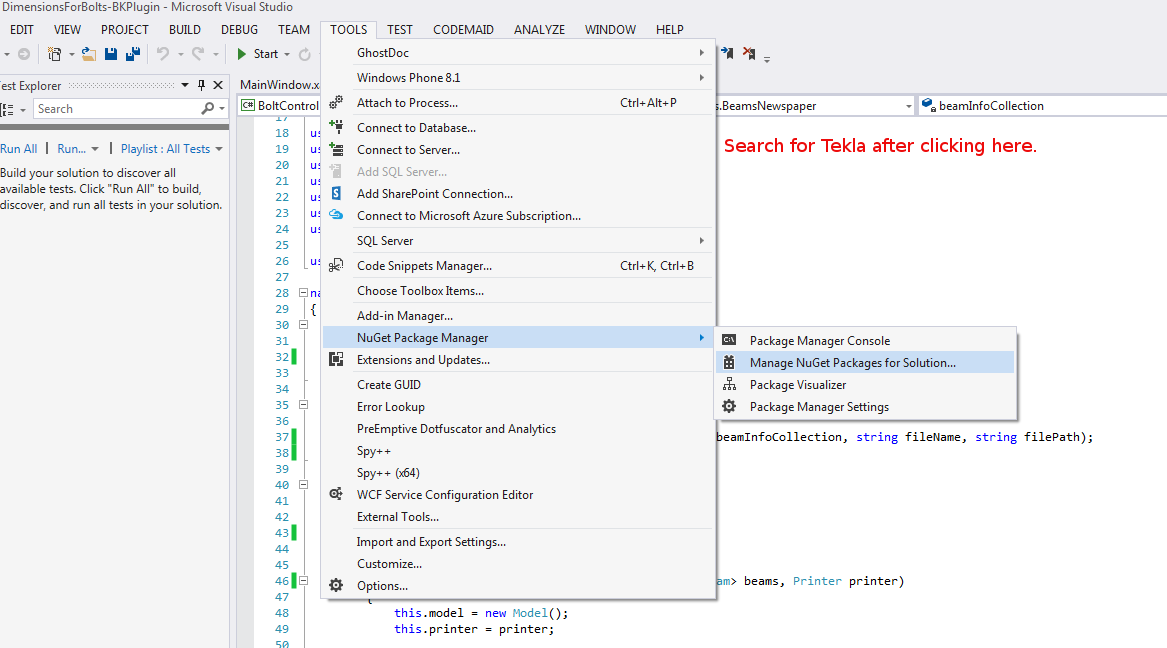
    1. Firstly download closedXML using NuGet Package Manager. That should add the relevant references.
    2. Secondly add the `using ClosedXML.Excel` directives.
    3. Then add the code snippets I’ve provided for you below:

    Notes on the code:

    * A significant change has been made – we are now filtering the SinglePartDrawings based on: (i) whether they are beams or not and (ii) whether they have the relevant profile – a reader wrote an email asking for this version of the code. I have left the previous version out there as well.

    * I’m not an expert with ClosedXML – I just wanted to get the code out there. So it’s a very hackish and non-elegant solution, but I hope it serves to illustrate the point.

  • How to Programmatically Select Objects in the Model (Tekla Open API)

    Return a selection of objects back to the user.
    We can easily select objects as an input – objects which was can iterate over and apply a series of operations or checks out. But how do we return a selection of objects back to the user?

    Background: What are we trying to do?

    We have programmatically identified some model objects that we want to select in the model – to attract attention to the user and to allow her to easily identify all such objects. In this particular case we will be creating some beams. And then, we will select those beams in the model. Here is a code snippet to get you started:


  • How to programmatically insert Reference Models into Tekla (Tekla Open API)

    Wouldn’t it be handy if we could programmatically insert reference models into Tekla? Well you can now do so quite easily.

    Here is the code which does the hard work. (You will of course add the appropriate references and directives):

    And if you want to see a video demonstration, here it is:

    Inserting XRefs into Tekla as Reference Models from Tek1 on Vimeo.

  • How to Set Up a Tekla API Project (Tekla API Application)

    Work faster with the Tekla API

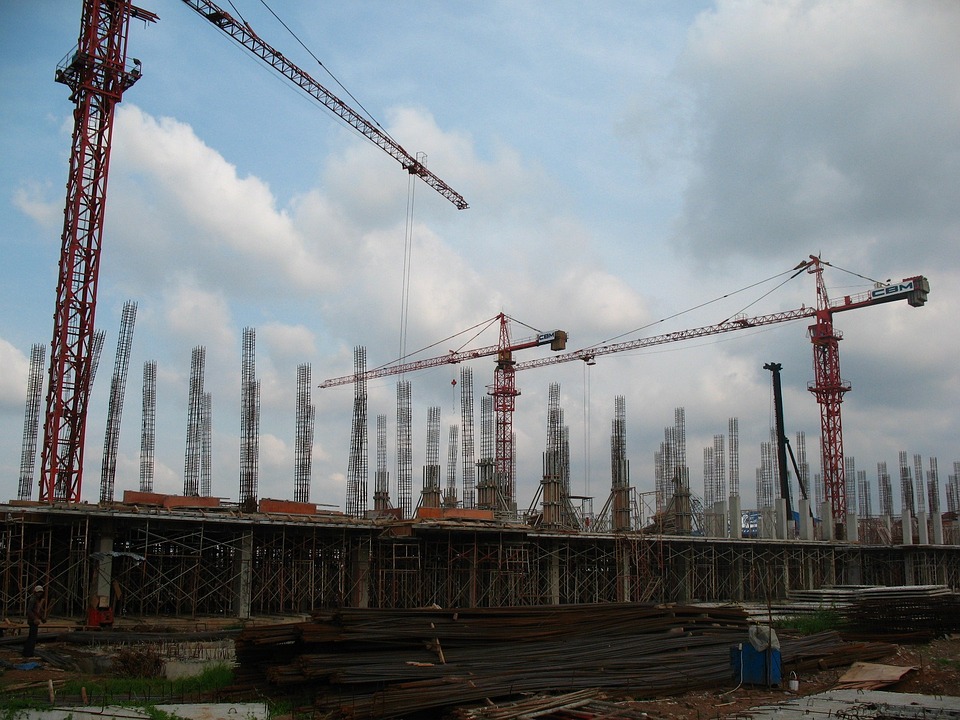
    The object of a Tekla Application is to ensure that things go smoothly on the construction site. You can see the organised chaos that is here. Avoid the real chaos. Plan ahead. 

    For the newbie this post shows how to set up a Tekla Project.

    Let us assume that you are creating a WPF desktop Application. You could also just as easily create a console application – I often do this if I simply want a quick and dirty way to test code.

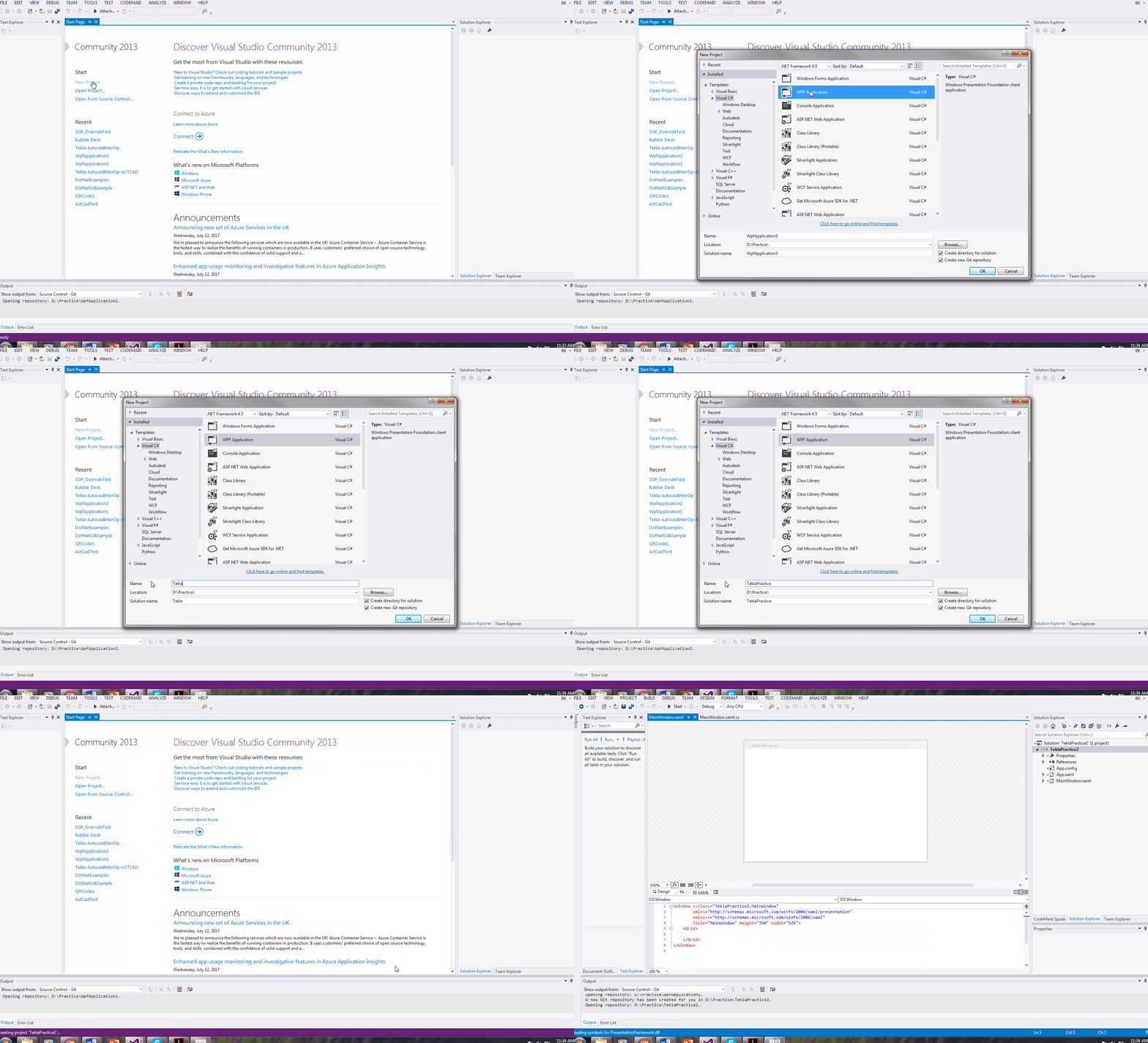
    1. Go to Visual Studio.
    2. Create a new WPF project.

    Follow this gif:

    Setting up a Tekla Project
    How to Set up a Tekla WPF Application
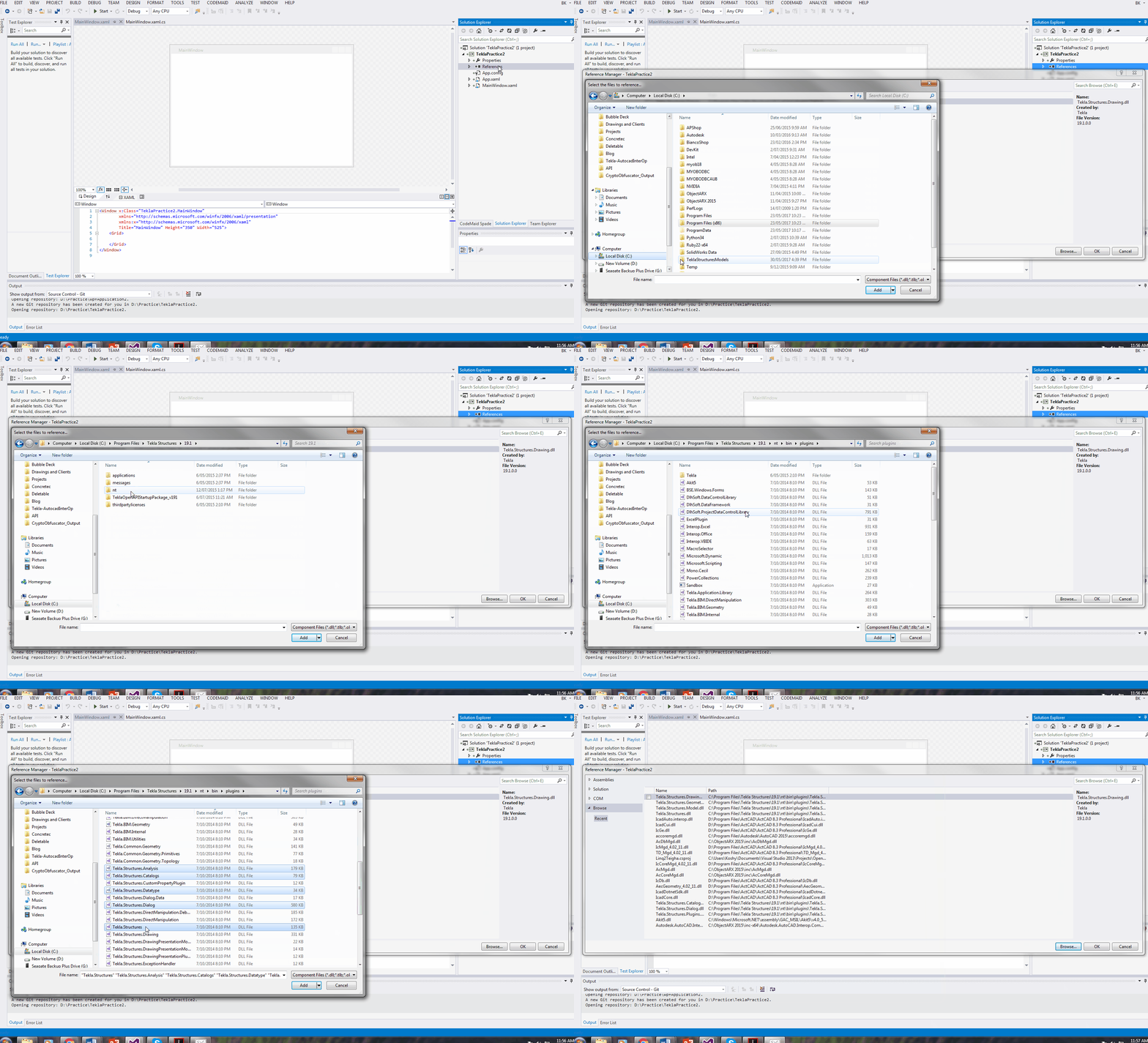
    1. Next you need to add references to Tekla DLLs. They are contained at this location on my PC. C:\Program Files\Tekla Structures\19.1\nt\bin\plugins\ .They may be in a different version on yours. You can also download these dlls using Nuget in your Visual Studio.
    2. If you are using 19.1i version – then you can download Trimble’s nuget package named thus: 2019.1.50434

    Follow this Gif:

    Adding Tekla References

    Shows how to add references to a Tekla API WPF Project.

    1. The fourth and final step is to add directives and to then get coding.

    Some common directives and aliases that I use:

    I hope this post helps you!

  • Showing an Assembly in the Model via a Tekla Drawing (Part II) Tekla Open API + Code snippets

    We are revisiting a post I made earlier.

    Here’s the problem. You are viewing a Tekla drawing. But you have no idea what you are looking at, or where it is. This macro will take you to that very assembly in the model. It’s actually quite handy. And here is the previous post where I made allusion to the facility (you’ll find a video demonstrating its use):

    http://www.tek1.com.au/tekla-plug-in-2-viewing-an-assembly-in-the-model-from-an-assembly-drawing/

    This post marks the release of the code which does the job! Enjoy!

  • Tekla Plug-in #1: Multi Drawing Selector

    Multi drawing Selector for Tekla drawings

    The Multi Drawing Selector Application is a program helps collate the single part drawings of all parts (with the same profile) into a single multi sheet drawing.

    If I have a certain profile of flatbar: say 90×10 then wouldn’t it be handy if I had all such flatbars (with their varying lengths) on a single drawing? In the past you would have e.g. 16 different drawings (one for each particular length of the 90×10 flatbar) jumbled all over the place in your folder. If you had to fabricate it then you would have to sift through the folder for all such profiles. Having obtained the 16 different drawings, then you would go to your factory and obtain the 90×10 flatbar and produce the 16 different types of flatbars you need. But what if you did not see a 90×10 flatbar drawing at the back of your folder? What if there were 17 different drawings for that particular profile and you only pulled out 16 from your folder to take with you to the work shop floor. So basically you forget to fabricate a single part. But what if you were required to make 14 of those? When you find out, then you would have to go back into your work shop, get a flat bar and make the cut again and make 14 flatbars that are 90×10 with that particular length. Ideally you’d want it done correctly the first time, but now you have to make two different trips. And we are only talking about one particular profile here.

    Now you can dramatically reduce the number of drawings you have in your folder. 90 x 10 flatbar? No problem. Simply pull out the multi drawing which already has everything within it: take it to your work shop and cut all the required flat bars there. No flipping back and forth. You won’t miss a part – because it is ALL there, and you won’t be forced to redo it at a later stage.

    What exactly does it do?

    It looks through your model for all standard sized flatbars.
    All unique flatbar profiles will be written down separately in a “list”. For example, let us consider the following flatbar profile: 90×10. Suppose you have 10 such profiles in your model. This particular profile will be written down on the list, along with the 10 single part drawing numbers of associated with that particular flat bar.
    If your model has non-standard flatbars, or plates, this will be collected and highlighted separately in a “plate list”. e.g. suppose a detailer creates a FT 91.3 x 11.1 profile. This will be written down on the “plate list” with all the part numbers associated with that profile.
    The program allows you to select all the parts associated with a particular profile. In other words, you can select all the 10 parts associated with that 90×10 profile, and you can put them in one single multi drawing.

    It takes about 45 seconds after clicking the refresh button for the list boxes to be populated.

    Instruction on how to use.Tekla must run first

    Tekla must run first

    Single part drawings must exist
    You must apply the correct selection filter.
    You have configure a .CSV file which lists all standard flatbars in the correct format.
    Start flatbar application
    Click refresh button.
    Double click profile on right lefthand side to see the drawing Nos.
    Select Drawing Nos
    Click Select button
    Now switch to Tekla window and create mulit drawing for selected parts
    Benefits

    Items are selected by Profile and in increasing length.
    The number of drawings associated with a particular profile is placed in brackets around the profile dimensions. e.g. 100 x 16 has 17 different part numbers and single part drawings.
    If you’ve already created a multi drawing for a particular part, then it won’t show up in the list again, after you’ve pressed refresh. That way you will know exactly what parts need to be placed in a multi drawing and what parts have already been placed in a multi drawing.
    Saves everyone a lot of time and headaches.
    If you require the macro please email the admin or email info@tek1.com.au
    The flat bar picker is customised for the Australian environment

    Multi Drawing Selector

    If you require any custom tools in Tekla, Autocad please contact us.

    Also any applcations using Ruby on Rails, dot net or Php. (We prefer ruby on rails for web applications)