Author: admin

  • Blog Test Post

    Blog Test Post

    THIS IS A TEST POST

  • Erection Plan Set out Dimensioning

    Erection Plan Set out Dimensioning

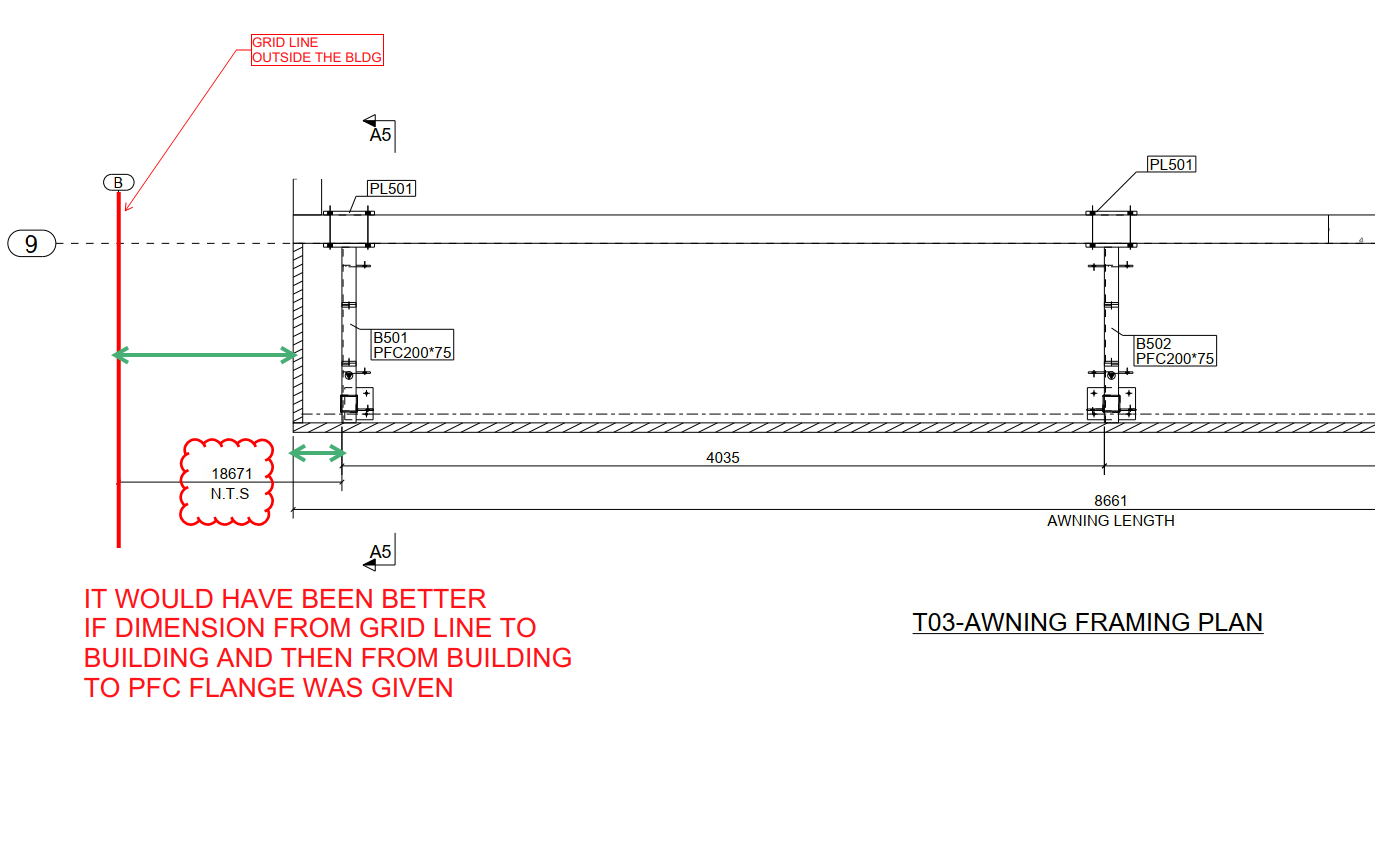
    Today I had a site call about a set out dimension.

    Reason for call

    Dimension for set out from a Grid line outside the Building.

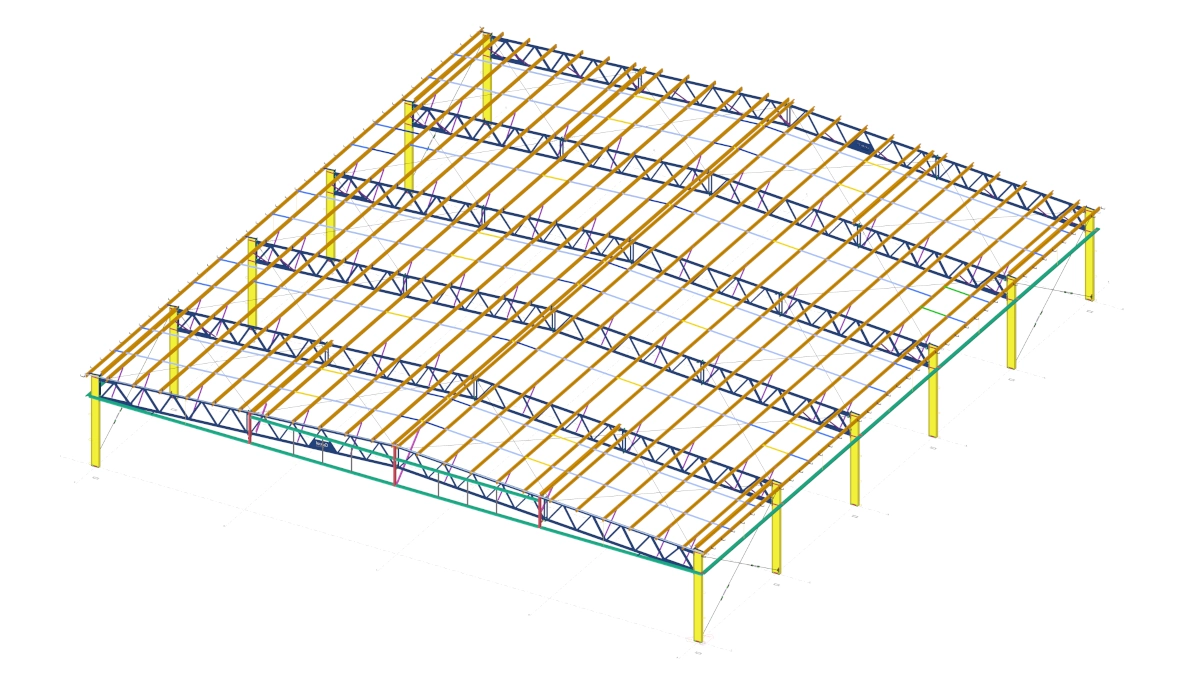
    AWNING SET OUT DIM
  • Tek1 – Tekla Tools

    Dimension Bolts

    Set up Instructions

    • Source code (sorry folks it’s a private repository).
    • Download program here.
    • Only works for: Tekla version: 19.1i
    • Run Installer.
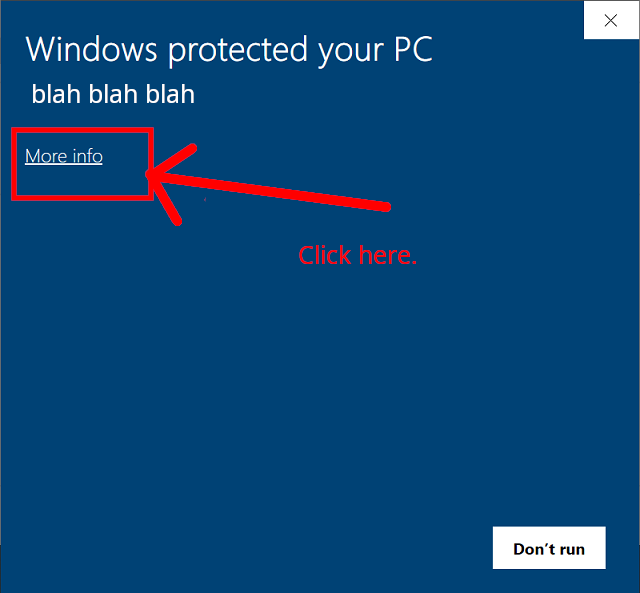
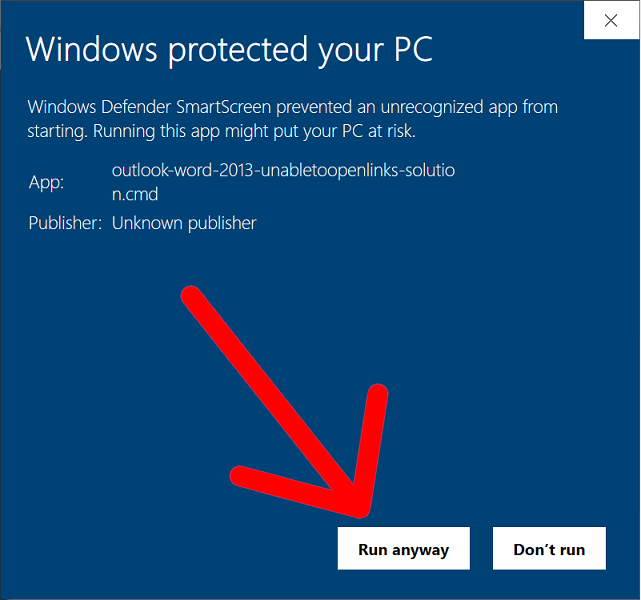
    • SmartScreen may warn you about this program – by pass SmartScreen.

    Instructions:

    • Only dimensions horizontally and vertically. This means if you use some crazy views / angles it won’t work – and it will give the wrong dimensions.
    • You must select a window from within the view, or else it will crash.

    Trouble shooting: it doesn’t work!

    • Please check that “Toggle crossing selection” is on.
    • Allow “Select points”.

  • Memo 14 – Private details (e.g. links) should be in the private section only

    Philosophy: make things AS EASY as possible for your clients, do not confuse them.

    If someone sends you a link, that you cannot access how would you respond?
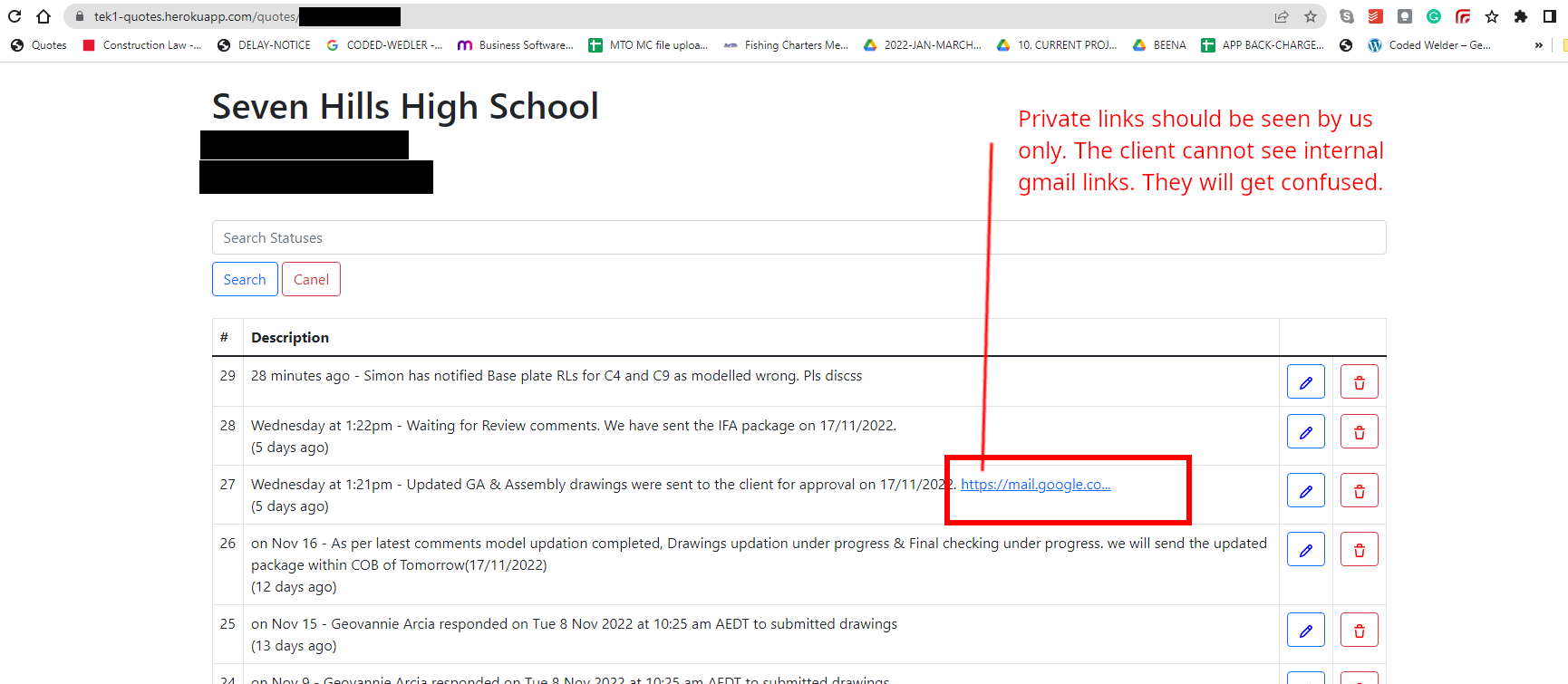
    The solution? Add private links and other details in “private details” section.
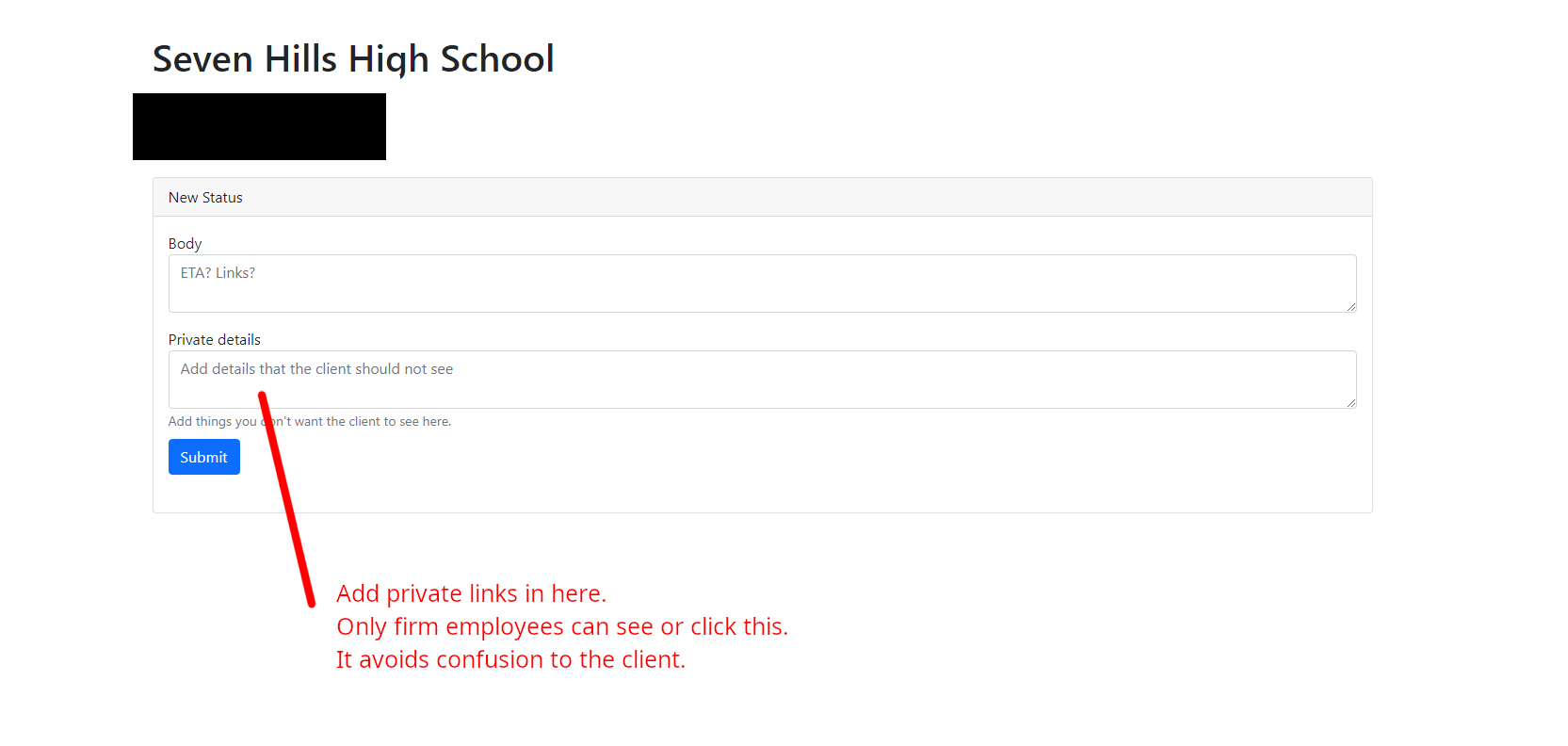
    There will be no confusion for the client.
  • Precast Tools

    Precast Tools

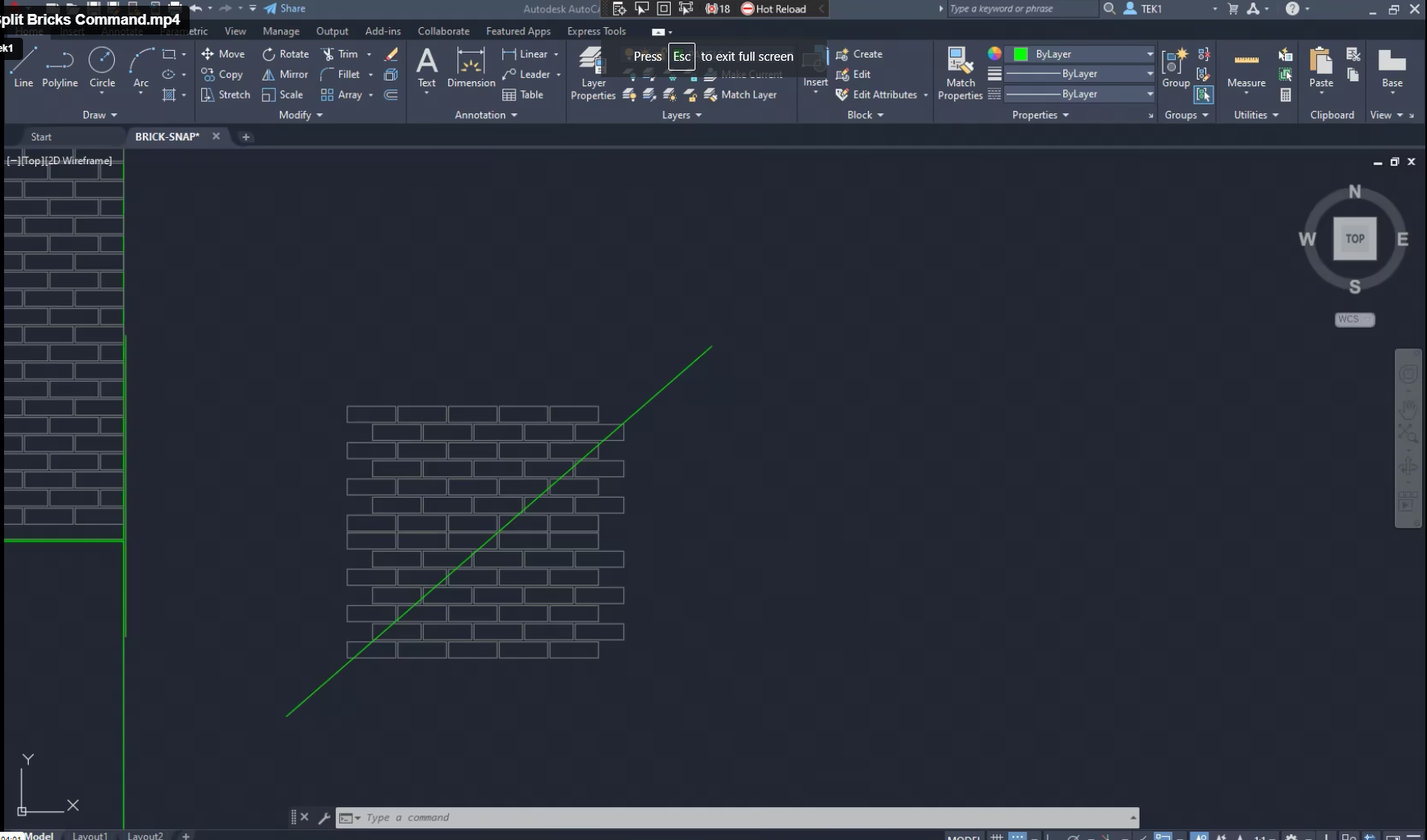
    We were having trouble with Precast jobs which involved Brick Snaps. We estimated that it would take +100 hours. Most of the time is pure manual labour – which could be automated, provided you worked out where / how.

    We found that splitting bricks along panel lines and curves were taking inordinate amounts of time. A tool was developed and here it is.

    Link to access installation files.

    (Please note you will need access via Azure and Google in order to get to the installation files).

    Revit Tools

    Dimension the panel elements quickly:

    Dimension the Dowels quickly:

    Good luck trying to pirate that software.

  • Memo 13 – How to Remind clients about variation approvals

    The Building industry in Australia is tough. The insolvency rate is over: 20%. Lies, non-paying etc. strikes, cost surges etc. is all de rigger. Builders are stressed. There’s no need to stress them out even more. Variation work is common the industry.

    Simply use the forms on our quote app – they are standard template fields which will save you a lotta headaches.

    If you need to remind clients about a variation:

    1. Ask nicely.
    2. Ask the proper way.

    DO NOT DO THIS:

    • “This is a variation for both of us”.
    • “Please approve the variation. So that we will proceed with the changes”.

    No: it is not a variation for both of you: the client will decide the variation. You shouldn’t tell him that. If you do, you will simply annoy the client.

    No: do not ever say: “please approve so that we will proceed”. This is akin to threatening the client, and holding up the job. Never, ever do this! It’s the worst way. You will annoy the client and he will walk – this has actually happened (yes there were other factors contributing) but it could be avoided.

    Never do this!
    Never do this either!

    WHAT SHOULD I DO?

    • We want our clients to voice objections. That’s right, we WANT to hear the objections. Everything we do should be clear, fair, transparent, and should have the consent of all parties. The communication should reflect that. So ask like this:

    These are all “no-orientated” questions. They are decided to illicit a “no” – to make it easy and welcoming for the client to object. Use the exact wording above.

    1. Do you have any objections to this proposed variation request?
    2. Do you object?
    3. Sounds like you have an issue with this request?

    Fixed Price Contracting

    • Some clients agree to our contract, knowing full well that we do not do fixed price contracting. If any client rejects variations because they want fixed price contracting – then please feel to contact me directly about this.

    Be Honest

    • If it takes 1 hour, then write down: 1 hour.
    • Do not write down 3 hours. If you get caught, then clients will loose trust in you, in our firm, and so will I. You will get a reputation as a liar, and that reputation is hard to shake.
  • How to Quote For Jobs

    The Golden Rule: Be very clear and specific about what you are quoting for. e.g. I am only going to work on the following (insert specific details), and everything else is excluded.

    Why is this important?

    • Clarity: Your client will know exactly what you are quoting for. Use diagrams, and present documentation to improve clarity. The last thing you want is your client to call you and say: “what about the stairs?”. It will not do for you to turn around and say: “oops, I meant I was only quoting for structural steel”. Clarity eliminates these types of problems.
    • Limited Liability: Do not write a blank cheque for clients. If you return a quote to: “build a house” then this quote is essentially open ended. They might get the wrong ideas in your their head: how large is the house? How much material? How long will it take? How will it be built? What if the client keeps changing the design? How much time are you willing to devote to keep making those changes? Even worse, what if you are forced to keep redesigning a house according to the caprice of a third party – whom you have no control? i.e if an engineer and architect keep changing their designs, then you may be destroying your margins and taking a steep loss, as well as massively increasing the risks something goes wrong. Always limit your costs, in some way. Make this clear to clients.

    Variations:

    • Watch out for design and build jobs: As alluded to above, the design process is fraught with difficulties. Too much back and forth with engineers. Limit this liability in some way: e.g. perhaps by hours worked on a project.
    • How we quote: we quote to a specific set of drawings. Invariable, these drawings change due to the discovery of problems as the building/structure progresses. Whenever something changes: that adds considerable risk to the project, cost, and delays. These costs need to be recorded and passed up the chain. No longer can engineers, architects and builders make changes, willy-nilly, and pass on risk, expenses to sub-contractors with equanimity.

    Specific Examples of Quoting:

    1. Limit scope to a drawing number.
    2. Limit scope to a particular drawing revision.
    3. Limit scope to the number of beams etc.
    4. Limit scope to grid lines.
    5. Limit scope to quantities.
    6. Limit scope by listing exactly what you are building.
    7. And exclude everything else.
    8. Show diagrams so that your quotes are crystal clear. This gives confidence to the quotee – they will know that your quote is well considered, and probably accurate.

    Here are some examples, of how we quote.

    Northern Retaining Wall

    Detailing structural beams, connections details, according to the following scope:

    Drawing 1: Type – T1 250UC90 HDG QTY: 299

    Drawing 2: Type – T2-L 250PFC HDG QTY: 1

    Drawing 4: Type – T2-R 250PFC HDG QTY: 1

    Drawing 5: Type – T7 250PFC HDG QTY: 26

    Drawing 6: Type – T8 250PFC HDG QTY: 1

    EPH – Station Platform Northern Retaining Wall

    Drawing 7: UC 150 x 37.2 post with base plate. QTY: 58

    Drawing 8: PFC 200 with Base Plate. QTY: 4

    Everything else is explicitly excluded. Changes might incur charges via variations. Fully documentation will be provided.


    Highlight Items on a Drawing

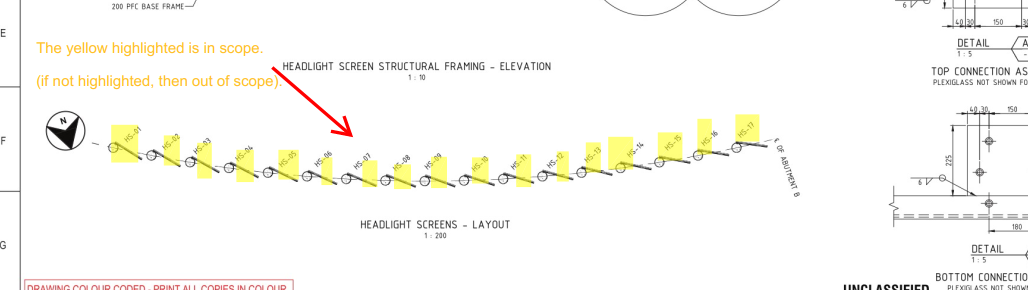
    • highlight scoped items in a drawing.
    • Add a note showing what is in scope. Why? Sometimes it is not immediately apparent what is being scoped in and out – especially if we are using a drawing with someone else’s markup. Do not simply highlight – we need the note as well. The note should say:
      • “The highlighted elements are in scope. If it is not highlighted, then it is OUT of scope”.

    Here is an example:


    Highlight Scopes + include a note
    Highlight Scopes + include a note