Author: admin

  • pedestrian over pass

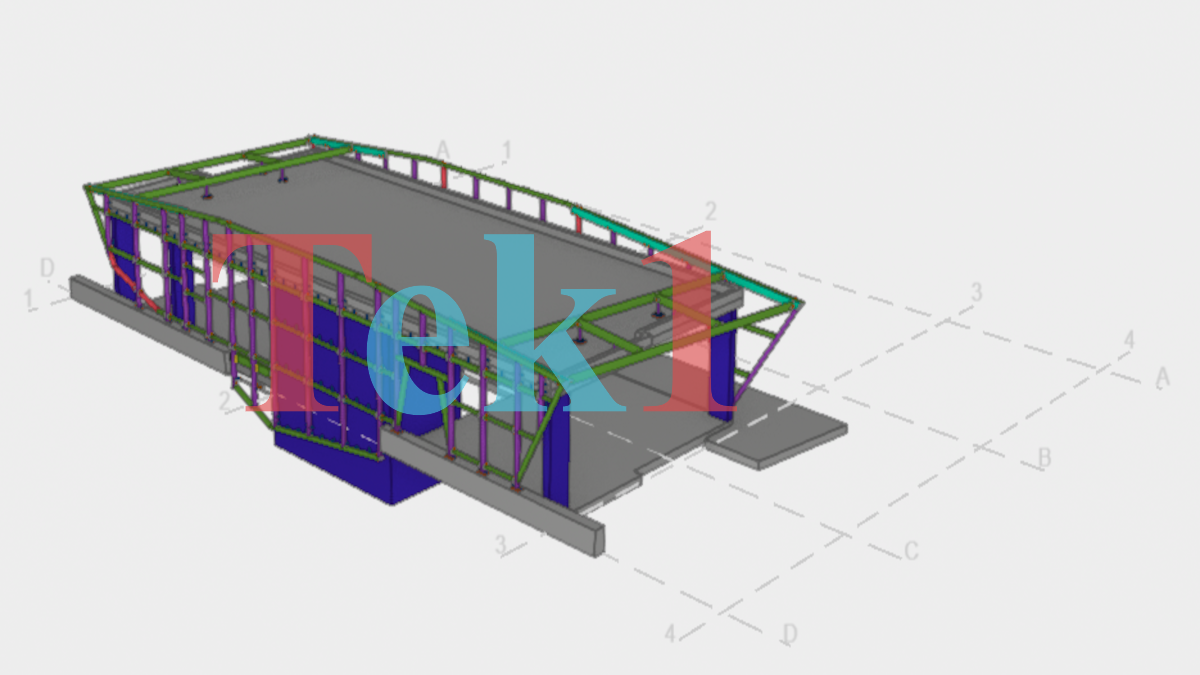
    Bendigo Pedestrian over pass

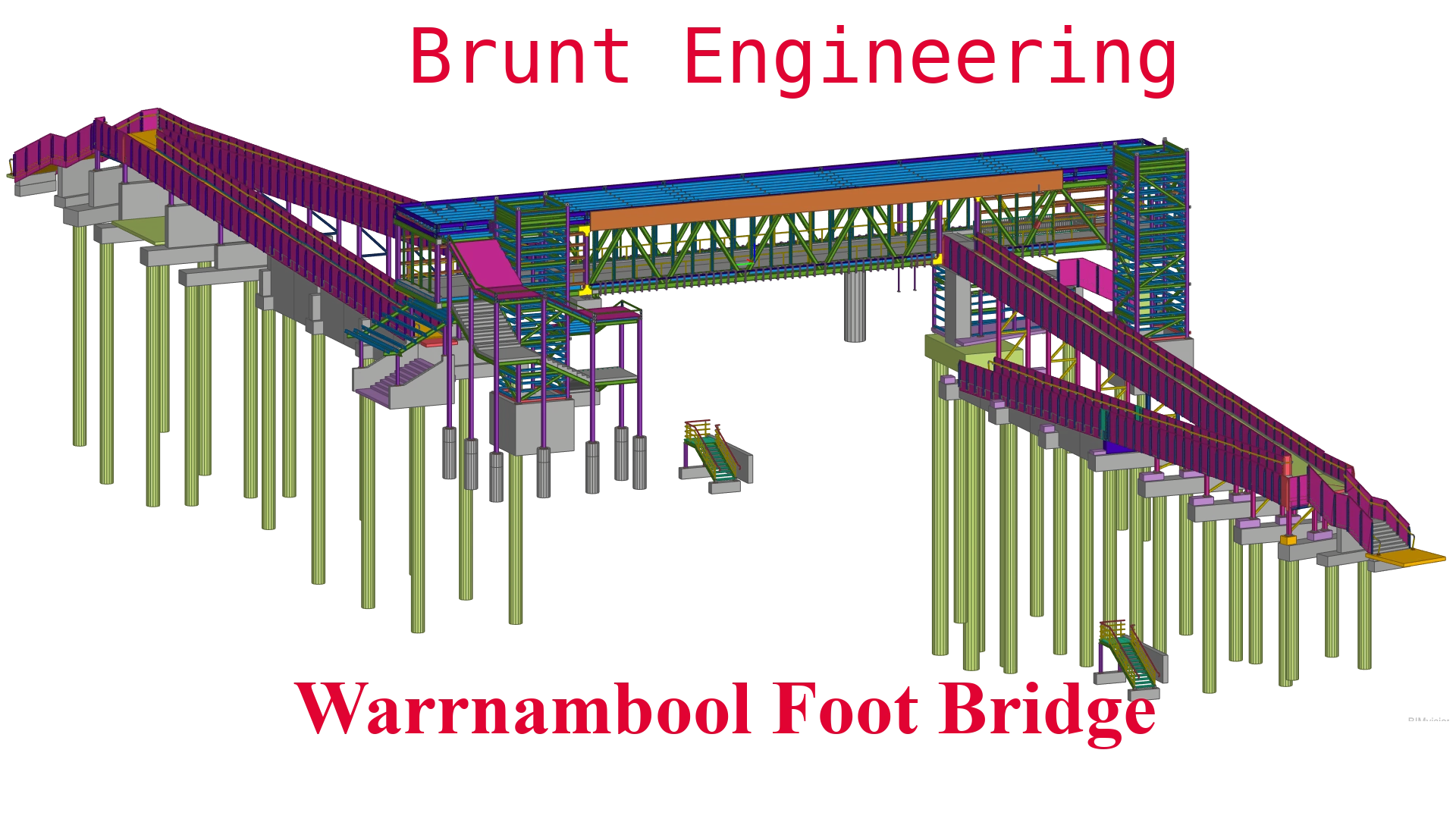
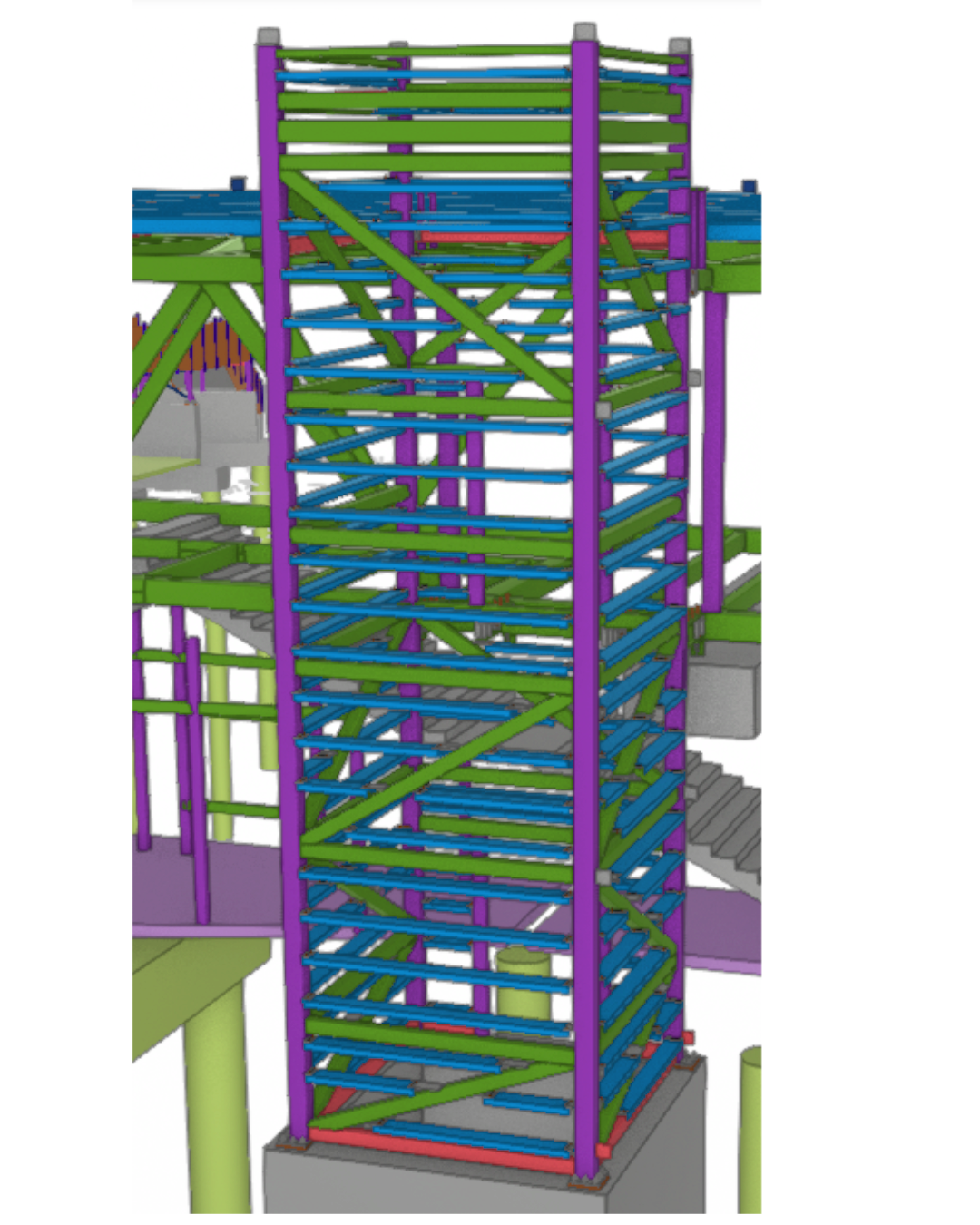
    Just revisiting some old projects. This project was fabricated by Third angle, Detailed by Tek1. One of the early pedestrian bridges detailed by Tek1.

    Many more followed after this.

    Bendigo pedestrian Bridge
  • Tekla Productivity Tool1

    CNTRL + RIGHT CLICK to set start point

    Press X, Y, or Z to Lock the co ordinate as the need may be

    Save time in modelling

  • Tekla Object Locks

    Tekla Structures’ object lock is a crucial feature, particularly in multi-user environments like Tekla Model Sharing, designed to prevent accidental modification and control access to specific model objects and drawings. It acts as a protective measure to maintain model integrity and streamline collaborative workflows.

    Here’s a breakdown of how it works and its key aspects:

    Purpose of Object Locks:

    • Prevent Accidental Modifications: The primary goal is to stop users from unintentionally changing or deleting parts, assemblies, cast units, or drawings that are considered complete or sensitive. This is especially important when multiple users or even different organizations are working on the same shared model.
    • Control Access: It allows you to regulate who can modify specific elements. For example, an organization can lock objects they’ve created to prevent other organizations working on the same project from altering them.
    • Maintain Numbering: Locking objects can prevent changes that would affect the numbering of parts, assemblies, or cast units, which is critical for fabrication and erection.
    • Protect Drawing Integrity: Drawings are linked to the model. Locking drawings helps prevent unintended edits or deletion, especially when they are “issued” or nearing completion.

    How Object Locks Work:

    1. User-Defined Attribute (UDA) “OBJECT_LOCKED”: At its core, Tekla Structures uses a user-defined attribute called “OBJECT_LOCKED.” This is a boolean value (Yes/No or 1/0) that can be applied to various model elements, including:
      • Parts (beams, columns, plates, etc.)
      • Assemblies
      • Cast units
      • Bolts
      • Welds
      • Specific drawing types
      • Reference models (prevents movement and detail updates)
    2. Setting Locks:
      • Manual Locking: You can manually select objects in the model and set their “Locked” UDA to “Yes” through the “Object locks” dialog (Manage > Locks) or the object’s properties.
      • Organization Lock: In Tekla Model Sharing, new assemblies and cast units created by a specific organization can be automatically locked “For others” by default (controlled by the XS_OBJECTLOCK_DEFAULT advanced option). This means only users from that organization can modify them.
      • Drawing Locks: Drawings can also be locked independently through the Document manager.
    3. Effect of Locking:
      • When an object is locked, any attempt to modify it (move, delete, change properties, etc.) will result in a “There are locked objects, see report. The operation could not be performed.” message.
      • Tekla Structures will write the IDs of the locked objects to the session history log, helping you identify what is preventing the operation.
      • Locked drawings can be opened but require manual unlocking to be edited.
    4. Unlocking Objects:
      • Objects can be unlocked by changing their “Locked” UDA back to “No.”
      • The “Object locks” dialog provides a central place to manage locks.
      • There are also methods and even macros to unlock multiple objects or all locked objects in a model, which can be useful if an object becomes “stuck” due to an invisible locked sub-object (e.g., a locked point preventing a part from being unlocked).

    Important Considerations:

    • Hierarchy: If a sub-object within an assembly or cast unit is locked, it can prevent modifications to the entire assembly/cast unit.
    • Tekla Model Sharing: Object locks are particularly vital in shared models to prevent conflicts and ensure smooth collaboration. When a lock is shared, other users will see the locked status.
    • Drawing vs. Freeze: It’s important to distinguish between “locking” and “freezing” drawings. Locking indicates that a drawing should not be edited, while freezing prevents associative objects (like dimensions and marks) from updating automatically due to model changes.
    • Visibility: You might encounter situations where an object seems locked, but you can’t find the lock. This could be due to small, invisible sub-objects being locked. Tekla’s log files provide valuable information in such cases.

    In essence, Tekla Structures’ object lock is a powerful tool for managing and protecting your model data, especially in complex, collaborative projects. It provides a layer of security and control that is essential for efficient and error-free structural modeling.

  • Plate Stringer Sprial Stair

    Expert detailiing of spiral stair with plate stringers.

    Clear drawings and set outs for easy fabrication.

    Here is and example.

    Tek1 has the experience detailing different types of spiral stairs.

    There are challenges for the fabricator. Good drawings help to reduce the issues the fabricator will be facing.

    If you want the Tekla Model for this email me.

    Spiral Stair
  • Missing Dimension

    Today I spent a fair bit of time answering calls about missing dimensions.

    Remember the client spent more time on this. Mulitple people wasted their time because of some in competent detailer.

    It is super critical that at Tek1 we snuff out this problem straight away.

  • Weld Clearance

    Make sure there is sufficent clearance for welds.

    The cost of not providing weld clearance is significant.

    These type of errors chips away at our credibility

  • Purlin Brackets

    Lysaught provides different types of brackets.

    Whe you are modelling choose the appropriate types

  • Venting Holes for Australian Sections

    Vent holes are required for draining molten zinc from the material being galvanised.

    The size and location of the vent holes are important in achieving the vent holes.

    Different sections have differnt vent hole position requirements.

    Vent holes are not just of closed profiles like SHS.

    UBs UCs PFCs etc require vent holes at base plates, cap plates, stiffner plates.

    Also if two SHS comes together cut the wall out.

  • Turn Buckle Lengths

    Please find attached drawings showing how much you need to allow for the turn buckle for future jobs

    For 20mm Rod please allow 550mm

    For 16mm Rod please allow 400mm

    In addition to that please have one side of the solid rod either 500mm or 6000mm and the other side to make up to the required length.