Author: admin

  • How to do some simple projections via AutoCAD’s .net API

    How to do some simple projections via AutoCAD’s .net API

    Projections via AutoCAD’s .net API can be confusing. You need to specify a direction, and a plane, upon which you can project a point to. It can be confusing unless it’s clearly spelled out with an example: see below.:

    // insert the usual references
    
    
    Document doc = Application.DocumentManager.MdiActiveDocument;
    Database db = doc.Database;
    
    using (Transaction tr = db.TransactionManager.StartTransaction())
    {
        BlockTable blockTable = tr.GetObject(db.BlockTableId, OpenMode.ForRead) as BlockTable;
        BlockTableRecord modelSpace = tr.GetObject(blockTable[BlockTableRecord.ModelSpace], OpenMode.ForWrite) as BlockTableRecord;
    
        // the original originalLine
        using (Line originalLine = new Line(Point3d.Origin, new Point3d(5, 5, 0)))
        {
            modelSpace.AppendEntity(originalLine);
            tr.AddNewlyCreatedDBObject(originalLine, true);
    
            // but we want to project it ONTO a plane.
            Plane plane = new Plane(Point3d.Origin,  new Vector3d(0,1,0));
    
            // project the originalLine onto a plane.
            Matrix3d projection = Matrix3d.Projection(plane, - Vector3d.YAxis);                            
    
            Line projectedLine = new Line(originalLine.StartPoint.TransformBy(projection), originalLine.EndPoint.Project(plane, -1 * Vector3d.YAxis));
            plane.Dispose();
    
    
            modelSpace.AppendEntity(projectedLine);
            tr.AddNewlyCreatedDBObject(projectedLine, true);                            
        }
    
        tr.Commit();
    }

  • Design Guide for Galvanizers for Design Guide for Hot Dip Galvanizing – best practice venting and draining.

    Design Guide for Hot Dip Galvanizing - best practice venting and draining
    Design Guide for Hot Dip Galvanizing – best practice venting and draining

    This document outlines the design guide for detailers to provide venting and draining holes for galvanizing.

  • Major Project in Australia

    Ammaroo Phosphate Project

    Australia-Asia Power Link (AAPowerLink)

    Australia-Asia Power Link (AAPowerLink)

    Bonaparte Carbon Capture and Storage ProjectPty Ltd

    Broken Hill Cobalt Project

    Cape Hardy Green Hydrogen Projec

    Gonneville Critical Minerals Project

    Goschen Rare Earth Mineral Sands Project

    Kalgoorlie Nickel Project

    Download Excel

  • Steel Detailing Tips – How to fix “path” too long errors

    Steel Detailing Tips – How to fix “path” too long errors

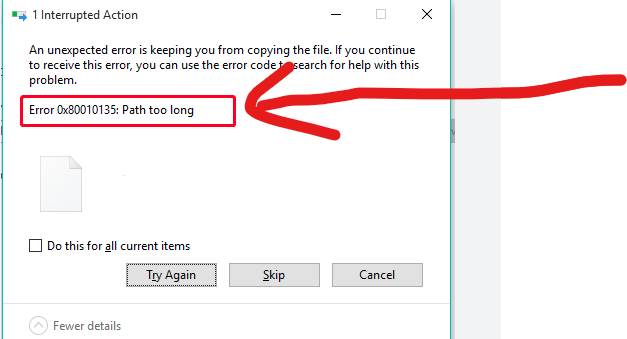
    In the construction business – you will often find yourself zipping / unzipping large sets of documents, and copying them from A to B etc. Often when dealing with deeply nested folder structures, you will get an error – regarding long path names. Like this:

    Path too long error.

    This is especially annoying if you are copying large sets of documents.

    Ordinarily I would suggest that clients avoid deeply nested folder structures – but then I thought: who am I to presume to how anyone should structure their affairs?

    Why not allow for long file paths in the first place? This is how you can do it?

    • In the Administrator terminal, run the following command

    Set-ItemProperty 'HKLM:\SYSTEM\CurrentControlSet\Control\FileSystem' -Name 'LongPathsEnabled' -Value 1

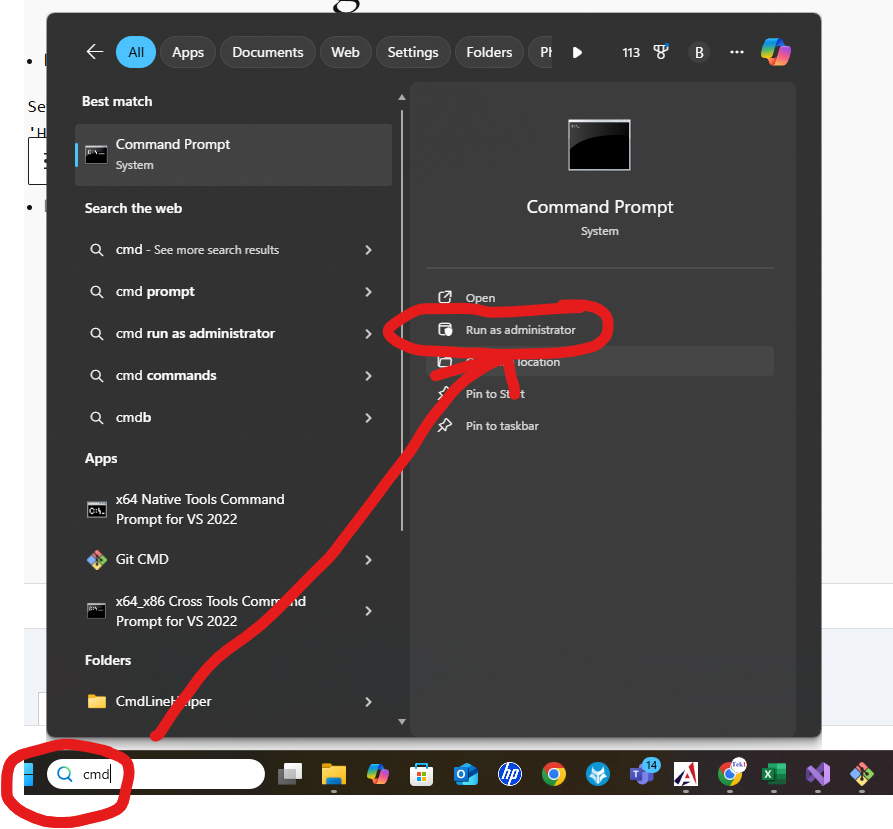
    Here’s how to open the terminal in admin mode:

    • So to the Windows search bar.
    • Type in “CMD”
    • Then click on “Run as administrator”

    How you can unzip deeply nested folder structures, in your own deeply nested folder.

  • Tekla Open API: How to access a Tekla Model Object from the Equivalent Object in a Drawing?

    Tekla Open API: How to access a Tekla Model Object from the Equivalent Object in a Drawing?

    The trick is to use to the drawing’s “PartIdentifier” to select the relevant object in the model space.

    Once you’ve done that, you can query the model object for whatever you want.

    Here is a code sample I’ve extracted from one of our Tekla API Applications. The basic steps:

    • Get the Drawing
    • Get the part identifier
    • Select it in the model
    SinglePartDrawing singlePartDrawing = (SinglePartDrawing)drawing;
    Tekla.Structures.Model.ModelObject modelObject = model.SelectModelObject(singlePartDrawing.PartIdentifier);
    Tekla.Structures.Model.Part part = (Tekla.Structures.Model.Part)modelObject;

  • QR Code on Drawings

    We are now placing smart QR codes on drawings. Why? What benefit is accrued by doing so?

    1. You can see a 3d view of an assembly.
    2. You can conduct spot measurements of the assembly.
    3. You can check whether your drawing is the latest revision.
    4. You can add markups directly to a document number – and see it’s revisions over time

    Instructions on how to make it work

    • Set up a project on prolox.io
    • Get the project’s public access token.
    • Log into the Prolox’s Tekla’s client application. Use your prolox login email and password and the project’s public access token.
    • Using Tekla 2023 and with the relevant model open (please open only 1 model) – run the client code.
    • All the values will be updated.

    Rules – To prevent obsolete data from being used or shown

    • If you update the model, you must re-upload the IFC file in prolox.
    • If you update the revision number, you must re-do the prolox Tekla client program. This will update the revision numbers in prolox.
    • If you delete a drawing you must update the revision number for the deleted drawing and re-run the TeklaQRCode program. (so that all revision numbers are updated on the cloud, and so that if anyone scans an old drawing, they will be immediately notified.)

    Updating the Drawings:

    • When you update the drawing PLEASE USE THE SAME REPOSITORY. This is so that we can have old revisions.

    Setting up the template

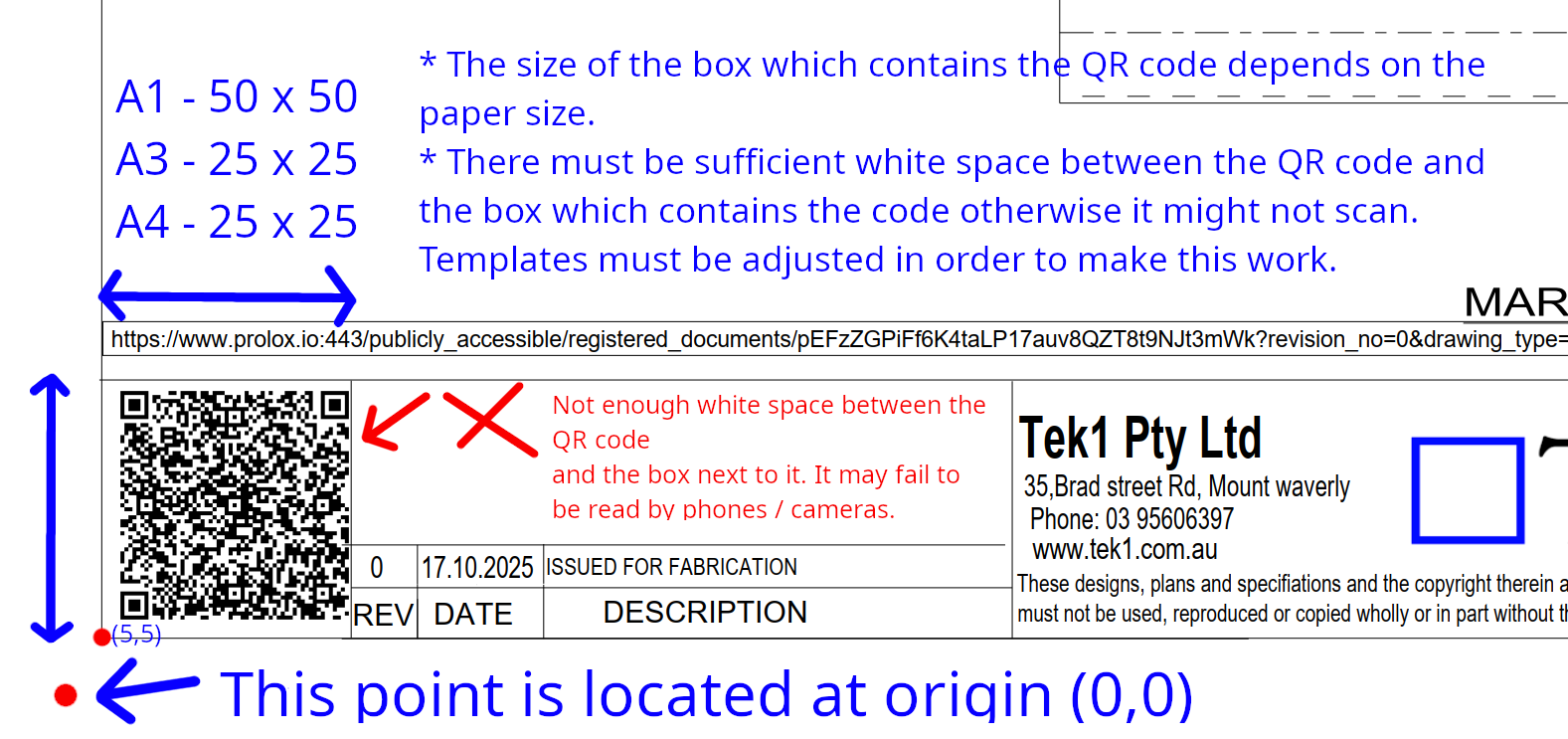
    • You must set up the drawing template to that the QR Code program works and puts the QR code in the right location. If you don’t set it up properly it will fail.
    • Assume each page has an origin point of (0,0) at the bottom left hand side of the page.
    • The drawing template’s borders start at (5,5).
    • There must be a good amount of white space between the QR code and borders, otherwise the QR code may fail to be read. Which means the entire thing fails.
    QR standards / documentation.

  • Dont Lose time with missing dimensions

    Do you loose time with missing dimensions

    Have you ever used the wrong revision?

    Here is what is cooking at Tek1.

    If you would lik to to know more

    Here is a solution where you can scan the QR code and bring up the assembly model. know the revision number of the drawing which you should be using

    you may visite tek1.com.au for more information

  • Section Profiles for SS and Aluminium

    If you are detailing Aluminium or SS sections always confirm the section profiles.

    If you model without that confirmation, there is good chance that you will be spending additional hours and it will be wasted time for all