Author: admin

  • QR Code on Drawings

    We are now placing smart QR codes on drawings. Why? What benefit is accrued by doing so?

    1. You can see a 3d view of an assembly.
    2. You can conduct spot measurements of the assembly.
    3. You can check whether your drawing is the latest revision.
    4. You can add markups directly to a document number – and see it’s revisions over time

    Instructions on how to make it work

    • Set up a project on prolox.io
    • Get the project’s public access token.
    • Log into the Prolox’s Tekla’s client application. Use your prolox login email and password and the project’s public access token.
    • Using Tekla 2023 and with the relevant model open (please open only 1 model) – run the client code.
    • All the values will be updated.

    Rules – To prevent obsolete data from being used or shown

    • If you update the model, you must re-upload the IFC file in prolox.
    • If you update the revision number, you must re-do the prolox Tekla client program. This will update the revision numbers in prolox.
    • If you delete a drawing you must update the revision number for the deleted drawing and re-run the TeklaQRCode program. (so that all revision numbers are updated on the cloud, and so that if anyone scans an old drawing, they will be immediately notified.)

    Updating the Drawings:

    • When you update the drawing PLEASE USE THE SAME REPOSITORY. This is so that we can have old revisions.

    Setting up the template

    • You must set up the drawing template to that the QR Code program works and puts the QR code in the right location. If you don’t set it up properly it will fail.
    • Assume each page has an origin point of (0,0) at the bottom left hand side of the page.
    • The drawing template’s borders start at (5,5).
    • There must be a good amount of white space between the QR code and borders, otherwise the QR code may fail to be read. Which means the entire thing fails.
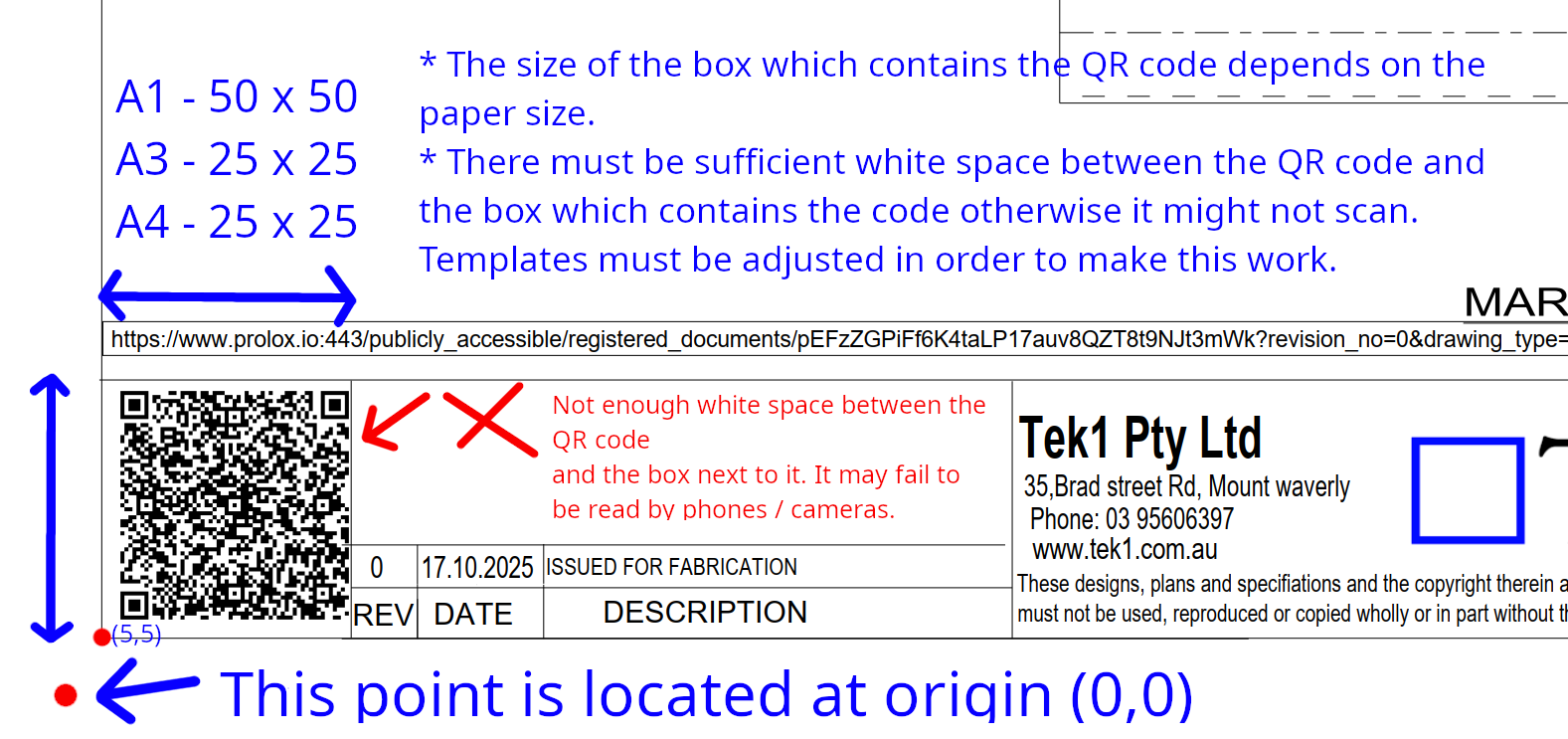
    QR standards / documentation.

  • Dont Lose time with missing dimensions

    Do you loose time with missing dimensions

    Have you ever used the wrong revision?

    Here is what is cooking at Tek1.

    If you would lik to to know more

    Here is a solution where you can scan the QR code and bring up the assembly model. know the revision number of the drawing which you should be using

    you may visite tek1.com.au for more information

  • Section Profiles for SS and Aluminium

    If you are detailing Aluminium or SS sections always confirm the section profiles.

    If you model without that confirmation, there is good chance that you will be spending additional hours and it will be wasted time for all

  • Memo 49: Context Switching – Projects Placed on Hold – Add an Invoice

    • You work on a project spending a lot of time on it e.g. three weeks on it. And then the client says: “actually, we want to place the project on hold”. That’s fine – but the question remains: as a detailer – what should you do?

    If a project gets placed on hold, you should immediately invoice a pro-rata amount for the work that is completed.

    • Let us consider a second scenaro: you work on a project for three weeks, and then you issue for IFA. And then the client puts the project “on hold”. 3-4 MONTHS later, the client returns you the approvals and wants you to immediately issue IFC. What do you do now?

    The costs of Picking up a project after forgetting it

    • Looking through our list, we have some 20-50+ projects that are “on hold”. Yet we are carrying the project for weeks (and sometimes months). In that time – we incur risks and expense: the project must be stored somewhere, and intimate knowledge required on the project must be stored / managed. You may forget this information when you return to the project, it is all a little “rusty” when you return, the chance of mistakes increases, sometimes, important staff may leave the firm, taking with them context specific to a particular project. All of this will affect your ability to deliver quickly, effectively, and without mistakes.

    The Costs of Context Switching

    If a client demands that a project be completed NOW, then you have to stop what you are currently doing, figure out the entire context of a project (that was placed on hold many months ago), and then you have to restart and complete it, now.

    That is not easy.

    You Must Charge

    You have to charge for that. Feel free to charge 5-6 hours for this.

    There is a cost and risk associated with delays. It does not come for free.

  • Precast Panels with Tekla Structures

    This is probably first precast project we have attempted with tekla structures as the tool.

    We have done a few with Revit, and lot with Autocad.

    There is raging argument with no one really know (unless one has walked in the weeds) which is a better tool

    I believe no tool as out of the box is really very good.

    Tek1 has been working some using Autocad, develping lot of tools for detailing precast panels.

    Once something is very useful, everyone wants to steal that.

    Code protection is very vital to maintain any sort of edge.

  • pedestrian over pass

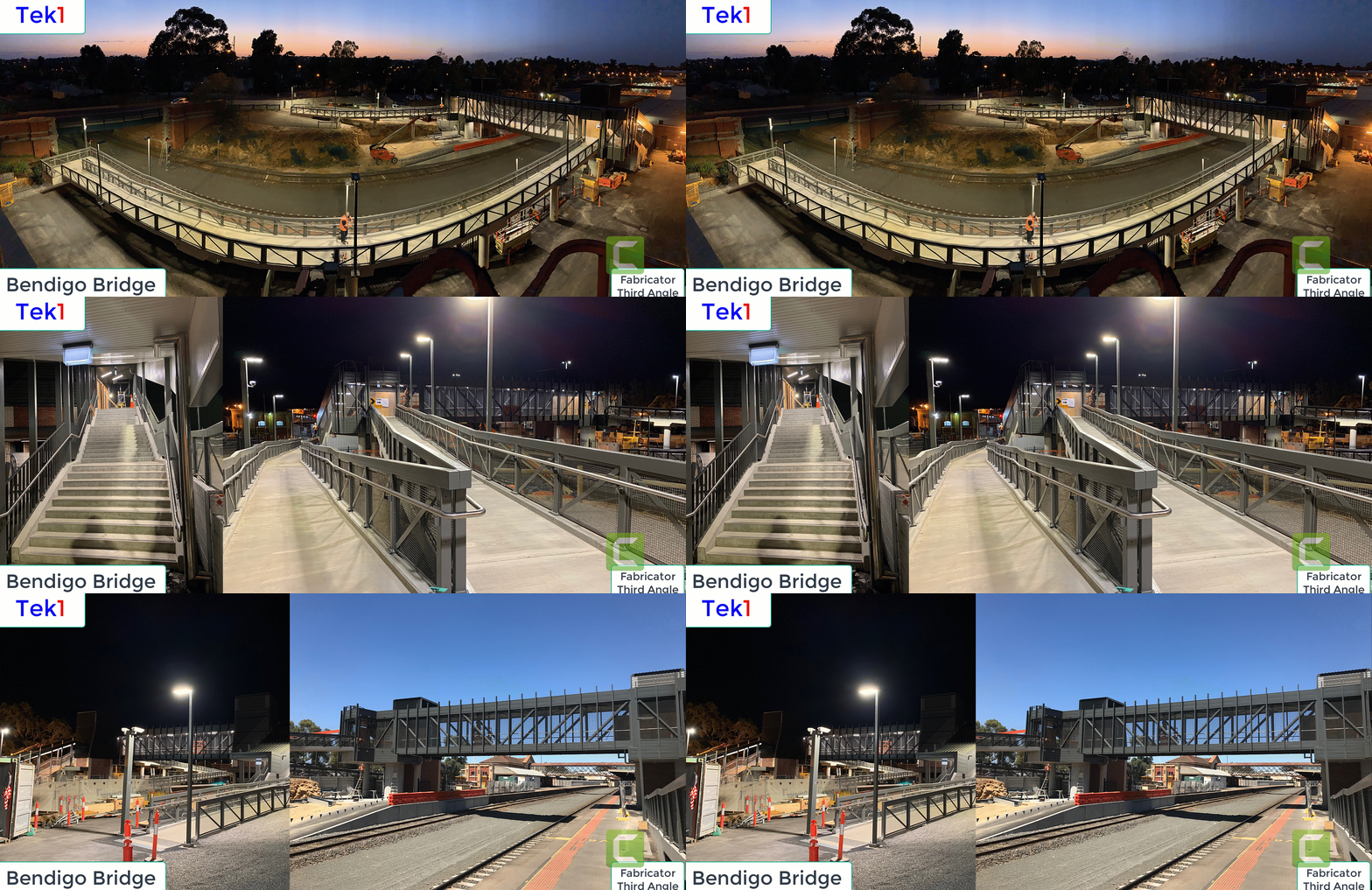
    Bendigo Pedestrian over pass

    Just revisiting some old projects. This project was fabricated by Third angle, Detailed by Tek1. One of the early pedestrian bridges detailed by Tek1.

    Many more followed after this.

    Bendigo pedestrian Bridge
  • Tekla Productivity Tool1

    CNTRL + RIGHT CLICK to set start point

    Press X, Y, or Z to Lock the co ordinate as the need may be

    Save time in modelling

  • Tekla Object Locks

    Tekla Structures’ object lock is a crucial feature, particularly in multi-user environments like Tekla Model Sharing, designed to prevent accidental modification and control access to specific model objects and drawings. It acts as a protective measure to maintain model integrity and streamline collaborative workflows.

    Here’s a breakdown of how it works and its key aspects:

    Purpose of Object Locks:

    • Prevent Accidental Modifications: The primary goal is to stop users from unintentionally changing or deleting parts, assemblies, cast units, or drawings that are considered complete or sensitive. This is especially important when multiple users or even different organizations are working on the same shared model.
    • Control Access: It allows you to regulate who can modify specific elements. For example, an organization can lock objects they’ve created to prevent other organizations working on the same project from altering them.
    • Maintain Numbering: Locking objects can prevent changes that would affect the numbering of parts, assemblies, or cast units, which is critical for fabrication and erection.
    • Protect Drawing Integrity: Drawings are linked to the model. Locking drawings helps prevent unintended edits or deletion, especially when they are “issued” or nearing completion.

    How Object Locks Work:

    1. User-Defined Attribute (UDA) “OBJECT_LOCKED”: At its core, Tekla Structures uses a user-defined attribute called “OBJECT_LOCKED.” This is a boolean value (Yes/No or 1/0) that can be applied to various model elements, including:
      • Parts (beams, columns, plates, etc.)
      • Assemblies
      • Cast units
      • Bolts
      • Welds
      • Specific drawing types
      • Reference models (prevents movement and detail updates)
    2. Setting Locks:
      • Manual Locking: You can manually select objects in the model and set their “Locked” UDA to “Yes” through the “Object locks” dialog (Manage > Locks) or the object’s properties.
      • Organization Lock: In Tekla Model Sharing, new assemblies and cast units created by a specific organization can be automatically locked “For others” by default (controlled by the XS_OBJECTLOCK_DEFAULT advanced option). This means only users from that organization can modify them.
      • Drawing Locks: Drawings can also be locked independently through the Document manager.
    3. Effect of Locking:
      • When an object is locked, any attempt to modify it (move, delete, change properties, etc.) will result in a “There are locked objects, see report. The operation could not be performed.” message.
      • Tekla Structures will write the IDs of the locked objects to the session history log, helping you identify what is preventing the operation.
      • Locked drawings can be opened but require manual unlocking to be edited.
    4. Unlocking Objects:
      • Objects can be unlocked by changing their “Locked” UDA back to “No.”
      • The “Object locks” dialog provides a central place to manage locks.
      • There are also methods and even macros to unlock multiple objects or all locked objects in a model, which can be useful if an object becomes “stuck” due to an invisible locked sub-object (e.g., a locked point preventing a part from being unlocked).

    Important Considerations:

    • Hierarchy: If a sub-object within an assembly or cast unit is locked, it can prevent modifications to the entire assembly/cast unit.
    • Tekla Model Sharing: Object locks are particularly vital in shared models to prevent conflicts and ensure smooth collaboration. When a lock is shared, other users will see the locked status.
    • Drawing vs. Freeze: It’s important to distinguish between “locking” and “freezing” drawings. Locking indicates that a drawing should not be edited, while freezing prevents associative objects (like dimensions and marks) from updating automatically due to model changes.
    • Visibility: You might encounter situations where an object seems locked, but you can’t find the lock. This could be due to small, invisible sub-objects being locked. Tekla’s log files provide valuable information in such cases.

    In essence, Tekla Structures’ object lock is a powerful tool for managing and protecting your model data, especially in complex, collaborative projects. It provides a layer of security and control that is essential for efficient and error-free structural modeling.

  • Plate Stringer Sprial Stair

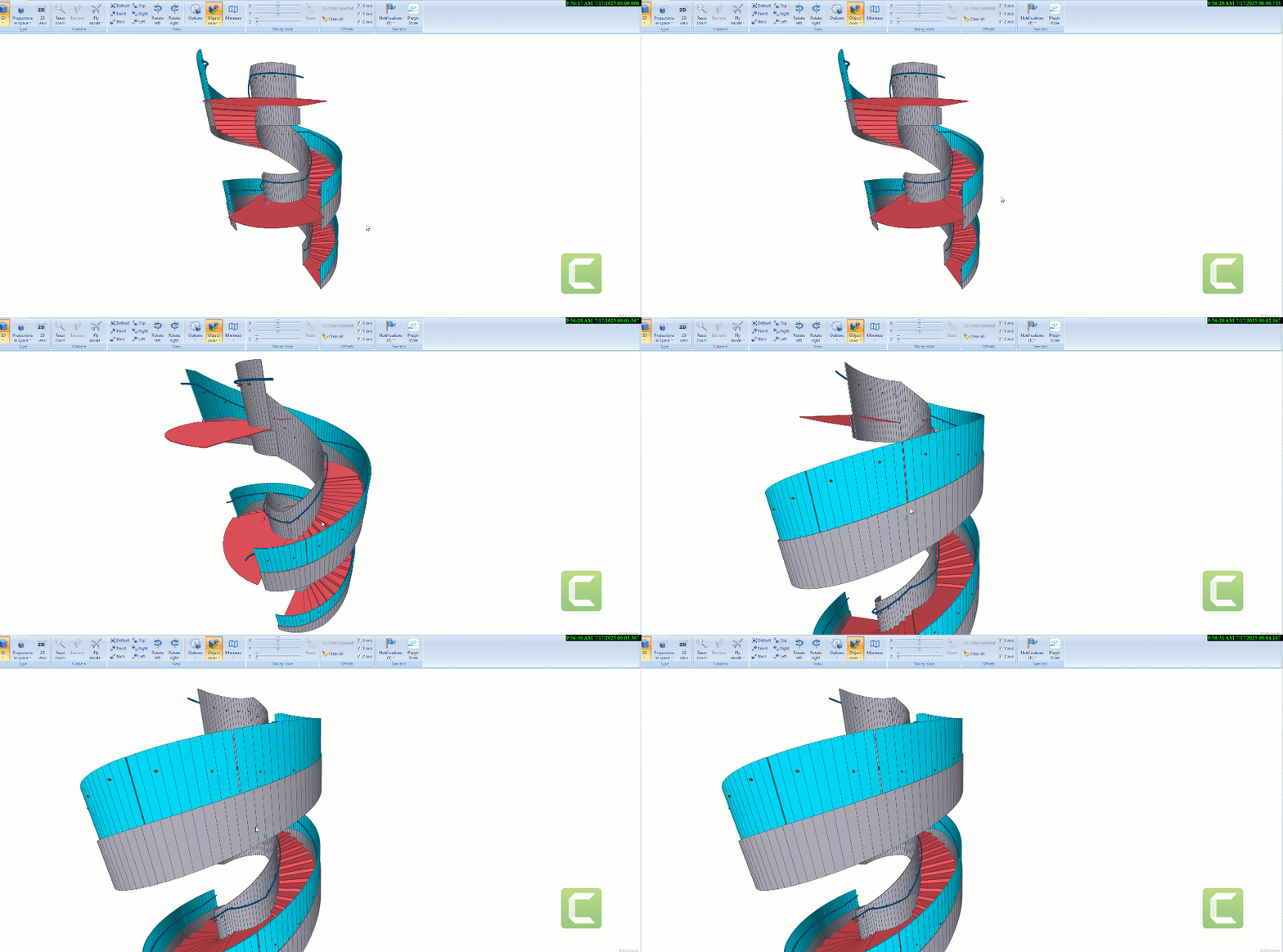
    Expert detailiing of spiral stair with plate stringers.

    Clear drawings and set outs for easy fabrication.

    Here is and example.

    Tek1 has the experience detailing different types of spiral stairs.

    There are challenges for the fabricator. Good drawings help to reduce the issues the fabricator will be facing.

    If you want the Tekla Model for this email me.

    Spiral Stair