Ever wondered how to automate the processes in modeling of steel structures, increase efficiency and accuracy. Grasshopper has got all the answers. Grasshopper is a visual programming interface like the Dynamo we saw in the previous blogs. It is built in within the 3D modeling software called Rhino. Tekla has released a link which enables algorithmic modeling for Tekla Structures using Rhino/Grasshopper. Even the toughest and tiresome models can be easily created using the Grasshopper-Tekla Live Link provided you have a strong visualization capacity and good understanding of the underlying geometry.
We have tried using it for our jobs and it provides great flexibility to alter the parameters. One of the job we used for is creating a Spiral stair and the process was pretty easy and we got accurate results. Another challenging job we experimented was the outer framing for cladding panels, along the sides of a bridge which had a tricky geometry. Have a look at these in the following video.
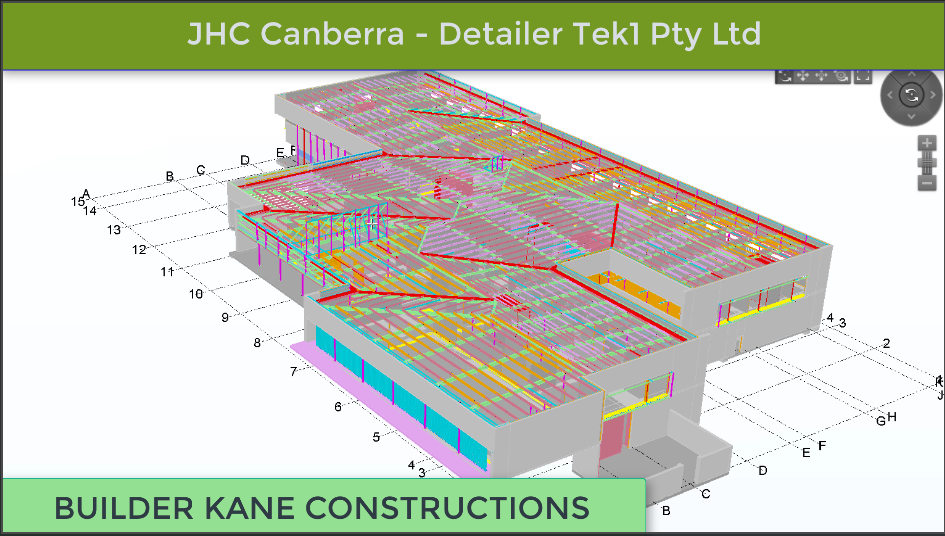
Kudos to the engineers and architects on this project. Their support had been brilliant. We have never come across another engineer or architect who had been so prompt in resolving issues on this project. We were able to complete this project very quickly mainly because of the super support i
JHC Canberra
n resolving RFIs from the engineers architect and the builder. The builder is Kane Constructions.
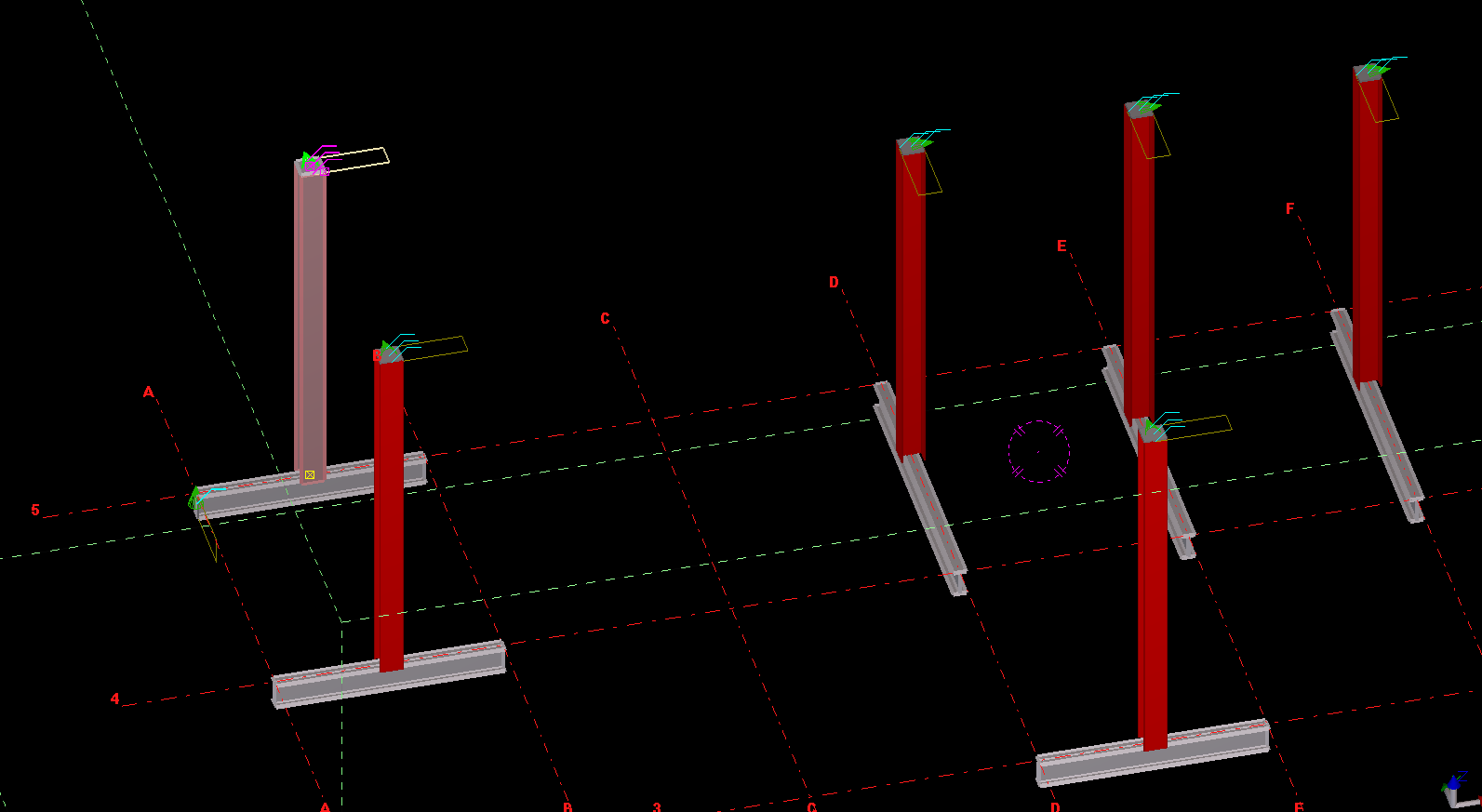
An example of us copying a column from one object, to the rest – to the rest of the beams.
What is the task at hand? We want to make the Copy Object To Object command more efficient
There is a nifty little command – little oft used in Tekla. The “Copy Object To Object” command. It’s handy, but it could be made better: all the model objects have to be selected individually. That can be a little bit of a pain. In this lesson we will create some code, using the Open API, to allow users to select multiple objects (all at once) by which the copy object to object command can be applied to.
Where is the pertinent Call in the API? I’d prefer this type of thing to be a method on the relevant ModelObject. But it’s static method in the Operation class. Here is the hello world example, straight from the documentation:
Copying Object to Object – Hello World Example:
This is fantastic! Now let us outline what we want the command to do:
What do we want our command to do?
We want the user to select an object (or group of objects).
We then want the user to select a “source” object.
We want the user to then select all objects to copy to.
The program should then use the parent object as a source, and use that as a reference to copy everything selected in step #1 to all the objects selected in step #3.
1. Ask the user to select a bunch of model objects – The objects to copy
We can use the Picker class, located in the Tekla.Structures.Model.UI namespace. And there is a handy object which thankfully has been exposed: PickObjects(Picker.PickObjectsEnum, String). This returns a ModelObjectEnumerator which we can iterate over.
2. Ask the user to select the source object:
You can get the source object in the same manner as the above code – except you would use the PickObject method instead of the PickObjects (plural) method.
3. Ask the user to select the objects to copy to:
We can use the same method used in step 1.
4. Copy from Object To Object
The rest is as easy as A-B-C:
5. Finally, we want to Redraw Views after the Copying Operation has completed
In this video we are going to learn how to make selections.
Pick Selection:
Single objects can be selected by holding down the mouse key.
Multiple objects can be picked by holding down the Ctrl or Shift key. if one object has to be deselected from the selected use Ctrl+ mouse key to deselect.
Drag Selection:
To select multiple object with a single drag of the mouse. Hold down the mouse key and drag
Right to Left: Objects that are fully or partly inside the drag window will be selected.
and
Left to Right: Objects that are fully inside the drag window will only be selected.