Author: admin
-
Memo 50: When coordinating with others, you have to charge; When the scope changes, your price need not change simply
When coordinating with others, you have to charge; When the scope changes, you price need not change simply; (A) Prices need not be reduced by crossing out a line item Please see below: Hi Koshy, Sorry to do this, but we will need to remove line item 5 from the invoice. The structural steel components…
-
Bubble Deck Sample Drawings
Typical Details Provided by Client These details could be different for each job. Check the details provided by client. If missing ask. The detail Nos will be different. Use what is specific for the job Temp Hand Rail 280 thk with Set down, Rebate on Final Slab for curtain wall BD280 Typical Section (Includes 50…
-
How to Scope your project, and why?
Why scope? Scope must be white listed in. Clear Unambiguous Objective: Summary:
-
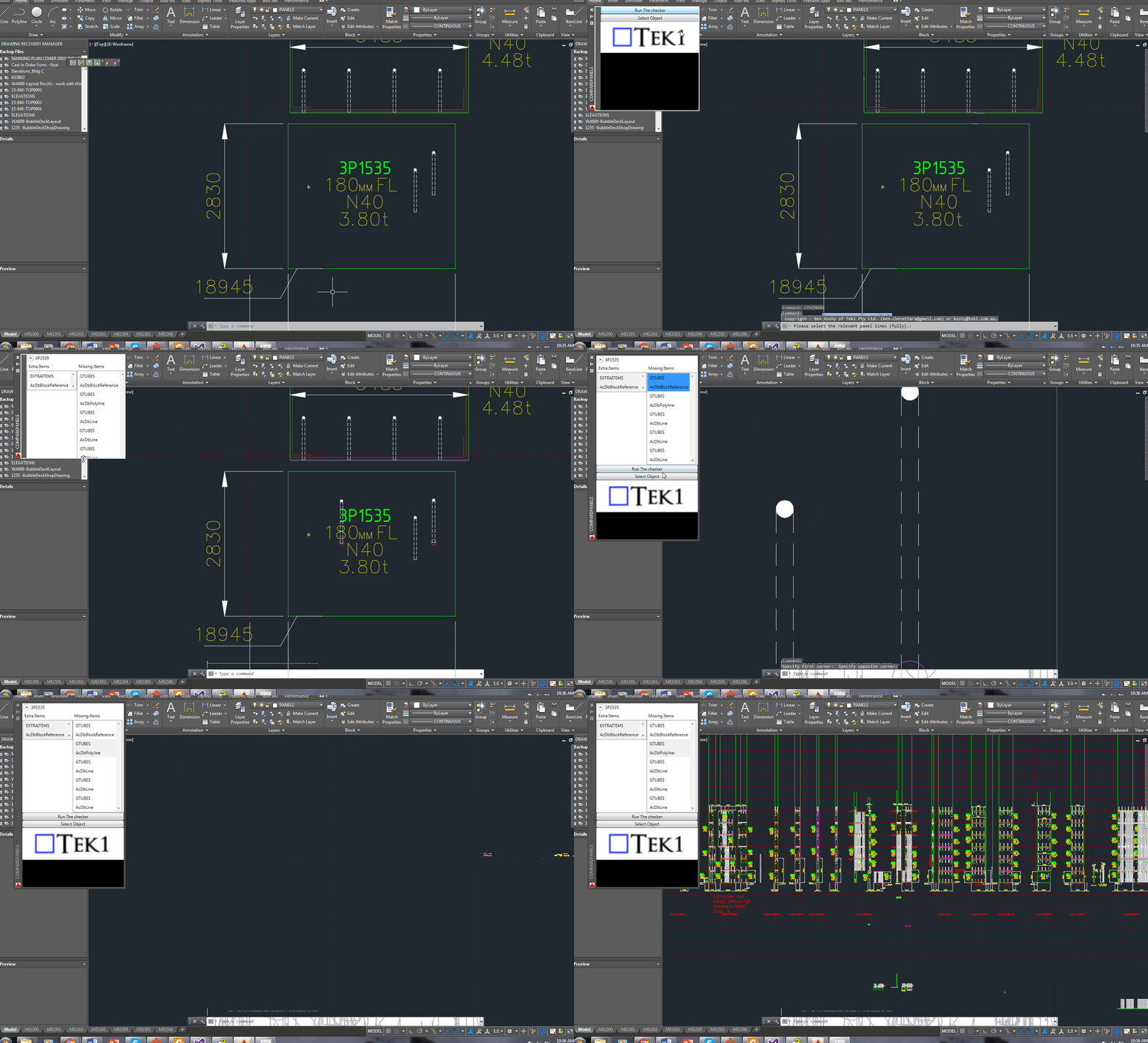
How to do some simple projections via AutoCAD’s .net API
Shows how to conduct a basic projection using AutoCAD’s .net API
-
Design Guide for Galvanizers for Design Guide for Hot Dip Galvanizing – best practice venting and draining.
This document outlines the design guide for detailers to provide venting and draining holes for galvanizing.
-
Major Project in Australia
Ammaroo Phosphate Project Australia-Asia Power Link (AAPowerLink) Australia-Asia Power Link (AAPowerLink) Bonaparte Carbon Capture and Storage ProjectPty Ltd Broken Hill Cobalt Project Cape Hardy Green Hydrogen Projec Gonneville Critical Minerals Project Goschen Rare Earth Mineral Sands Project Kalgoorlie Nickel Project Download Excel
-
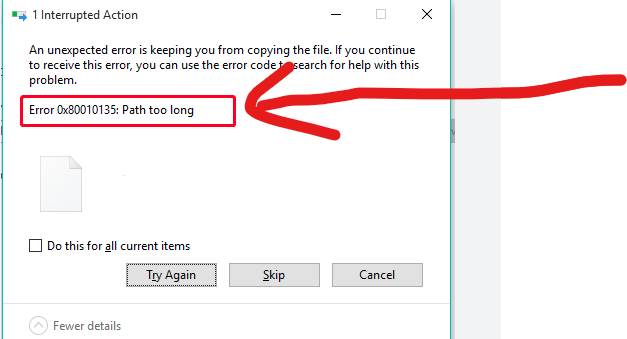
Steel Detailing Tips – How to fix “path” too long errors
In the construction business – you will often find yourself zipping / unzipping large sets of documents, and copying them from A to B etc. Often when dealing with deeply nested folder structures, you will get an error – regarding long path names. Like this: This is especially annoying if you are copying large sets…
-

Tekla Open API: How to access a Tekla Model Object from the Equivalent Object in a Drawing?
The trick is to use to the drawing’s “PartIdentifier” to select the relevant object in the model space. Once you’ve done that, you can query the model object for whatever you want. Here is a code sample I’ve extracted from one of our Tekla API Applications. The basic steps: SinglePartDrawing singlePartDrawing = (SinglePartDrawing)drawing;Tekla.Structures.Model.ModelObject modelObject =…