Author: admin
-
Help Fabricators Claim Their Costs
When something changes, this is what Fabricators want:
- They want the updated Steel Reports:
- Steel has a cost.
- Labour has a cost.
- Welding has a cost.
- Cranage has a cost.
They also want:
2. An updated IFC model, with a short summary:
3. How much more steel is required:
- 3 tonnes more steel. See the attached IFC model (or at least a link to it).
- They want the updated Steel Reports:
-
Staff Memo #17 – Solve client’s problems
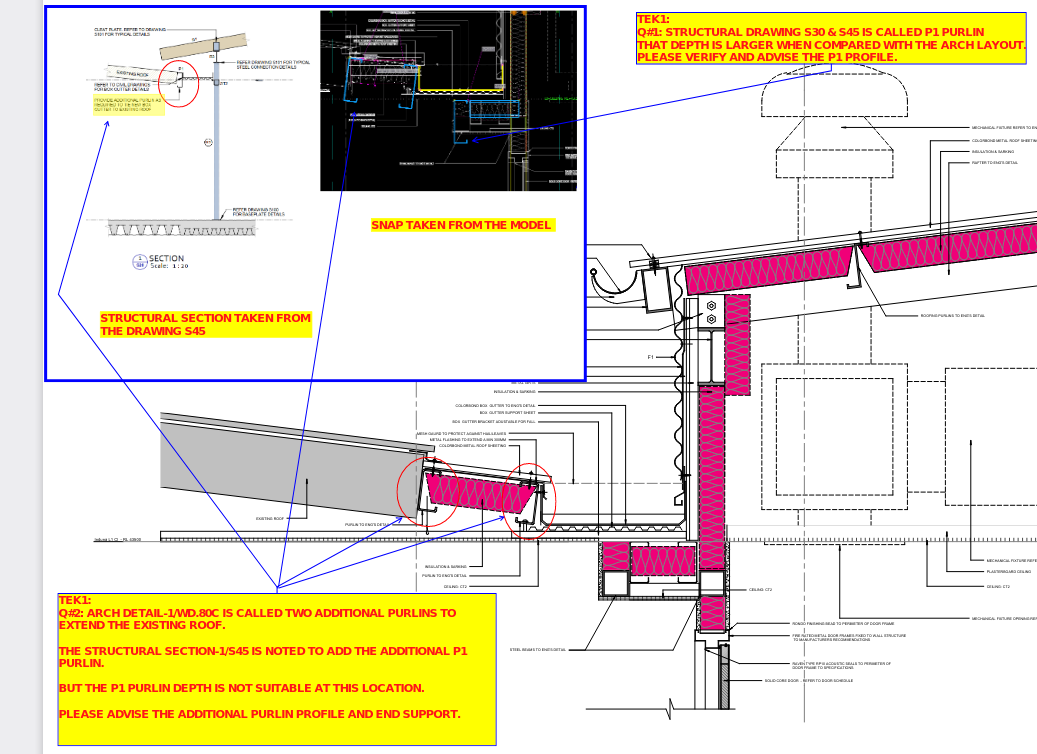
Team, your job is to identify problems and also provide solutions. See this example below:
Hi,
Please clarify the below listed Questions.Q#1: Structural drawing S30 & S45 is called P1 purlin
That depth is larger when compared with the Arch layout.
Please verify and advise the P1 profile.
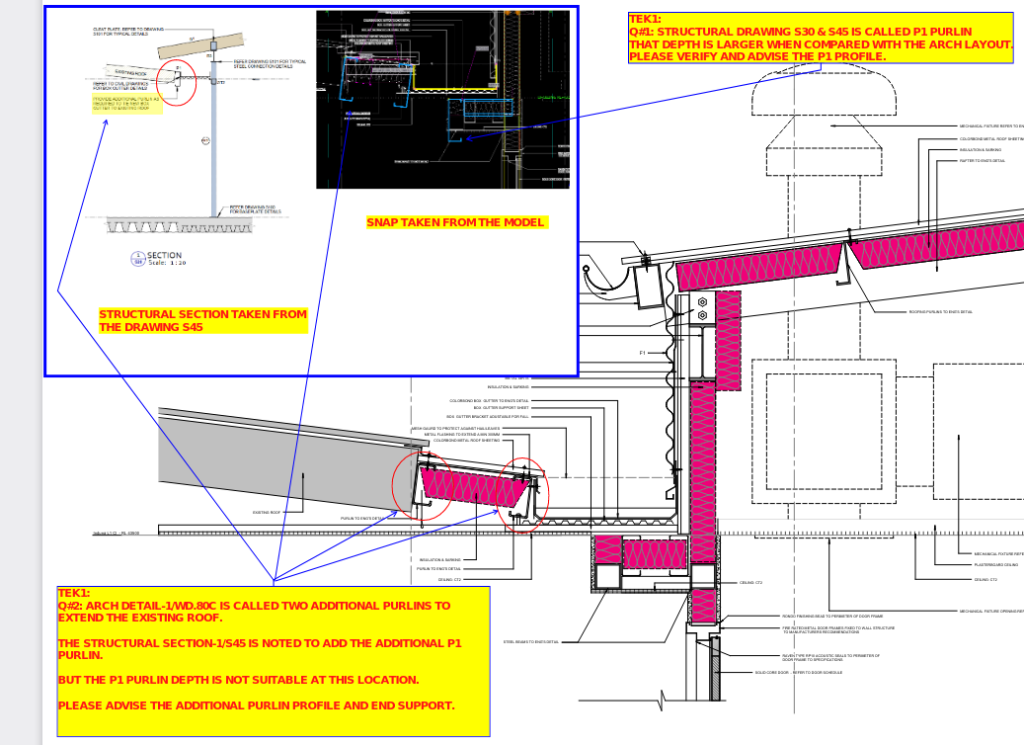
Has done a great job with the markups which identify the problem Question: What has the detailer done well, and what is wrong with the above?
Answer: The detailer has done a fanastic job:
- identifing the problem (This saves our client: money / time saved).
- Has communicated the problem clearly (in writing + markups).
- ….but then he stops and asks: “please advise”!
What’s wrong with that?
- It doesn’t propose a solution!
- The consultants will have to spend time coming up with a solution. It delays the entire project. What is easier for the consultant: to do all the markups to solve the problem, or to simply reply:
“I approve your suggested changes”
Make it easy for consultants! If you can SOLVE problems, rather than identify them, we will be more valuable to clients because it minimises delays and allows the project to finish quickly.
Why should I care?
Because then you can get better clients, at better rates: it is very valuable to them.
-
Staff Memo #16 – If a Client asks for you by name – Extra bonus will come your way
If a client asks for a specific detailer to do his / her job, then you’re going to be getting a nice little bonus – more than the normal amount.
Why should I care to get repeat work?
- This will encourage you to look after your clients, on all your jobs, and to get more work from those same clients.
- I will invoice the client a little bit more, because he is restricting me on how I should do the job, and secondly, because I need to pay you more.
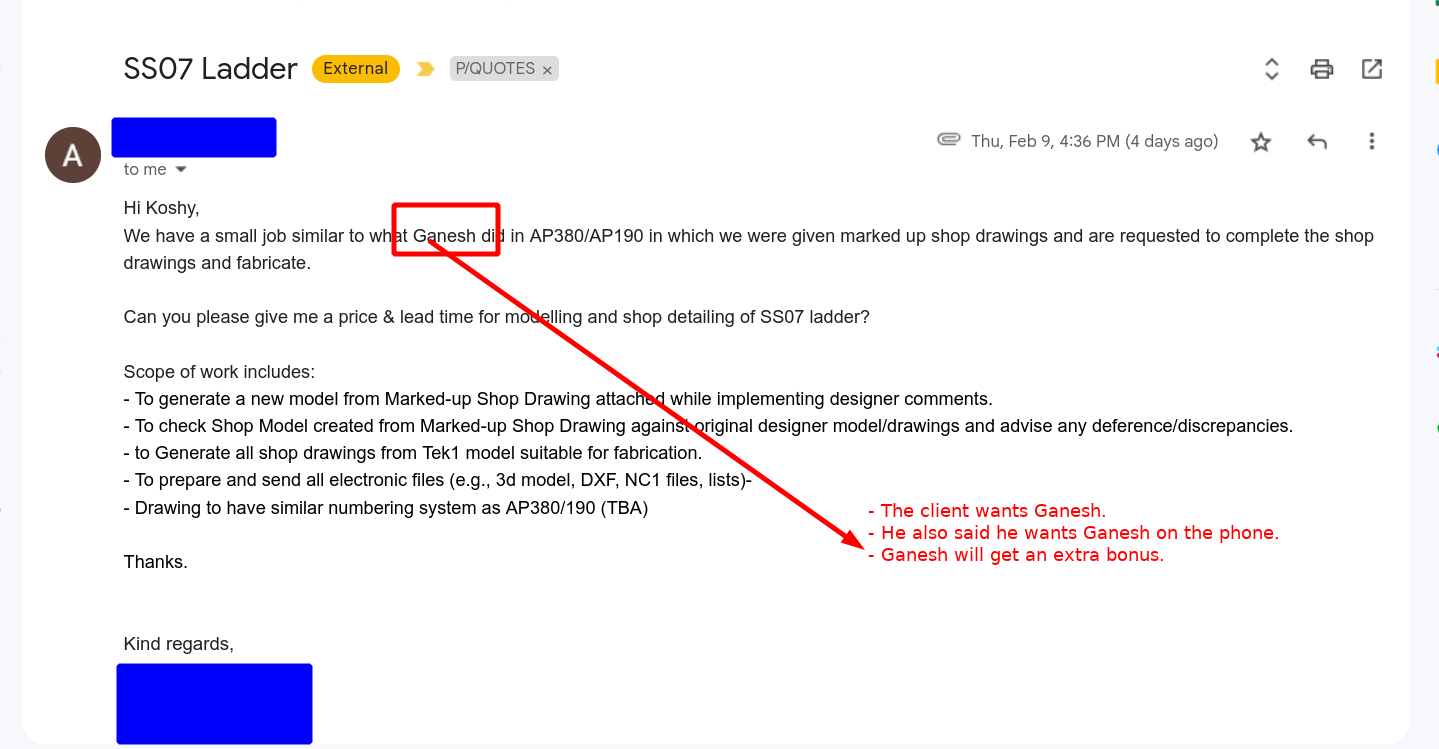
Case Study – Ganesh:
- A client called me and he said that he wants Ganesh to do his job. Ok, then Ganesh is gonna get a nice little bonus for his efforts. See proof below:
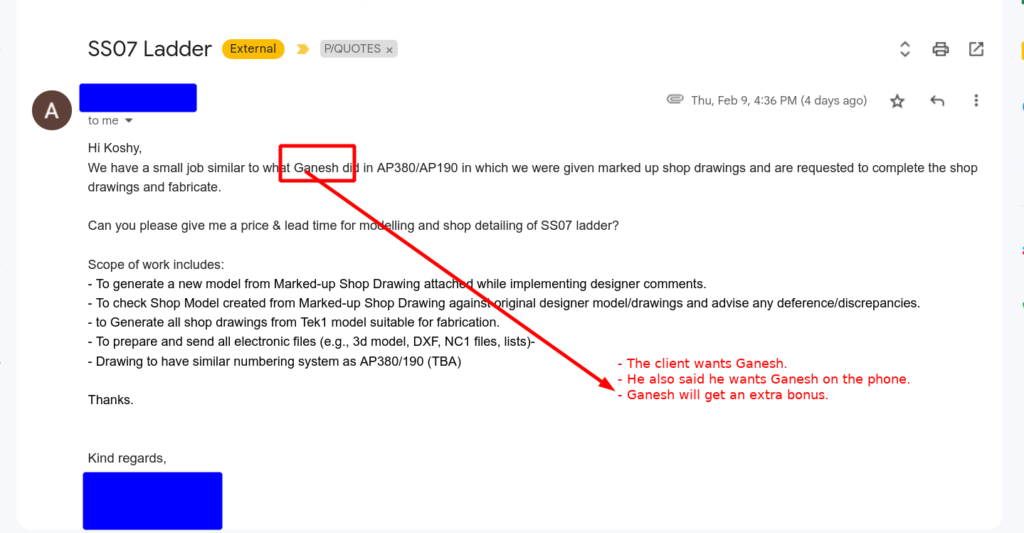
What this means?
- Watch out: this is a warning to you: if clients aren’t asking for your name, remember the words of Jesus:
Whoever has will be given more, and they will have an abundance. Whoever does not have, even what they have will be taken from them.
Matthew 13:11–12Clients will prefer those who already work for them. This means, if you don’t look after your existing clients, they will not come back, let alone come back to you. Watch out!
-
Tek1 Memo #15 – Documenting Variations
Variation Documentation – Policy
All changes / variations are to be logged as variations on the Quote App. No exceptions.
- You will get paid.
- You will help the client get paid.
- Most importantly: you are documenting risk / delays.
Why must it go in the app?
What if I don’t do it?
- Nobody gets paid: neither yourself, nor your employer, nor your client.
- If you don’t do it: the job is more likely to go bad: because the design will not be fixed. We want to fix the design as early as possible. We cannot afford to work through 50 rounds of design changes, and to do that work for free. This makes the job more likely to go bad. And if it goes bad:
- More likely that errors are made. Most of the errors come with huge design changes, with very little time.
- Less likely there will be site costs. Site costs are HUGE, especially union sites. Cranes alone cost: $5,000 – $15, 000. Then what about labour: 100 guys sitting on site, twiddling their thumbs. Who pays for that?
- Your client will likely be hit with liquidated damages, and we will not have any documentation to back them up, nor will we be able to protect ourselves and our clients.
- Worst case scenario: if we get an insurance claim against us, then we will shut down, and we will all have to find new jobs.
- It will prevent us from issuing IFC without approval documentation, because the design will be fixed.
The consequences are very severe if you do not follow these instructions.
If you don’t care for that, then I’ll keep it simple for you: no variation documentation: no payment, and even worse: you’re more likely to be hit with back charges. Why take that risk?
How it works:
- Add in documentation at the time it occurs. Do not do it after the project has finished. Why?
- Clients will not pay; you will not get paid.
- It is too difficult to get approvals afterwards,
- too difficult to document aftewards. (i.e. where was that email again? Can’t find it).
- We want to fix the design as early as possible. This minimizes the risk of the project going wrong, and also provides us with documentation to protect yourself, and your client.
- Documentation MUST BE CLEAR. Why?
- (I) if they’re not clear, the client will not approve, and
- (II) you will not be paid.
- (III) we will not have protection if something happens.
Examples:
- Good example: https://tek1-quotes.herokuapp.com/line_items/7177
- Good example: https://tek1-quotes.herokuapp.com/line_items/6852
- https://tek1-quotes.herokuapp.com/line_items/search – and look through the absolutely fantastic job the Steel guys are doing with their documentation.
- You must “SEND” the variation. After the client receives it, then they will decide to approve.
- If you don’t send, then the client will not approve (because they will not have received the documentation). If they don’t approve, you don’t get paid.
- If you forget? Then again, no payment.
- Only the person who created the line item can edit it.
- You must add in the delay component. Be clear: 1 week? Two weeks? Add dates if required. Bad example: https://tek1-quotes.herokuapp.com/line_items/7230
State Where the Cost Comes From
Fabricators want to know quickly whether they can claim your variation costs – in order to do so quickly, you should state who requested the variation change.
Remember, when something changes: e.g. if extra steel is added, or a panel changes: this has an immediate and significant cost to fabricators:
- e.g. material costs (more steel or concrete needs to be ordered),
- labour cost (e.g. more welding),
- time delays: if a project takes 1 month longer, that just smashes their margins down, if more steel needs to be ordered – that’s a problem, because that entails a delay, and because they want it quickly, that might entail premium prices, or maybe there will be increased costs because they have to rent a crane for 1-2 weeks longer.
- Risk.
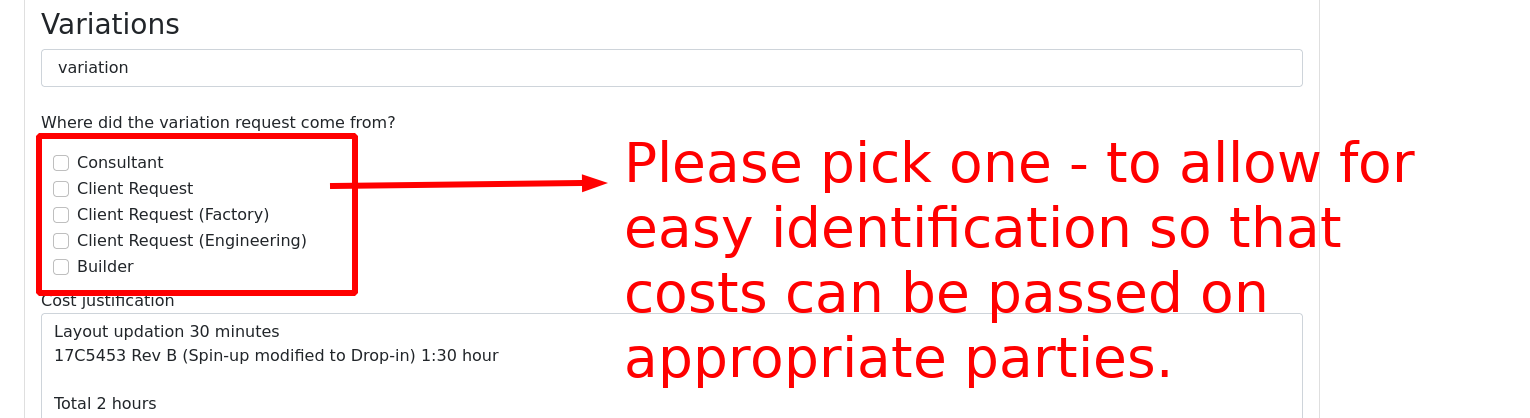
It will be very helpful for you to split out your variation costs according to where those costs came from: the consultants, or perhaps the builder/fabricator themselves might want a change. If the costs come from the builder, then the fabricator will want to recoup those costs. If they come from a consultant, then the fabricator might still try to present their claim. Most importantly, changes introduce risk, and you need to help fabricators charge for the risk that they bear: please tick from one of the following:
- Pick only one:

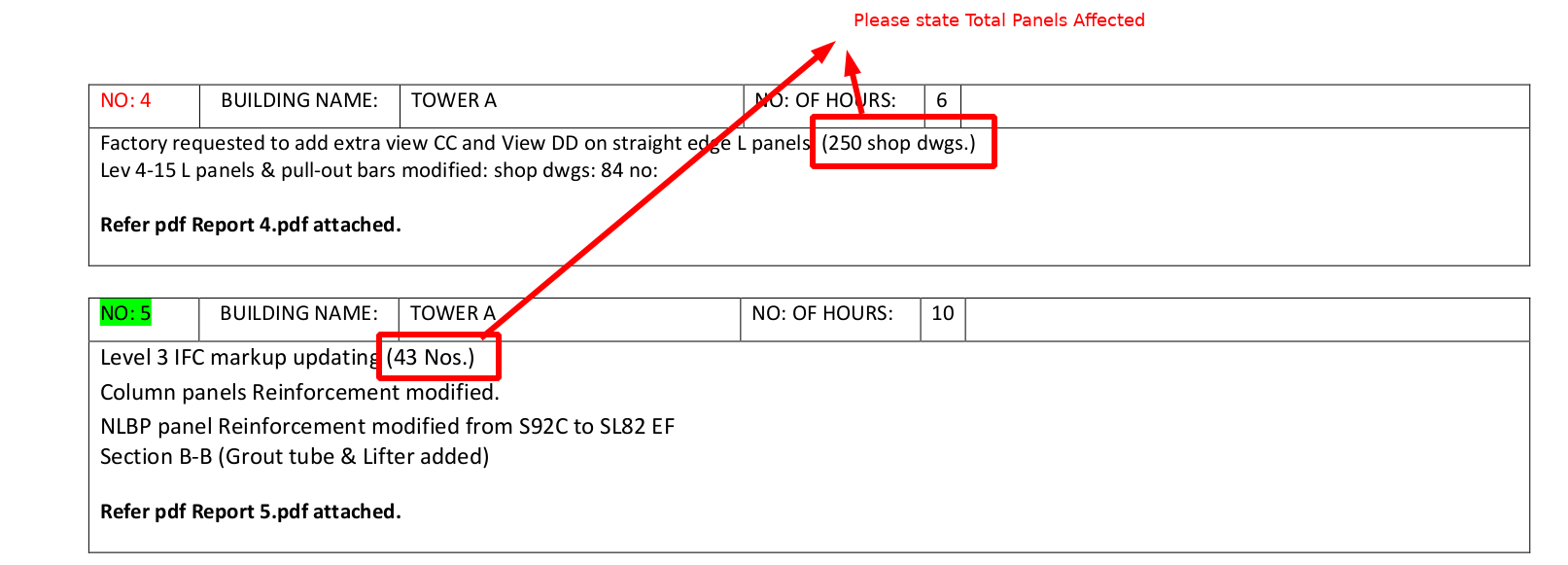
State Total Panels Affected:
Please state a total count (e.g. 2 panels) or (5 marking plans).

Mark ups / Changing State
- After you send it – then you can’t edit. But you can ADD documentation. Why?
- To prevent clients agreeing to a variation, and then to have it subsequently changed by you. That will destroy the integrity of the system.
- Change “approval status”:
- When the client responds, you must mark-up the response:
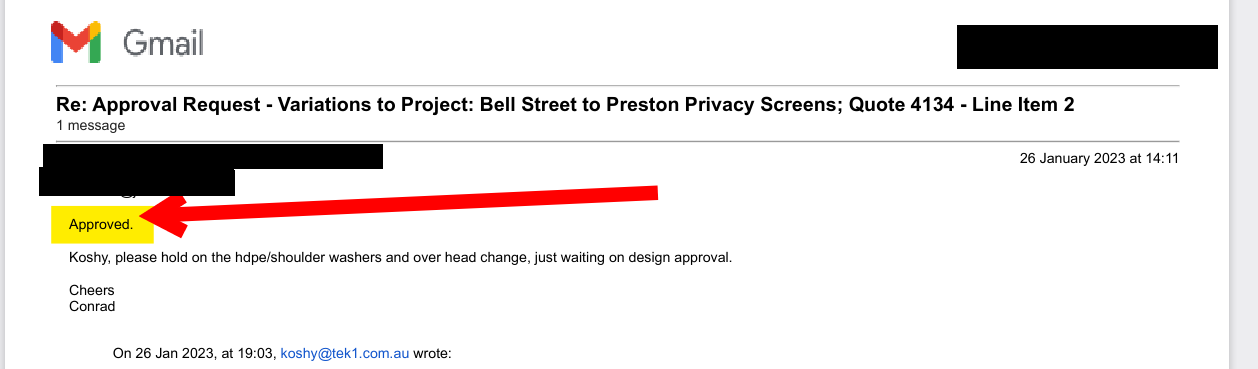
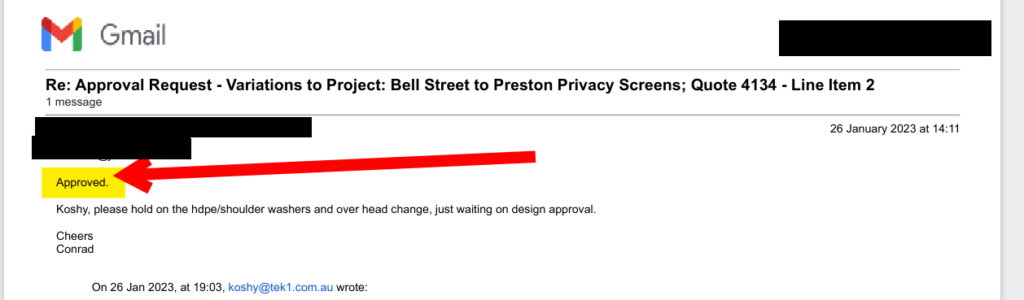
- Approved / Not Approved and then add it as an attachment to the line item. Add in highlighting with a big arrow. Why? So clients will not be able to dispute it later on.
- Example where this is not done: https://tek1-quotes.herokuapp.com/line_items/7207
- When the client responds, you must mark-up the response:
Cost Attribution
It will be very helpful for fabricators if they know who requested a particular change. For example, if a change was caused by a consultant: e.g. engineer or architect vs. a builder, this allows for the fabricator to immediately know which costs can be passed on. For this reason, where applicable it is good to: note down WHERE a change is coming from. If there are multiple changes, try and keep them separate. Choose only one option.
IF it is the engineer or the architect who are is the cause of the change – then you must attribute it to the CONSULTANT and not the client. The only exception to this rule will be for precast jobs.
Example:
- You must mark up: “issued for approval / issued for construction” when it happens. Why?
- (I) If you don’t, then your payments will be delayed. Want to be paid late, or early? Secondly:
- (II) We invoice on IFA. If you don’t mark as IFA / IFC, then we can’t invoice. If we can’t invoice, then we run out of money. If we run out of money, how will you get paid?

-
Catalogues
- OneSteel Stock Catalogue – Refer for Standard Stock length and Material Grade
- Lysaght Catalogues
- Ramset – Mechanical-Anchoring
- Ramset- Chemical Anchoring