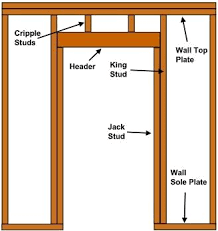
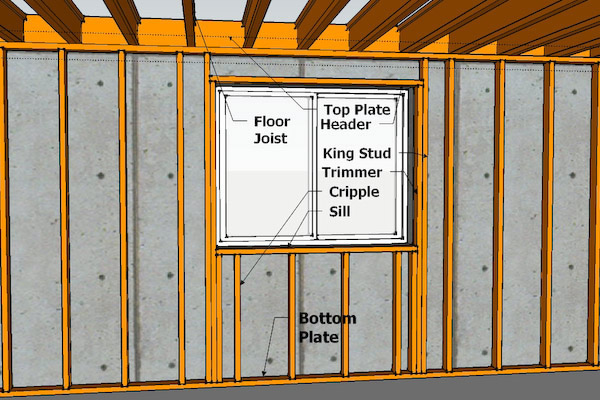
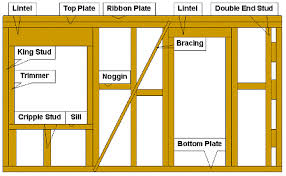
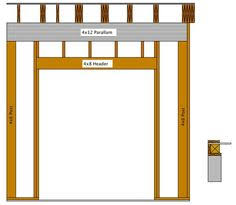
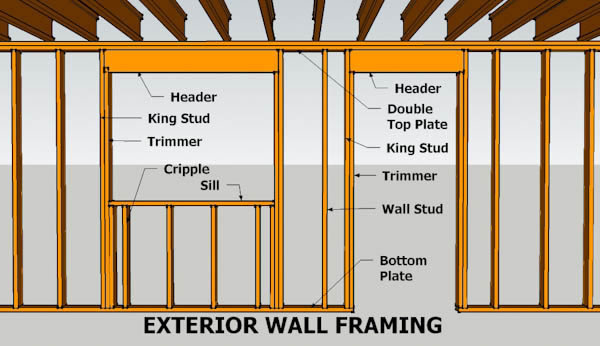
A single top plate can decrease lumber use and boost energy efficiency, but less lumber also decreases the bearing capacity of the top of the wall. … The tolerance requirements ensure adequate bearing capacity by directing the loads from the framing above the top plate directly into the studs below.
A Top Plate is the continuous timber beam on top of the walls that supports the roof structure by carrying the vertical forces from the rafters to the wall studs.
“A prudent person foresees danger and takes precautions. The simpleton goes blindly on and suffers the consequences.” –Ancient Proverb
We might do an entire series on these types of projects. Here is one such example:
We’ve seen some unique designs from architects who were either:
smoking crack cocaine, or were
fresh grads straight out of uni, or
who were many years experienced in the trade of being incompetent. Here is another night mare story which will either make you chuckle or shake your head and weep:
A Bridge That Cannot Be Fabricated: Avoid it!
A fabricator walks in wanting to fabricate a bridge. It’s a government project. So the tax payer is paying for all of this. The tax payer’s expert – who ever that may be – has no clue what they’re doing so they approve the designs and planning for a pedestrian bridge – which should be a really simple and straight forward project – to the total cost of $5 m to the tax payer. But of course, the architect and his bureaucrat don’t want to make a simple, ordinary bridge — oh no, that will not do. They want to make a name for themselves. So they design a bridge that simply cannot be fabricated. I wish I could show you the drawings, and explain in detail why it cannot work, but the bottom line is that, using the current technology we have, and that which is available in the best workshops in the land – I cannot see how this thing can be made. Maybe some day when we get some alien technology from Klingon, making this bridge will be a piece of cake. But till that time, mere human beings might struggle.
Think of taking a beam, twisting it at both ends (like you would do to a piece of string), and then trying to rotate it into the shape of a double helix. Do this for 6 beams and try and connect them together – like the spokes of a wheel being connected to a hub, some 10 m away. It’s not going to work! I call up my fabricator and tell him my concerns, warning him, in fact, of the dangers of this project, with a simple question: “How are you doing to fabricate this thing?”
His response: he insisted that it could be done. I insisted it could not – that he should try doing it before jumping into a dangerous and foolhardy project which he would be blamed for, and which he probably was not going to get paid for.
In any case it was clear to me that this was a building and construction project that was going to be very badly managed, and incur huge costs to the tax payer. The bridge that would be built, would be different to that which was originally designed. This means potentially huge rectification costs, from all parties concerned. You could easily treble the cost of the bridge, and double the deadline, and you still wouldn’t be half way there. In the end, the tax payer would be taken for a ride.
I said my piece, and in the end, I declined to be involved in the project.
Perhaps in time, maybe over the next 15 years, I can update you on the status of the project and the costs incurred to the tax payer.
Morale of the Story:
Listen to good advice, especially when it’s given for free.
Stay away from dangerous projects, and you won’t fall into a pit.
Don’t let a government bureaucrat anywhere near your projects – they’re always spending someone else’s money and not their own, so fundamentally: they don’t care.
The following demonstrates how to attach data to a particular line. In this case we are attached grid marks (from a Mtexts) to AutoCAD lines. We are attaching them to the line’s extension dictionary under the XRecord named “Grid”. We can then view this by using a Line Overrule which displays those Xrecords at the start and end points of those lines. The name of this particular command is: AddGridMarksToGridLines. The reason we are doing this is so that we can programmatically access the grid lines, and also have the grid mark readily attached to that particular line.
The command to toggle the overrule on and off is: “TOGGLEOVERRULE”.
Many times, over my career in using AutoCAD, I’ve had this requirement: given a particular input vector, I’ve wanted to a jig a line perpendicular to it, within my code.
Accordingly, I have written a little class which I call the LineDirectionJigger: basically it restricts users to select one direction or another. For the sake of completeness I”m posting everything, but you will want to focus on the calling class (i.e. the getViewDirection() method) and the server, which is of course the LineDirectionJigger class.
You can see a demo of this jig starting at about 1:26 in this video here.
It quickly and easily allows you to create elevation drawings given a certain marking plan view of a panel. You need to first: (i) select the applicable panel lines, then (ii) you need to select a view direction. The way you select a view direction is by selecting a panel line which is perpendicular to the view direction, and using the resulting jig to select the direction you want to view the panel. (iii) Then, you must use a bounding box to select any applicable grid lines you need. (iv) use the resulting jig to position the panel lines where you want.
When you are dealing with 100s, and perhaps even up to a 1000 panels per building, this can become extremely cumbersome and time consuming. Why not automate the entire process? This allows you to do things faster, to get the drawings out faster, and (hopefully) to build the panels faster, and ultimately the building faster. Speed is absolutely paramount! The faster a builder can get on and off of a construction site, the faster they can get paid. This lowers their working capital needs, and accordingly, their financing costs (however that may arise). Speed is king!
Considerations When Transporting Panels to Site
Every truck has a:
Size limitation (both length and height), as well as a:
Weight limitation (there is a maximum capacity).
Secondly, trucks have different limitations, depending on where they are transporting a panel. E.g.
Trucks passing through the CBD (central business district) have different: length/height and mass requirements compared to those that are not, furthermore, these requirements are different depending on whether the truck has a permit or not.
Let’s suppose you have the following hypothetical situation – take out a sheet of paper and pen and try and solve this by hand:
Truck A
Length limitation: 6 m
Height limitation: 3 m (but a height limit of 2.5 m in the CBD; and a height limit of 3.2 m with a permit)
Weight Limit: 12 tonnes.
Truck B
Length limitation: 4 m
Height limitation: 4 m (but a height limit of 2.5 m in the CBD; and a height limit of 3.2 m with a permit)
Weight Limit: 18 tonnes.
How on earth are you going to work out, quickly and efficiently, whether your fleet can transport the following panels:
ABC1 – Mass: 13 tonnes, Length: 5 m, Height 3 m
ABC2 – Mass: 10 tonnes, Length: 3 m, Height 2 m
ABC3 – Mass: 12 tonnes, Length: 4 m, Height 2.5 m
Problem
Are you able to transport your panels by any of the trucks in your fleet?
Which of your trucks can you use to safely transport a particular panel?
How was this particular problem was solved using the AutoCAD .net API?
I created a data structure for each of the limitations imposed by a truck.
Similarly, I created a data structure for each of the limitations imposed by each panel.
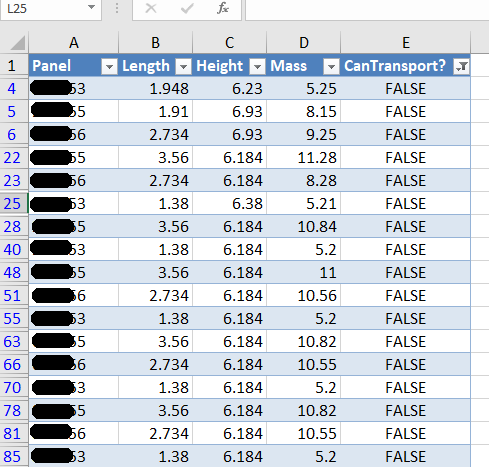
And very simply asked whether a truck and lift a panel? The output was compiled and put into an Excel report. They key method tying this all together is the `CanLift` method on the Truck class.
I used ClosedXML to combine it all together to produce a report.
Here is an example of the results:
A sample of the report produced when running the command. This is showing all the panels that failed.
Here are the key server classes:
Summary
Tek1 has the resources and expertise in order to do Precast Panelling jobs fast and
Accurately
These are just the tip of the ice burg in terms of the checks and processes we employ.