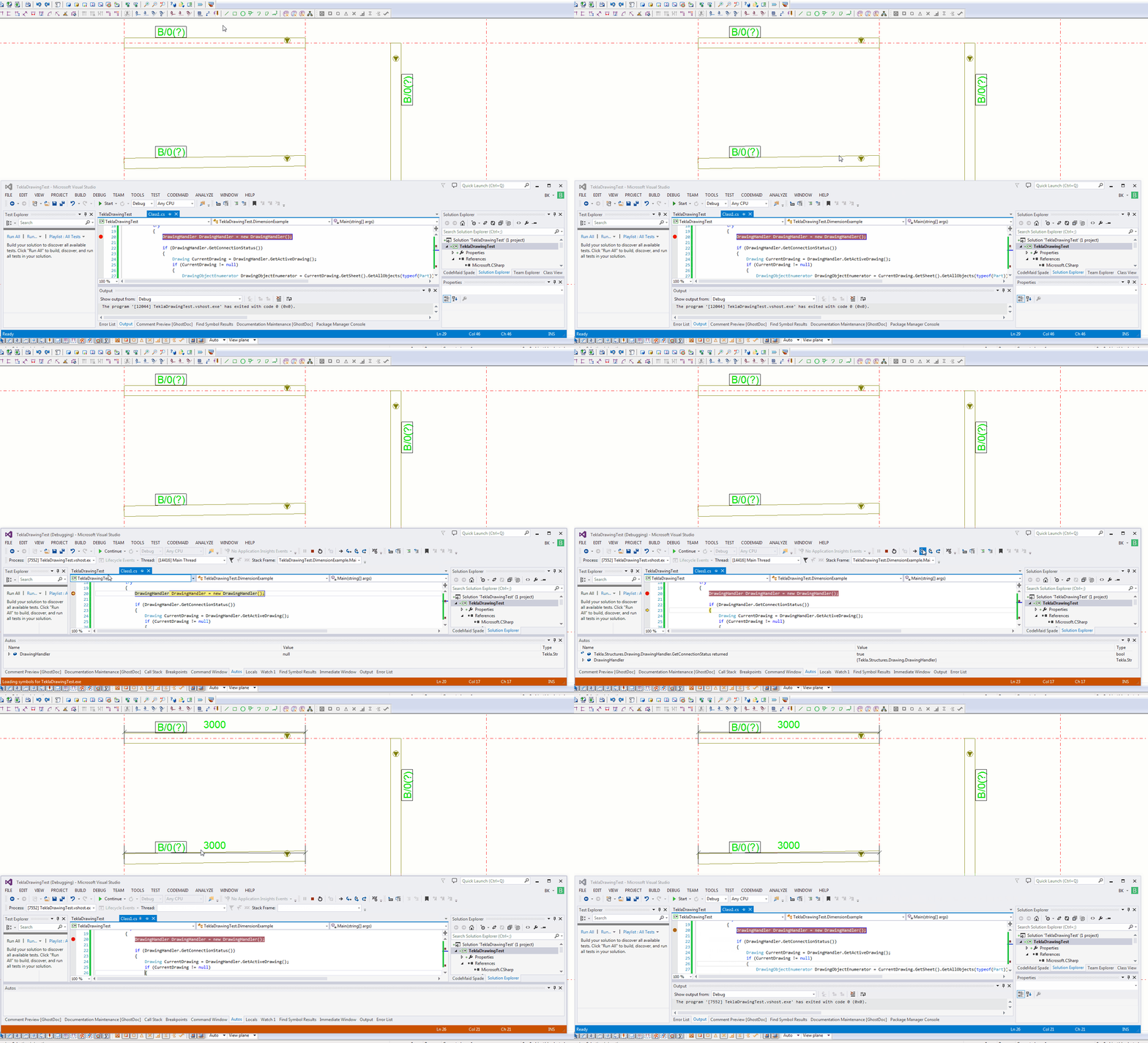
Here’s the code:
And that should select any objects that you want to select. You’ll have to put it in an array though. A handy hint which can save you a bit of grief.
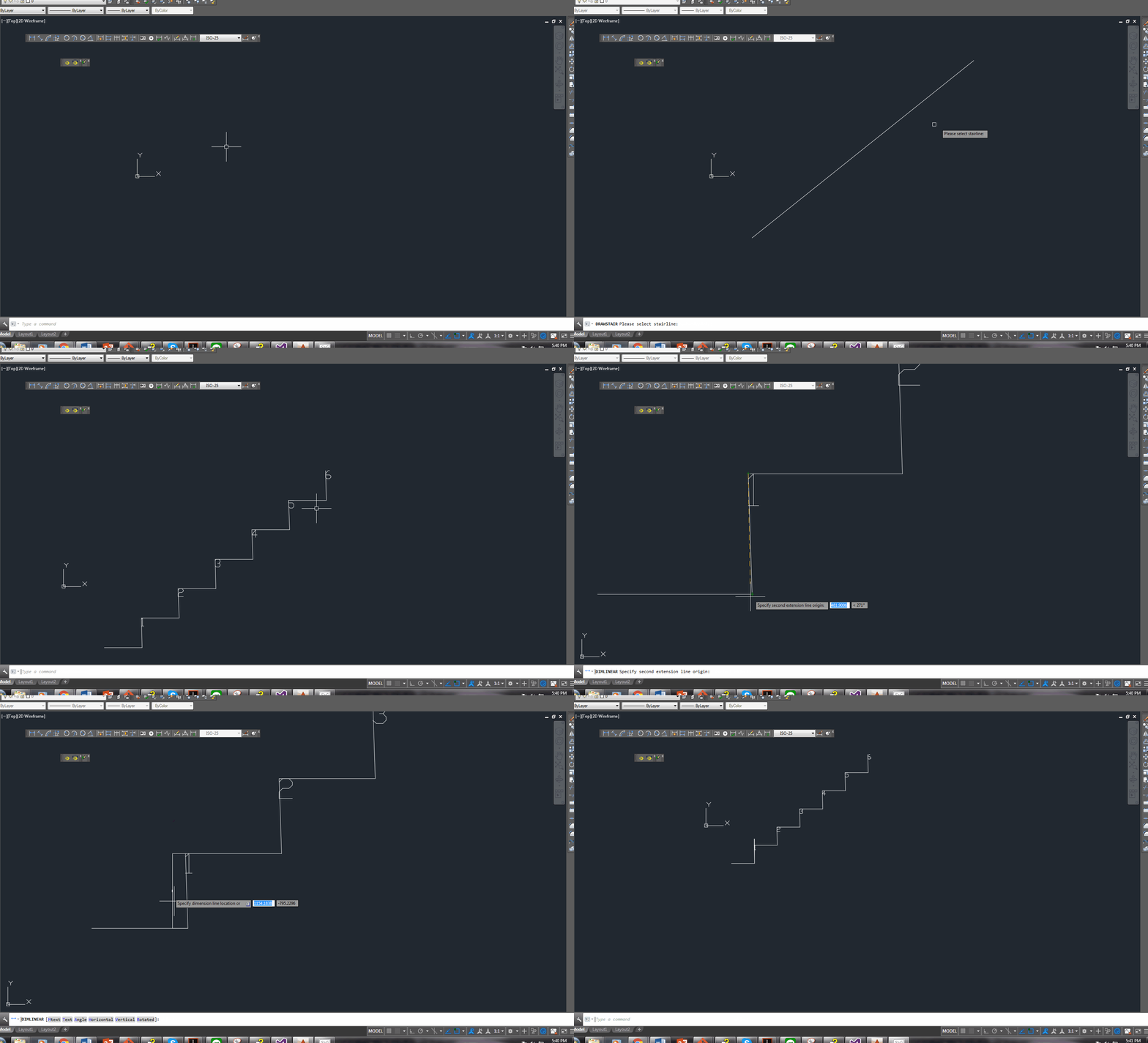
Here’s the code:
And that should select any objects that you want to select. You’ll have to put it in an array though. A handy hint which can save you a bit of grief.
Traditionally we have been a precast and steel operation. With a very strong and talented team, familiar with AutoCad (and many similarly related CAD systems), Tekla and also Catia and SolidWorks.
Given Toyota’s Design facility is now defunct in Melbourne, we now have Tony on board, capable of handling anything pertaining to SolidWorks and Catia. We original met Tony in Toyota, and we know what he’s capable of. He brings to us a wealth of knowledge and expertise – one of the best in the world – and are absolutely delighted to have him on board.
If it’s got to do with SolidWorks, he’s one of the best out there. Pick up the phone and we’ll give you a quote. And you can judge for yourself the quality of his work.
My estimable colleague Rafik Ben made a blog post concerning a problem.
For reference, here it is: http://routetomastery.com/blog/2017/01/08/has-pair-with-some-problem/
So what’s so good about Rafi’s problem?
Well like most things in the world, the problem, is not the actual problem. When it comes to computer science, the *actual* problem lies in identifying or understanding it. And the assumptions one makes are no less important.
Let’s see this in example:
> A man and his son are driving in a car one day, when they get into a fatal accident. The man is killed instantly. The boy is knocked unconscious, but he is still alive. He is rushed to hospital, and will need immediate surgery. The doctor enters the emergency room, looks at the boy, and says…
> “I can’t operate on this boy, he is my son.”
> *How is this possible?*
It’s one of those things where you either have the answer instantly or you will never get it. It’s because your underlying assumptions and expectations were hidden and/or incorrect. The thesis of this post is this: identify the assumptions inherent behind every problem. For in doing so, you will be more likely to solve it successfully.
Assumptions area always inherent in a problem
Every problem has its own assumptions. And these assumptions will drive very different solutions. For example, in the post Rafi made:
Assumptions to consider when formulating algorithms
Some assumptions which I feel are important when considering problems:
Another human related issue: the problem must be understandable to the coder, and easily maintainable:
Summary
Understand the problem and its assumptions, and you’re halfway there.
Here is a gist basically listing the above:
https://gist.github.com/BKSpurgeon/69f624f959e80a7842a2a319d797f120
When you model the roof, pay attention to how the flashing will work. In this video I am explaining, the roof flashing explaining the error in modelling.
Few things to remember when modeling roof
Question: What is the most exciting thing since sliced bread?
The answer is AutoCad’s associative framework. It’s been two years since it’s been released, and it’s arguably one of the most powerful features of AutoCAD which has now been exposed to .net. You’d hardly know it exists because hardly anyone seems to talk about it in the forums. Anyways, I”m really excited about this new tool and I hope to be walking you all through it in the upcoming few weeks.
There’s a tutorial out there:
http://au.autodesk.com/au-online/classes-on-demand/class-catalog/2014/autocad/sd5217
but I suspect it might be too hard-core for most of you so I really want to simplify it and walk you through the process. I hope you’ll derive as much pleasure from devouring it, as I will have producing it.
What is the benefit?
It’s just really really cool
Ben
There is more than one way to do this. But this could be the easiest:
Other ways are setup your computer to read the favorite componets from a location, Set up the network such that all Tekla machines load their favorites from a location.
You can download the custom files from the link given below
Pick Selection and Drag Selection:
Here is the video:
Welcome to Tekla training.
In this video we are going to learn how to make selections.
Pick Selection:
Single objects can be selected by holding down the mouse key.
Multiple objects can be picked by holding down the Ctrl or Shift key. if one object has to be deselected from the selected use Ctrl+ mouse key to deselect.
Drag Selection:
To select multiple object with a single drag of the mouse. Hold down the mouse key and drag
Right to Left: Objects that are fully or partly inside the drag window will be selected.
and
Left to Right: Objects that are fully inside the drag window will only be selected.
This post begins our inaugural series on Tekla detailing.
We hope you enjoy it as much as we’ve had the joy in creating it. Here it is below.
We’ve got some of the best Tekla technicians in our house, and given we’ve been so busy it’s been very hard to get a moment to educate the general public on Tekla.
This blog series attempts to remedy that: we start from the very beginning and will post all manner of educational information to allow for a pure beginner to eventually master Tekla.
And best of all: the information is free!
I hope you gain something out of it. And let us know if you want to know anything in particular.
– Tek1 Team