
Author: Betsya Gnanasekaran

  • Trimble Connect- GA Drawing 3D-Export [Ep-6]

    GA Drawings overlay on IFC Model

    Ever wondered about how easy and accurate it would be to study a GA drawing when it is overlayed on the IFC Model? Well, Trimble Connect gives you a way to do so. The GA drawings are exported along with the 3D co-ordinates as dwg files in Tekla Structures. This process is easy and we have to make sure to activate few options in Advanced Options and in Export Drawings dialog box.

    • In Advanced Options dialog box, Select Export and look for the option XS_DWG_EXPORT_3D_MODEL_COORDINATES and change the value for it as TRUE.
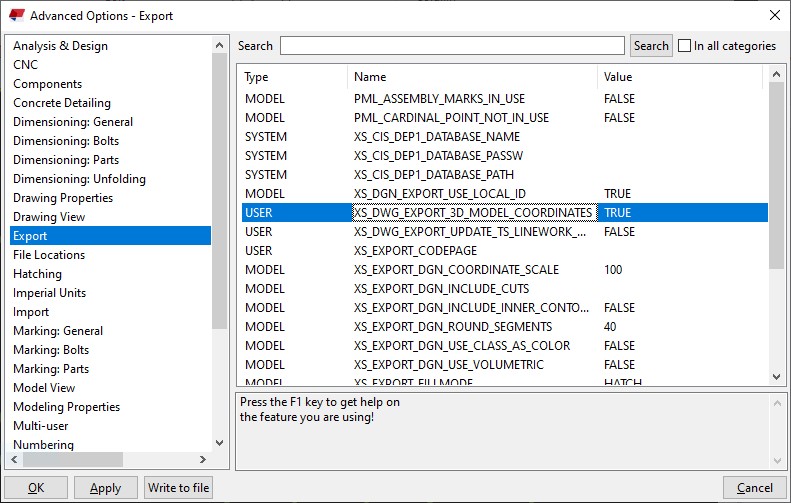
    • Once this value is made true then we can proceed with the regular method of creating the GA Drawings and then export it.
    • When exporting the GA drawing, we have to make sure that the Model Space Co-ordinate value is made Model instead of Local.
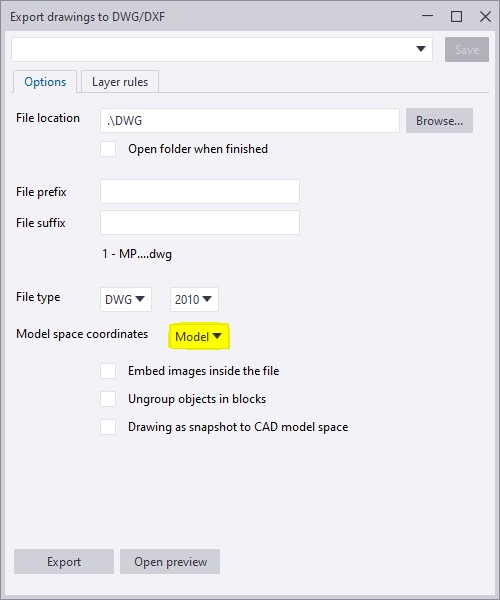
    • If the model space co-ordinate is kept as local then the dwg file will take the local co-ordinate values as in the drawing created and the 2D dwg files are exported.
    • If the model space co-ordinate is kept as model then the dwg file will take the Tekla model co-ordinate values and the 3D dwg files of the GA drawings are exported.

    To have a more clear idea of how this option works refer to the video attachment.
  • Trimble Connect- Creating ToDos [Ep-5]

    Raising RFIs in the project has been made much easier by the use of ToDos. Creating a ToDo and assigning it to a particular person in the project and following it up till the closure of the RFI  is possible now which will greatly help in tracking the project queries and taking quick actions. A video on how the ToDo is created has been uploaded.

  • Trimble Connect- Markups and Views Creation [Ep-4]

    Markups can be done directly on the models and views based on the markups are created. The created views containing the markups can be later reviewed by any user in the project. The video on how to do markups and create views has been attached for reference.

  • Trimble Connect- Viewing and Hiding Objects [Ep-3]

    Viewing of Objects by overlaying the drawings over the IFC model has been an added advantage. The GA Drawings which are exported to Trimble Connect by taking model co-ordinates as origin will be easier to overlay on the IFC Models. It can be either hidden or viewed by selecting the required view. A video on how to view and hide the objects and drawings has been uploaded.


  • Trimble Connect-Connecting with Clients [Ep-2]

    Once a trimble connect invite for a particular project has been received, kindly follow the below steps,

    • Click on the view project option in the invite mail.

    • If the mail id to which the invite has been sent is not signed up in Trimble Connect, then kindly create an account in Trimble Connect using the same and then try logging in to view the project.

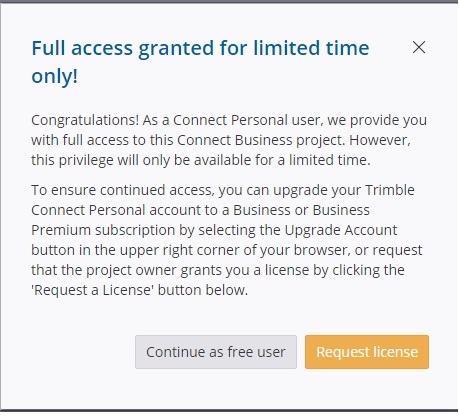
    • Once you sign in using your account and try viewing the project, you might have this screen pop up.

    • You can continue as a free user as long as Trimble Connect keeps this option active.
    • Once this personal user access gets disabled you can request to share a license from us.

    Sharing license with external users makes it easier to collaborate the models with the clients. The process about how to accept the external user license has been shown in the video.

  • Trimble Connect – The powerful collaboration [Ep-1]

    Trimble Connect is a powerful collaboration tool for Architecture, Engineering and Construction (AEC) Professionals including the Architects, Engineers, Detailers, Sub contractores, General Contractors and Project owners. This tool helps in collaborating the models among all the members of the project. This tool makes the project information accessible, transparent and traceable and to help users to build better.

    It keeps everyone in the hierarchy of the project updated about the progress and the next course of action. Trimble Connect accessibility via the web, desktop and mobile devices makes it userfriendly to share, view and access construction project data anywhere and anytime. Some of its main features include an activity feed, align models, export reports, create a project, coment on to-dos, file explorer, model object filtering and clash detection.

    TRIMBLE CONNECT FEATURES :

    • 3D markup

    • Align models

    • Activity Feed

    • Comment on to-dos

    • Combine and view selected models

    • Change color of some objects

    • Control visibility of entire model

    • Create a project

    • Define custom reports

    • Create and manage folders

    • Create and manage releases

    • Exchange to-dos using BCF 1.0

    • Export reports

    • File Explorer

    • Manage permissions and notifications

    • Model object filterin

    • Manage users and groups

    • Save views

    • Run clash checking

    • View/comment clashes

    • Temporary local offline storage

    Let us see how we are going to collaborate using Trimble Connect in upcoming blogs. Follow the blog updates regularly for more Trimble Connect videos.