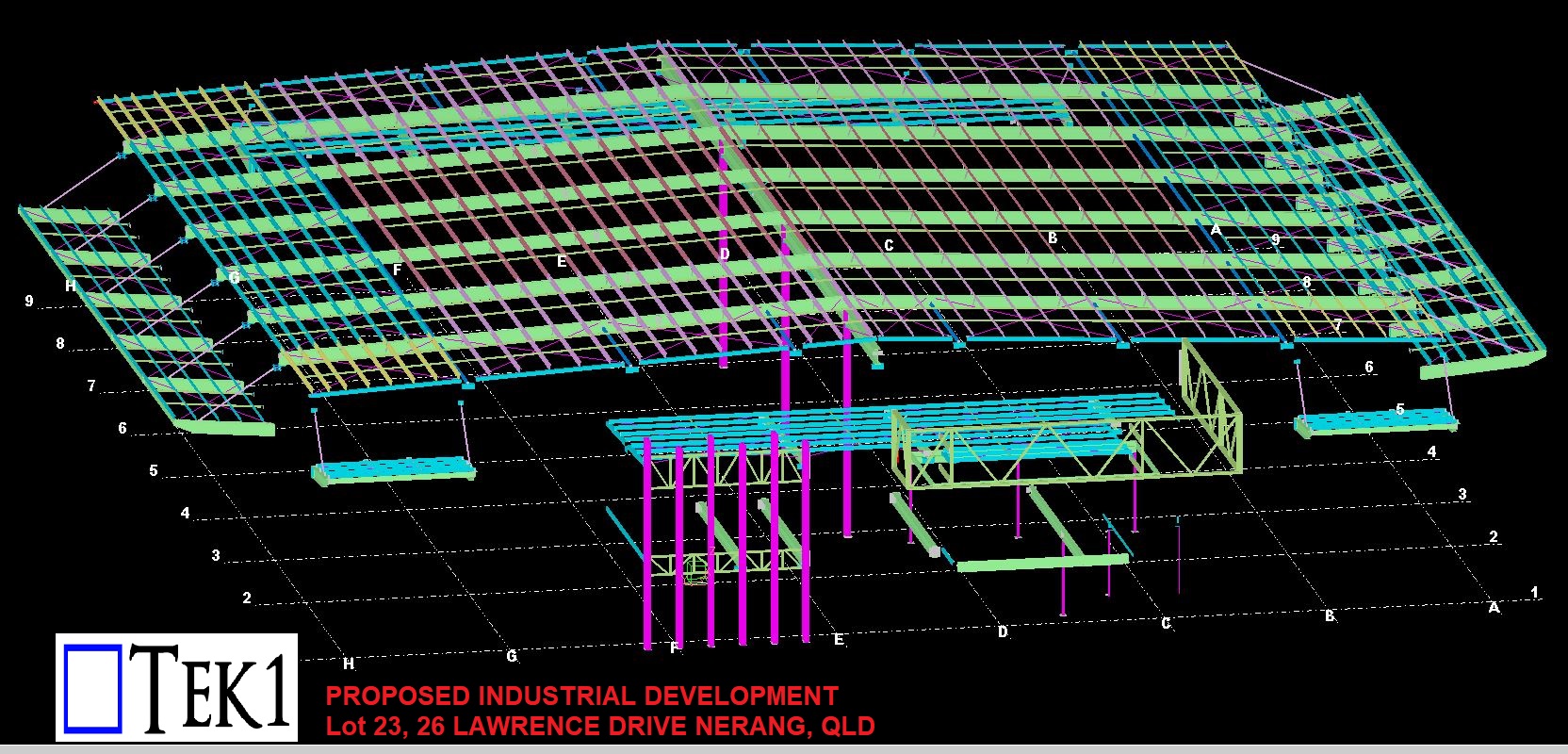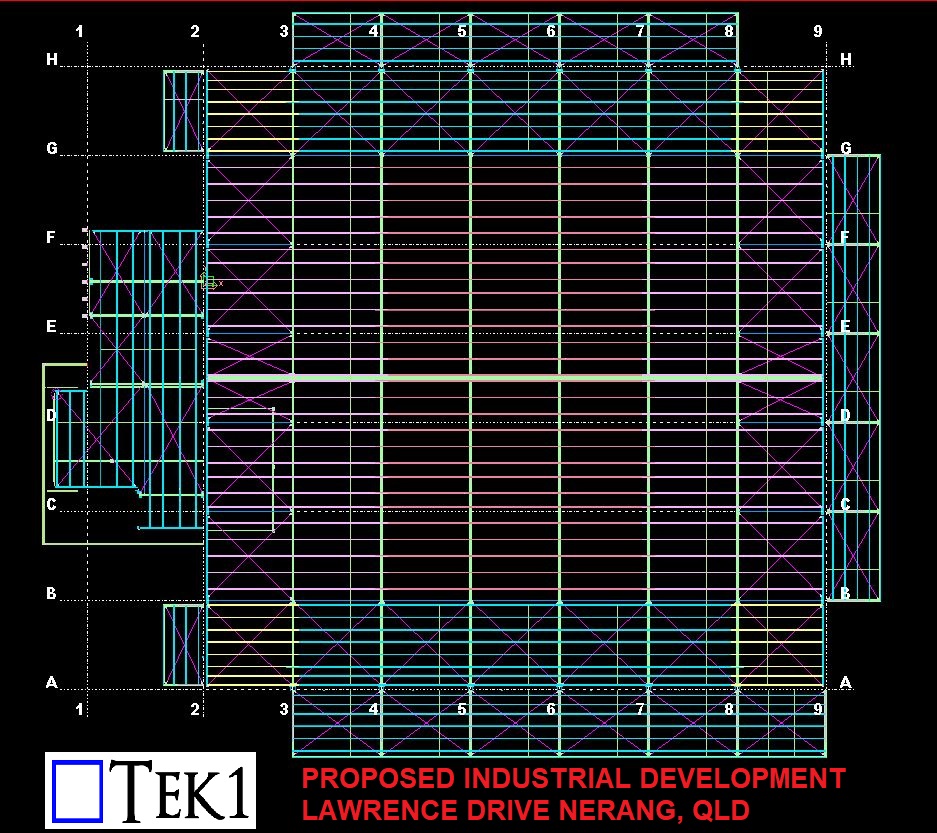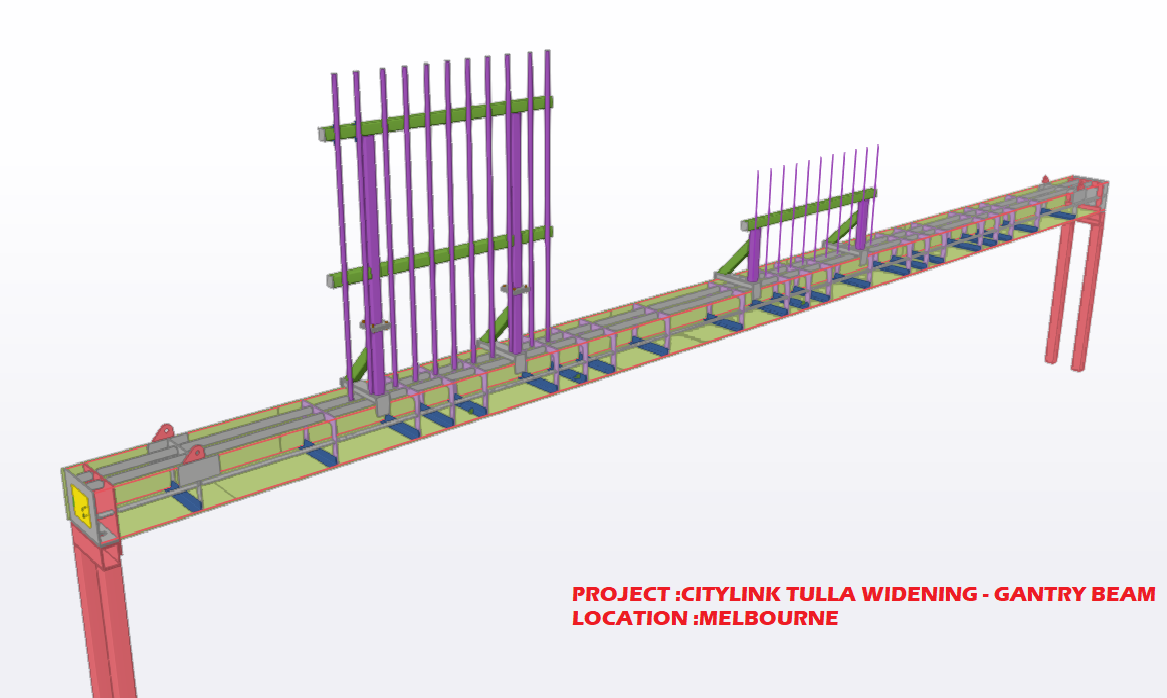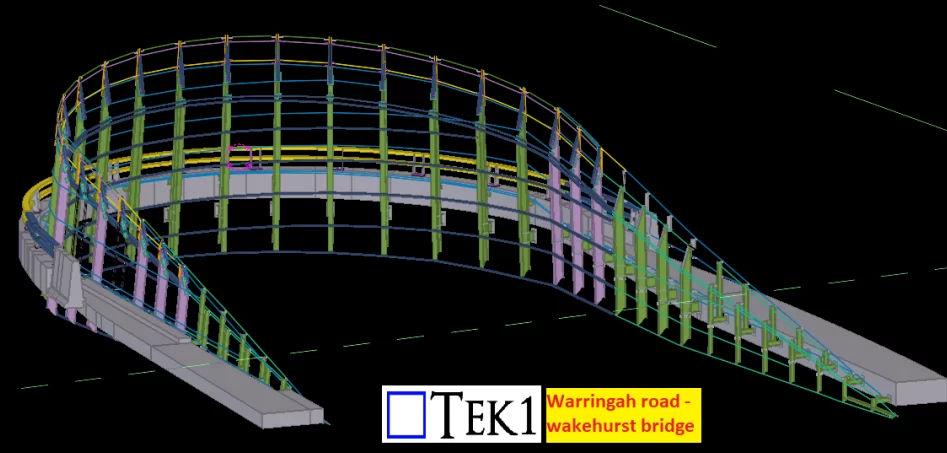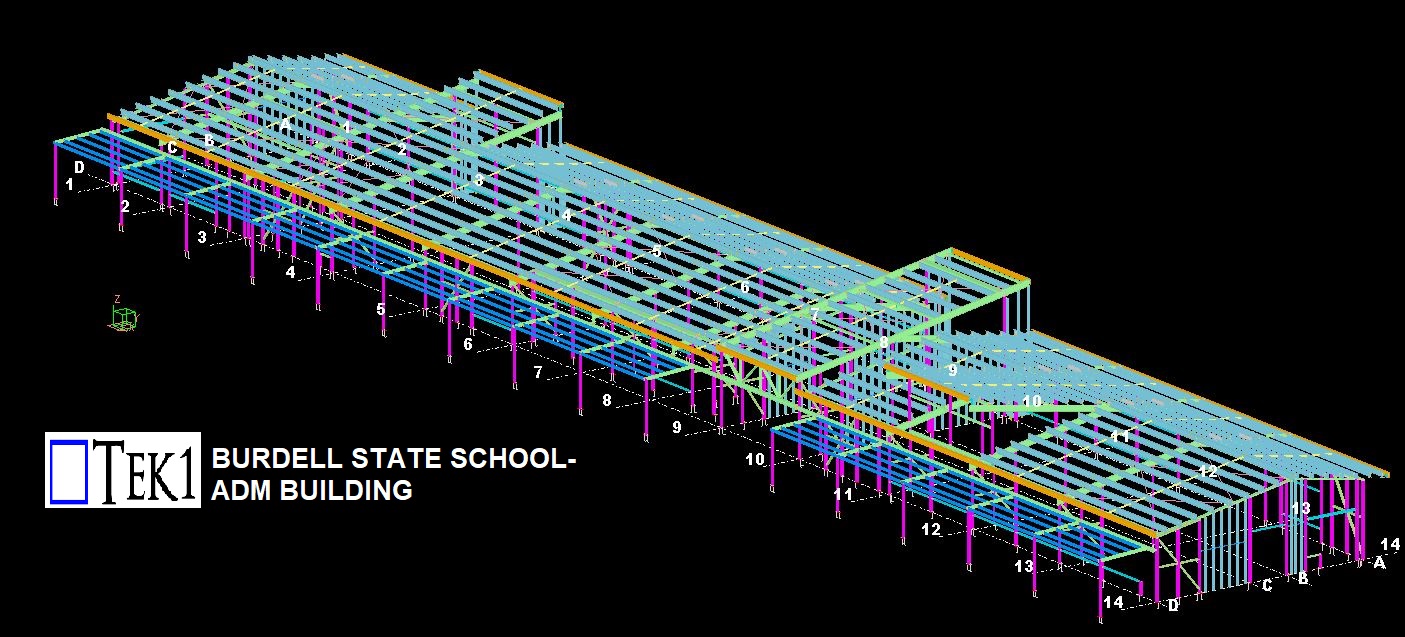


This page show cases some of the Steel Detailing projectgs completed in Melbourne, Sydney, WA, Brisbane Tek1 has completed
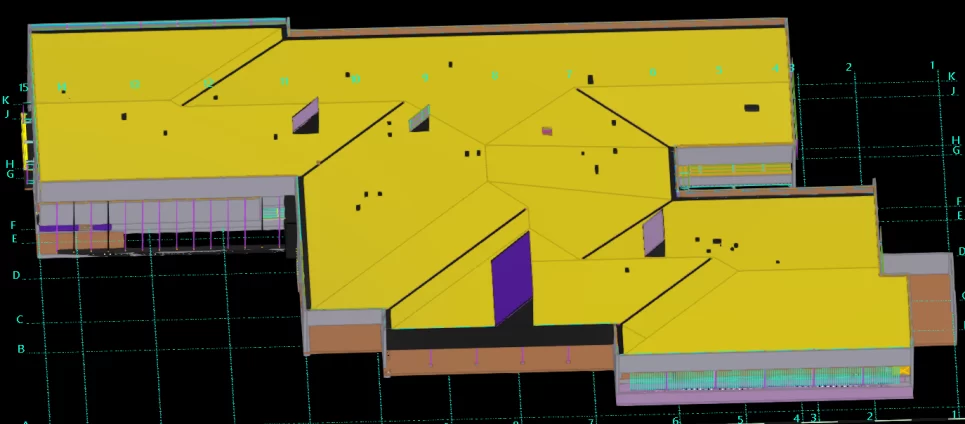
TEK1 Successfully done this Health centre by one time detailing without any hitch.


A quick study on Chemical anchors and things to note while modeling members with chemical anchors.
Chemical anchoring is a technique for fastening to concrete and similar substrates that provides more flexibility than mechanical anchoring. The chemical or the resins will create a strong bonding between the anchors and the concrete material. When an anchor is installed into concrete, there is an area surrounding the anchor called a cone of influence in which the anchor is affecting and it is affected by.
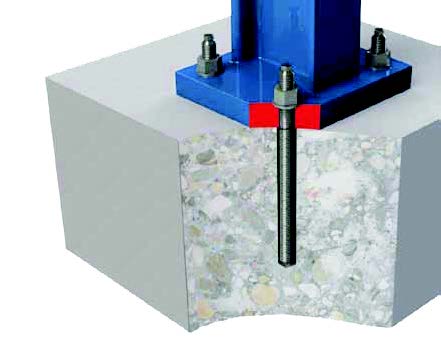
We shall see two key factors while modelling in Tekla structure based on the cone of influence.
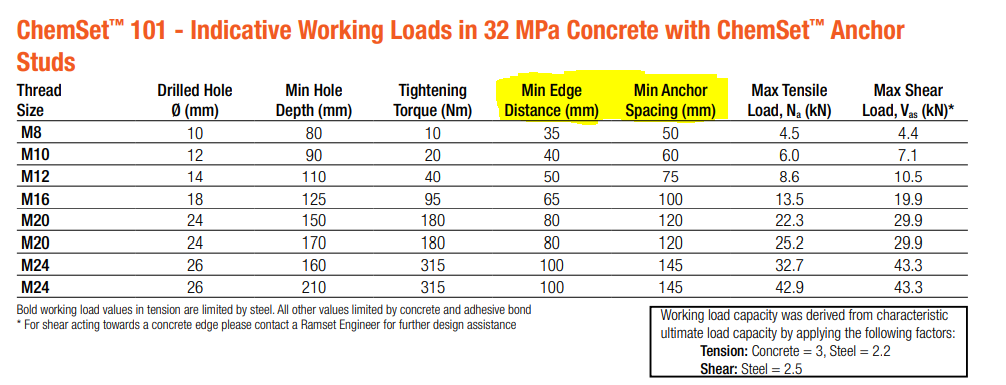
Two key points to note while modeling the members with chemset anchors are:
The Edge distance:
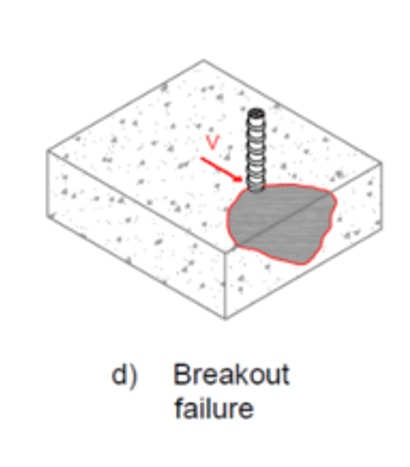
When an anchor is placed closely to the edge of the concrete, the anchor cone gets influenced and causes reduction in anchor’s tension and shear capacities. Placing chemset anchors close to the edge of the concrete causes Edge distance failure. Refer below snip for clarity.
In order to avoid the edge distance failure we must follow the necessary Min. Edge Distance value nominated for the anchor used. Here we have highlighted one such example in IMAGE – 1.
The Minimum anchor spacing:
When two anchors are spaced too closely to one another, the anchor’s cone of influence reduces or becomes interfered, with this inturn reduces the anchor’s tension and shear capacities. As embedment increases, the anchor’s cone of influence increases and there will be an increase in tension and shear capacities. Refer below snip for clarity.
However, embedding an anchor too close to the opposite face of the concrete can lead to spalling damage.
In order to avoid the edge distance failure we must follow the necessary Min. Anchor Spacing value nominated for the anchor used. Here we have highlighted one such example in IMAGE – 1.
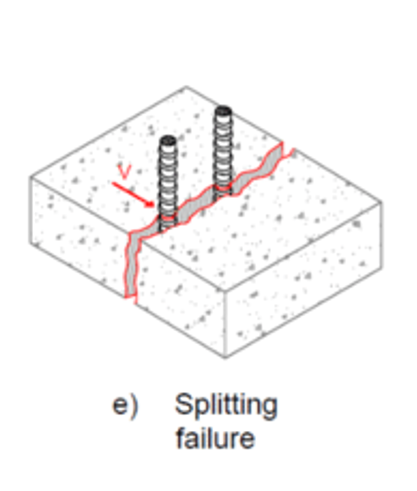
In summary : If we could follow the above two key points, we could avoid concrete failure on site at modelling stage (beginning) which could save cost and time.
Blog by Bharath – Tek1.
Visit www.tek1.com.au for further enquiries.
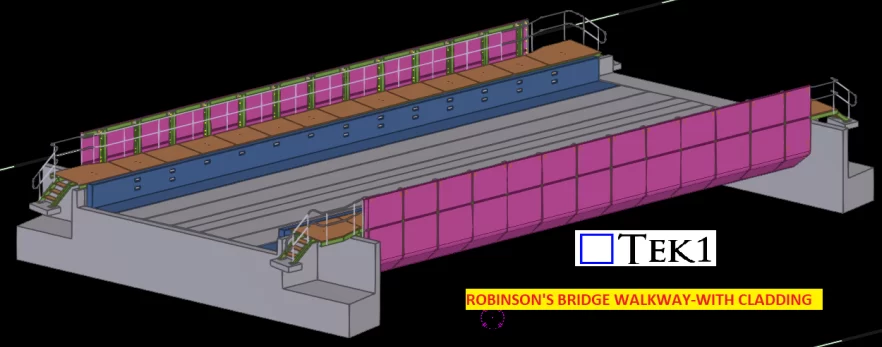
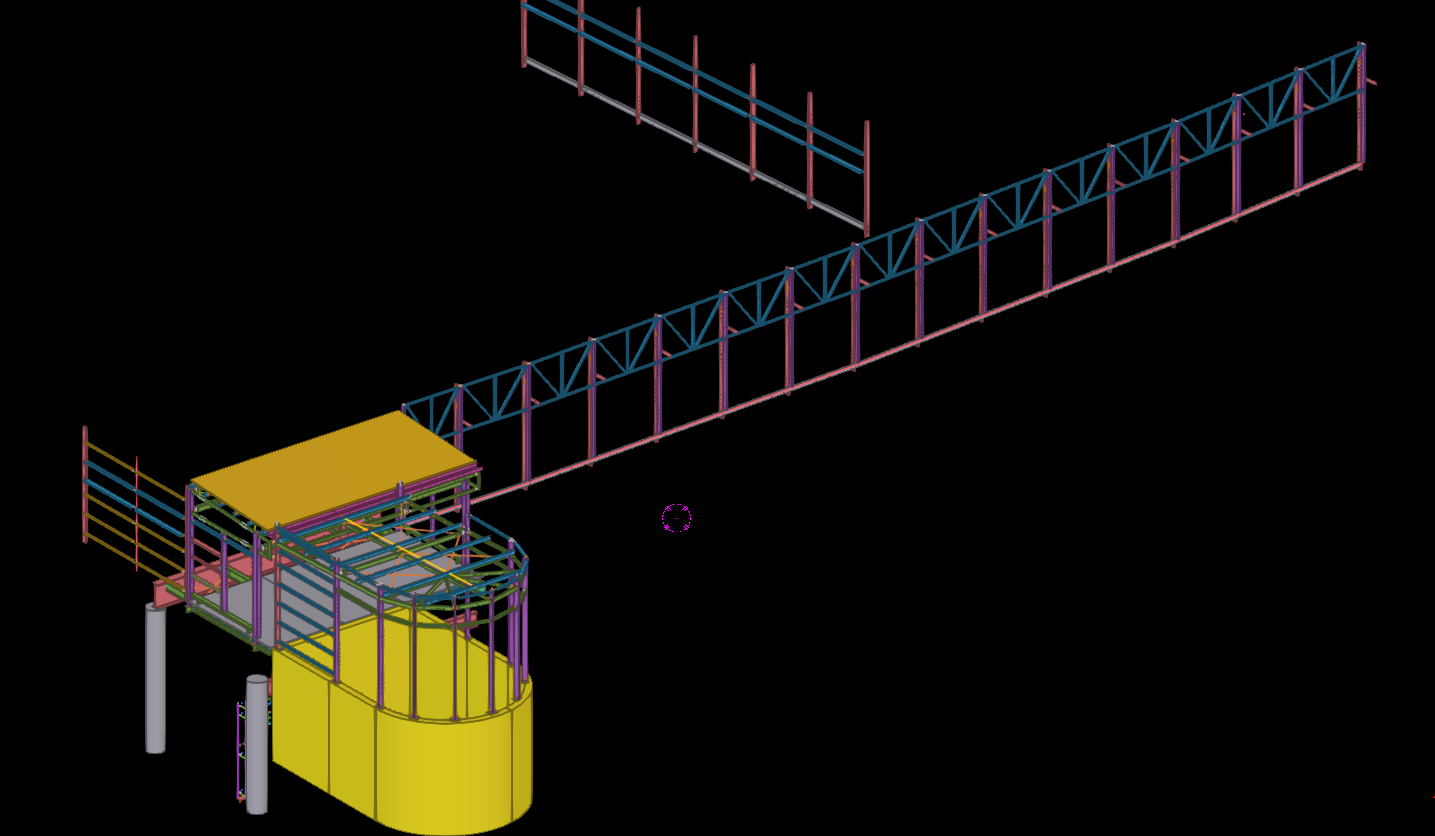
TEK1 Successfully done this Robinson’s bridge walkway by one time detailing without any hitch