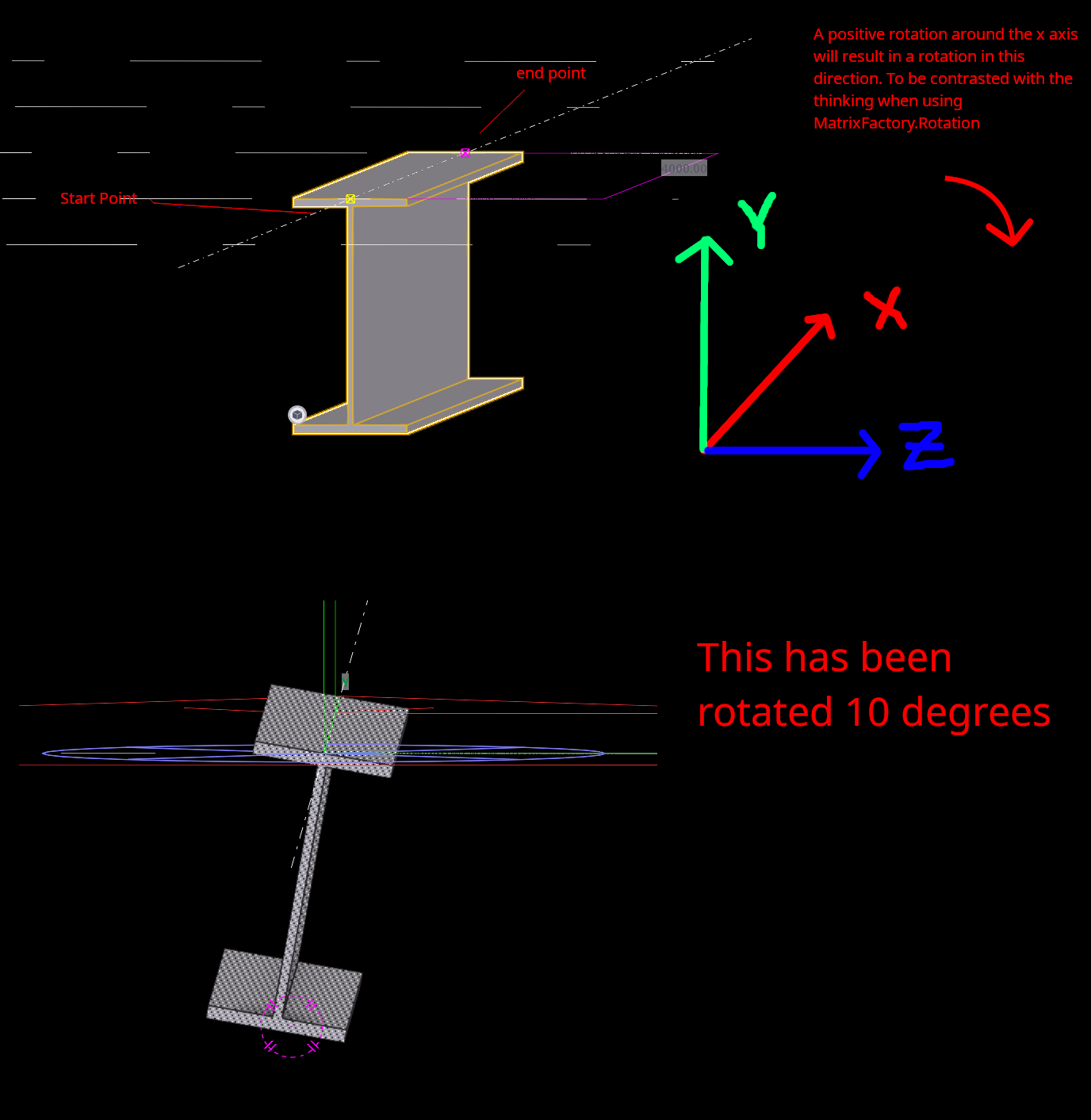
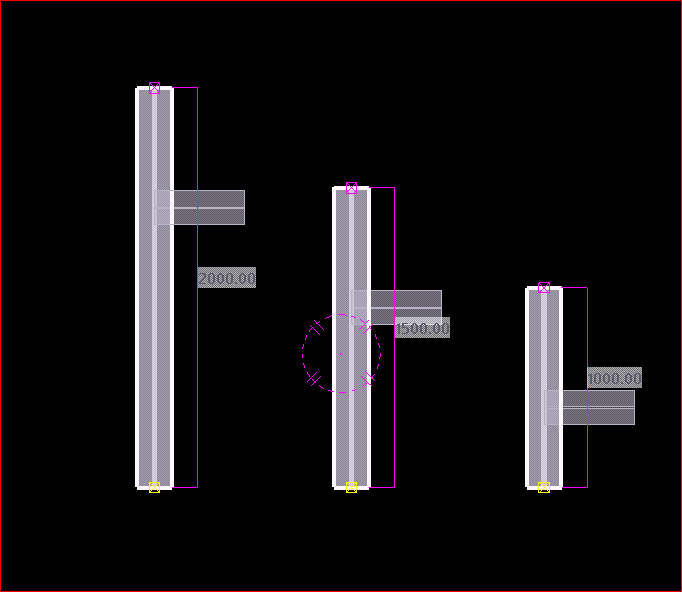
The documentation is perfectly opaque. As expected. What is the X and Y and Z axis in relation to a beam?
Easy. Check the picture.
Furthermore, now you also know what “Rotation” means in relation to a beam. Tekla does this because it is difficult for humans to define a beam using a change of basic matrix.
If you wanna waste many hours wondering why your code doesn’t work – try the Tekla API!
Here is a note for the benefit of the public – where they mutate objects – which SHOULD NOT be mutated. Perhaps they have their own reasons, but the general boy-scount principle(s) should apply:
The principle of LEAST surprise, and
Leave things AS YOU FOUND THEM.
They voilate both, IMO:
Working with the Tekla API is just unecessarily difficult!
Checkout Tek1’s blog posts for more content on the Tekla Open API.
If you need to hire us to do your Tekla API work, please send us your proposal to [email protected]
Normally in Tekla, if we want to copy objects or components from one object to another, we have to follow these steps :
Select the objects and components you want to copy.
Execute the “Copy to Another Object” command.
Choose the source object.
Select the destination object.
The objects will be copied by reference, aligning their coordination system with that of the source object to the destination object’s coordination system.
Please note that the coordination system is used to ensure the accurate positioning of the copied objects in relation to the source and destination objects.
Macro: Copy to another object multiple
The command “Copy to Another Object” poses an issue when used in Tekla. It does not allow the selection of multiple destination objects at once; instead, we can only choose them one by one. This limitation can be time-consuming, particularly when working on large projects.
Tekla offers a macro called “Copy to Another Object Multiple” that fulfills the requirement of selecting multiple destination objects. This macro functions similarly to the command mentioned earlier. First, we need to select the objects before running the macro. Once the macro is executed, it prompts us to select an object. Then, we select one source part, after which we can conveniently use drag selection to choose multiple destination objects. Finally, press the mouse middle button.
the snapshot was taken on Tekla version 2022
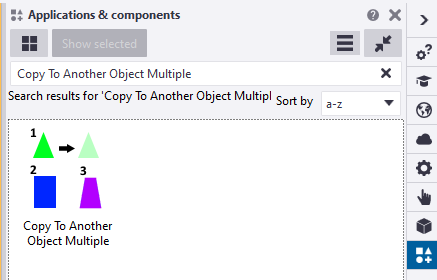
You can find this macro in the Applications & Components catalog of Tekla Structures.
Introducing a New Approach: The Modified Implementation for Copying Objects in Tekla
The ‘Copy to Another Object‘ command works by copying objects in relation to the source object and pasting them according to the destination objects
The coordination system plays a crucial role in defining the position and rotation of a part in Tekla
It is primarily based on the start handle of the part
Altering the coordination system of a part is not possible
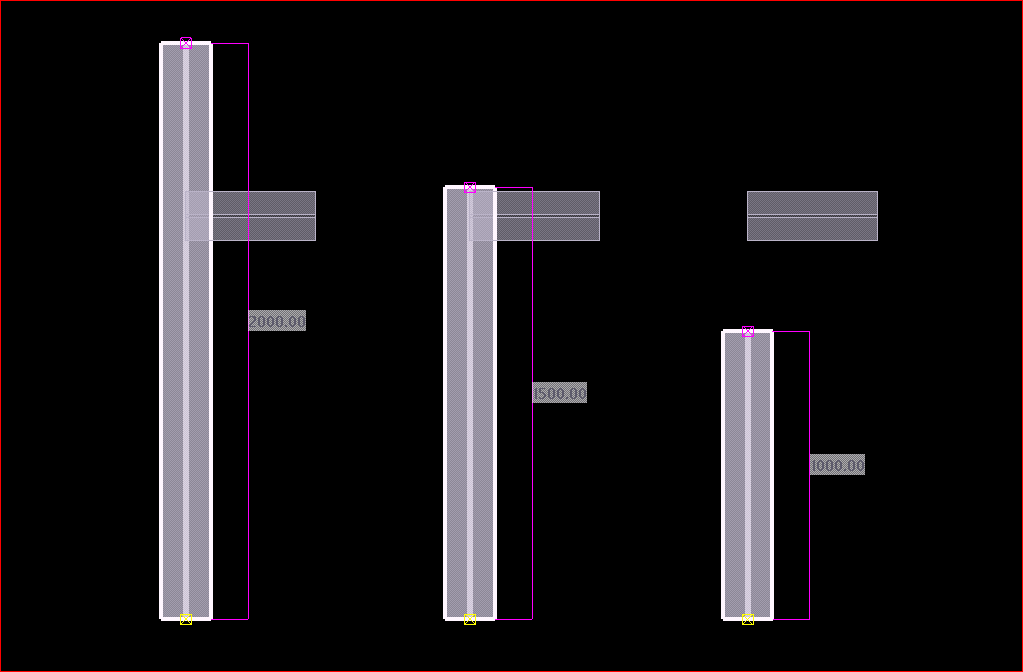
If the destination object’s lengths differ from the source object, a problem arises where the objects are positioned based on the start point
After copying the small beam to other destination objects of varying lengths
In many situations, we often find ourselves having to manually utilize the ‘Copy Linear’ or ‘Move Linear’ commands to perform copying tasks.
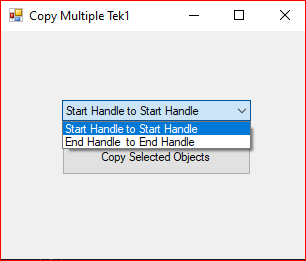
We utilized the Tekla API to Create a new macro that helps to copy objects in relation to the end handle of the part. When executing this macro, it prompts the user to select the desired handling method for copying objects
This is the dialog box that appears while running the modified “Copy Multiple Tek1” macro.
When the “End Handle to End Handle Copy” option is selected, the operation produces an outcome that is similar to the image shown.
members of the Tek1 organization can download the tsep installer file of the above macro by clicking the download button
You want to programmatically create reports. Here’s how
Reports can be generated fairly easily, manually. But how do you do it programmatically using the Tekla Open API?
Please see below for a code sample:
Programmatically Extracting Report Values
Now, if you want to generate the values programmatically, in memory, and then process them somehow into an excel output, consider the following code sample here.
If you want to programmatically select model objects, refer to the code pasted above.
The question: how to generate generate excel files given a particular hash table – this is not an issue pertaining to the Tekla Open API specifically though. I would use a library like CSV Helper to create a series of rows from the hash table.
The key to this is to specify a chamfer value, and at least three points using the PolyBeam class. You must also provide a profile type that Tekla understands – otherwise you’ll get a bunch of straight lines.
Here’s some basic code to get you started:
You should be able to easily import, into Tekla, any curved Beam you want. The principal requirements are: (i) start point, (ii) end point, and (iii) also rotation. Start point and end point and centre point – this will not do: you will also need a third vector if you are going down this route, and I feel that it needlessly complicated. This can be obtained via any any means: CSV files, or directly with Rhino APIs (this might require programming in both Tekla and Rhino).
It is best to control your data source
If you read our past blogs re: CSV files – everything is contingent on how it is obtained. If you have rubbish in, you get rubbish out. We worked extensively with a party on the Westgate Tunnel, who promised .CSV files, but then provided me with corrupt and inaccurate data points, and did not provide the data in the agreed upon format. This makes for headaches and recriminations — and ultimately dissatisfied customers — but what can you do if they provide you with rubbish data that you cannot verify? So if you’re going down the CSV file route — then you need to know how the CSV files are being produced, and that there are not mistakes in them: e.g. missing columns, nonsensical data values, and that they are being produced programmatically etc. or at the very least have excellent lines of communication with your client to resolve these types of issues. Controlling the data source obviates these problems.
Or another problem I faced – you’ve agreed on CSV files, but the format changes each time an update happens. Someone changes the name of a column header – or they give you a file with irrelevant stuff in there. Every time you have to manually edit something, you’re introducing the possibility of errors. All of this can be solved by controlling the data source.
The Devil is in the Details
Again, as with most things, they seem simple at first but the devil is in the details: you gotta tackle the problem of rotation and also profile mapping and weird gotchas in Tekla – that are not documented. Then another important thing to manage:
Revisions and changes
How are you gonna manage this? How are you going to document variation hours? Likely you might have to add IDs to each member. This will have to be incorporated into CSV files from the outset. Or if you have the Rhino model in hand — then you could just see what has been changed programmatically: (i) are they IDs all the same, and (ii) if so, have they been moved. Now this will entail persistence of an old model to be compared with a new model, and a form of documenting these changes. This takes extra time, extra programming, and extra documentation management.