Manually creating contour plates from CSV file inputs will likely be disastrous. You’ll inevitably make mistakes and things won’t fit on site: it will be an uphill battle. You can obviate these issues by using the Tekla Open API to solve a lot of those problems.
See the video associated with this post for a demostration of our capabilities using the Tekla Open API.
Some nice looking steel. The picture has nothing to do with the Tekla API but it’s cool nonetheless.
What is the task at hand?
The user selects some beams.
We then want to collate the following information into various Excel spreadsheets:
Name
Profile
Length and finally Weight
We want two views: the first aggregates the beams by their name and finish, and the second merely lists all the beams selected with the information listed above (length/weight etc).
WARNING: The code is very dirty. There’s a lot of repetition here. And I’ve gone up some cul de sacs incorrectly. But that’s ok. It’s code which works. We can worry about refactoring for another day – in fact, that will make for a very good exercise. Here is a link to where I document the refactoring process.
In the last part we left off having obtained all the bolt distance and placing them in a domain object. In this instalment we will try to export all that data into an Excel Spreadsheet. Please note that the following code is untested – unfortunately there was a lightening storm in Melbourne which short circuited my flux capacitor which means I cannot connect to the TeklaServer – so rather than wait, I thought to get this code out to you.
Which library to write to Excel?
There are many libraries out there: XLS compatible and not:
OpenXML libraries
ClosedXML libraries
NPOI
EPPlus
The consensus is that the worst of the above is still better than using Microsoft’s office interop dll. If you use that approach, you will need to ensure that MS Office is installed in your deployment machine, and secondly, be sure to dispose of all relevant objects. If you forget, then you’ll be leaking memory. This is a very important point.
How to use ClosedXML in your code:
Firstly download closedXML using NuGet Package Manager. That should add the relevant references.
Secondly add the `using ClosedXML.Excel` directives.
Then add the code snippets I’ve provided for you below:
Notes on the code:
* A significant change has been made – we are now filtering the SinglePartDrawings based on: (i) whether they are beams or not and (ii) whether they have the relevant profile – a reader wrote an email asking for this version of the code. I have left the previous version out there as well.
* I’m not an expert with ClosedXML – I just wanted to get the code out there. So it’s a very hackish and non-elegant solution, but I hope it serves to illustrate the point.
This is a picture of a rusty beam. I added the picture here because it looks cool and for no other reason.
In the last part, we left off having collected the relevant Single Part Drawings that we were after. Hopefully we have applied the correct property to filter out the ‘HEA’, ‘IPE’ and ‘CC’ drawings. We will now focus on part II – extracting the distance of the bolts from the beam’s start position.
Get every SinglePartDrawing which name starts with “HEA/IPE/CC”
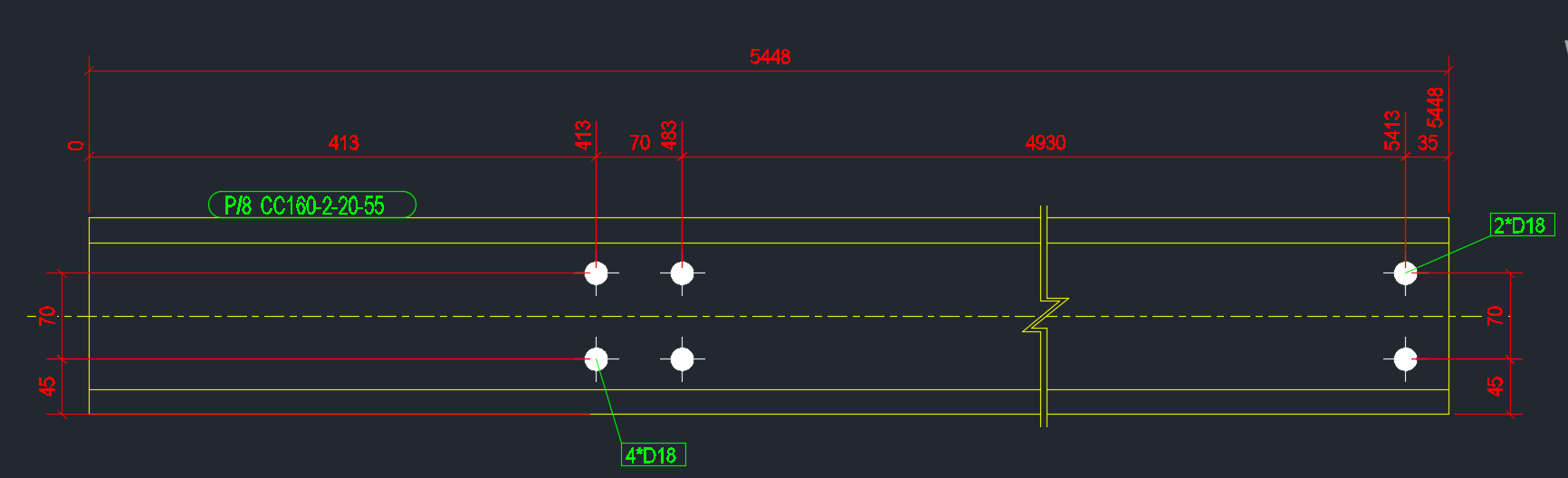
Calculate the distance of every bolt distance from the start of the corresponding Single Part. ** This blog post will address Part II.
Write the name of the Single Part and every bolt distance to Excel.
Refactor the code.
I did refactor the code a little bit, so it might not look exactly the same as the last version. The code is pretty self explanatory. But you will note that:
I am projecting the bolt positions along the beam’s vector (defined from the start to end point of the beam).
Therefore we do not need to save and set the transformation plane.
A corollary (and potentially unintended consequence) is that this will capture the bolt positions of all bolts, no matter if they are on the flange of the beam, or on the web etc. This may have some unintended consequences. Again, caveat emptor – programmer beware!
Here is the code in all it’s glory – simply follow the well detailed comments and it should be fairly straightforward. As always, any questions, feel free to ask.
We now have extracted the relevant information. Part III will delve into extracting this data in an Excel format. We will most likely use an OpenXML on other such library for that purpose. That post will come shortly, when I get a spare moment. Till that time, enjoy the following – or perhaps it can be left as an exercise for the user?!
We want the bolt distances of all the single parts.
Every now and again we obtain a request from our readership to tackle a problem. If it is of general interest to the public and given our commitments we do sometimes oblige. Here is one such interesting problem. We will tackle this in three parts, and will focus on part 1 in this blog post.
Get every SinglePartDrawing which name starts with “HEA/IPE/CC”
Calculate the distance of every bolt distance from the start of the corresponding Single Part.
Write the name of the Single Part and every bolt distance to Excel.
Refactor the code.
The first part is easy enough – and the code is pretty self-explanatory. We want to iterate through all the drawings and filter for the specific drawings that we are after.
Here is the code:
In the next part, we will look at obtaining the relevant parts that we want and calculating the bolt distances from the start and end points. And finally, we will look at refactoring the code, because it is a little slow, and also from a maintainability point of view.
An Addendum
I was simply following the instructions of the question without inquiring too far into its purpose. If you actually want to extract NC information via the API – Tekla can very easily do this. But that was not the scope of this particular task – it was to deliver a very specific and peculiar set of requirements to a particular reader, but it is a topic which will be of general import to the public.
It’s not easy to find which bolt has a tolerance of 10 when you have 1000s of them in your model. You can really only do that type of thing with a tool.
This is a repost from our sister site – I needn’t repeat it here, but it’s something that I’ve worked on, and which we hope to utilize to a greater degree when working with Tekla. Anyways, you can get the full blog post if you click this link here. Thank you for stopping by.
We can easily select objects as an input – objects which was can iterate over and apply a series of operations or checks out. But how do we return a selection of objects back to the user?
Background: What are we trying to do?
We have programmatically identified some model objects that we want to select in the model – to attract attention to the user and to allow her to easily identify all such objects. In this particular case we will be creating some beams. And then, we will select those beams in the model. Here is a code snippet to get you started:
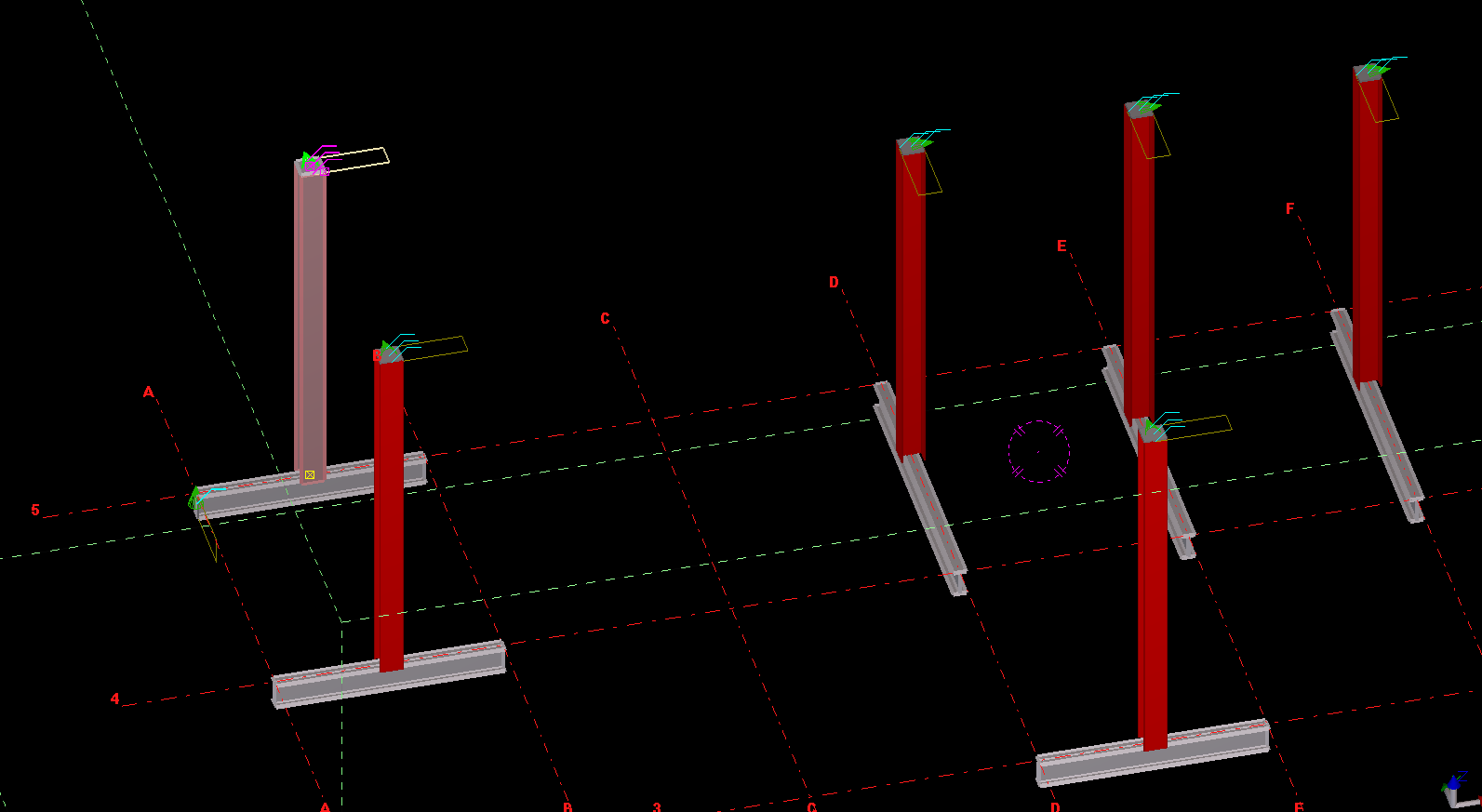
An example of us copying a column from one object, to the rest – to the rest of the beams.
What is the task at hand? We want to make the Copy Object To Object command more efficient
There is a nifty little command – little oft used in Tekla. The “Copy Object To Object” command. It’s handy, but it could be made better: all the model objects have to be selected individually. That can be a little bit of a pain. In this lesson we will create some code, using the Open API, to allow users to select multiple objects (all at once) by which the copy object to object command can be applied to.
Where is the pertinent Call in the API? I’d prefer this type of thing to be a method on the relevant ModelObject. But it’s static method in the Operation class. Here is the hello world example, straight from the documentation:
Copying Object to Object – Hello World Example:
This is fantastic! Now let us outline what we want the command to do:
What do we want our command to do?
We want the user to select an object (or group of objects).
We then want the user to select a “source” object.
We want the user to then select all objects to copy to.
The program should then use the parent object as a source, and use that as a reference to copy everything selected in step #1 to all the objects selected in step #3.
1. Ask the user to select a bunch of model objects – The objects to copy
We can use the Picker class, located in the Tekla.Structures.Model.UI namespace. And there is a handy object which thankfully has been exposed: PickObjects(Picker.PickObjectsEnum, String). This returns a ModelObjectEnumerator which we can iterate over.
2. Ask the user to select the source object:
You can get the source object in the same manner as the above code – except you would use the PickObject method instead of the PickObjects (plural) method.
3. Ask the user to select the objects to copy to:
We can use the same method used in step 1.
4. Copy from Object To Object
The rest is as easy as A-B-C:
5. Finally, we want to Redraw Views after the Copying Operation has completed