Author: admin

  • How to Avoid Trouble in Building and Construction Projects (Part V)

    We continue our series on how to avoid trouble in building and construction projects.

    What is required in order to have a successful construction project?

    Building and construction is necessarily a collaborative endeavour – there are many elements that need to come together in order for it to work successfully.

    First and foremost you need a skilled and capable team:

    1. Good architects
    2. Good engineers
    3. Good project managers and builders.
    4. Good guys doing the shop drawing.
    5. Good cash flow and funding.

    Where can you go wrong?

    But I’ve found that in this industry there are several pitfalls:

    1. The competence of building and construction professionals.
    2. The liquidity and ability of folks to pay. It seems to be a common practice in this industry that folks will receive goods and/or services and simply not pay for it – either out of unwillingness or an inability (or both).

    My invective is necessarily harsh on architects on this point: bad architects are the bane of the industry, and are part of the reason why building and construction is notoriously expensive. I’ve seen many and there are but few worth their salt.

    Now you know of the places where you can fall – you can take measures to maximize your likelihood of success.

  • How to Avoid Trouble in Building and Construction Projects (PART IV)

     How to choose an architect?

    We will now focus on architectural competence in those post – particularly on the tools they use. My invective is necessarily harsh on architects at certain times: bad architects are the bane of the industry, and are part of the reason why building and construction is notoriously expensive. Ask around and you’ll hear stories about guys getting screwed over by: builders and you guessed it….! Having said that, architects are very, very important and are an essential component of the building and construction industry.

    Look at their Tools

                    Does the tool make the workman?

    The Mathematician Example

    A good mathematician is a good mathematician whether she uses a slide rule, an abacus or a calculator. The tool doesn’t really matter so much.

     The Surgeon Example

    Imagine if you were going to consult a surgeon and she tells you that she’s using tools and techniques from the 18th/19th century. Wouldn’t that strike you as a little odd if a modern day surgeon was given over to hacking off limbs with a common carpenter’s saw?

    What if you asked the surgeon why she doesn’t use a scalpel – and if the response was that:

    1. Scalpel’s are expensive, and/or
    2. Learning how to use a scalpel takes a very long time to learn (‘ain’t nobody got time for dat’)

    ….What would your response be?

                    As a general rule, A good workman will have good tools

    That’s not to say that a surgeon who uses a saw to hack of a limb is necessarily a bad surgeon, nor can it be definitely said that a surgeon who uses a scalpel is a competent one. But we can definitely say, conclusively, that it’s easier to make a small incisions using a scalpel than if one was using a chain saw.

    The same analogy applies to architects.

    Architects are very, very important and are an essential component of the building and construction industry

     What tools do architects use?

    Generally their tools fall into two classes:

    • Generic CAD tools (which are just glorified pen/paper systems on a computer).
    • Building Information Modelling (BIM) software systems. Rather than using pen and paper, BIM based software allow you to basically use Lego to design and build things electronically, rather than using pen and paper.

    The Danger of Change – And How Tools Manage Change

    • How CAD tools manage change?

    Suppose, as an architect, you decide to shorten the design of a room. If you’re using a pen and paper – you’ll have to change the layout view of the structure, then you’ll also have to change two elevations, and then you’ll also have to change all section views. It’s gonna take you a while, and moreover, it’s really, really easy to miss things. I see mistakes. I see mistakes all the time. All the time. That’s the problem with pen/paper/general CAD systems.

    • How BIM tools manage change?

    But if you are using BIM based software then it’s much more difficult to make that type of mistake. The software basically eliminates it. BIM tools manage change particularly well.

    What is the better software solution?

    For an architect, in my opinion, its better to use a BIM based software solution unless you have cogent reasons for using a generic CAD system. If you use a system like ArchiCAD or Revit, then life will be significantly easier.

    Revit was born out of a need to avoid mistakes in the management of change, and in the management of different models and revisions used by various trades at the design stage. I cannot see a good reason why an architect should not use a tool like Revit when it is available.

    Why would an architect use generic CAD tools and not use Revit instead?

    There are reasons, but none of them good:

    1. Learning Revit takes a lot of time

    AutoCAD in its various forms has been around for a long time – since the 1980s. But Revit is the new kid on the block. If it took 20 seconds to learn Revit/ArchiCAD etc then the entire industry would switch in a heart beat. So why don’t they? It’s a simple case of: “cannot be bothered,” most fundamentally. Learning Revit etc takes a lot of time and patience. The old skoolers are familiar with their slide rules and generic CAD solutions and cannot be persuaded to change – nor will they probably be inclined to do so. If that’s the case then they’ll probably be disinclined to spend too much time in other areas of expertise pertinent to their trade.

    Each to their own, but the problem is that their disinclination to devote time and effort to master their trade will cost you money.

    1. Revit is expensive

    It is expensive – to own and to learn. But that shouldn’t bar an architect from making that investment and recouping the benefits of improved efficiency and better designs with less errors. It’s a no-brainer to me.

    So What if an Architect uses AutoCAD? What is the cost of architectural mistakes?

    It’s easier to make mistakes if you’re using AutoCAD. And the problem with mistakes – incorrect/missing information – is that it is very costly and confuses everyone down stream of the architect. Architectural mistakes are like a tsunamis – they gather momentum very quietly at the design stage, only to destructively wipe out those involved later on in the project – and they’re the ones who pay the cost – not the architect!

    Summary

    • Good architects will generally use tools like Revit or other BIM based tools.
    • The use of Revit / ArchiCAD etc does not guarantee the competence of the architect.
    • Be cautious if an architect insists on tools like AutoCAD for mid-sized projects (or larger), without cogent reasons for doing so.

  • Demo: Select (Panel) Lines which are Open or Closed (Precast, AutoCAD .net)

    Demo of tool which selects closed lines.
    Demo of tool which selects closed lines.

    Sometimes we have a need to identify – and quickly – lines which are open and lines which are closed – especially prior to running any operations on those lines involving regions.

    Here is a demo of a little plugin I wrote.

    It goes through the modelspace and finds all the line segments which are connected to each other. It further goes on to query which line segments are closed and which are open.

    Getting AutoCAD to do this quickly was quite a task. But am very pleased with the speed – only 1-2 seconds when you’re iterating through a few thousand lines. Not bad.

    Enough talk, here is the demo:


    Select Open and/or Closed Panel Lines from Tek1 on Vimeo.


  • How to Easily Compare Precast Panels in AutoCAD (Precast)

    Drafting Services | Melbourne

    When drafting for precast panels, there is need to check differences with different versions of the shop drawing. Manual checking a bit difficult. Automation tools help

    Panel Comparison Demo
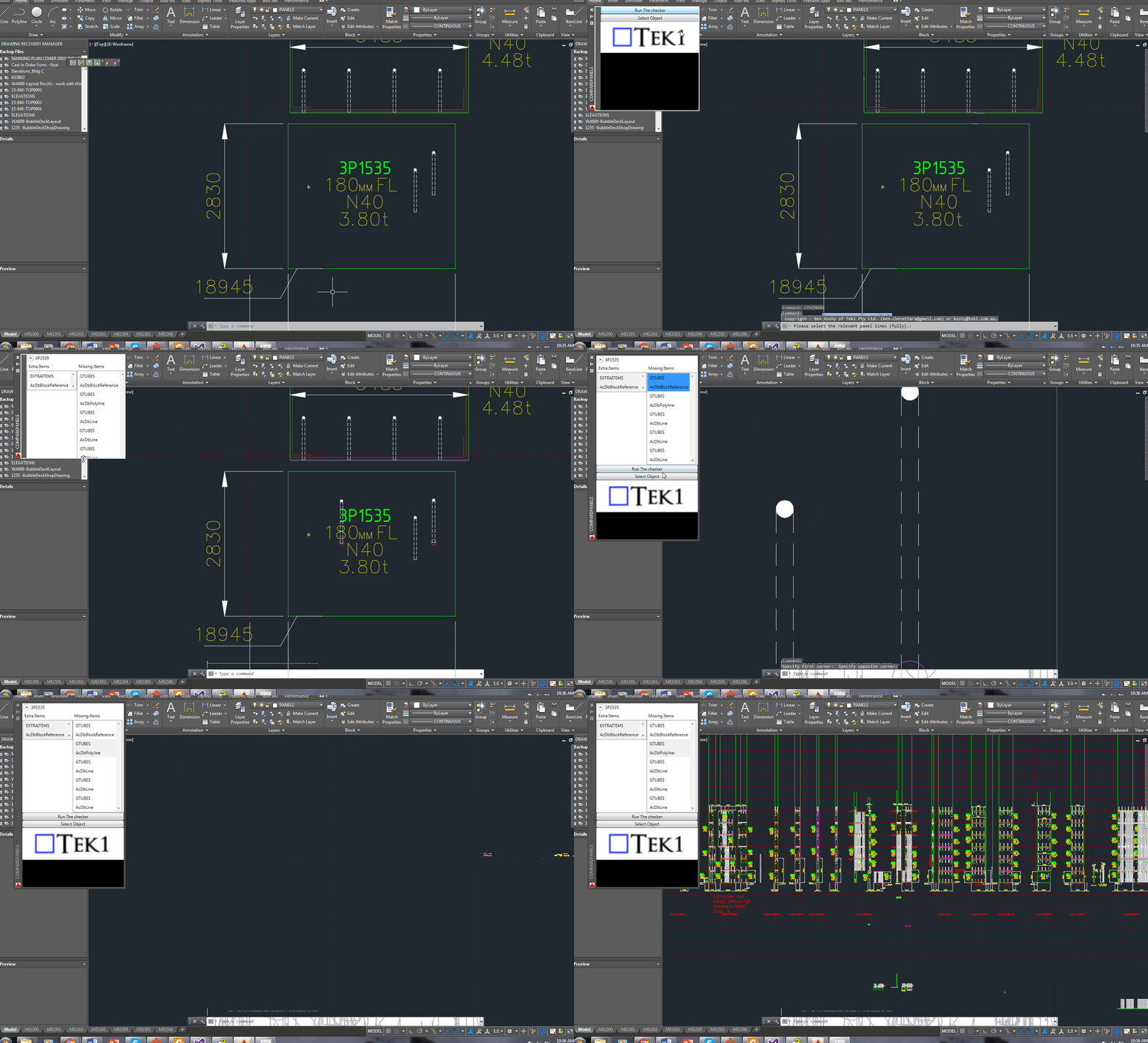
    This tool compares panels and imports differences. Yet another reason why Tek1 is leading the world in precast panel drafting.
    Shop drawing / Layout panel discrepancies are a thing of the past.


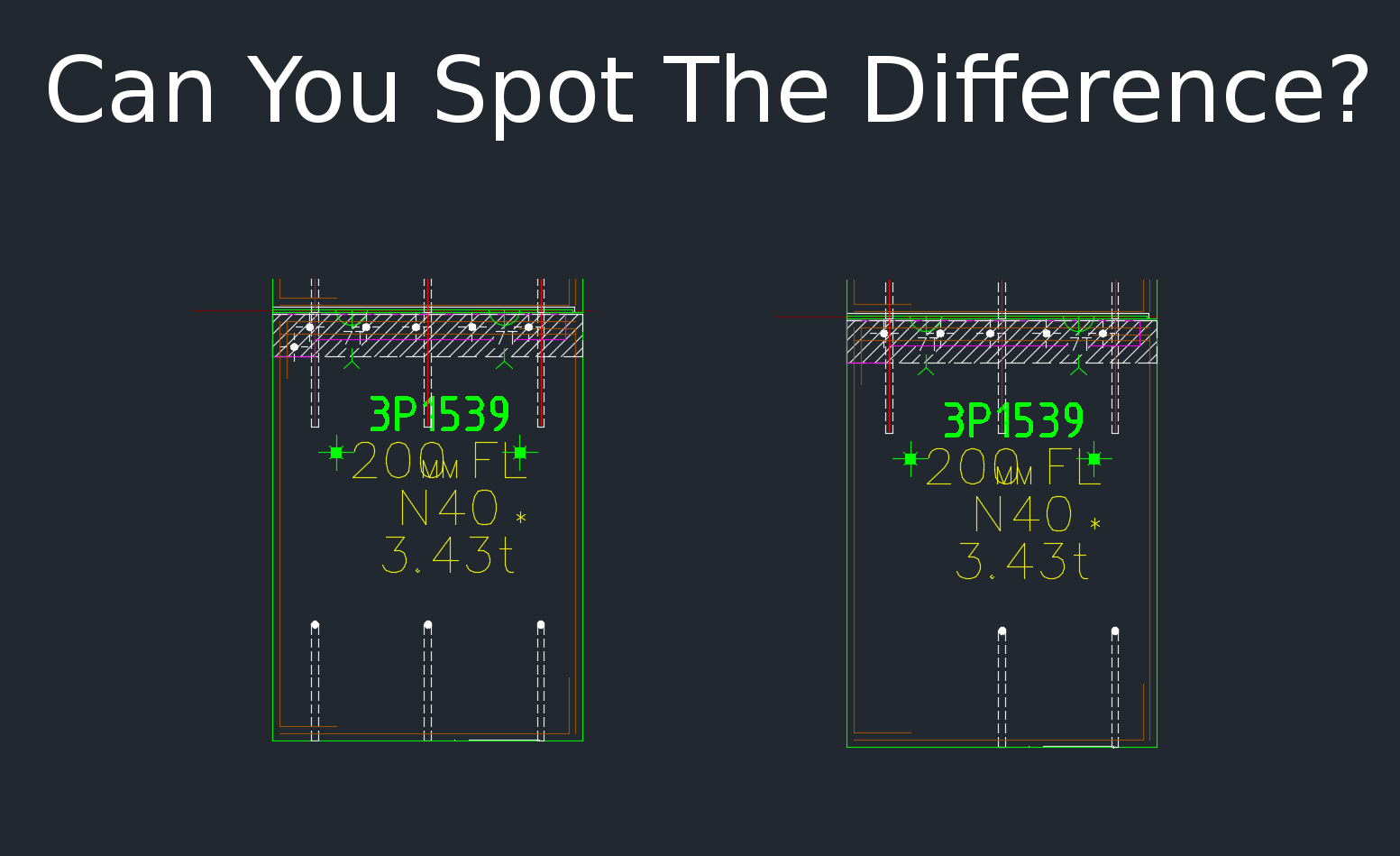
    Suppose someone makes a change in the layout but forgets to do so in the shop drawing (and vice versa). If you move a cast in plate, and if it’s actually produced and taken to site, then you have a big problem, and a big cost. How are you going to identify the differences which exist in the thousands of panels that you make? What if you had a tool which allowed you to easily identify differences between the two drawings?

    This is what this Panel Comparison tool does. It gives you confidence that somebody hasn’t made a boo-boo. And moreover, if somebody has made one, then this tool identifies sloppy shop drawing practices.

    Here is the demo. I hope you enjoy it!

    Gif Demo with User Interface:

    Now we have a user interface which allows us to click on items in a window and access them easily in AutoCAD. Written by Ben Koshy.
    Now we have a user interface which allows us to click on items in a window and access them easily in AutoCAD. Written by Ben Koshy.

    Video Demo without a user interface:


    Compare Panels Demo – Import Panel Difference from the Shop Drawing to the Layout from Tek1 on Vimeo.

    Features:

    • It can work for all clients with only very minor modifications. Very well abstracted out in the code.
    • It is super fast. Comparing the thousands of elements in each drawing takes a bit of computing power – but with smart algorithms, you can cut down the time.
    • It works for all sorts of edge cases – what if the panel was made up of arcs, polylines and straight lines – this plugin can handle all sorts of things. It can also handle voids in the panel?
    • What if an item is on the edge of a panel line – it can handle that was well.

    Every single panel that we draw will go through the above practices. It should give you a lot of confidence that we’ll get the drawings right. Yet another tool in the Tek1 arsenal that allows this firm to lead the industry in Precast Panel drafting.


  • Demo – Create Revit Panels Directly From AutoCAD Panels (Precast)

    Demonstrates the ability to transform 2D AutoCAD files into a native Revit format.

    This is a demo of my latest plug-in which demonstrates a proof of concept – i.e. a MVP (Minimum Viable Product). The programming was a little trickier than normal – because we are not using the .NET API, but the COM Interop API and the Revit API – something which I have not really explored prior to this post.

    What does it do?

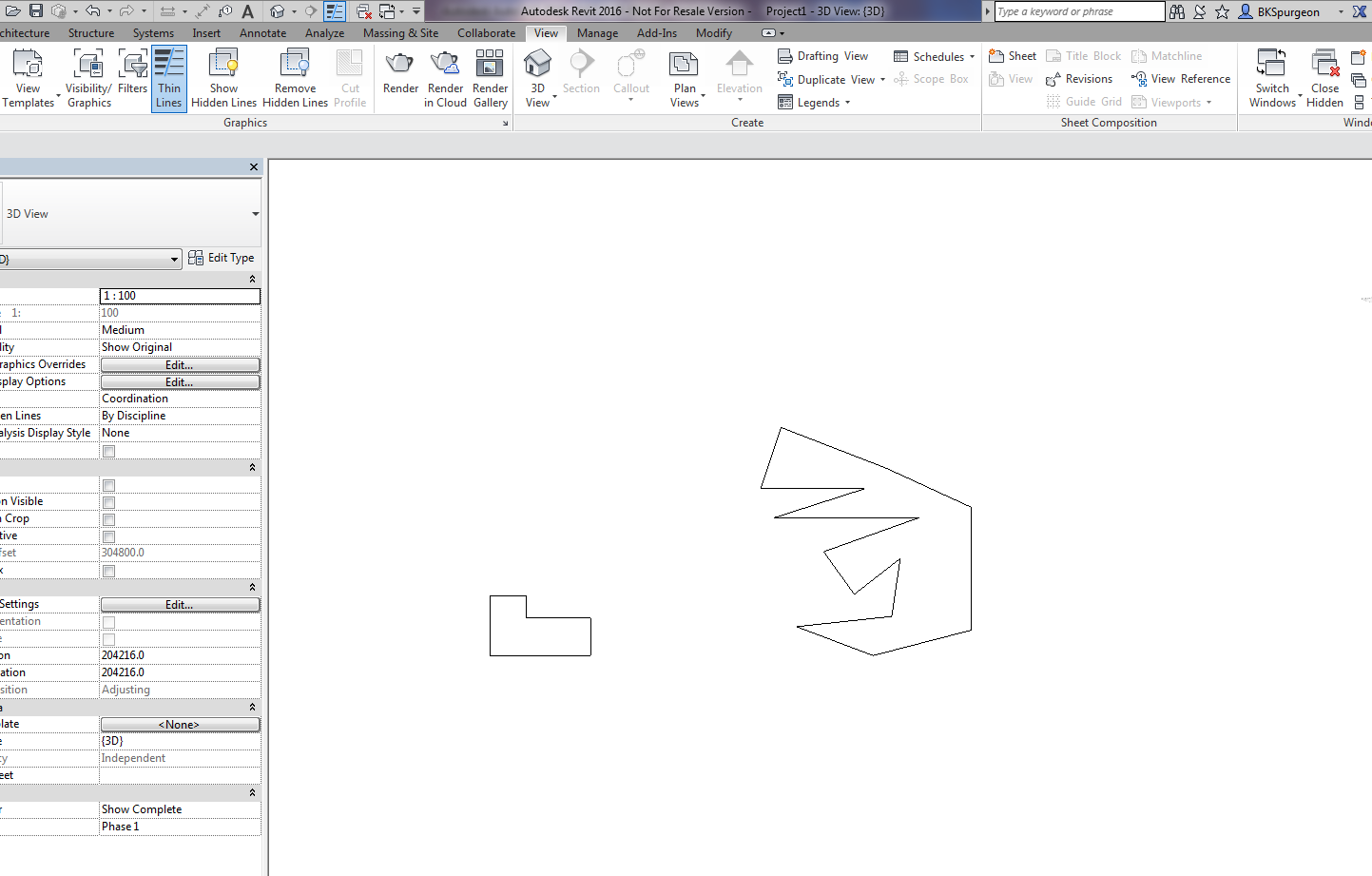
    If you have drawn some panels in AutoCAD, this plugin allows you to quickly and accurately convert those panels into Native Revit walls. You can then give Architects and builders those Revit files –  otherwise it will be very difficult for them to work with AutoCAD files.

    This gives you a competitive advantage over your competition, because you can quickly and easily do it – and it makes the job of architects and builders easier – especially given the rapid push everyone’s making into BIM technologies.

    Enough talk. Here is the demo. Enjoy:

    Create Panel Walls in Revit Directly From AutoCAD – Demo from Tek1 on Vimeo.

    (I’ve made the command so that it works even when you have AutoCAD open. This allows detailers to quickly switch to Revit and AutoCAD and to delete and restart if need be. Also requiring that AutoCAD be open ensure that detailers know exactly what file they are working with and what files they are converting. It eliminates a whole lot of errors.)

  • Comparing Lines – IEqualityComparer (AutoCAD .net)

    It’s not very often that I write something on the Autocad .net API, so here’s something which you, I suppose, will need one day:


    If you want to compare two lines, with a tolerance, in a collection then you’d need a LineComparer. The MSDN guide says that one should inherit from EqualityComparer, so unquestioningly, I did their bidding. The results are as below.

    Take careful note of the Hashcode. You want lines that are similar – and are within the tolerance to return the same hashcode. If they are outside the tolerance then the chances of two different lines returning the same hashcode is minimal.

    Lines are equal if their start and ends points are equal (or vice versa). They are also more or less equal if they return the same hash code. In such cases, then the equals method is run.

  • How to Access the Document Handle Given a Database Handle? (AutoCAD .net)

    A short post showing you how to access the Document instance given that you already have a database pointer.

    Here’s how:

  • Modelling Stud Walls (Steel Detailing Tips)

    What is the purpose of this lesson?

    The purpose of this lesson is for you to:

    • understand what a stud wall is, and
    • understand the importance of putting holes in the beams in order to allow for the erection of stud walls.

     What is a stud wall?

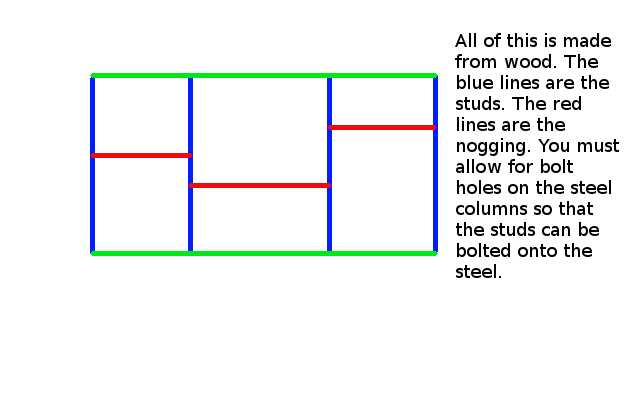
    A stud wall is made up of:

    • A frame (in our situation this frame will be a steel frame) and
    • timber members which go in between the steel frame and
    • a covering of 13 mm plaster board to cover the frame. The plaster board covering is not shown in the diagram below.

    In steel stud walls, light steel pressed members or standard steel studs (mostly standard steel studs) are used instead of timber.

    Please view the diagram below.

    Shows what stud and nogging members are.
    Shows what stud and nogging members are.


    What is nogging?

    Do you see the horizontal 90 x 45 timber pieces – the short red horizontal timber members? These short timber members are called nogging.

    The nogging members of a stud wall are usually smaller in size than the main vertical members.

    Nogging members run horizontal and give some strength to the wall.

    Inside of the wall is empty space. Insulation material can be put in there.

    Cross pieces are called NOGGING.

    The Key Point of this lesson:

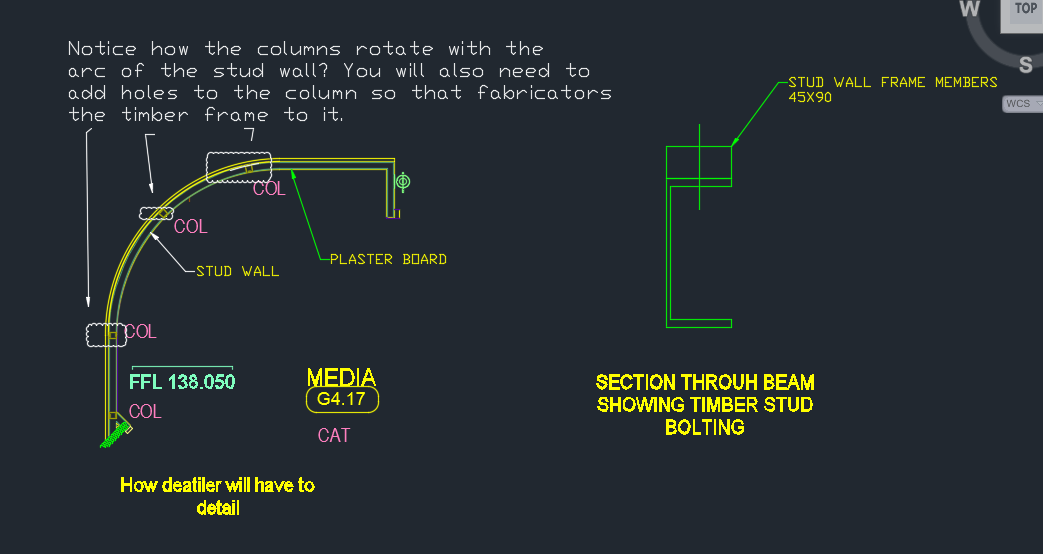
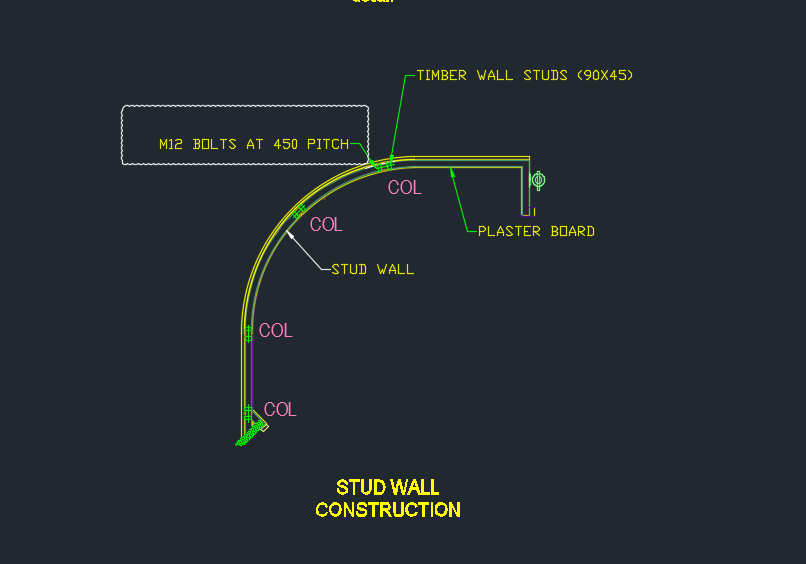
    • It is important that you provide dia 14 holes on the steel beams and columns so that the timber pieces can be bolted to the steel pieces. Imagine you have some steel beams/columns and also some timber. How will the timber columns be attached to the steel columns so that the structure doesn’t move? Holes need to be drilled so that the timber pieces can be bolted to the steel beams. You need to provide holes in the steel so that the timber members can be bolted to the steel.
    • You need to rotate and orientate the beams so that its face runs with the stud wall face.

    A stud wall cannot stand in the wall without some connection.

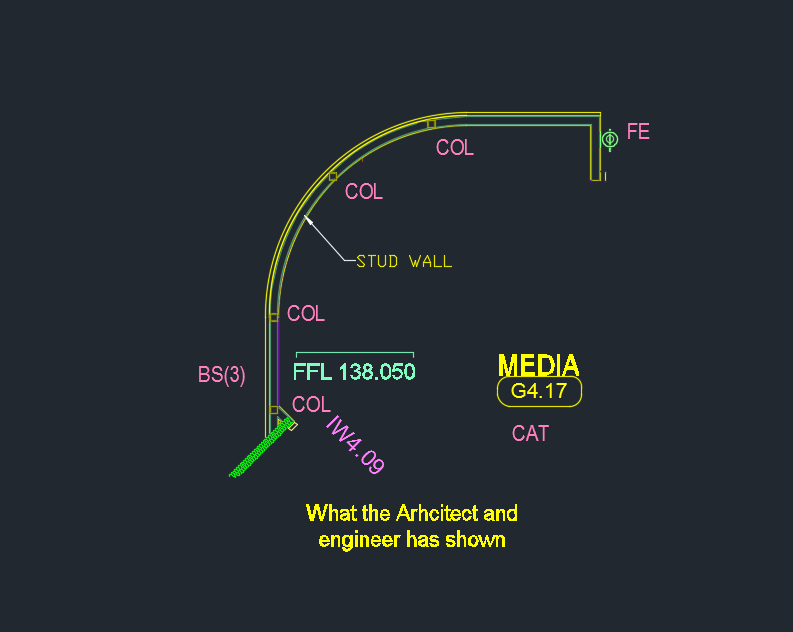
    Please see the below diagram to show you how things are drawn in the engineering and architectural drawings:

    What the engineer etc typically show. You must not shop draw to this exact design.
    What the engineer etc typically show. You must not shop draw to this exact design.

    Now see below how you will need to detail the above design:

    Shows how you will need to detail the design. Rotate the columns and also add bolt holes in the right places.
    Shows how you will need to detail the design. Rotate the columns and also add bolt holes in the right places.

    See here as well:

    Showing the changes - clouded.
    Showing the changes – clouded.

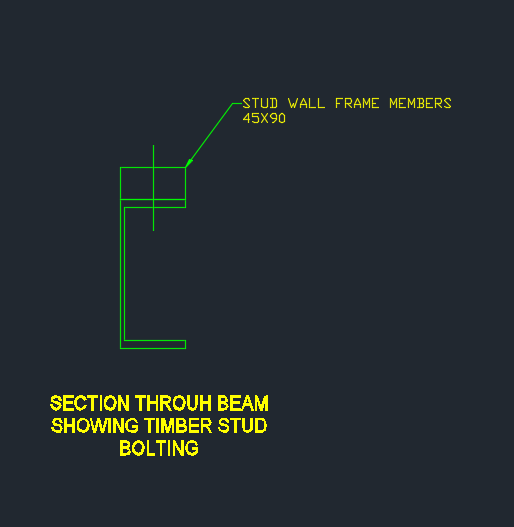
    And a section view:

    Shows a section view of the steel column and the stud.

    Shows a section view of the steel column and the stud.

    I hope this helps.

  • The Curious Case of Overkill Not Working (AutoCAD)

    A very perplexing question:

    Why isn’t overkill working?

    The result will stun you.

    Overkill was not working
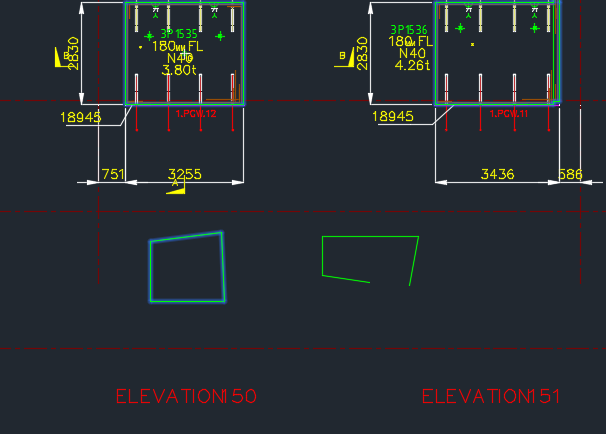
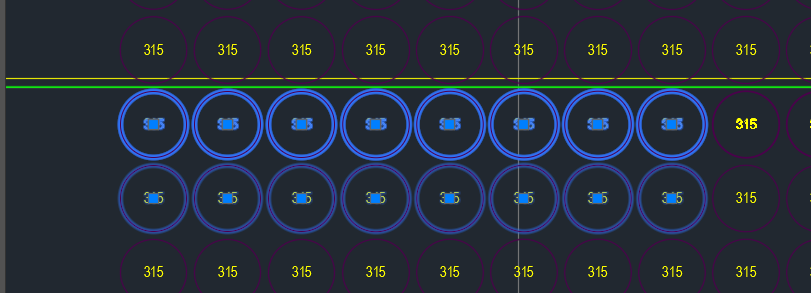
    Overkill command was not working on these panel voids. Why do you think this is the case?

    As you can see in the above picture, the top row of panel voids were doubled and in some cases tripled up. Obviously we don’t want this. Ordinarily, when such drawings are passed on to us we employ the overkill command. But for some reason it wasn’t working. And I couldn’t for the life of me figure it out.

    That was until our lead Bubble Deck detailer suggested that the insertion points of the block references were not all on the same plane – some of them were in the Z plan – if that’s the case, then overkill would not recognise them as being the same block – and will allow them to continue to co-exist in the same drawing.

    Solution:

    Check that all similar items have similar insertion points. If they’re different – that’s why overkill might not be working for you.