
TeklaStructures has a batch editing utility for Assemblies.
However, if we have to batch edit parts there is nothing.
Expert Steel Detailers demand Utilities
Our detailers have demanded that we develop a utility to do batch editing of parts.
(more…)I am going to post a series of articles which attempts to explain complicated ideas in a simple fashion.

TeklaStructures has a batch editing utility for Assemblies.
However, if we have to batch edit parts there is nothing.
Our detailers have demanded that we develop a utility to do batch editing of parts.
(more…)Our use case?
How can we check?
using Tekla.Structures.Catalogs;
// download this dll from Nuget

                public bool CSVProfilesAreCorrect(List<CSVFieldsImplemented> dataRows)
        {
            HashSet<string> csvProfiles = dataRows.Select(row => row.Profile).ToHashSet<string>();
            HashSet<string> teklaProfiles = getAllTeklaProfiles().ToHashSet<string>();

            if (_areCSVProfilesCorrect())
            {
                return true;
            }
            else
            {
                throw new SystemException($"The CSV files have these profiles which don't exist in Tekla: {String.Join(", ", string.Join(", ", csvProfiles.Except(teklaProfiles)))}");
            }

            bool _areCSVProfilesCorrect()
            {
                // all the csv profiles
                // must be contained in tekla profiles

                return csvProfiles.All(profile => teklaProfiles.Contains(profile));
            }
        }

// and we call it like so:
CSVValidator validator = new CSVValidator(db);

if (validator.CSVProfilesAreCorrect(extractor.CSVRecords))
{
    // do the modelling
}
Voila! Now it’s hard to make a mistake.
If you want to get all materials – it’s very similar to the above. Use the CatalogHandler.GetMaterialItems() method along with the materialItem.MaterialName property. The code to actually do that – I will leave as an exercise to the reader.
I’ve created a macro to help create Advanced Steel Members, given a particular spreadsheet file. You are welcome to download and use it – see here. Unfortunately, I don’t have a demo video for you so: Please read the documentation / manual.
Why bother with this tool?
Because drawing Advanced Steel Beams is very cumbersome. If you have a CSV file you can draw AutoCAD lines and conver them with a fairly simple macro. Everything is open sourced, so you can fork or submit a PR if you require.
Here is a video demonstrating this:
If you want to download it, please see check out this link.
Source code is available here.
I had written a more advanced user interface for AutoCAD. Perhaps I will incorpoate that into Advance Steel when I get the time. Porting it is a little tricky/complicated it.
It seems to be a common problem: getting intersection points along a line.
This is what we want:
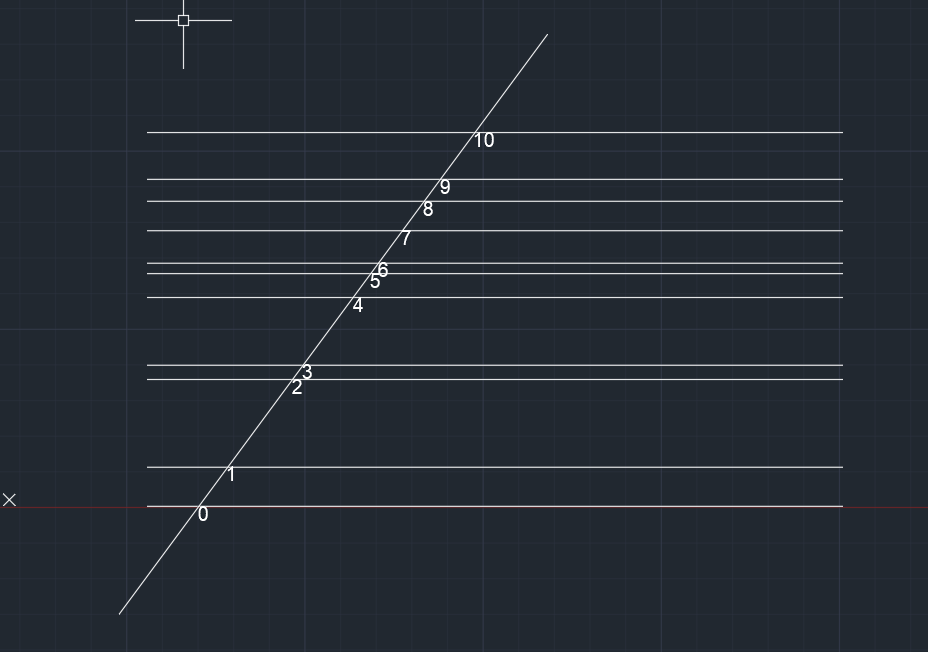
Here’s how I solved it:
This is a simple example of how Linq can be used to filter, map and order a set of lines.
The code is pretty self-explanatory. It is a useful example which can be used to springboard towards further, more sophisticated use-cases according to your own requirements.
It is important to check for fake dimensions before using it as reference model in Tekla
Please watch this video
A very handy method. Often detailers will ask for something to be placed on a particular layer. But since they are using a 100 different drawing templates without any consistency nor standards, the onus is on you to impose that standard on them. So you’d have to check for a layer and add it if it doesn’t already exist. Anyways, that’s enough griping: here is the code: