The AutoCAD .net/ObjectARX APIs have a handy feature all the pick first selection. This means that prior to running a command, the user is able to select some objects in the model. The command is then able to use these objects. The question is, how to obtain a selection of objects using the Tekla API – prior to running your plug-in?
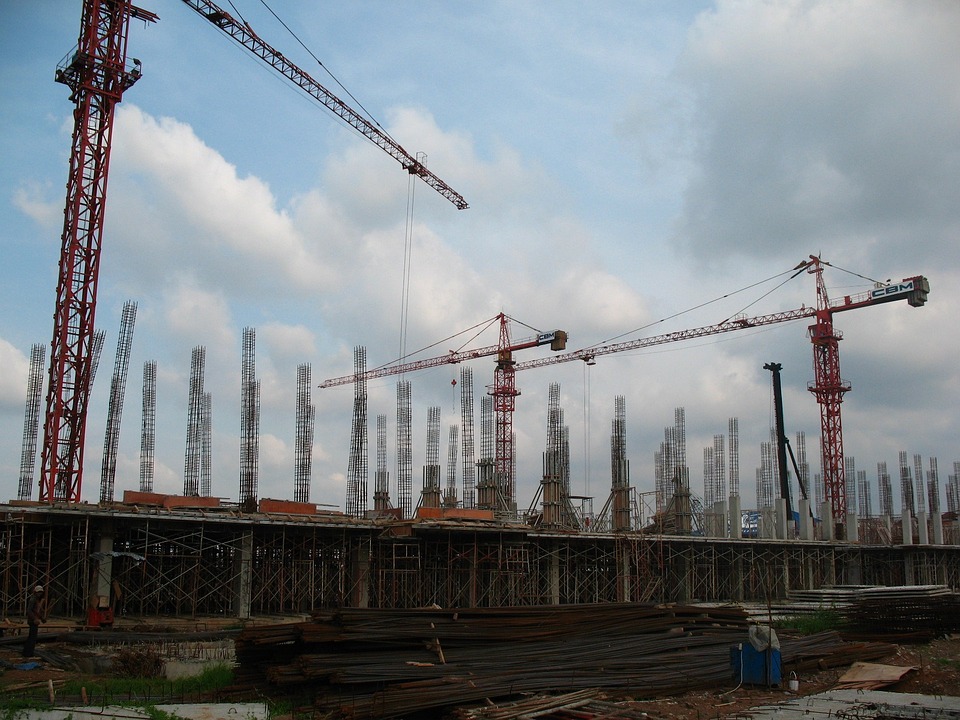
The object of a Tekla Application is to ensure that things go smoothly on the construction site. You can see the organised chaos that is here. Avoid the real chaos. Plan ahead.
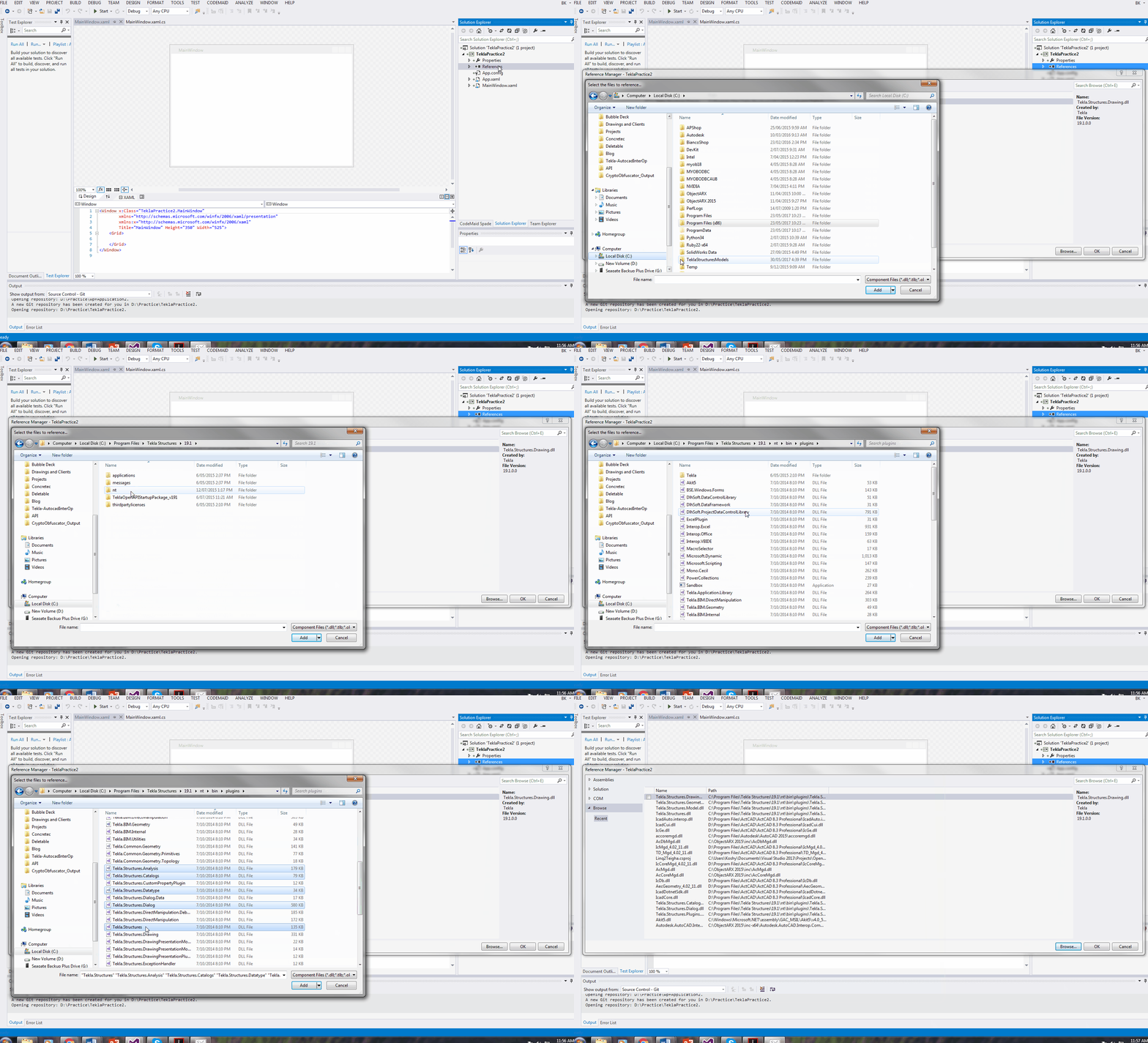
For the newbie this post shows how to set up a Tekla Project.
Let us assume that you are creating a WPF desktop Application. You could also just as easily create a console application – I often do this if I simply want a quick and dirty way to test code.
Here’s the problem. You are viewing a Tekla drawing. But you have no idea what you are looking at, or where it is. This macro will take you to that very assembly in the model. It’s actually quite handy. And here is the previous post where I made allusion to the facility (you’ll find a video demonstrating its use):
Tekla licenses are pricey. About $30k + maintenance per license. What if I told you that you needed 30-50% less licenses than you currently hold. That’s a huge cost saving, isn’t it?
If you only need 5 licenses (as opposed to 10), then you’ve saved $150k instantly, plus maintenance.
AutoCAD licenses are significantly cheaper.
But if only the work you did in AutoCAD could be transferred into Tekla? That would save you some licenses. That’s just what I’ve done here in my latest project. Now a significant portion of any modelling job can be done in AutoCAD and simply imported into Tekla.
Interoperability will also help improve the quality of your work: it’s tough finding people who are highly skilled in Tekla. What if I told you that you could use an AutoCAD draftsperson instead of someone well versed in Tekla, to do the same job? Now you have a potentially infinite pool of candidates to draw from.
I’d love to be able to help. Just call or email us.
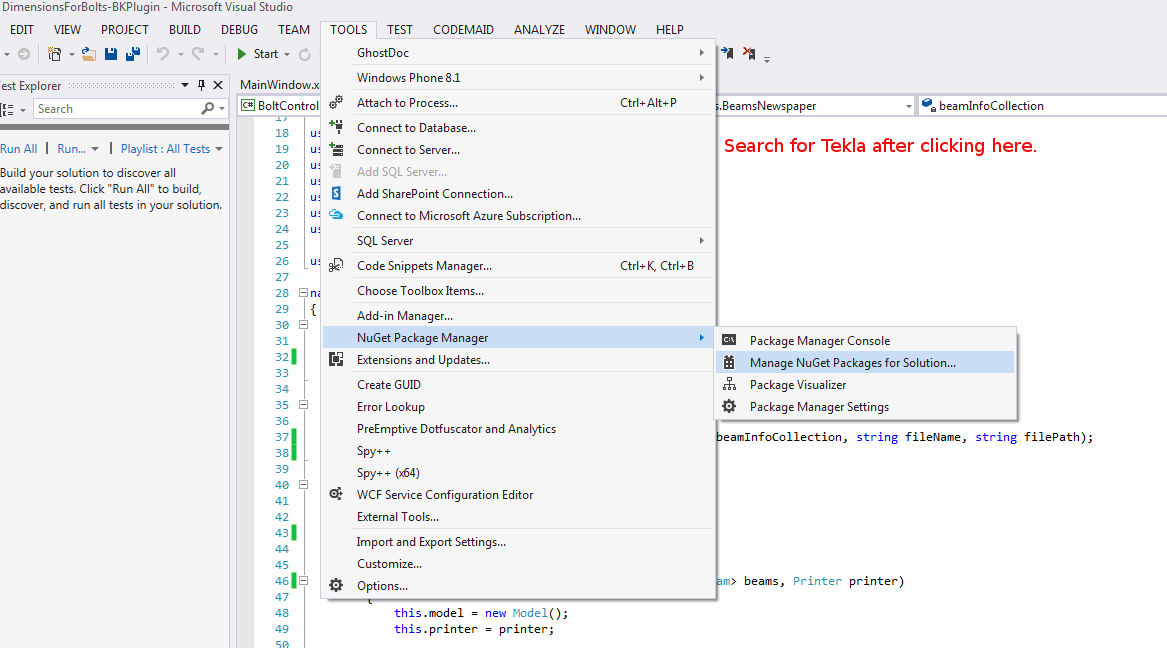
How to Download Tekla Catalogues (or Catalogs):
You need to download the catalogue because the interop DLL connects to the catalog. Without it, we cannot verify that your profiles actually exist in Tekla.
Wouldn’t it be handy if we could pro grammatically insert reference models into Tekla? Well you can now do so quite easily. And if you want to see a video demonstration, here it is:
Here is the code which does the hard work. (You will of course add the appropriate references and directives):
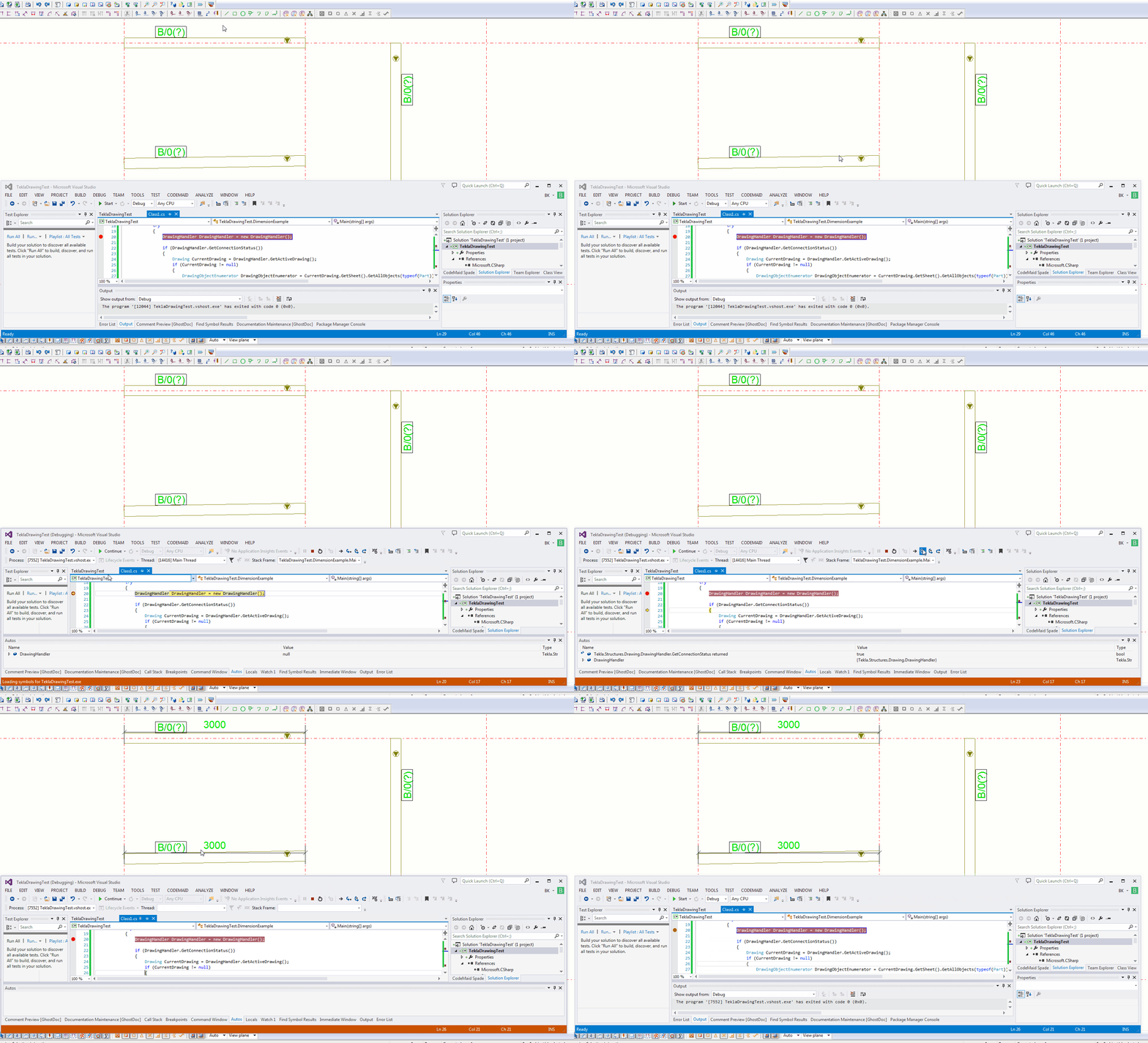
This is an example of a hello world program which dimensions a beam. I found this code in the Tekla Drawing Samples folder.
You can see it in action here:
How to dimension a beam using the Tekla Open API (c#)
Let’s walk through it:
We have to get the relevant drawing.
Then we have to get the relevant part we want to dimension.
Then we get the view associated with the part.
We save our current transformation plane, and we set a new transformation plane to the particular view’s display coordinate system.
From here, get the part’s identifier and we select the ModelObject in the model itself – to get the relevant coordinates of the Beam we want to dimension.
Once we’ve used the identifier to get the Beam we are after, and to get it’s relevant parts then we create the dimension.
Remember to save back the original transformation plane.
Note: if you insert the dimension then I obtained an exception. I don’t think you need to insert dimensions when working on drawings.
Note 2: if you forget to save the transformation plane back to the original, then you will find that you dimensions will go wacky, next time you run the command. Always remember to leave things as you found them!
Note 3: You have to have the beam in the same plane as your view otherwise it won’t draw the dimension.
The model we have received was built using an Engineering Modelling license.
We have a full detailing license.
There are components in this model, but we can’t number them because they were produced using an engineering license. If you want to number them, well they ought to have been created with a detailing license. So what do we do now?
The only way to number these components is to first convert these components to a “detailing component”. The detailing component is a “type” of component.
The problem is that there is no method exposed by the Tekla “Open” API which allows us to programmatically call this functionality. Also to make things more confusing: the nomenclature used in the user interface is different to the nomenclature used by the creators of the Open API.
So what then is the solution?
The Solution
Here is a video explaining both the problem and demonstrating a solution:
And here is the code which actually does the work:
Tekla licenses are pricey. About $30k + maintenance per license. That’s expensive. And if you had 10 licenses, or perhaps even 50 licenses, what if I told you that you needed: 30-50% less licenses than you currently hold? That’s a huge cost saving. If you only need 5 licenses, then you’ve saved $150k instantly, plus maintenance. You can now do that.
AutoCAD licenses are significantly cheaper than Tekla.
But if only the work you did in AutoCAD could be transferred into Tekla? That would save you some licenses.
That’s just what I’ve done here in my latest project. You can check it out here:
Has anyone every given you a model created form an engineering license and asked you to produce shop drawings from it? Well that’s incredibly difficult to make possibly. Because you can’t easily number parts.
So I created a macro which makes life much easier (and faster) too.