Tag: AutoCAD

  • ALTA FILAMENT PD (Precast Shop Tickets)

    TYPES OF PRECAST WALL SHOP TICKETS

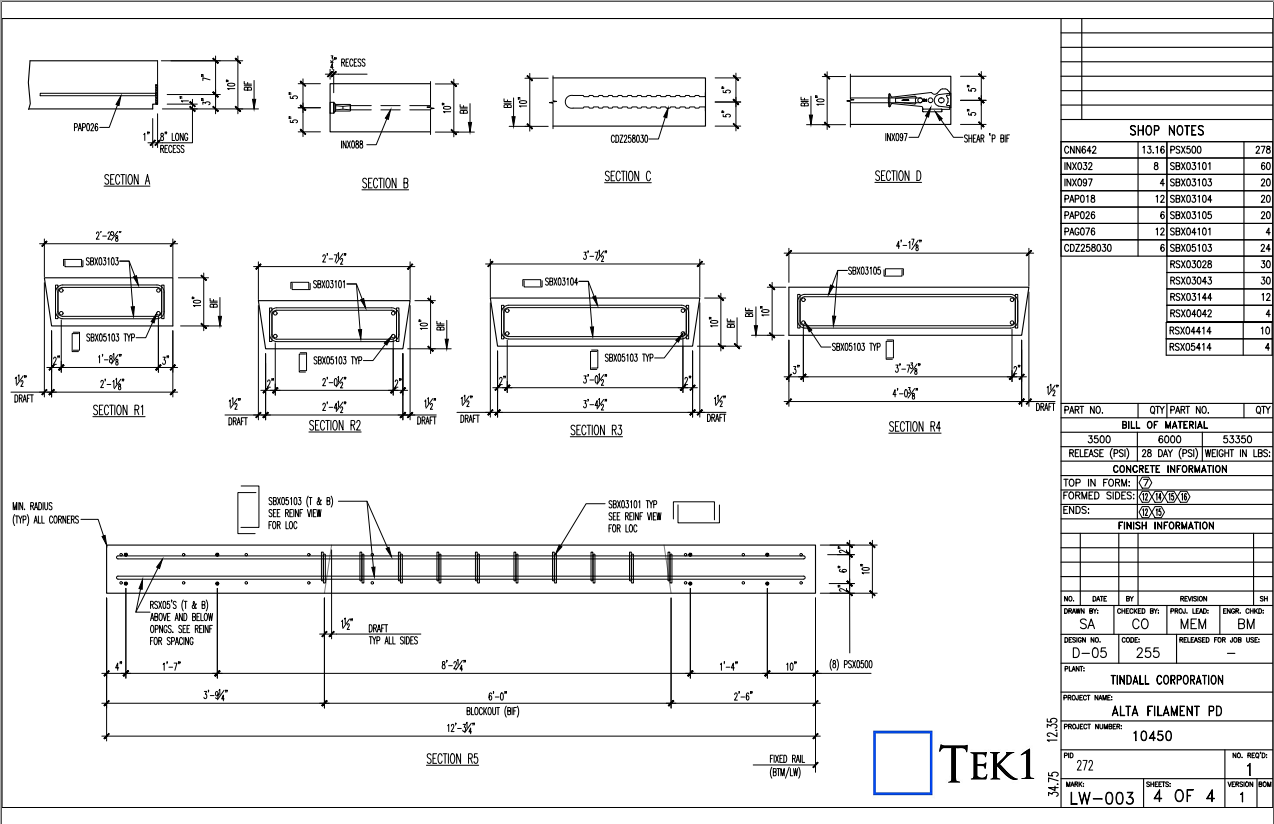
    A. LITE WALL WITH DOOR OPENING :

    Sheet 1: Panel Profile, Components and their setout Placed in the Bottom In Face (BIF) of the Precast Panel.
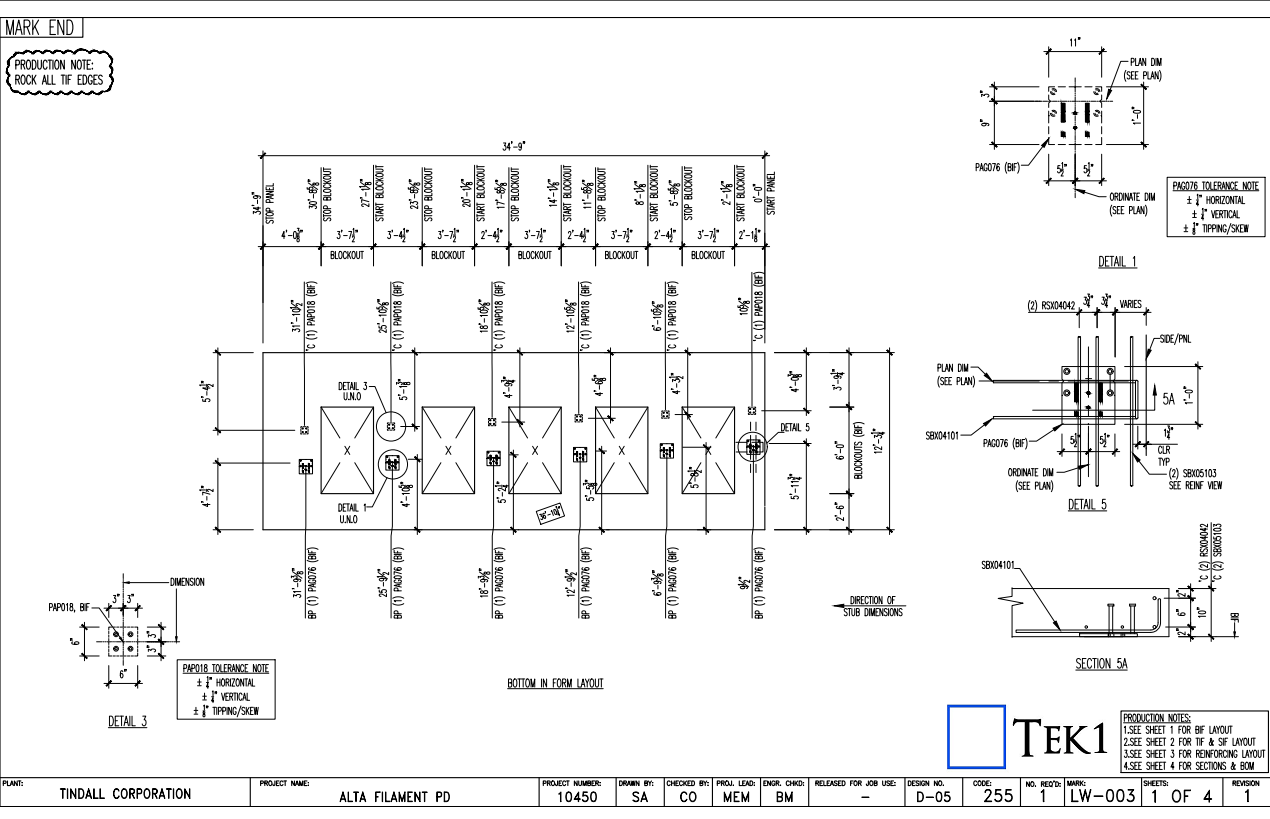
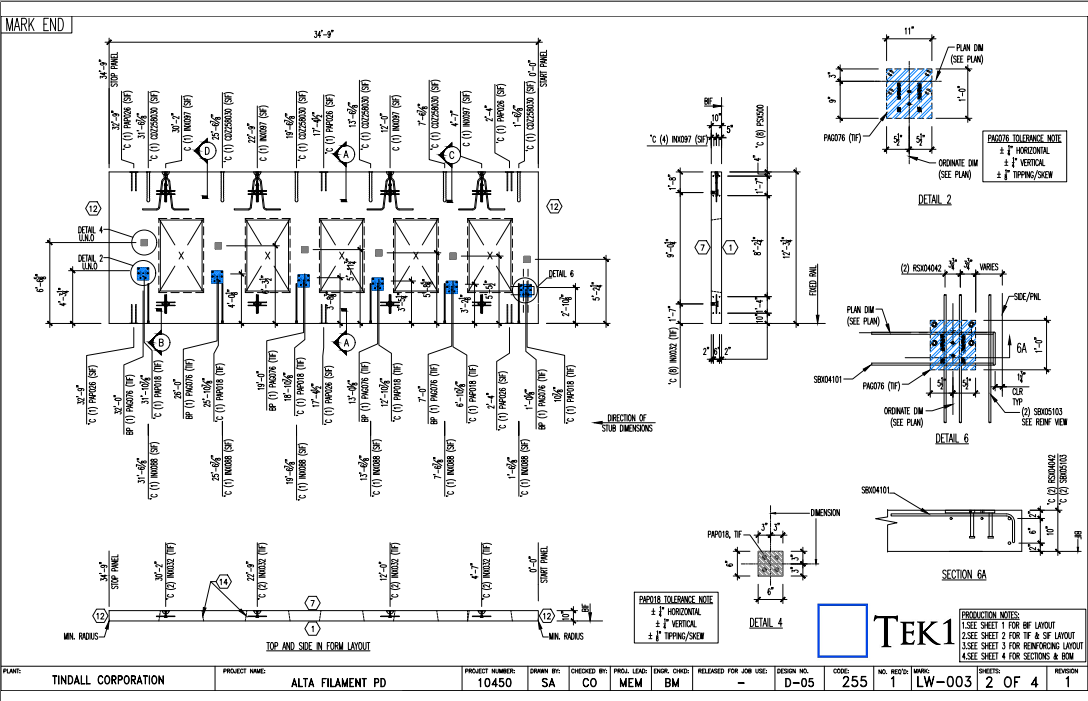
    Sheet 2: Components and their setout Placed in the Top In Face (TIF) of the Precast Panel.
    Sheet 3: The Reinforcement Setout on the Precast Panel.
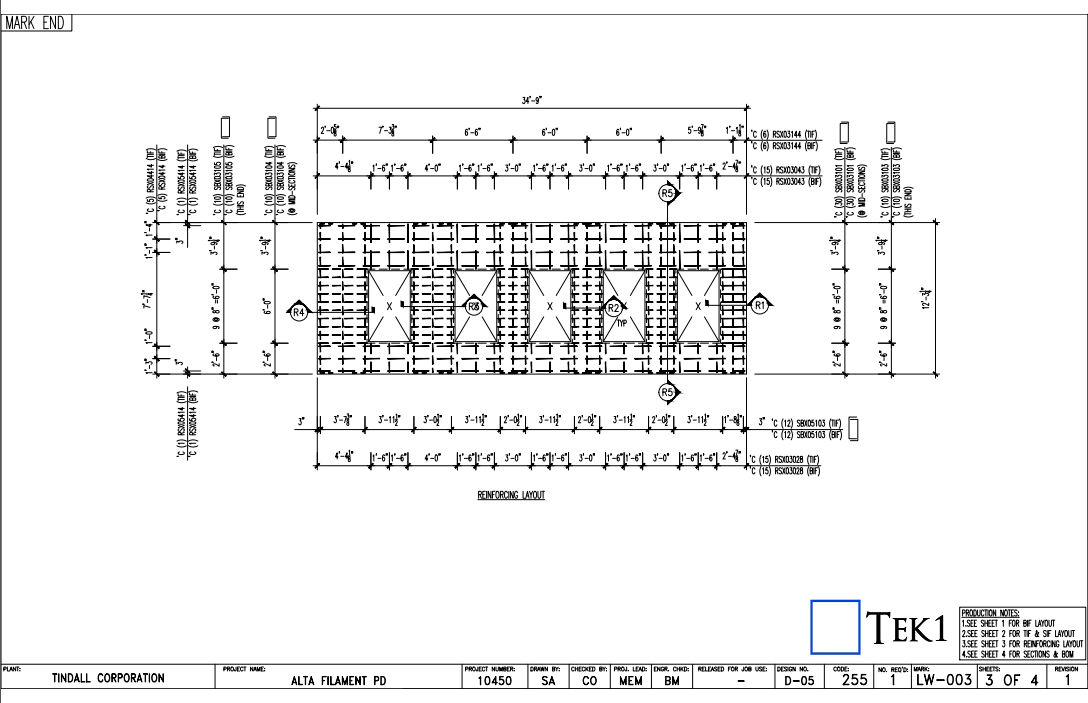
    Sheet 4: Section Detail and Order Form List for the Precast Panel.
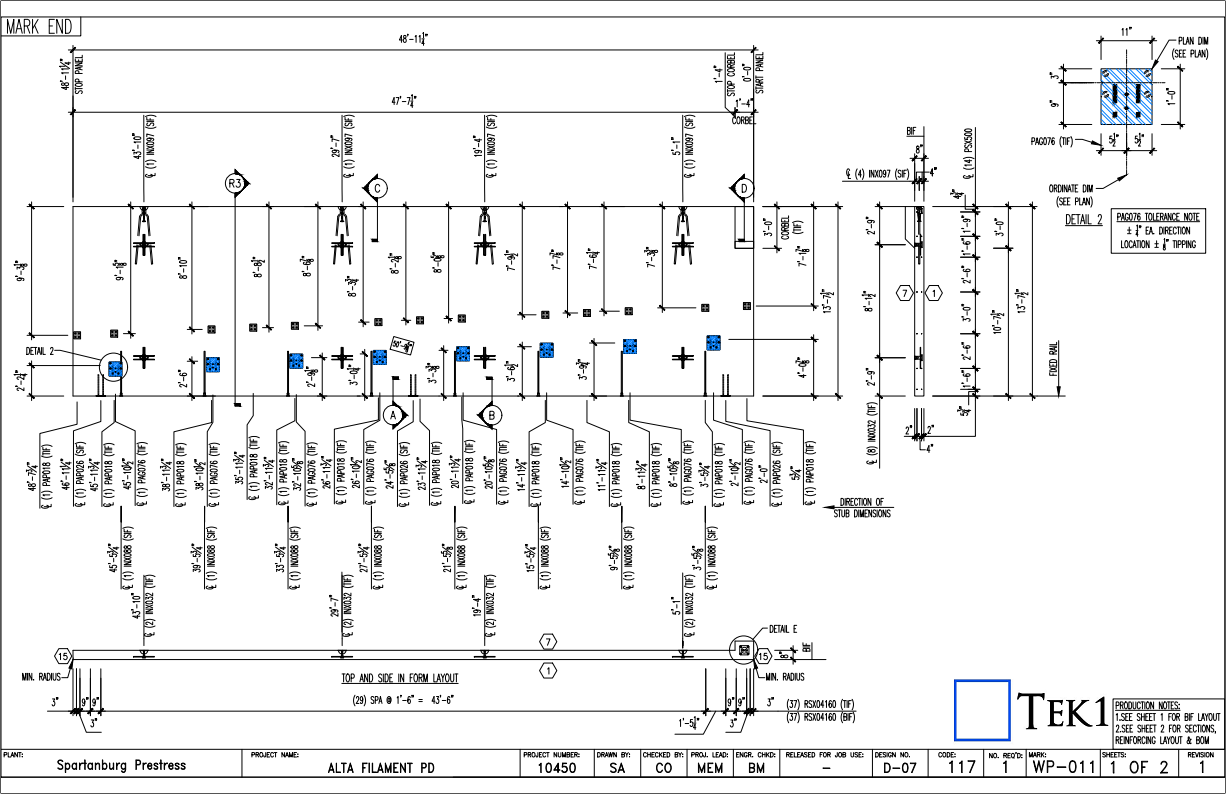
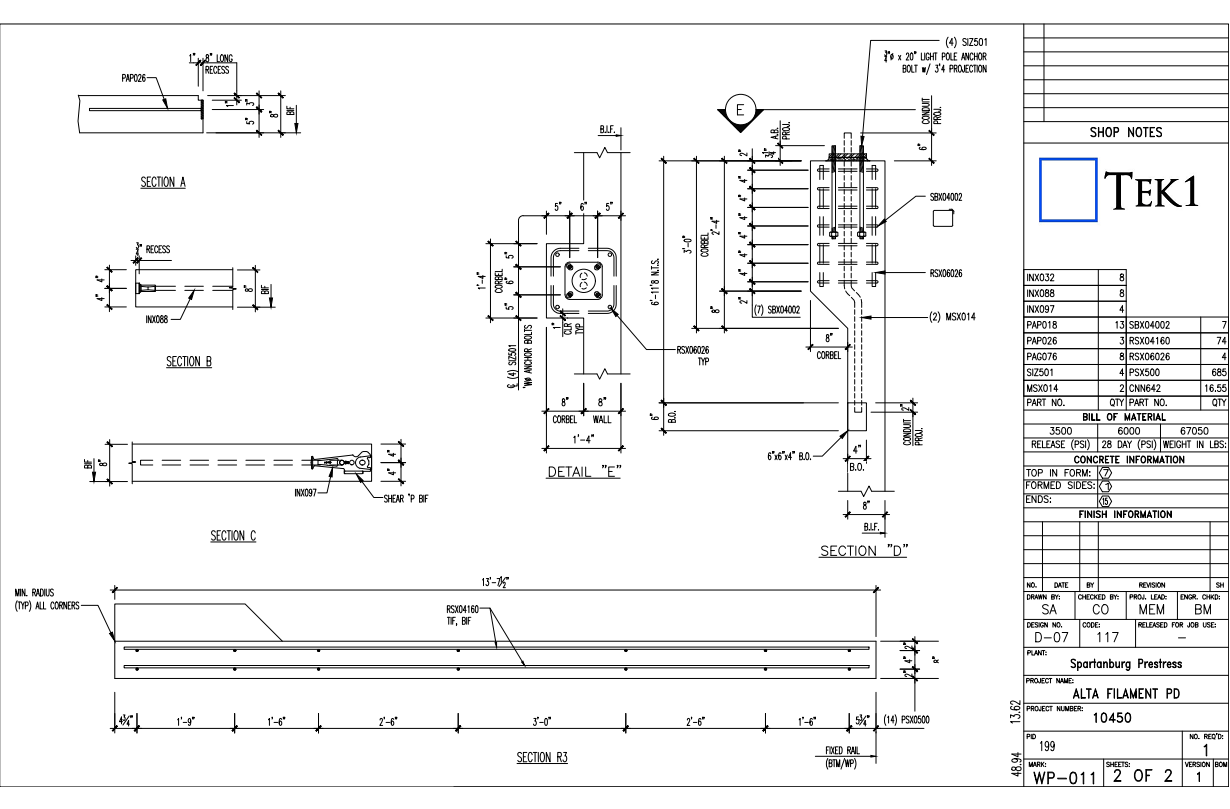
    B. LITE WALL :

    Sheet 1: Panel Profile, Reinforcement setout, and the Components Placement on both faces of the Precast Panel.

    Since the reinforcement are not much complicated as like door opening , So they have shown in the Sheet 1 itself.
    Sheet 2: Section Detail and Order Form List for the Precast Panel.
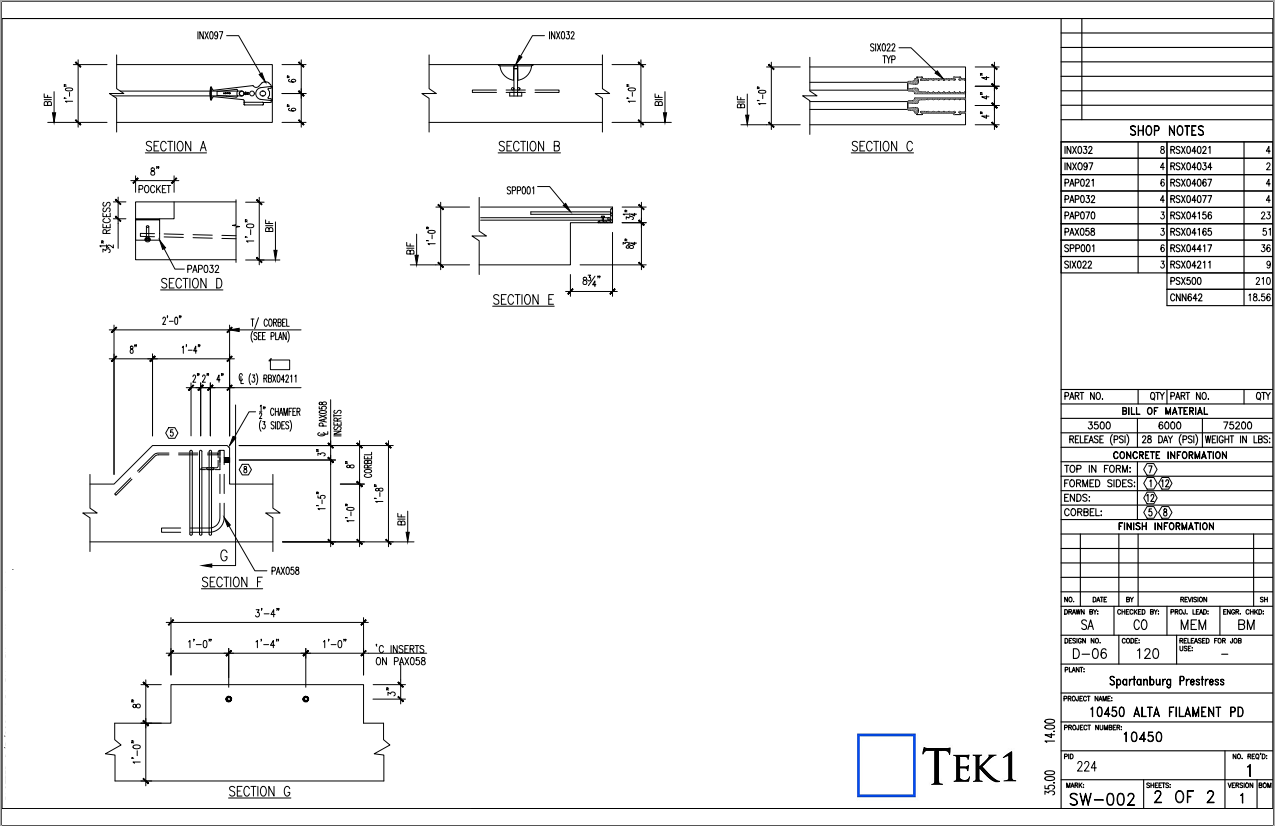
    C. SHEAR WALL :

    Sheet 1: Panel Profile, Reinforcement setout, and the Components Placement on both faces of the Precast Panel.
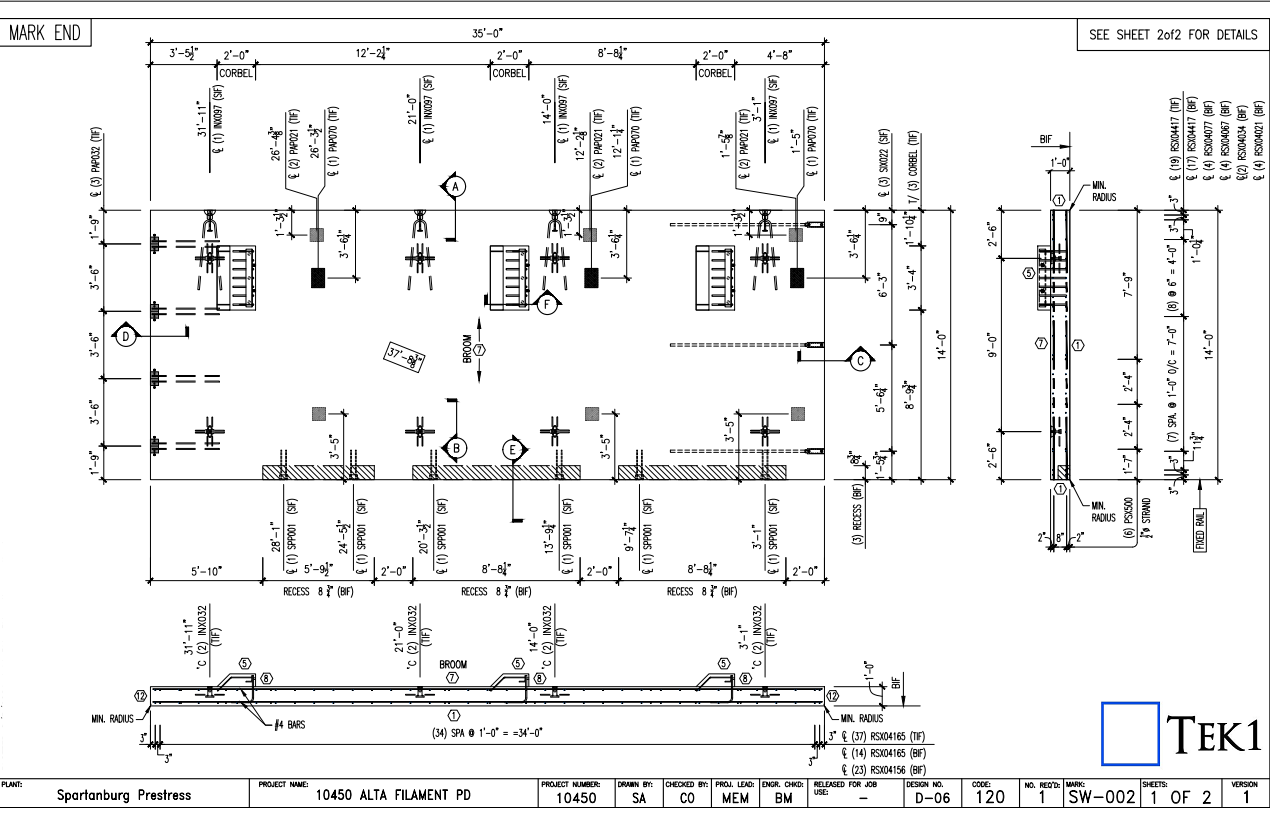
    Sheet 2: Section Detail and Order Form List for the Precast Panel.
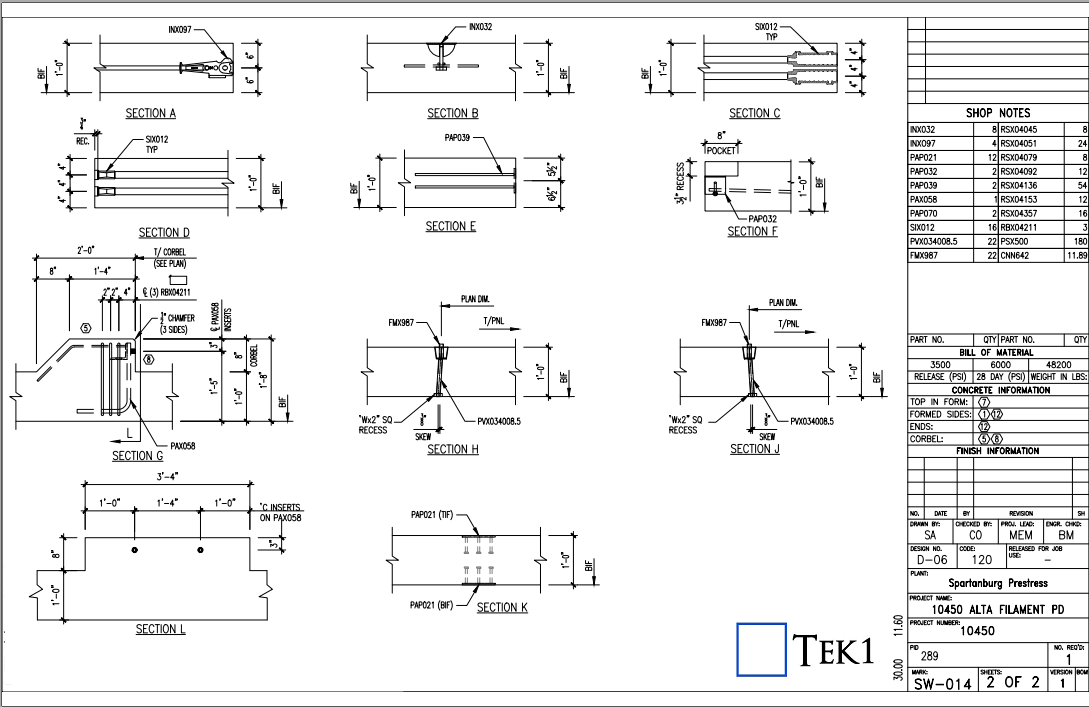
    D. SHEAR WALL WITH WINDOW OPENING :

    Sheet 1: Panel Profile, Reinforcement setout, and the Components Placement on both faces of the Precast Panel.
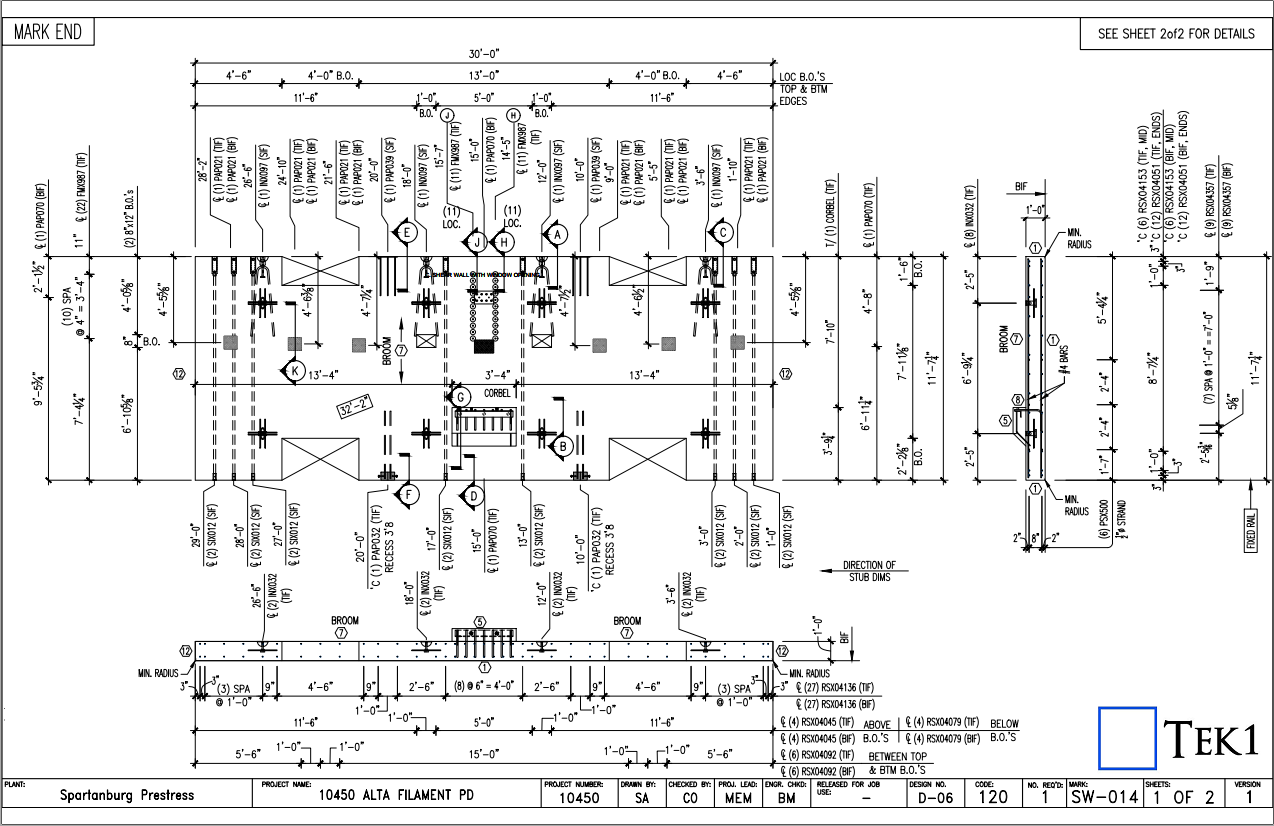
    Sheet 2: Section Detail and Order Form List for the Precast Panel.
    SITE IMAGES

  • Basic Autocad Tutorial

    Here is you tube series which could help in getting started with Autocad

  • Create new layer filter

    This video explains how to create Layer property filters and layer Group filters for Autocad. nano cad should be same. My nanocad Lic is not yet installed. Using layer filters is a great help to manage your cad files.

    Using layers

    https://youtu.be/9pcJ7OYXUn8

    p

    roperly increases your productivity many folds

  • Setting dimensions style using a template cad file

    You can download the template cad file by clicking this link


    https://youtu.be/nFf-PHfCVKg

    late dim.dwg fileDIM . It is zipped file only because wordpress does not allow me to upload a .dwg file

  • Jigging with SHIFT, CTRL and Mouse Wheel Functionality (AutoCAD .net API)

    If writing software then make it easy for your users.
    User Input is critical. You gotta make the user experience amazing.

    Any AutoCAD programmer knows that things which an algorithm may take a million years and infinite computational power to do can sometimes be easily done by a human being instantly. In the same way it is sometimes much easier to give a human being the ability to choose: then you can get an optimum result without complex algorithms.

    This post is a code snipped of how you can utilise the CTRL + SHIFT + Mouse Wheel (up/down) mechanisms in order to produce different desired results when operating a custom jig.

    Here is the code:


    So when the appropriate user input happens, then the jig can respond accordingly. Yes it’s true – the OOP purists will say: “you’re passing a concrete type in there” – I can always change it later if I want.

  • On Line Equality (AutoCAD .net API)

    Some lines may be more equal than other lines? The AutoCAD .net API's EqualTo method may disagree with your interpreation of equality. Here are the results;
    Some lines may be more equal than other lines? The AutoCAD .net API’s EqualTo method may disagree with your interpretation of equality. Here are the results;

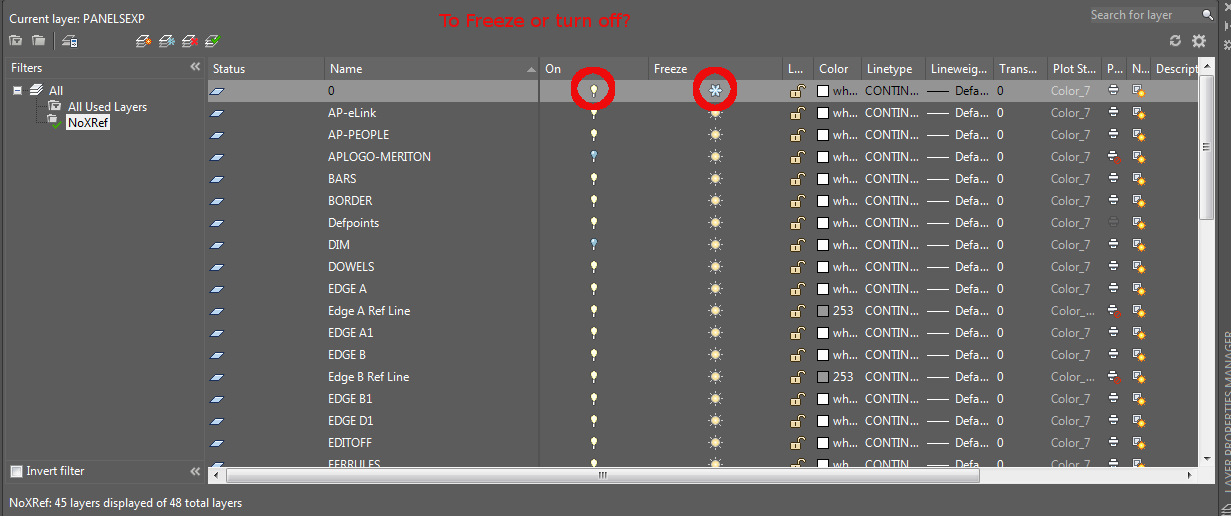
  • What is the difference between Freezing a layer vs Turning it off? (AutoCAD tips)

    Freezing improves performance. That's the difference.
    Freezing improves performance. That’s the difference.

    A tyro to AutoCAD will immediately notice that he or she has two options available to him – both of which ostensibly render similar results: freezing a layer and turning it off. But what is the real difference?

    • When you turn a layer off, it is still loaded into memory. AutoCAD is keeping track of it.
    • When you freeze a layer, then AutoCAD basically ignores that layer and everything on it. You should notice a slight increase in speed and performance when you freeze layers – especially if they contain hundreds of thousands of elements. That will give you a significant performance boost cf: if you simply turned that layer off.

    That’s the difference and I hope you learned something.

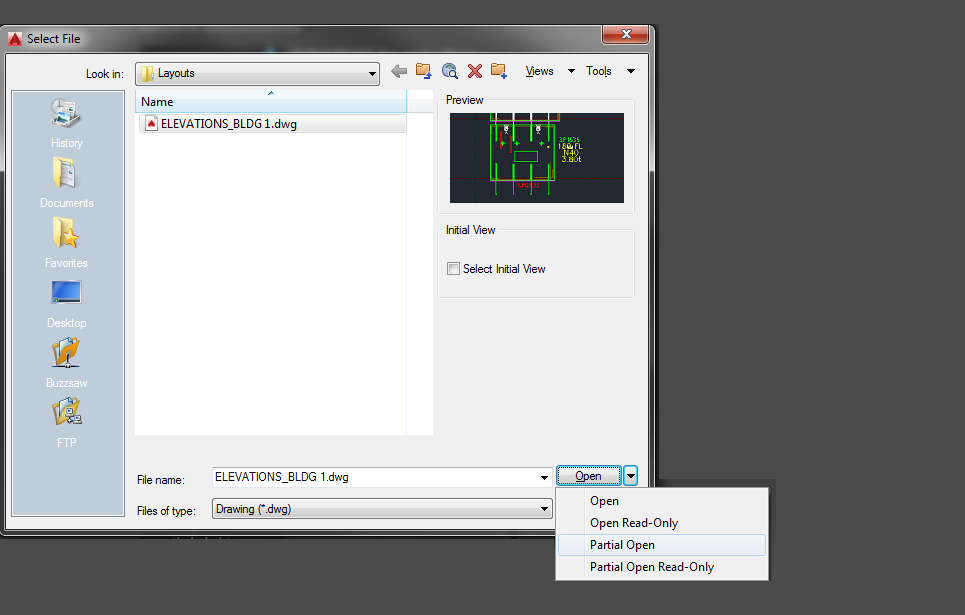
  • Speed Up Working in DWG files with Partial Open


    Showing how to open limited geometries using partial open.
    Showing how to open limited geometries using partial open.

    Suppose your .dwg file has hundreds of thousands of entities all over the place – but you don’t want to see all of them at once – or load all of their geometries. This is especially the case when dealing with Bubble Deck layouts. You can only open the things that you need via a partial open. You can now choose and view only the stuff that you want to see. It’s quicker than otherwise.


  • Where did the AutoCAD File Dialog User Interface Go – How to Return it back to normal after using AcCoreConsole? (AutoCAD)

    What Happened? No Dialog Box UI in AutoCAD?

    Revert AutoCAD FileDia
    If you’ve run AcCoreConsole and can’t bring back the normal user interface, just remember this trick.

    So I’ve just managed to run AcCoreConsole – some script. And it’s changed some settings. And now when I open regular AutoCAD, when I type in netload – it seems that I’ve lost the ability to open/select things using the user interface. Now I have to manually type out long file names into the command line which is the height of tedium.

    Why did it happen?

    It happened because we were not meticulous in the running of our AcCoreConsole scripts. We should be sure to ensure that we save settings properly so that when users use the regular AutoCAD program, they don’t have to reconfigure the entire environment away from what works well for AcCoreConsole, back to what they are normally used to.

    How to fix the problem immediately

    You can file the problem by typing in:

    That should change those settings back to normal.

    How to avoid the problem in your script file

    Don’t forget to return it to the original settings: anything beginning in a semi-colon is a comment and will not be executed.

    You can see a gif of it in action above.