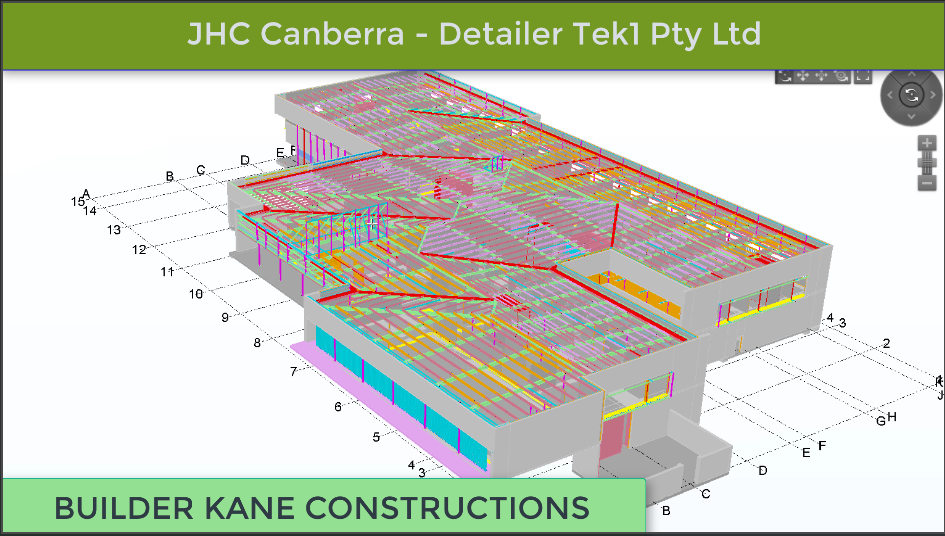
Kudos to the engineers and architects on this project. Their support had been brilliant. We have never come across another engineer or architect who had been so prompt in resolving issues on this project. We were able to complete this project very quickly mainly because of the super support i
JHC Canberra
n resolving RFIs from the engineers architect and the builder. The builder is Kane Constructions.
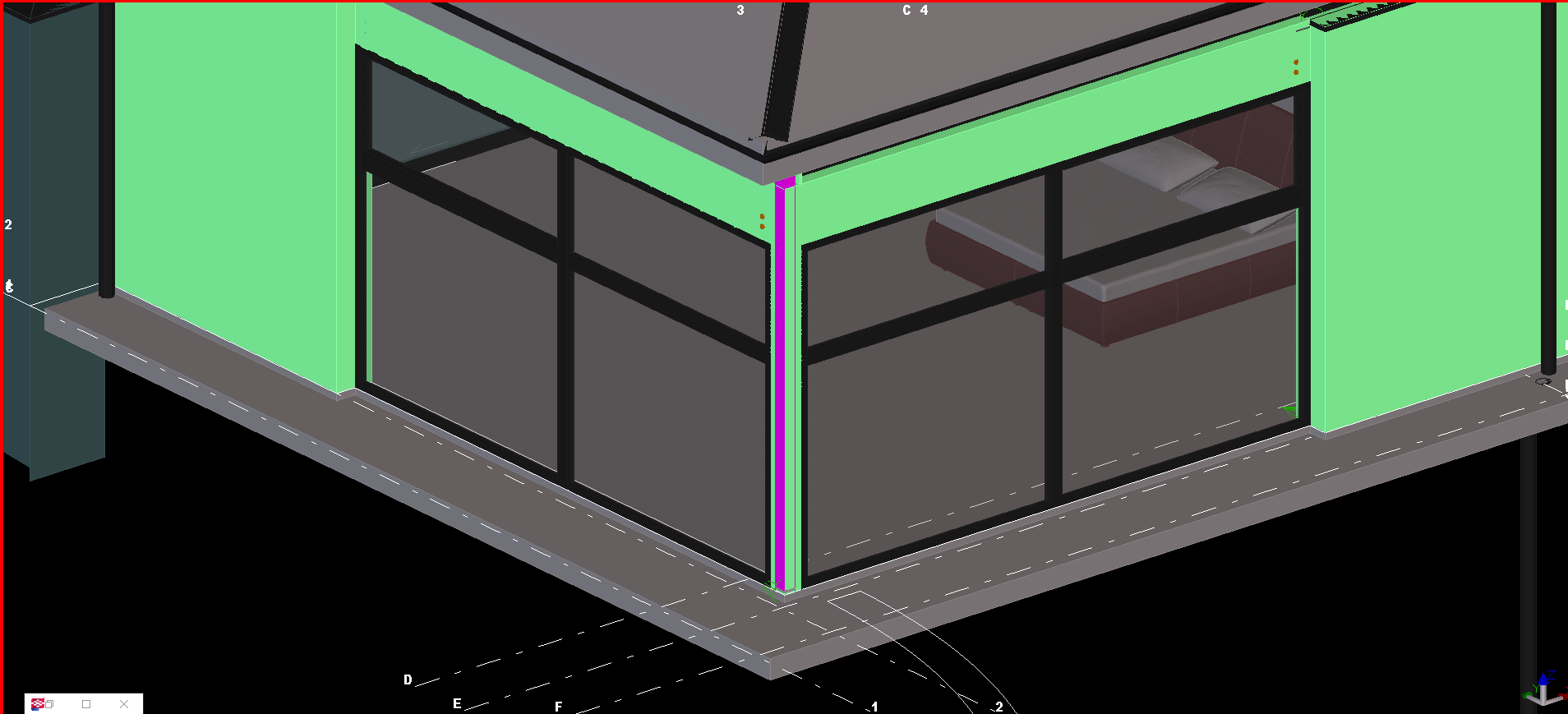
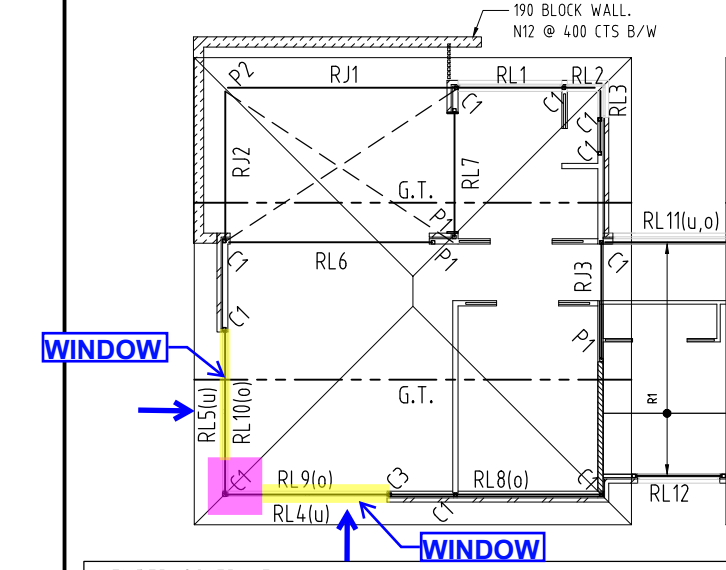
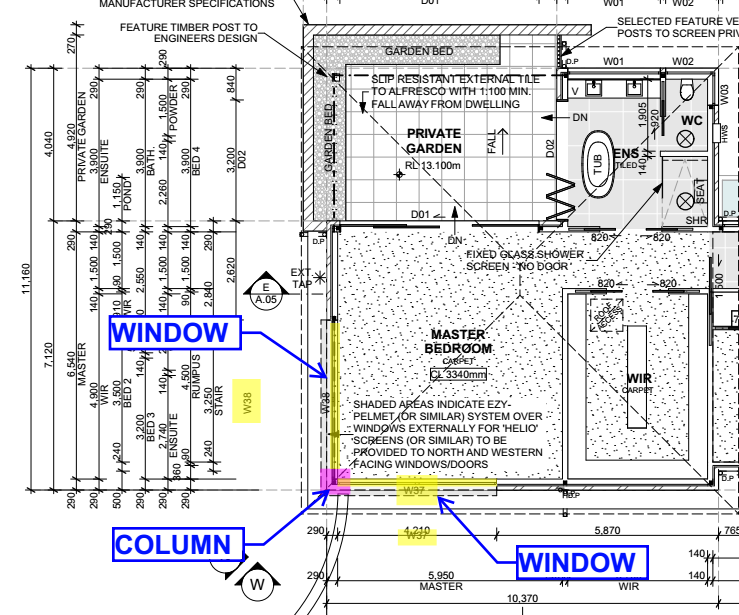
The design drawing requested one column at the wall corner. Also both sides of the corner wall had windows that stand from the finished floor level.
In this instance, we couldn’t follow the structural engineer’s recommended base plate details, because the base plate and anchors will interfere with the window clear open area.
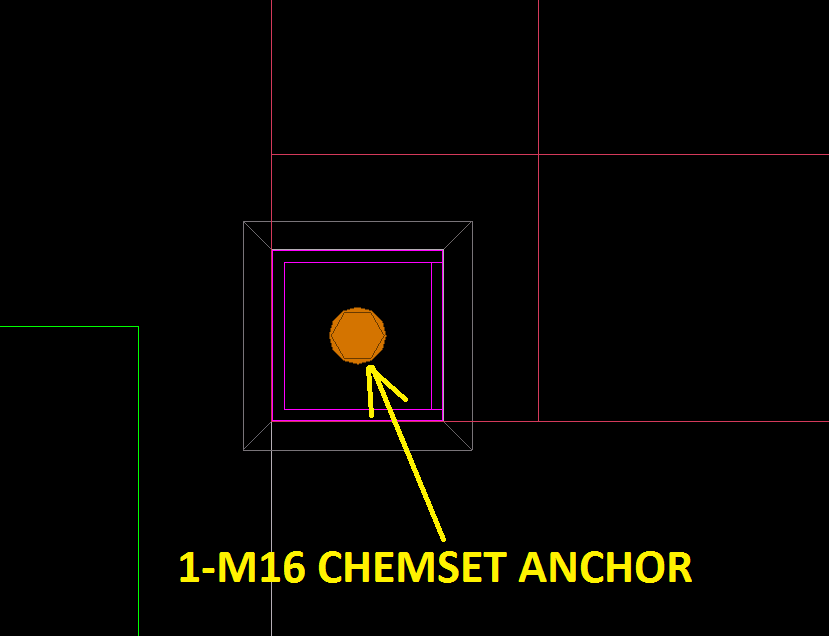
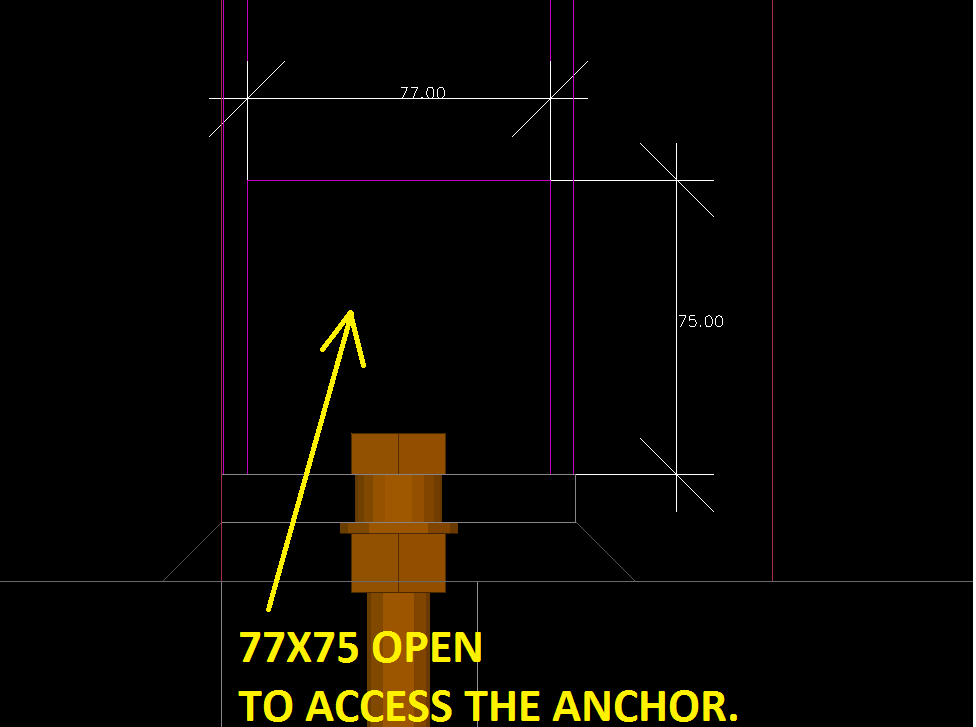
So we suggested the single anchor at the center of the column and make with one access hole in the column web.
The client accepted our suggestions for this case. See the attached snap to understand the issue, and try to spot the problem, and try to solve the problem as if you were facing it for the first time.
Shows the column and the windows.
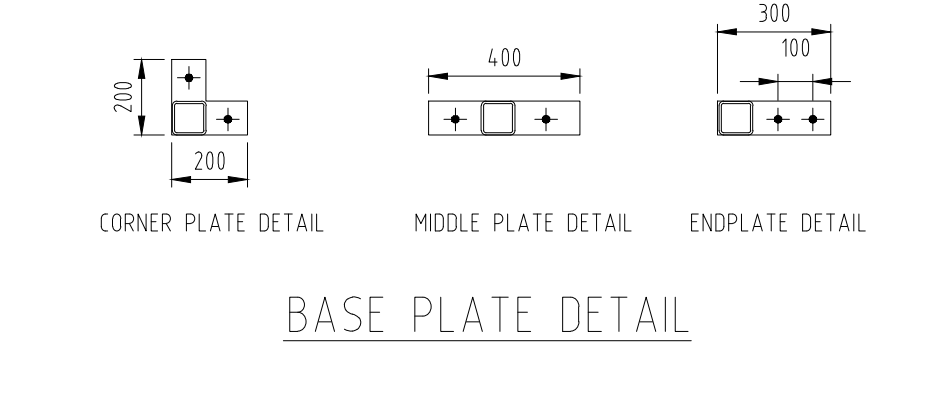
See the structural design drawings:
Base Plate Details
Structural details
The architectural design:
Architectural Design
The Proposed Solution:
A solution.Shows the proposed base plate. Profile View.
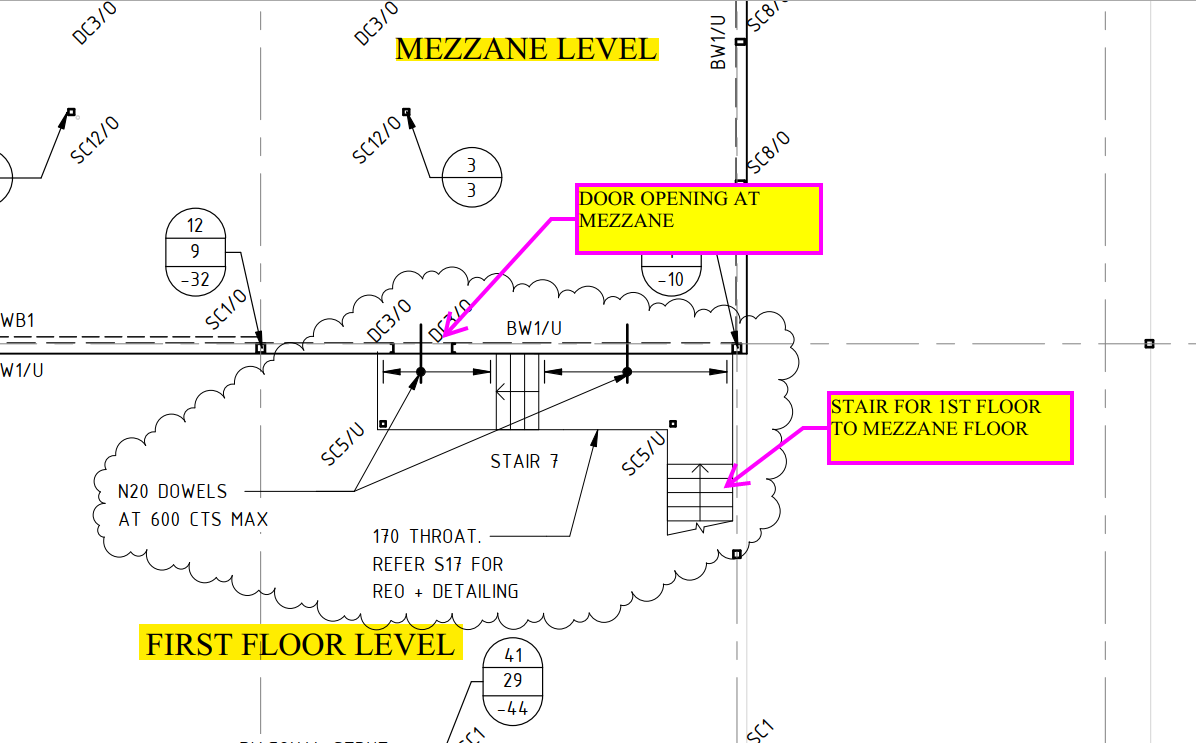
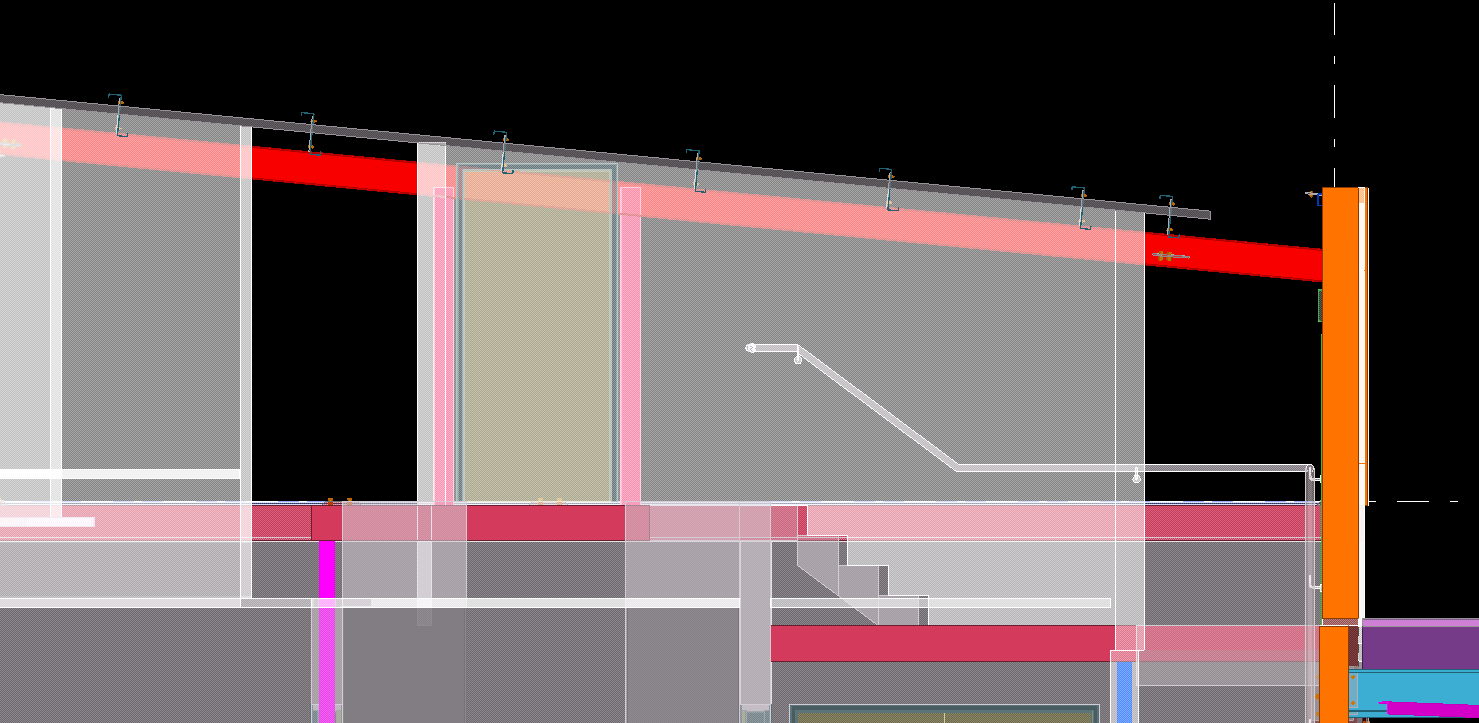
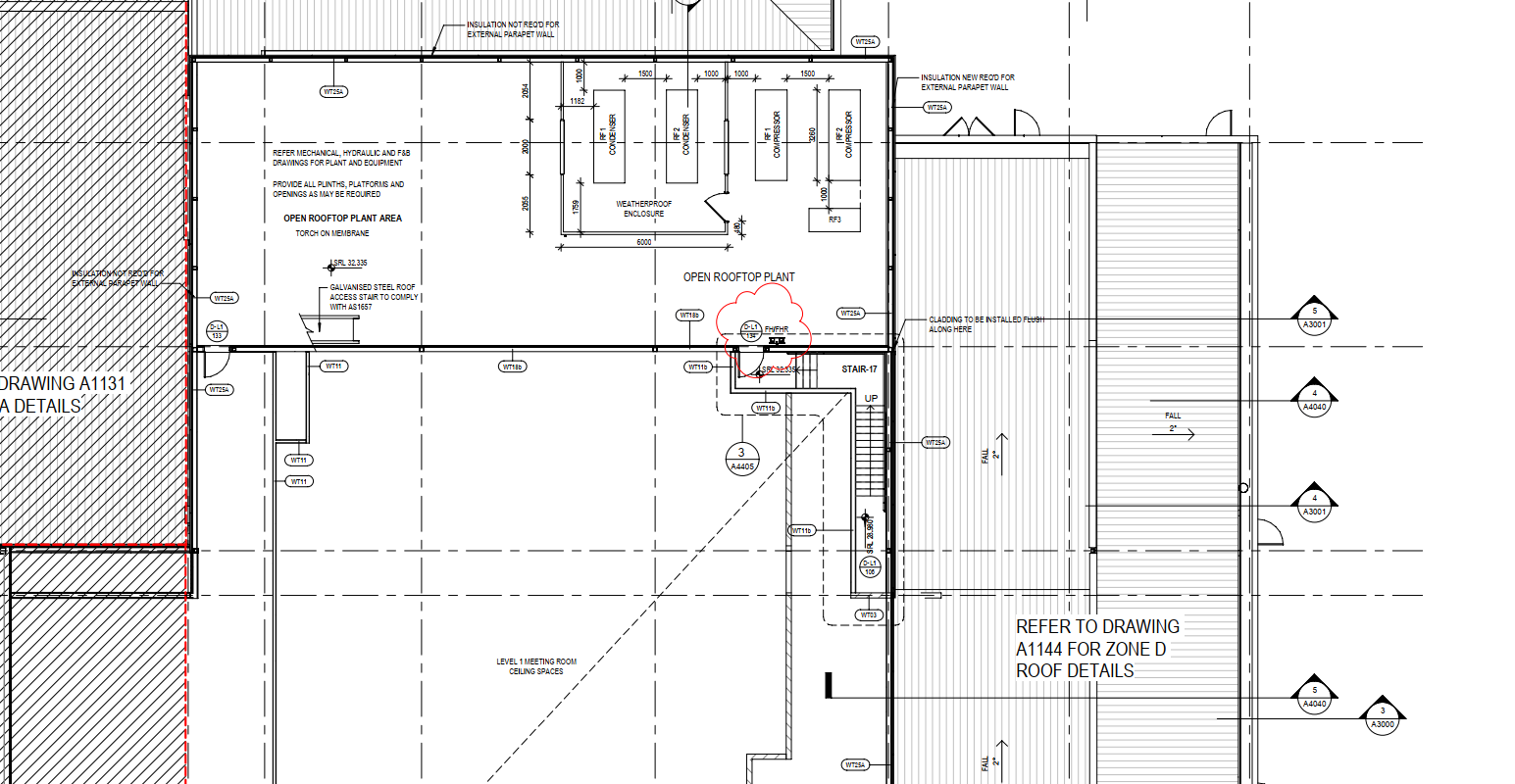
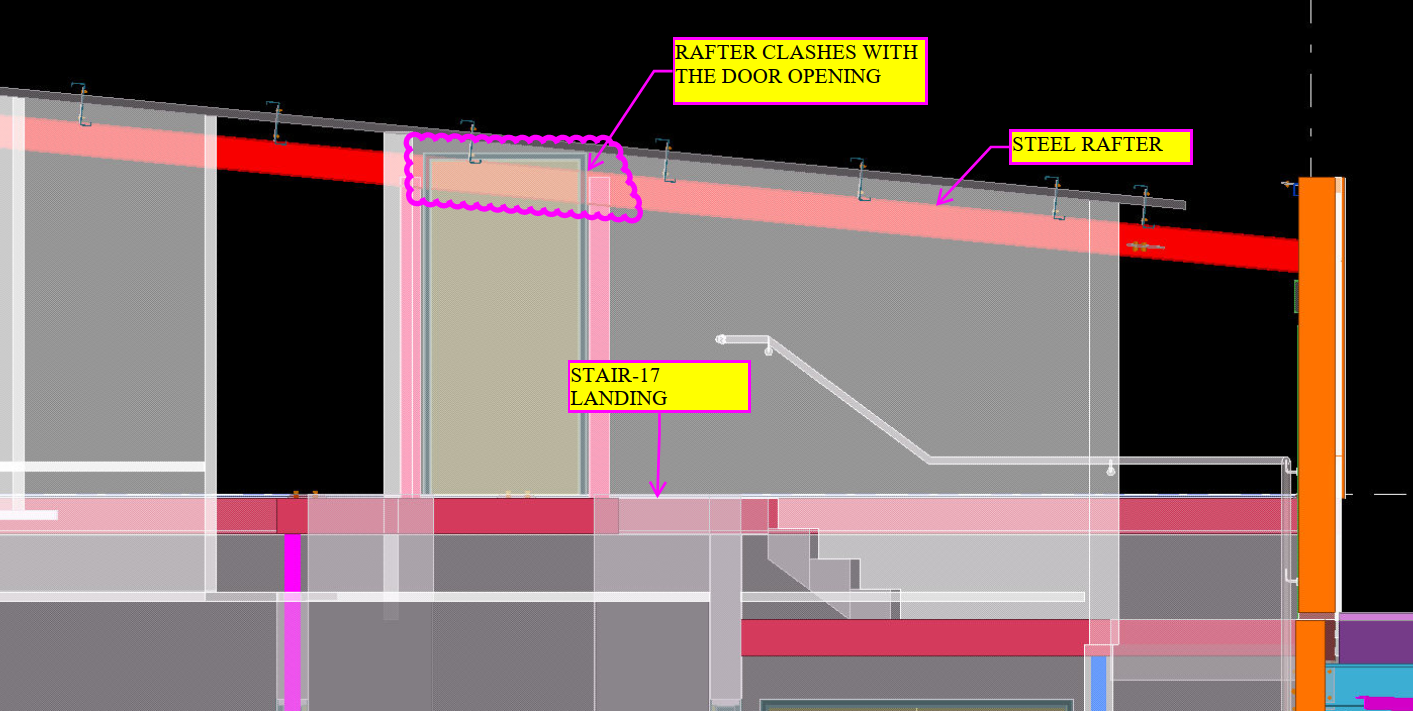
Our detailers identified & noticed that the roof rafter falls at the door opening which runs at 5.5° slope.
The Roof rafter is concealed inside the stud wall, also the Stud wall runs above the Rafter up to the top of parapet RL. The height of parapet wall is the same throughout, hence the top of the wall runs at the same 5.5° slope as the roof.
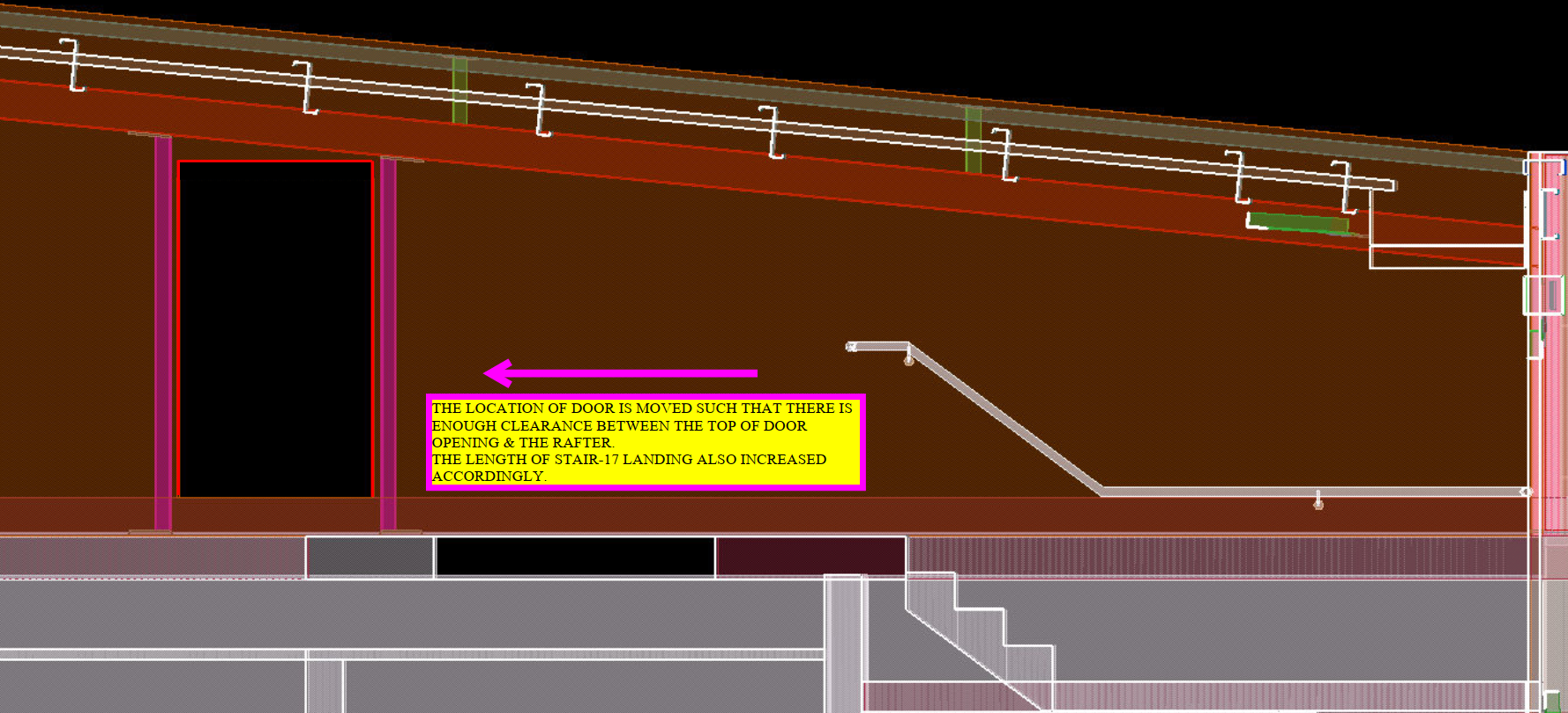
There is an access door near the lower end of the stud wall/Roof. We noticed that the rafter falls inside the door opening and suggested the client to move the door & increase the Stair landing length accordingly.
The suggestion is accepted and the door is moved in such a way that there is enough clearance between the top of door opening and the rafter soffit.
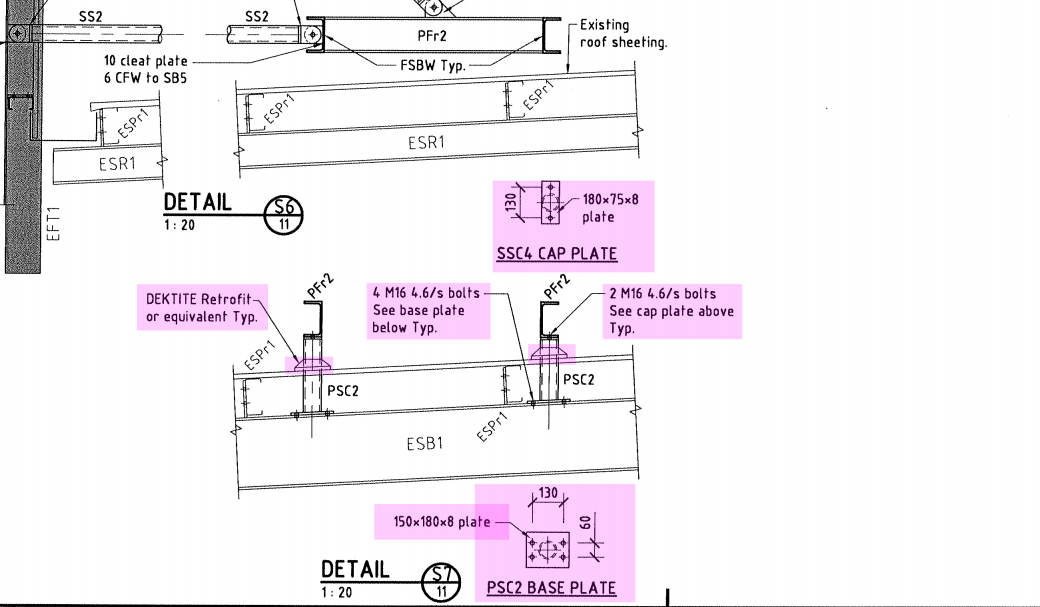
Please study the following drawing. The engineer has called for these details. But as detailers, can you see any issues which may come up? Consider the problem carefully and let us review the issues below. (Given information: the below is a drawing of a corrugated roof. There is a deck to be placed on top of the roof. Hint: waterproofing is the primary concern).
Can you spot any issues with the above drawing?
What is going on here?
The issue lies with water proofing. Corrugated roofing is not flat. It is bent and curved. In this case we have a beam that is penetrating through the roof. In these circumstances, water proofing is critical, and we need some type of Decktite (or equivalent) to be placed on the roof to ensure that water does not seep through. But then, what is the problem here?
To understand this issue, you would do well to watch these two videos first:
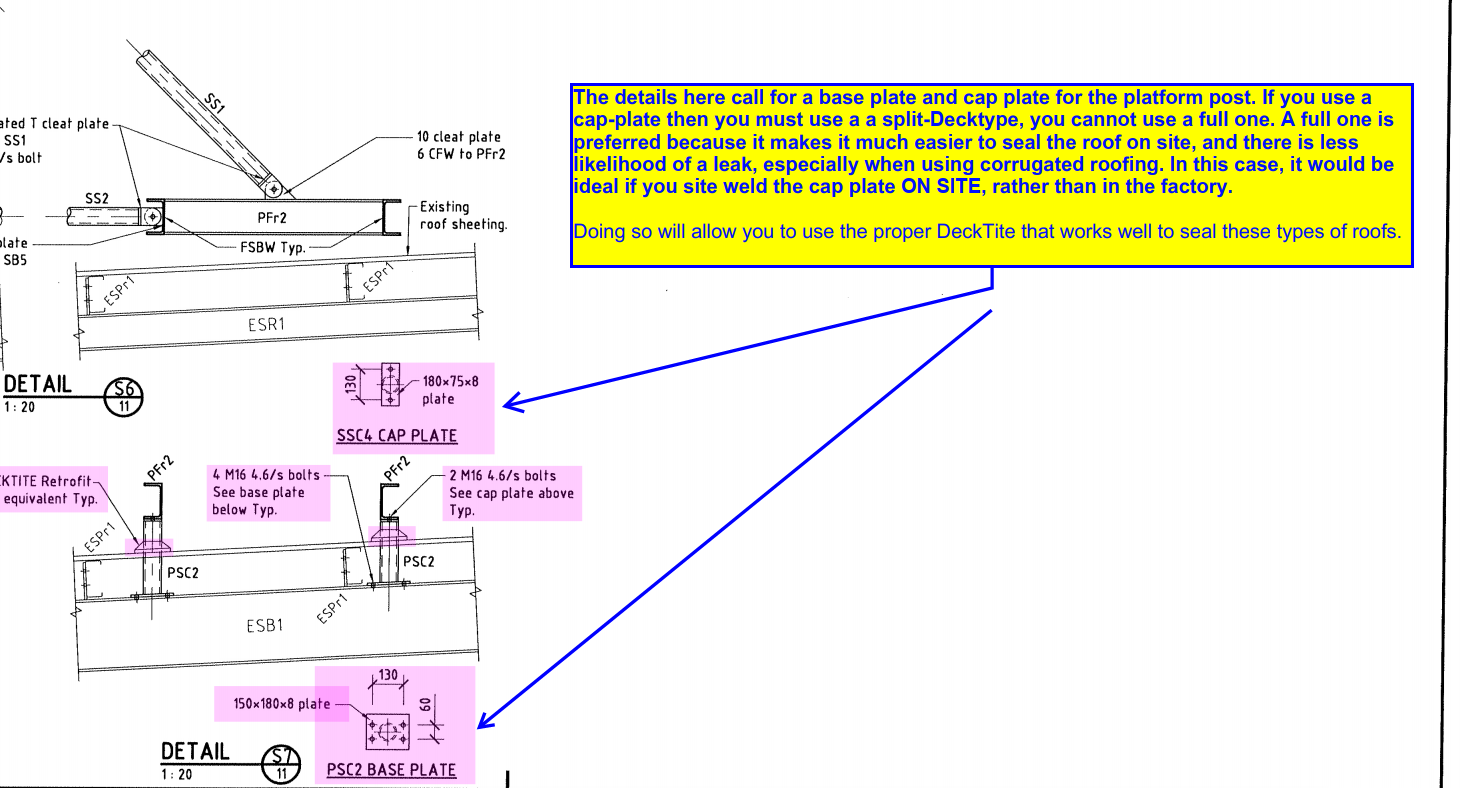
The problem lies in the fact that the drawing calls for a cap plate. That is extremely problematic when you are using Decktite. The usual and preferred practice is to pull some Decktite over a pole and slide it down – much like pulling a T-shirt over your head. You can think of the DeckTite as the T-shirt, and your head as a pole. The hole in the T-shirt fits snugly around your neck. But if you have a cap plate, the situation becomes different. In effect, to continue the analogy, having a cap plate is like expanding your head so that it is impossible large to be able to pull a T-shirt over it. You simply cannot put on a t-shirt if your head is too large! The only way to wear the garment is to use a jacket, which can be split and wrapped around – which in this case means using a split Decktite. The problem with using split Decktite on corrugated roofing is that it doesn’t seal as well, and is cumbersome to install.
In this case, you ought to confirm with the client how they want to handle this issue. If you bolt a cap plate on top of the column, then you are forced to use a split-Decktite. But if you want to weld on site, then you can use Decktite that is not split, and can largely avoid the complications of leaks occurring on the roof.
Shows the issues which may crop up if the drawings is followed. You need to confirm these types of issues with the client.
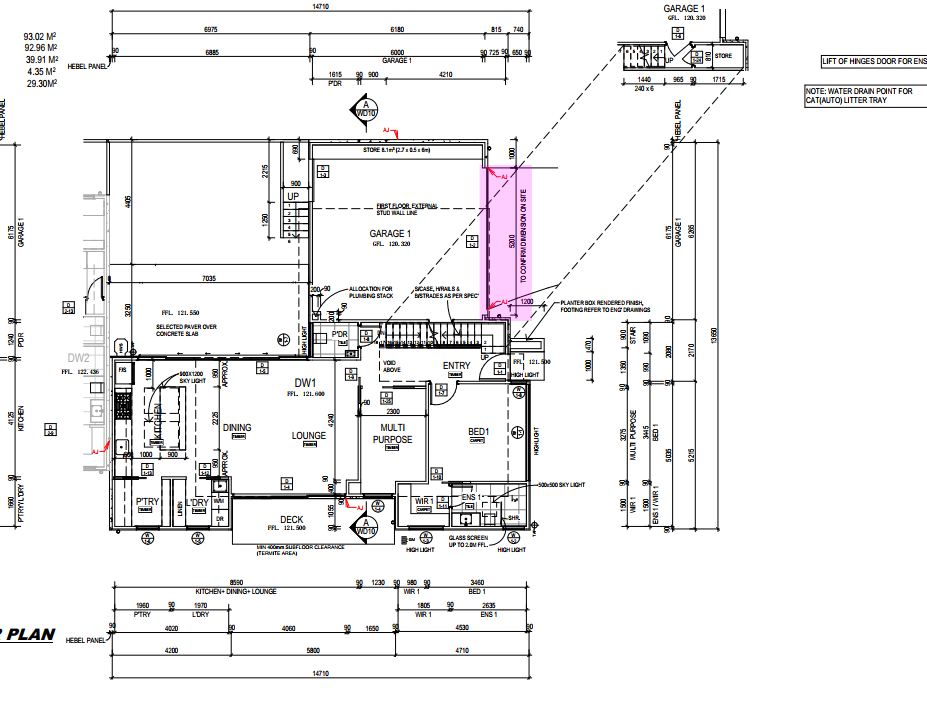
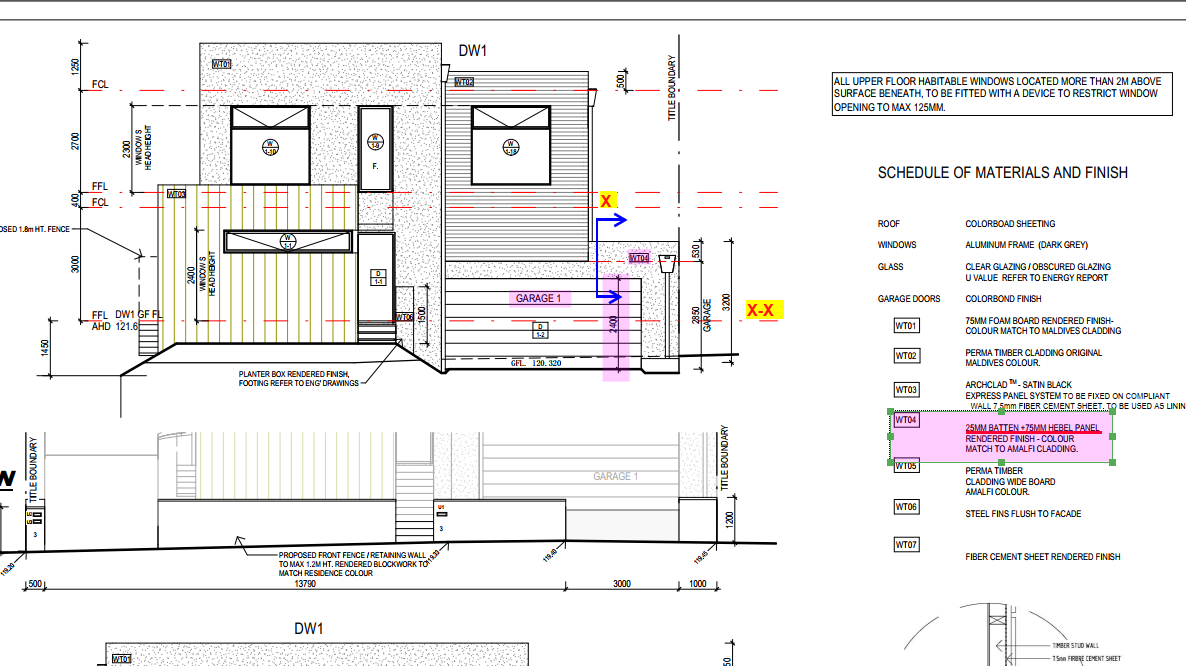
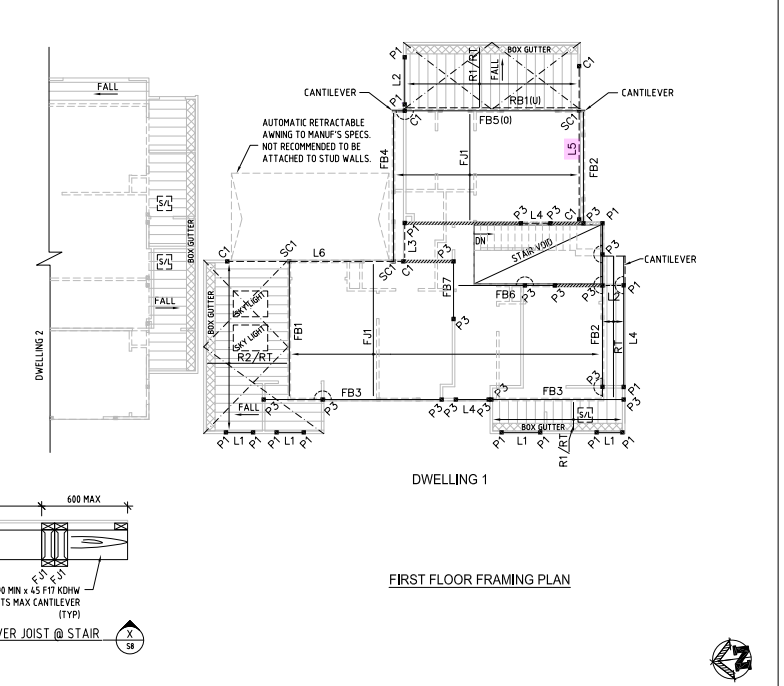
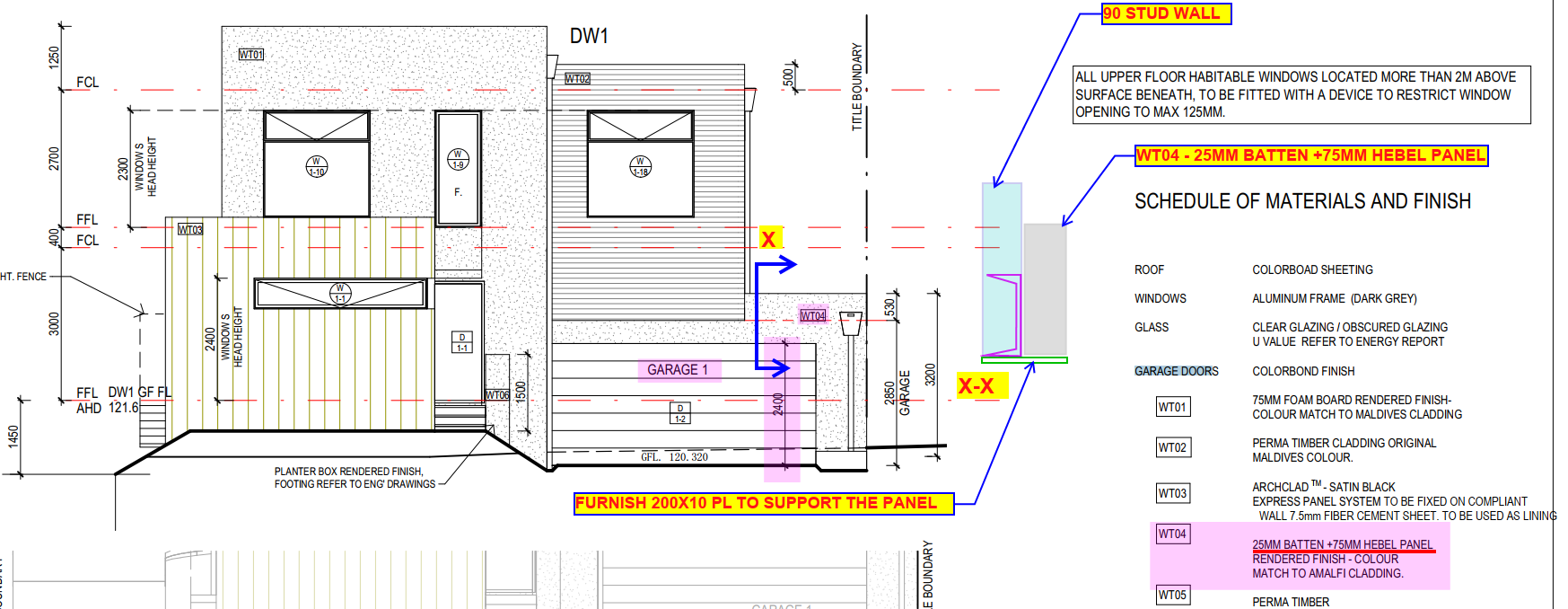
Take a look at the following below and see if you can identify the issue/problem at hand. Take careful note of what I have marked up, and try to identify the issue.
Consider the structural input drawing image as well, and see if you can spot the problems between the two.
This is the second image – please do compare it with the structurals.
Here are the structural drawings:
Compare the structurals with the arch drawings to find the issue.
Answer:
There is an unsupported hebel panel here. Without support, the panel will surely break off. Therefore it needs a PL to support that panel, notwithstanding the engineer’s omission.
This is the answer. You need to add a support for the Hebel panel.
Tek1 is now offering to set up a learning management system for whoever needs it for a fee.
We have successfully used Moodle LMS to recruit and train.
While there are hundreds of thousands of engineering degree holders in India who is looking for a job for employers it is a big challenge to find the employable ones. Almost 95% of the young engineers passing out of engineering colleges in India are not employable as engineers. However, they will produce credentials and certificates showing that they have passed out with flying colors.
It is a recruiters nightmare if we have to screen all of the applicants one by one. Hence some sort of a method is required to screen out the un employable. That is what we have done using the Moodle LMS.
Now we are offering LMS services to whoever wants to take advantage of the expertise we have gained.
We can help you with your learning management system.
We have successfully using moodle to recruit and train for the last 4 years.
We are now offering our expertise to set up your LMS whether it is for you school, company training or simply screening candidates in a cost-effective way.
Here is an example of our training system which we use to train our detailers. We have so many more which we have implemented but not made public
What services can we provide
Set up your company learning programs using moodle (you have to provide content)
Set up your internal training programs which can be implemented using an LMS system.
Help you with some simplified online test to screen potential candidates.
Help to set your online courses for schools, Tafe, Colleges, Coaching Cente.
Here is an example of our online captive training material and test.
Enter a user name & password of your choice. If user name already exists, please try another.
Enter your valid email address & your official First Name & Surname.
Create your account. Go to your email inbox, open the email from System Administrator at Tek1, open the web address link in the email. This will confirm your account & login. If you haven’t received it immediately, check your junk mail box.
Under ‘Aptitude Test – Testing from Home – May 2019’, read the description. At bottom of page, enter Enrolment key: Testing1@2019
Enrol. You will see a page sub-titled ‘Quiz 1′.Important: Read the instructions.
When ready, take the quiz by clicking button: ‘Attempt quiz now’.
Complete the quiz & submit.
This test will be open only for a few days. Hence it is important that you take it as soon as practically feasible. We recommend that you take the test on a PC / Mac, rather than on mobile. You need to have reliable net connectivity, pen, paper, calculator, no disturbances or distractions. On successfully completing the test, we will get in touch with you for an interview and if found suitable we will offer you the role.
If the Quiz fails to load or you face technical problems on the URL, please contact us on this mail id.