Category: Autocad .Net API

This documents the work I’ve done on the Autocad API.

I will be posting code and helpful methods which you might find of use.

Thank you!

  • Finding Blocks “Colliding” with Shear Lig Points (AutoCAD .net, Precast – Bubble Deck)

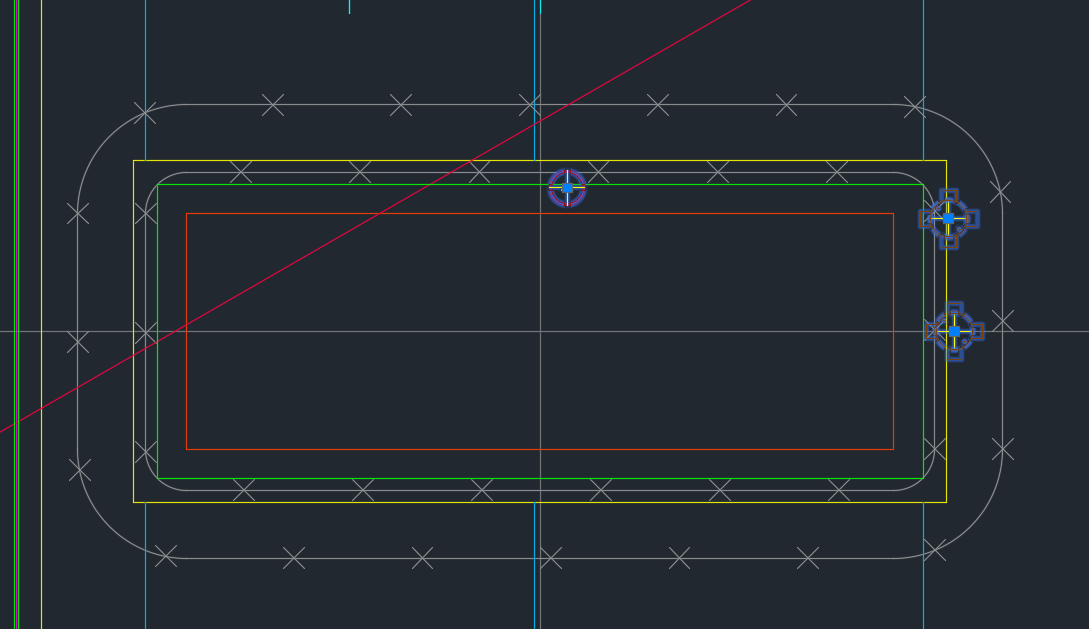
    Showing Blocks Close To Shear Lig Points

    It’s a common problem apparently. There are far too many block references placed a little too close to those pesky shear lig points. It takes discipline, but when you have 5-10 people all working on the same drawing, with different practices, it’s something that’s really easy to miss, but really expensive to discover.

    So I developed a tool to take care of it.

    Here is the video demo:

    Checks for Clashes against Shear Lig Points from Tek1 on Vimeo.

    Thanks for stopping by!

  • How Tek1 solves the problem of Ordering Items in Precast Panel Detailing Projects (Precast)

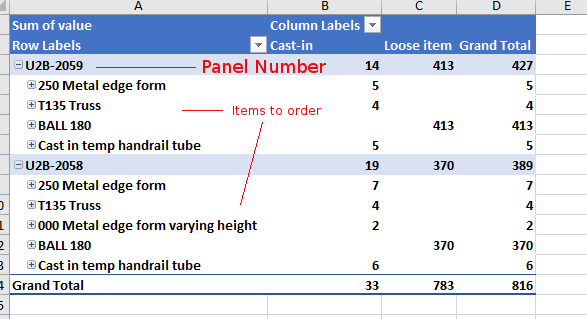
    Demonstrates the output of Tek1 Order forms – in precast projects.
    Counting Items is difficult

    Ordering parts in precast panel projects is tricky. You need a BOM (Bill of Materials). You need to know what you need and how much. When there are thousands upon thousands of parts – that can be a very tricky endeavour.

     Why should you bother counting inventory?

    It all comes down to money. And how much of it you tie up in your inventory. And how quickly you’re gonna use it. Financial liquidity is like blood and oxygen. Without it, no organisation can survive. And you can maximise your liquidity (and profits too) if you manage your inventory well. You should be able to answer these questions:

    • How much inventory did you pay for?
    • How much inventory is in your shop?
    • How much did you use up in your projects?
    How Tek1 solves inventory problems: Demo Video

    We give you accurate numbers about what you’ve ordered. And what you need to order. This is how we come up with a Bill of Materials:


  • Demo: Select (Panel) Lines which are Open or Closed (Precast, AutoCAD .net)

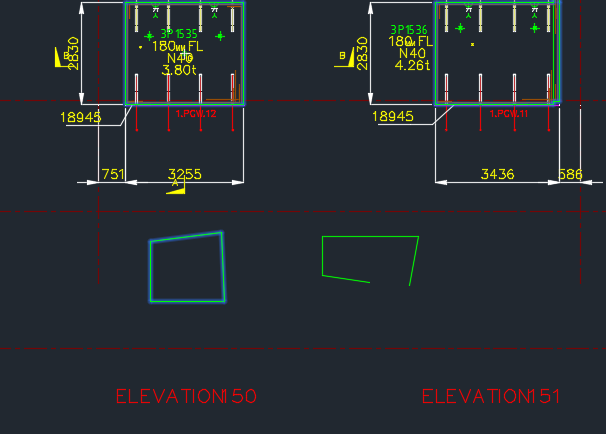
    Demo of tool which selects closed lines.
    Demo of tool which selects closed lines.

    Sometimes we have a need to identify – and quickly – lines which are open and lines which are closed – especially prior to running any operations on those lines involving regions.

    Here is a demo of a little plugin I wrote.

    It goes through the modelspace and finds all the line segments which are connected to each other. It further goes on to query which line segments are closed and which are open.

    Getting AutoCAD to do this quickly was quite a task. But am very pleased with the speed – only 1-2 seconds when you’re iterating through a few thousand lines. Not bad.

    Enough talk, here is the demo:


    Select Open and/or Closed Panel Lines from Tek1 on Vimeo.


  • How to Easily Compare Precast Panels in AutoCAD (Precast)

    Drafting Services | Melbourne

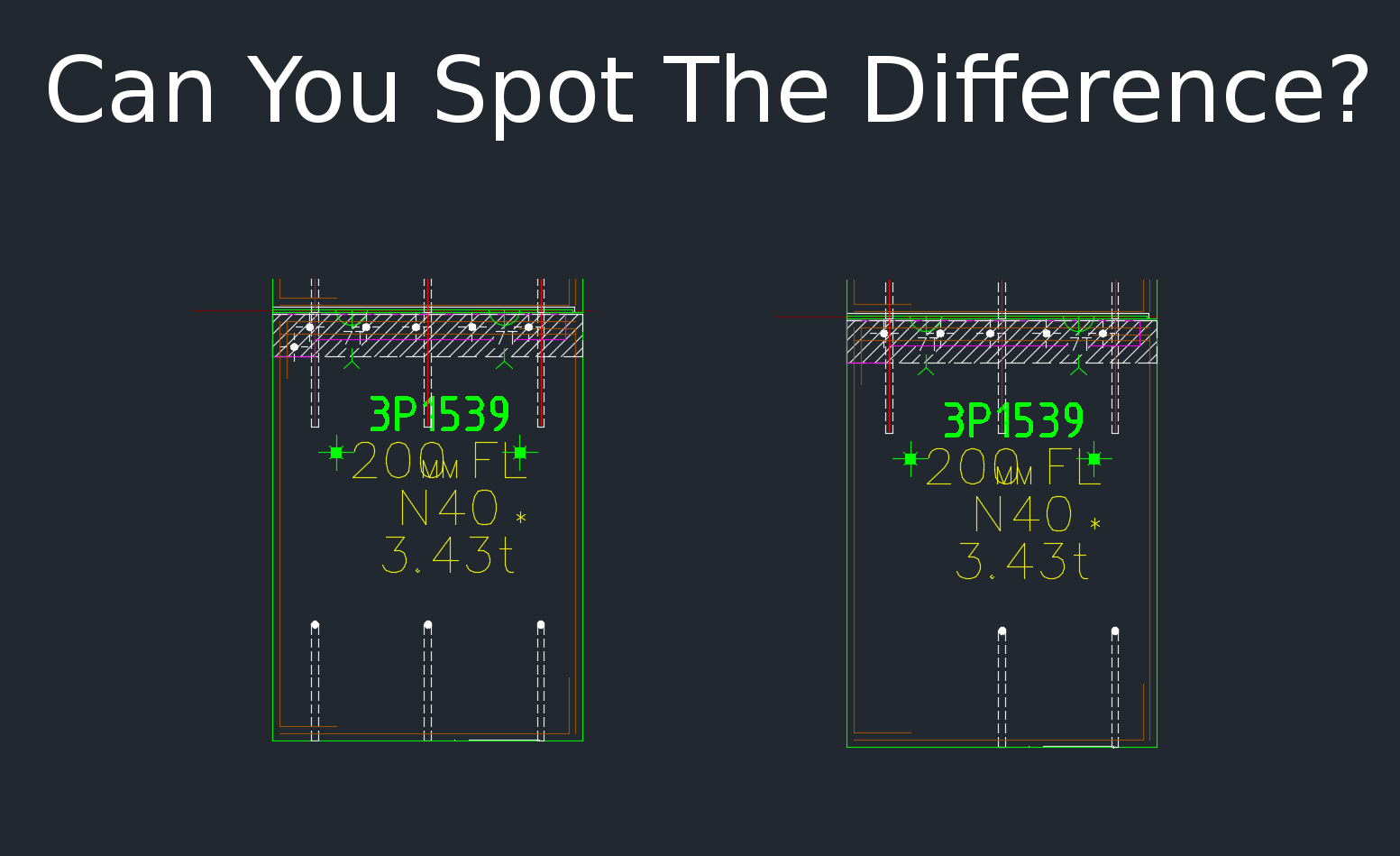
    When drafting for precast panels, there is need to check differences with different versions of the shop drawing. Manual checking a bit difficult. Automation tools help

    Panel Comparison Demo
    This tool compares panels and imports differences. Yet another reason why Tek1 is leading the world in precast panel drafting.
    Shop drawing / Layout panel discrepancies are a thing of the past.


    Suppose someone makes a change in the layout but forgets to do so in the shop drawing (and vice versa). If you move a cast in plate, and if it’s actually produced and taken to site, then you have a big problem, and a big cost. How are you going to identify the differences which exist in the thousands of panels that you make? What if you had a tool which allowed you to easily identify differences between the two drawings?

    This is what this Panel Comparison tool does. It gives you confidence that somebody hasn’t made a boo-boo. And moreover, if somebody has made one, then this tool identifies sloppy shop drawing practices.

    Here is the demo. I hope you enjoy it!

    Gif Demo with User Interface:

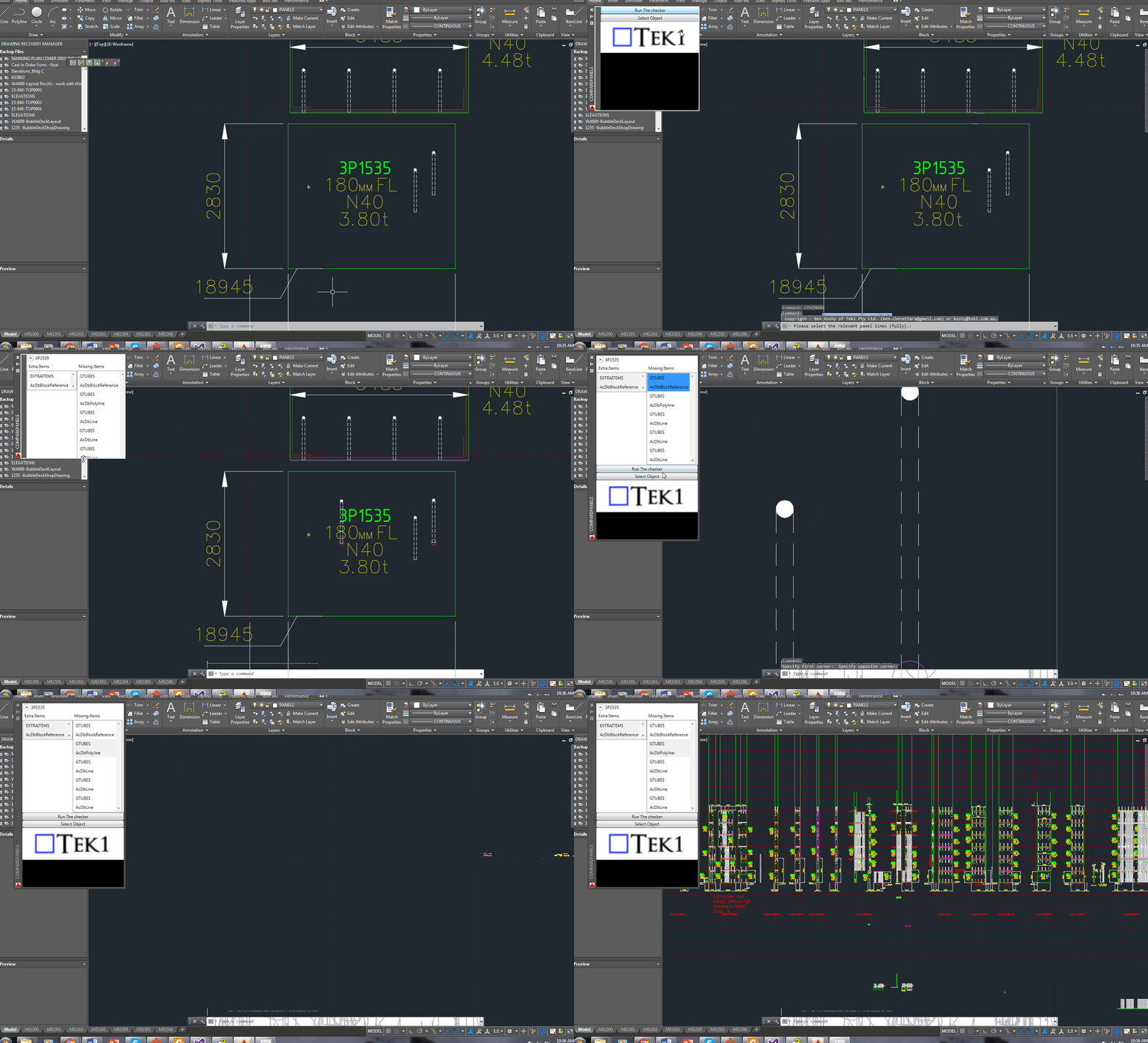
    Now we have a user interface which allows us to click on items in a window and access them easily in AutoCAD. Written by Ben Koshy.
    Now we have a user interface which allows us to click on items in a window and access them easily in AutoCAD. Written by Ben Koshy.

    Video Demo without a user interface:


    Compare Panels Demo – Import Panel Difference from the Shop Drawing to the Layout from Tek1 on Vimeo.

    Features:

    • It can work for all clients with only very minor modifications. Very well abstracted out in the code.
    • It is super fast. Comparing the thousands of elements in each drawing takes a bit of computing power – but with smart algorithms, you can cut down the time.
    • It works for all sorts of edge cases – what if the panel was made up of arcs, polylines and straight lines – this plugin can handle all sorts of things. It can also handle voids in the panel?
    • What if an item is on the edge of a panel line – it can handle that was well.

    Every single panel that we draw will go through the above practices. It should give you a lot of confidence that we’ll get the drawings right. Yet another tool in the Tek1 arsenal that allows this firm to lead the industry in Precast Panel drafting.


  • Comparing Lines – IEqualityComparer (AutoCAD .net)

    It’s not very often that I write something on the Autocad .net API, so here’s something which you, I suppose, will need one day:


    If you want to compare two lines, with a tolerance, in a collection then you’d need a LineComparer. The MSDN guide says that one should inherit from EqualityComparer, so unquestioningly, I did their bidding. The results are as below.

    Take careful note of the Hashcode. You want lines that are similar – and are within the tolerance to return the same hashcode. If they are outside the tolerance then the chances of two different lines returning the same hashcode is minimal.

    Lines are equal if their start and ends points are equal (or vice versa). They are also more or less equal if they return the same hash code. In such cases, then the equals method is run.

  • How to Access the Document Handle Given a Database Handle? (AutoCAD .net)

    A short post showing you how to access the Document instance given that you already have a database pointer.

    Here’s how:

  • Turning AutoCAD curves into Revision Clouds (AutoCAD .net API)

    Revision Cloud
    Showing a sample revision cloud created in AutoCAD from the .net API.

    It seems a common scenario that folks want certain polylines/curves etc to turn into a revision cloud.

    How do we do this?

    At the end of the day, the revision cloud is nothing but a polyline. You could roll your own polyline which handles the bulges and vertices so that it looks like a revision cloud – but that takes a lot of effort – the quick and dirty way of doing so involves creating the polyline programmatically and then calling an AutoCAD command on that Polyline.

    There are a few ways you can call commands:

    1. Using SendStringToExecute
    2. Using Editor.Command();

    I prefer the latter, because it is more flexible. SendStringToExecute operates after the command is completed – which may not suit your needs.

    Here is a simple implementation – It should convert the circle into a RevisionCloud circle. Of course, you can tweak it to your own needs.

  • Dimensioning Curves Using Jigs (AutoCAD .net, Precast)

    This is a beautiful little plug-in – it allows you to dimension a curve – a complex curve with a jig. It allows the user to choose the types of dimensions that he wants. It’s pretty cool.

    I must do an entire series on jigs.

    And I will slowly, when I get the chance.

  • Tek1 Tools – Panel Comparisons (Precast)

    Demo – Tool To Compare Panels and Easily Identify Differences

    Here’s the situation:

    Someone from the factory floor calls in:

    “Hey can you move a cast in plate across panel number ABC123”

    “Sure – let me just check there are no —”

    “GIVE ME THE DRAWINGS NOW!”

    The problem with handing over the drawings without checking the layout is that you might make a big mistake! Or you might forget to ensure the two drawings link up and are the same.

    You need a tool to easily check the panels, identify differences and to alert the detailer. This will also allow you to easily split up work. – you can assign that work to a junior detailer, so he/she gains experience, while it frees up time for you to focus on other things.

    And if you do find a difference, it’s a big ordeal brining the layout up to speed. With this program, it automatically imports the pertinent block/polyline etc. without you lifting a finger.

    The advantages are many. The simplicity is sublime. Enough talk.

    Here’s the demo of the tool. I hope you enjoy it.

    This tool currently works for only Bubble Deck. But I am going to make it work for all clients across a variety of edge cases and am going to speed up the algorithm considerably. I will post the new tool when it is completed.

    Panel Comparison – Tek1 Tools from Tek1 on Vimeo.