Drawing these metal edges is time consuming and error prone.
What is the task at hand?
You have a set of 30 panels. You need to draw metal edges around the edges of all these panels. That’s easy, but it’s subject to certain specific requirements.
If it’s a Perth job then:
The metal edge can only be a maximum of 3.0m long.
Minimum distance: 0.4m long.
If it’s an Adelaide job these are the metal edge requirements:
The metal edge can only be a maximum of 2.4m long.
Minimum distance: 0.4m long.
That means you may need to do some maths. And you actually have to draw the things in. It’s a royal pain, and more than likely, you’ll make mistakes.
Video Demonstration of the Draw Metal Edges Tool
This tool obviates the need for manual calculations and drawing by hand. Chances of pick point errors and wrongly stipulating an unmakable and unorderable metal edge is there by significantly diminished.
How are you going to identify one duplicate in a sea where everything looks the same?
Duplicates are a problem – an expensive problem, especially if you are dealing with hundreds and perhaps even over a thousand panels. Somebody cocks up – usually on the client side – but how are you meant to identify it?
You could manually do it, but then that will more than likely take a long time. Or you could just employ Tek1 to do that sort of thing for you. Here is a video demonstration:
It can work for all clients with only very minor modifications. Very well abstracted out in the code.
It is super fast. Comparing the thousands of elements in each drawing takes a bit of computing power – but with smart algorithms, you can cut down the time.
It can work in the marking plan and elevation or layout. The same code, the same command, but x3 the power.
Showing a sample elevation panel with deliberately misplaced panel elements.
This is big. Huuuuge! I’ve talked before about our ability to easily cross check between the Layout and Shop drawings. Now you can cross check from the other direction – when you are in the shop drawing, you can now check the corresponding panel which exists in the layout.
You can clearly see any differences.
So now if someone moves a ferrule or a cast in plate etc. you will be able to easily see those changes.
It could save you from some expensive errors.
Here is the demo. I hope you enjoy it!
It can work for all clients with only very minor modifications. Very well abstracted out in the code.
It is super fast. Comparing the thousands of elements in each drawing takes a bit of computing power – but with smart algorithms, you can cut down the time.
It works for all sorts of edge cases – what if the panel was made up of arcs, polylines and straight lines – this plugin can handle all sorts of things. It can also handle voids.
Ordering thousands of items in a layout is not easy. Order efficiently with Tek1!
This is a demonstration of how we use Excel-Add ins and AutoCAD plugins to simplify the process by which order forms are created for Precast panel jobs.
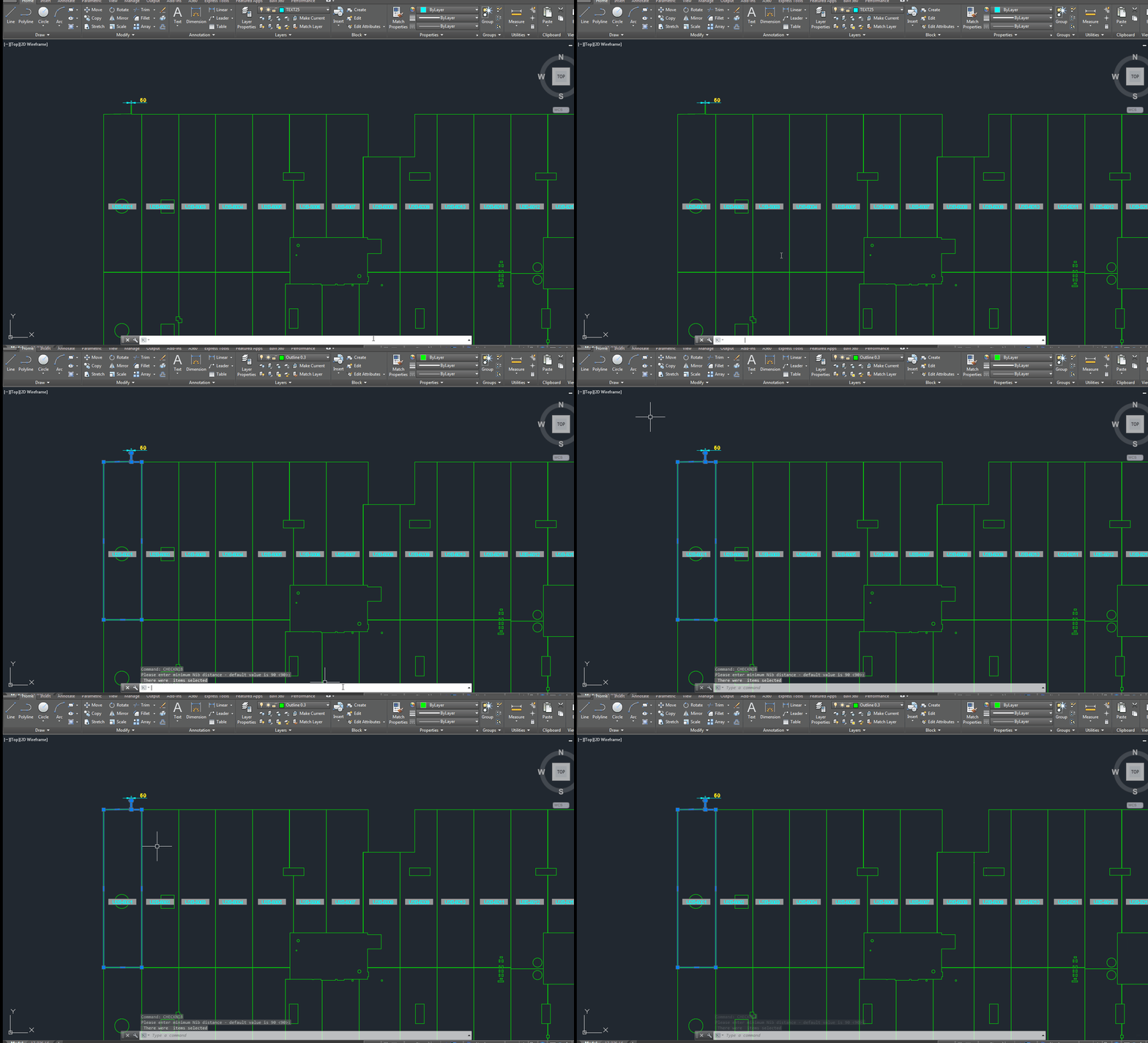
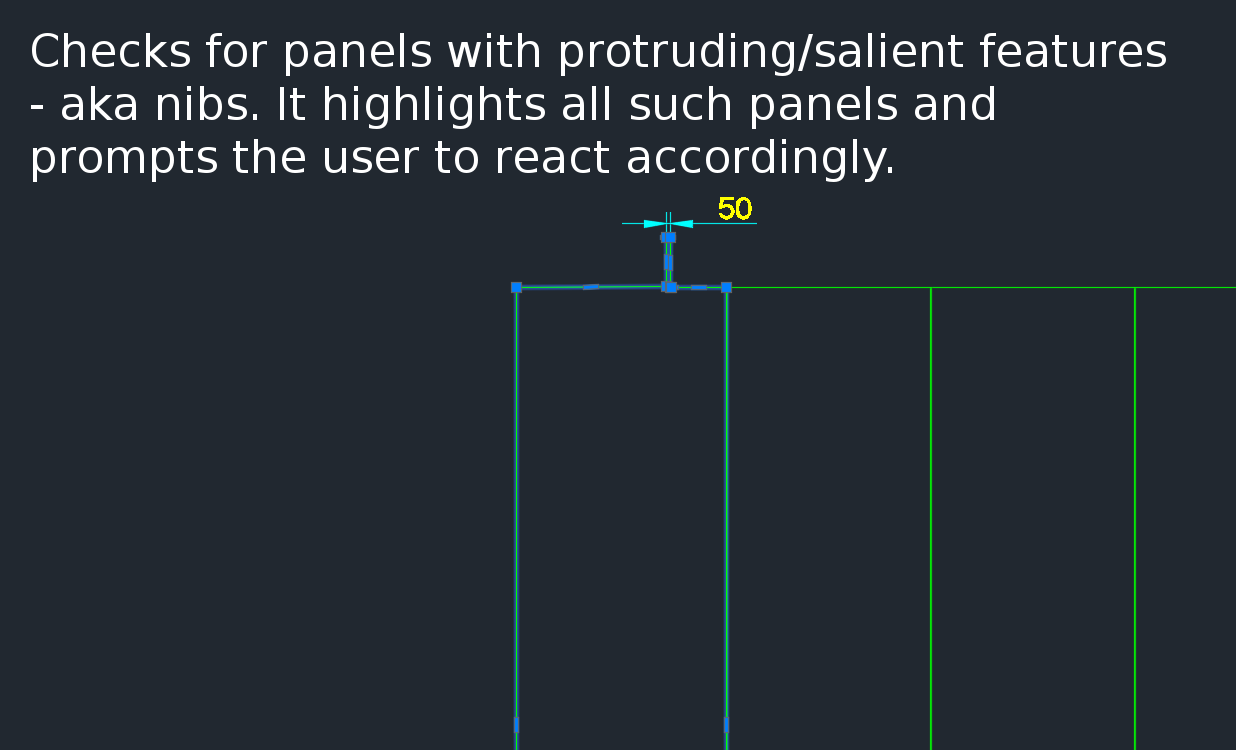
A gif showing how easy it is to check for nibs on bubble deck slabs using my command. There are certain panels which we have that have protruding elements – salient features. These can be problematic if they go to production unnoticed. Given there are entire teams of people doing things, it can be hard to track – people forget that they cannot draw a panel with such a dimension.
This is a plug in which enables one to easily identify all such panels with nibs like this:
There is a need to identify panels with protruding features because they could be problematic if fabricated.
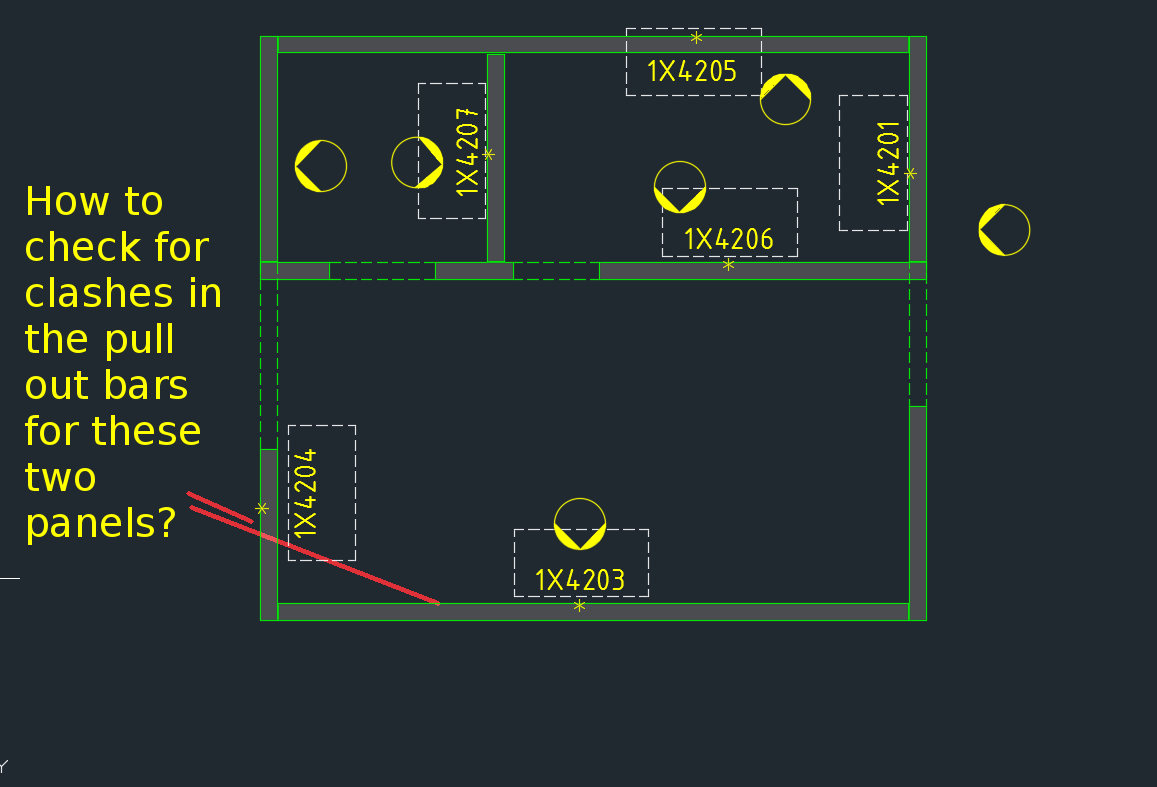
How are you going to ensure that the starter bars do not clash? You’ve got 1000s of panels to detail and a dozen detailers working on different projects. How are you going to manage this?
What is the problem?
Consider this situation – you’re got a marking plan in front of you. You want to make sure that the ferrules in corner panels do not clash. How are you going to do that?
How would you solve the problem?
You’d have to find the corner panels, and then go to the appropriate drawing – both of them mind you – and you’d have to make sure that they are at different heights. That can get very tedious and it’s very time consuming, and more than likely, you’ll make some mistakes – because the panel elevations might not be adjacent to each other.
It’s not the easiest thing to see and compare in AutoCAD.
What is a better way to solve the problem?
But now you have a tool which allows you to easily compare the heights of the ferrules in two panels, straight from the marking plan.
There’s a lot of code and logic which goes with this. Perhaps I will outline it in another blog post.
Code Synopsis
For a very, very brief description of the overall route used, you can check out the code synopsis from my sister blog here. There I post the base class and interfaces used to derive the result – but have excluded all the implementation details.
Video Demonstration
Here is the video demonstration – and yet another example of the type of technologies and innovations you will have at your disposal if you work with us:
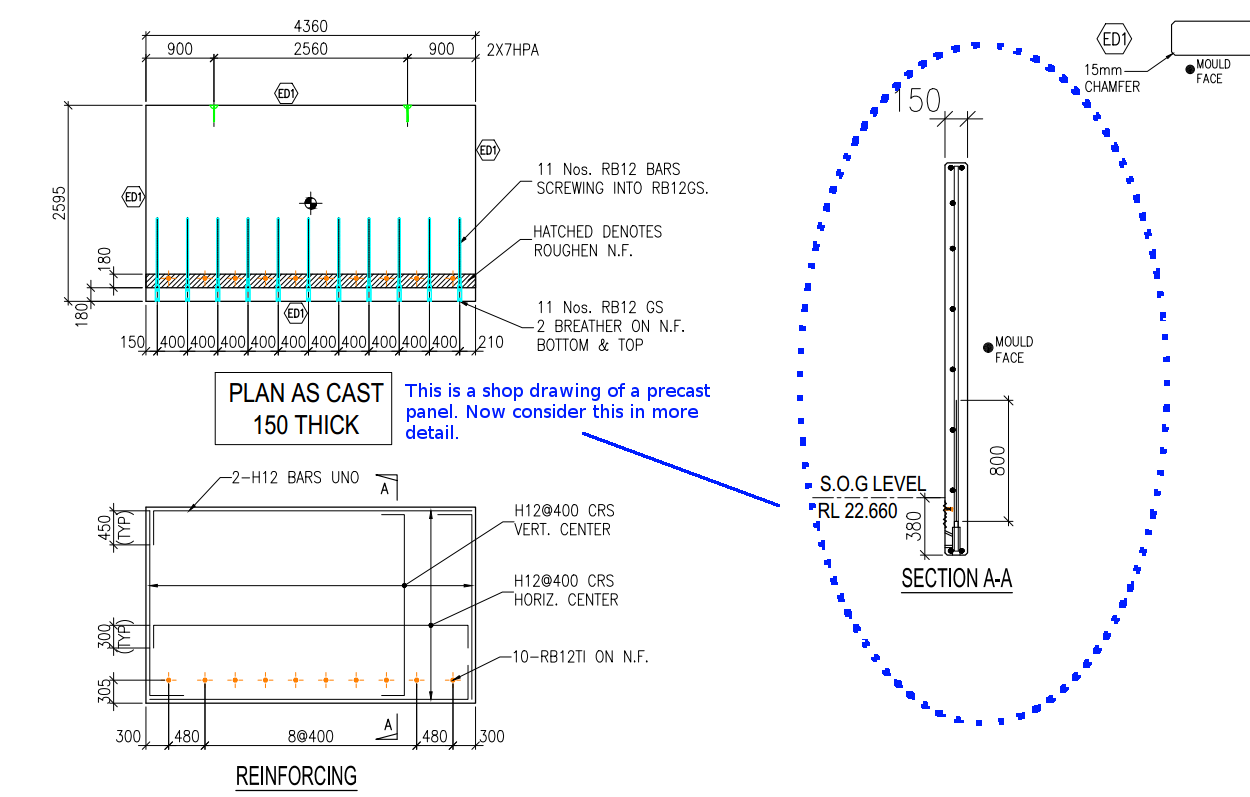
Cover refers to the distance between the outside of a concrete structure and the reinforcement. Perhaps see this from the diagram below:
This is a general overview. Now let us zoom in and see more detail.
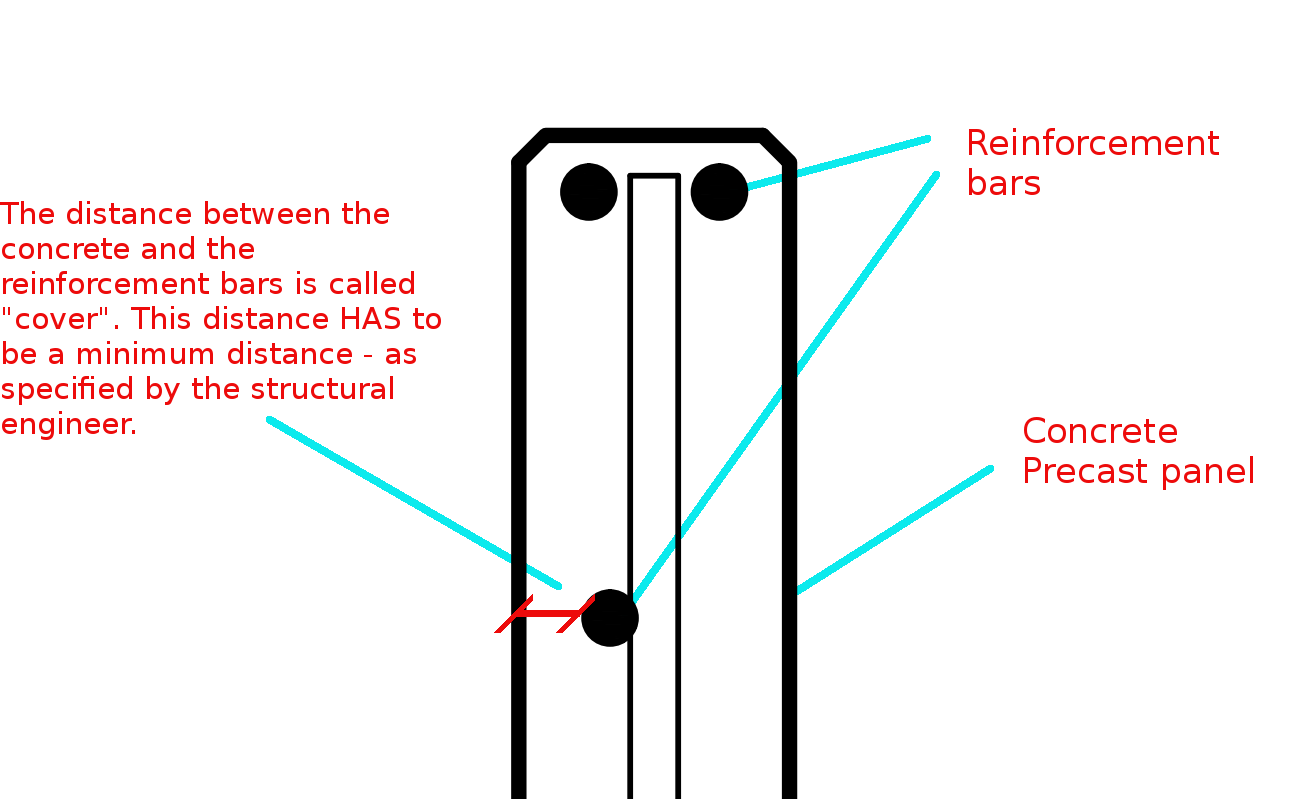
The distance between the concrete and the reinforcement bars is called “cover”. This distance has to be a minimum distance – as specified by the structural engineer.
You need to have a minimum cover:
There needs to be a minimal distance between the reinforcement bar and the outside of the panel.
Why do you need this?
Reduces Corrosion
Having a decent amount of cover reduces the rate of the corrosion of those reinforcement bars. If you have only 5 mm of cover – if the bar is literally just below the surface of the concrete, then that reinforcement is going to corrode away very quickly – especially if you are close to the sea. This means that the concrete will lose its strength very quickly, and a catastrophic failure might be on the cards. That’s why it is very important that the concrete does indeed have some minimal cover.
To Improve the Structural Integrity of the Concrete:
If you have the reinforcement bar too close to the concrete, then the structural integrity of the structure will be somewhat compromised.
Fire Protection:
If at all there is a fire, you don’t want the reinforcement bars igniting. If it does then the fire is sure to blaze out of control. That’s another reason why it’s very important that the bars some minimal distance away from the surface of the concrete. That will better enable the structure to remain in tact if at all there is a fire.
A Response to a Reader’s Question:
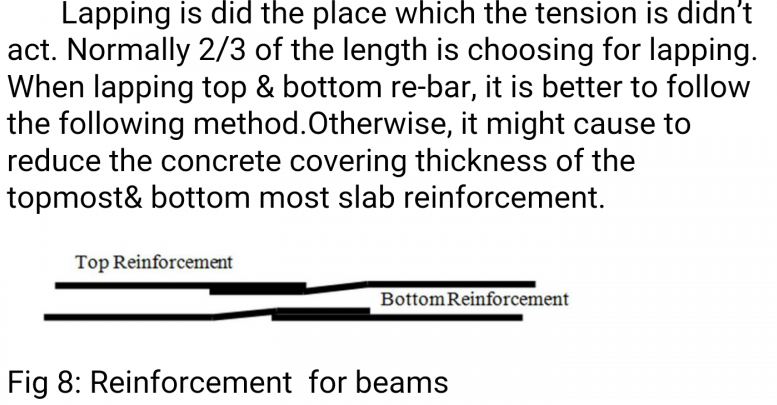
A diagram attached with a question from a reader.
“(Q1) It appears that one of the lapped bar is bent while the other isn’t. Or is it just a drawing convention problem?”
(Q2) I don’t get why the lapped bars have to be positioned differently when placed on the top vs at the bottom in order to ensure that the concrete thickness will not reduce, as stated in the figure. My thought is that both positioning ways occupy the same volume.
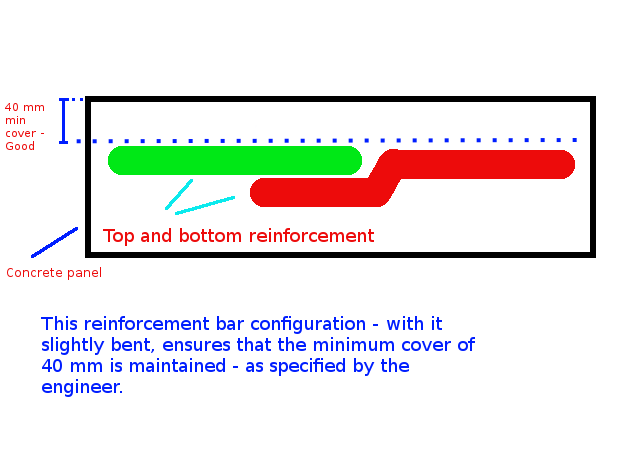
The answer to this question is best understood by studying the below diagrams:
Caption: The engineer has specified that the minimum cover required for this concrete panel is 40mm. If we put the reinforcement bars one on top of the other, then the cover will be reduced (sometimes dramatically) – and this is not good! Minimum cover needs to be maintained. That’s why the bars should be position appropriately to ensure that minimum cover is guaranteed, or you could also purchase reinforcement that is bent a little bit.Caption: This reinforcement configuration – with the reo slightly bent, ensures that the minimum cover (in this case 40mm) is maintained – as specified by the engineer.
The Answers to the Questions
(A1) When I draw reinforcement, I do not add a lot of the essential details which are assumed to be standard workshop practice. We are required to maintain a minimum cover. The diagram you have posted above is an example of what actually occurs in practice (but is almost never drawn that way). The reason it is bent is to ensure that the minimum cover requirements are not compromised.
(A2) That is absolutely correct – the panel’s thickness will not be reduced, but the thickness of the cover will change, depending on how one places the “reo” (reinforcement) rods.
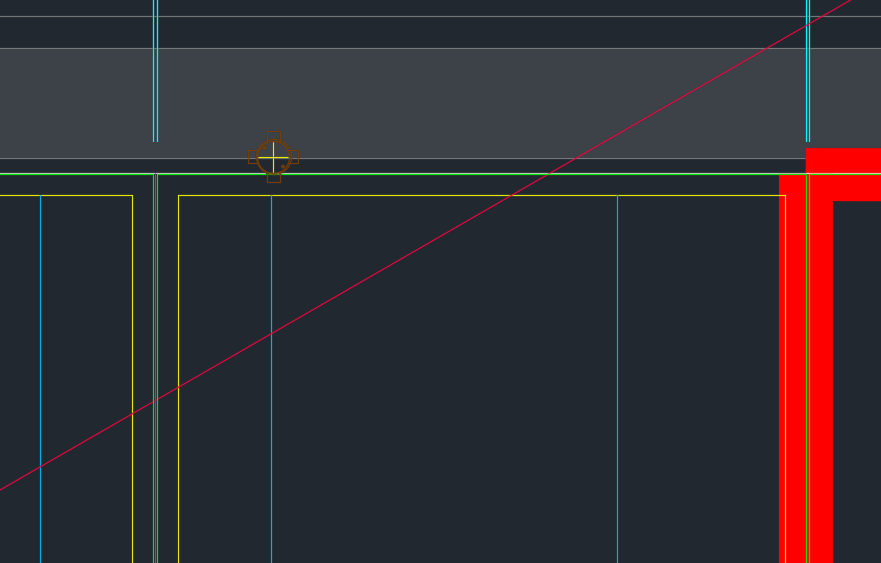
We’ve been noticing an increasing problem in that certain items are clashing with BubbleDeck Panel outlines. In order to eliminate these types of errors we’ve instituted a new check in our procedures. Everyone is now required to specifically check for this type of situation. This adds to our check list which is already quite long. I go into further explanations below in a video.
Fire Collar Clash Check with Panel Outline. This is becoming a problem so it is now a check against it.