
TeklaStructures has a batch editing utility for Assemblies.
However, if we have to batch edit parts there is nothing.
Expert Steel Detailers demand Utilities
Our detailers have demanded that we develop a utility to do batch editing of parts.
(more…)A series of blog posts exploring the Tekla API. Code examples, explanations and (where relevant) videos will be provided.

TeklaStructures has a batch editing utility for Assemblies.
However, if we have to batch edit parts there is nothing.
Our detailers have demanded that we develop a utility to do batch editing of parts.
(more…)
The trick is to use to the drawing’s “PartIdentifier” to select the relevant object in the model space.
Once you’ve done that, you can query the model object for whatever you want.
Here is a code sample I’ve extracted from one of our Tekla API Applications. The basic steps:
SinglePartDrawing singlePartDrawing = (SinglePartDrawing)drawing;
Tekla.Structures.Model.ModelObject modelObject = model.SelectModelObject(singlePartDrawing.PartIdentifier);
Tekla.Structures.Model.Part part = (Tekla.Structures.Model.Part)modelObject;
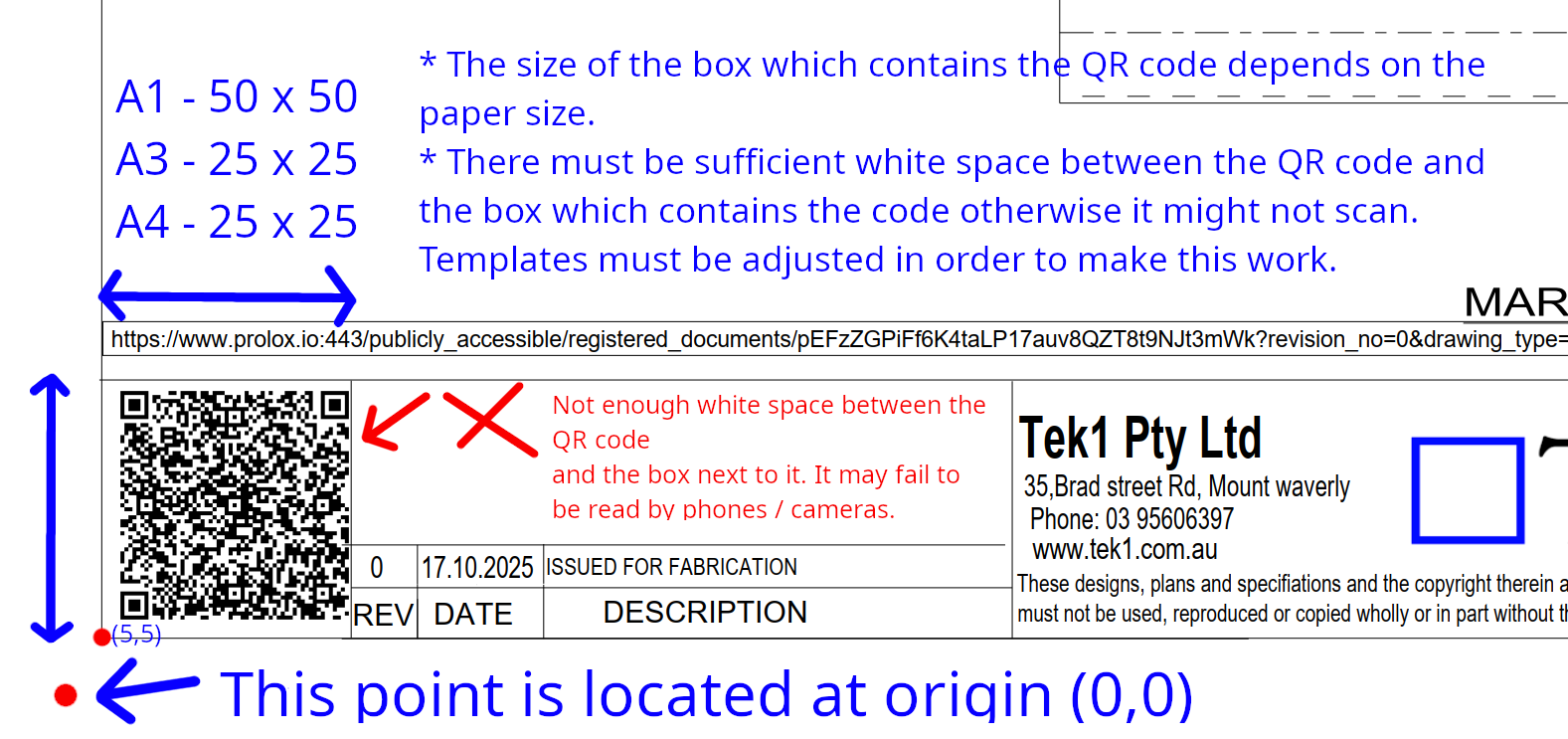
We are now placing smart QR codes on drawings. Why? What benefit is accrued by doing so?
Instructions on how to make it work
Rules – To prevent obsolete data from being used or shown
Updating the Drawings:
Setting up the template
Do you loose time with missing dimensions
Have you ever used the wrong revision?
Here is what is cooking at Tek1.
If you would lik to to know more
Here is a solution where you can scan the QR code and bring up the assembly model. know the revision number of the drawing which you should be using
you may visite tek1.com.au for more information
If you want to waste time on a poorly documented API (which doesn’t make any sense) I would highly recommend getting on Tekla. I’m documenting this so some poor soul doesn’t waste a day trying to debug this:
// what’s wrong with this?

  Beam b = new Beam();

  b.SetUserProperty("USER_FIELD_1", "your data");

  b.Insert();
Do you see the problem? First insert the beam, and then apply the UDA and it should work:
// it only works AFTER you insert

  Beam b = new Beam();

  b.Insert();

  b.SetUserProperty("USER_FIELD_1", "your data");
What glorious waste of time trying to work out why it failed!
But the problem is not with you – the problem is with the API. It fails silently, and the documentation is poor. Hopefully this note saves someone a lot of headaches.
Our use case?
How can we check?
using Tekla.Structures.Catalogs;
// download this dll from Nuget

                public bool CSVProfilesAreCorrect(List<CSVFieldsImplemented> dataRows)
        {
            HashSet<string> csvProfiles = dataRows.Select(row => row.Profile).ToHashSet<string>();
            HashSet<string> teklaProfiles = getAllTeklaProfiles().ToHashSet<string>();

            if (_areCSVProfilesCorrect())
            {
                return true;
            }
            else
            {
                throw new SystemException($"The CSV files have these profiles which don't exist in Tekla: {String.Join(", ", string.Join(", ", csvProfiles.Except(teklaProfiles)))}");
            }

            bool _areCSVProfilesCorrect()
            {
                // all the csv profiles
                // must be contained in tekla profiles

                return csvProfiles.All(profile => teklaProfiles.Contains(profile));
            }
        }

// and we call it like so:
CSVValidator validator = new CSVValidator(db);

if (validator.CSVProfilesAreCorrect(extractor.CSVRecords))
{
    // do the modelling
}
Voila! Now it’s hard to make a mistake.
If you want to get all materials – it’s very similar to the above. Use the CatalogHandler.GetMaterialItems() method along with the materialItem.MaterialName property. The code to actually do that – I will leave as an exercise to the reader.
A user has pre-selected a set of model objects.
We need to retrieve them via the API. How do we do it?
All of our code is extracted from our production apps.
I have some treasure, buried somewhere.
I know how to get there from my town.
This is great from my current location. But how will you get there from YOUR location? Without changing the location of the treasure, I can tell you how to get there, from your location by aligning coordinate systems.
But it can be confusing. Here’s how I think about it intuitively. Forget the maths, just think about it intuitively.
Consider both examples:
If you think about it that way, it will be much harder to get confused.
Suppose you have a Tekla model and you want to programmatically filter for parts with a revision mark of abc/1. How would you do that?
When I originally tried the code, I had a single Binary Filter expression for just the part Position Number. I made a fatal mistake – I had assumed that Tekla would be smart enough to release that given I want a part position number, I also wanted a part. The API returned almost everything under the sun. And I have no idea why. So then I added a second Binary filter expression – this time one for parts.
Given we have two “filters”, we need to add them into a filter collection, and then finally, when we search, we search by .GetObjectsByFilter(filterCollection).
Here is the code: