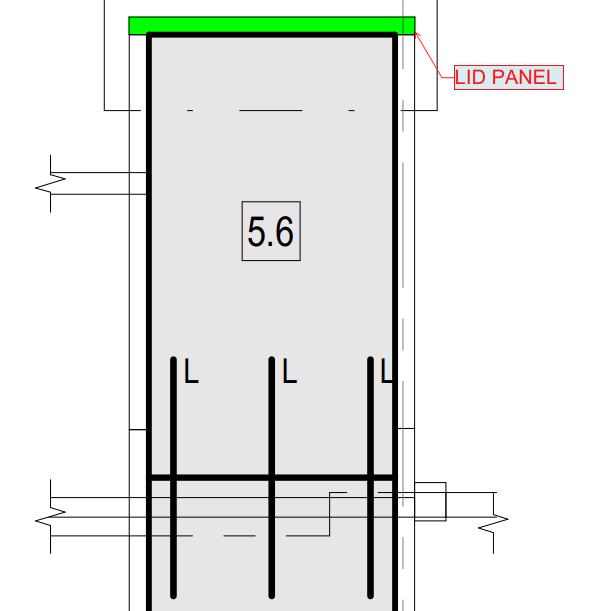
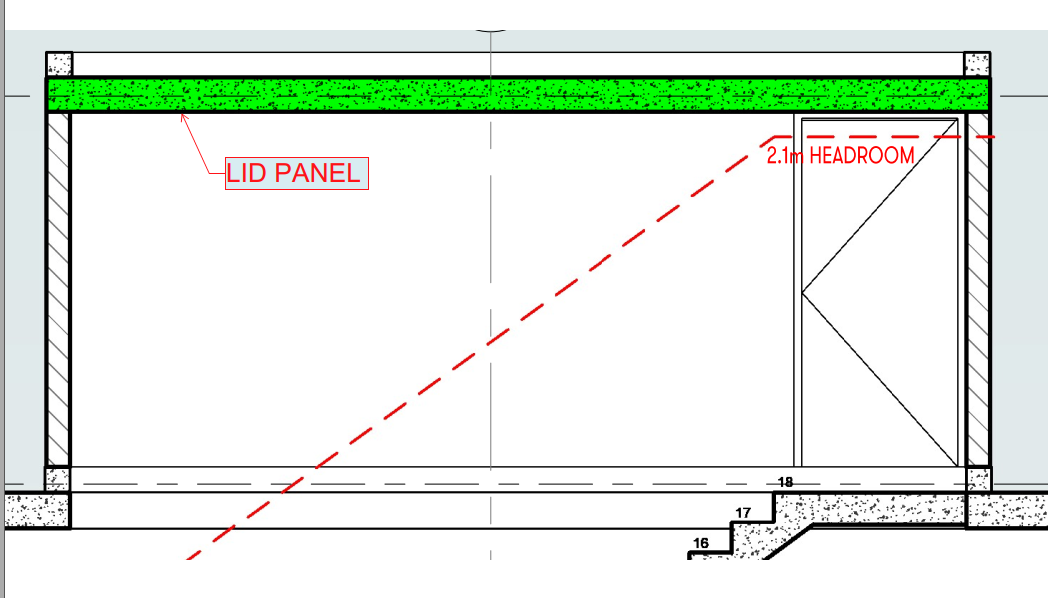
LID panels are most commonly used for covering up the openings on building roof areas and also some inner part of the building where the precast slab is required. It can be seen in locations like lifts, stairs, water tanks, etc.
LID PANEL ON LIFT
LID PANEL ON STAIR
Manufacturing consideration of LID panels:
Viewing direction of the lid panel is either plan view or view from below. Depending on consideration of manufacturing difficulties and near face finish and different profile requirements, it may change as vice-versa.
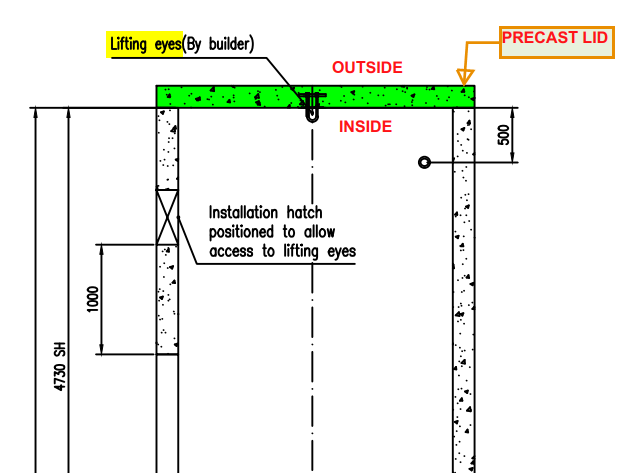
If lifting eye/ hook is projecting outside of lid means, we have to view the face with lifting eye as near face for manufacturing purposes. (Refer lifting hook/eye elevation view)
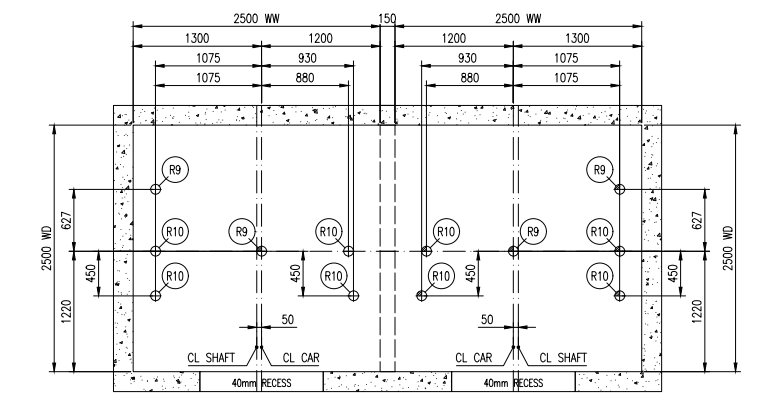
In lift lid, lifting hook/ lifting eye needs to be provided if it needs to be cast in the lid. Lifting hook detail normally given in lift drawing. (Refer lifting hook/eye placement plan view)
We can provide face lifters and either top or side lifters used for erection, lifting off table and transportation purposes.
Face lifters were used for installation of the lid on site. Whether its need to be near face or Far face is decided by viewing direction.
Bottom connection of lid most likely by grout tube to its lower panel or In-situ.
Tables are used for fabrication of precast panels in factories or yards with good quality, finish, curing and low time consumption.
Different types of materials used for tables like timber, aluminum and steel. But steel is mainly used for tables because it’s good for repetitions, gives good vibration to concrete, it’s not easily damaged and tables do not expand when it’s wet, etc.
The cleaning process is also easily done for steel tables with the help of air blowing or cotton waste.
In the yard there are different types of tables used for fabrication.
For example normal fabrication tables and tilt up tables.
Normal table:
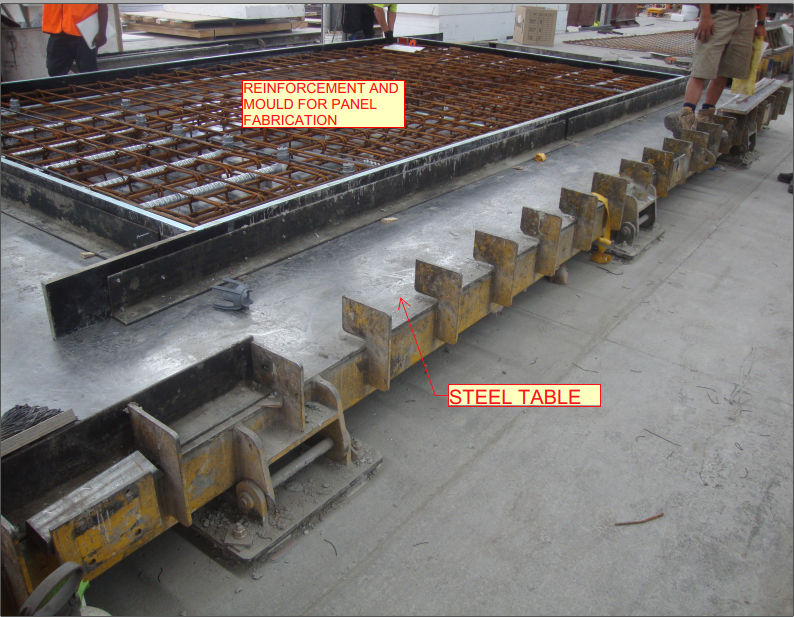
Normal tables are mainly used to fabricate most of the precast panels.
(Refer Fig 1)
Fig 1
Advantages:
Normal tables will not take more manpower for cleaning and fabrication of precast panels.
The maintenance is easy
The cost is low when compared to other types of table.
It can easily fix where we need to fabricate the panels.
It will be fixed on the floor, so the visibility of the table is good for all.
Disadvantages:
It’s not suitable for doors or big opening panels. Because in case of lifting panels it may break.
Normal table needs additional lifting support.
Tilt up table:
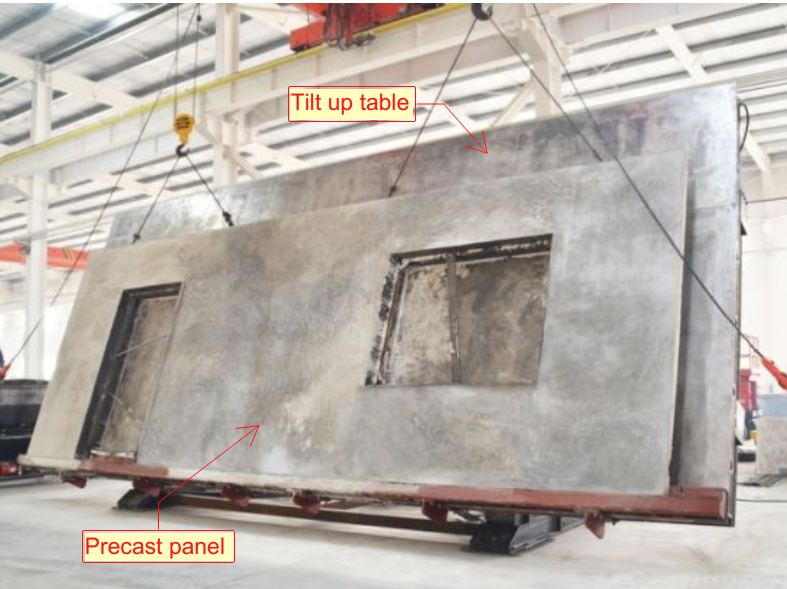
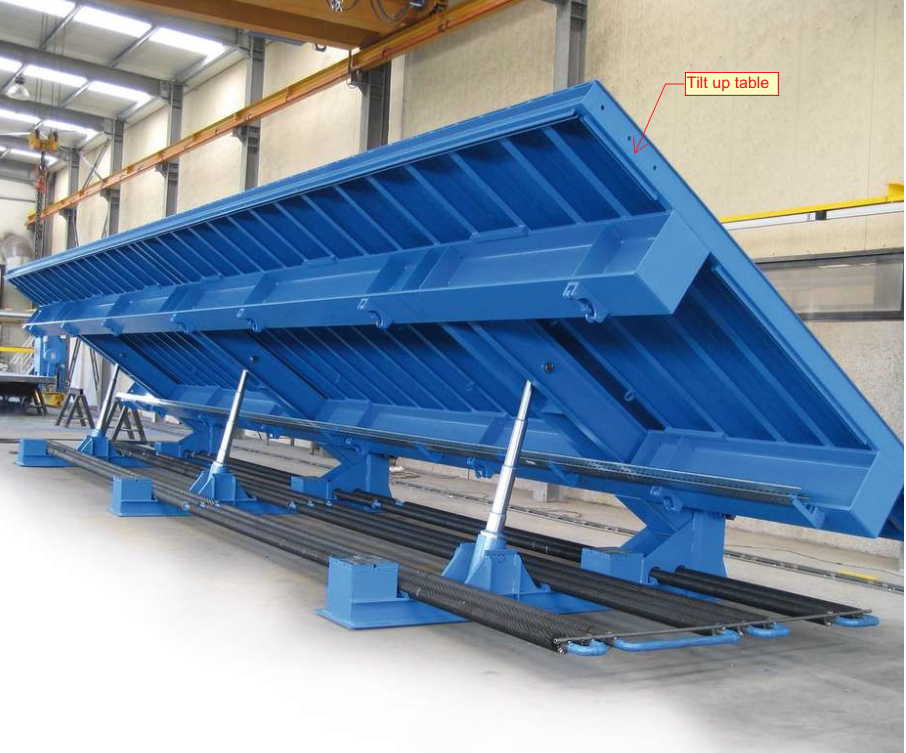
The tilt up tables are mainly used for Doors and big opening panels and also other types of panels. (Refer Fig 2 & 3)
The tilting process allows the precast concrete element to be removed safely and without damaging it.
The titling tables are designed in particular for mobile use and can be quickly transported from the yard.
Fig 2
Fig 3
Advantages:
This table is good for fabricating and lifting the door, opening type of panels.
Hydraulic Tilt up Tables reduce manufacturing time because it’s not require more pouring time to lift the panel from table.
Vibration technology based operation ensures qualitative compaction of concrete and a consistency in quality.
It’s very high level of concrete compacting with low noise.
Minimal costs when transporting the tilt up table.
Disadvantages:
Manpower is necessary and also needs knowledgeable people for handling.
The maintenance is difficult
The cost is high
It’s not movable, so we need to collect materials at a nearby table.
Tek1 has extended their tool kit by adding Revit Structural and Tekla Precast to detail precast concrete.
We were trialing precast for a few months now. We have developed some internal tools to handle precast panel shop drawing efficiently.
Tekla for Precast
We are experts in using Teka for steel detailing. Now are embarking on using Tekla for detailing precast. As first step, we have upgraded our 2 steel detailing Licenses in Melbourne to Global License and upgraded to enterprise. We are running parallel trials with Revit and Tekla to test whether Tekla will make the grade.
When you are dealing with 100s, and perhaps even up to a 1000 panels per building, this can become extremely cumbersome and time consuming. Why not automate the entire process? This allows you to do things faster, to get the drawings out faster, and (hopefully) to build the panels faster, and ultimately the building faster. Speed is absolutely paramount! The faster a builder can get on and off of a construction site, the faster they can get paid. This lowers their working capital needs, and accordingly, their financing costs (however that may arise). Speed is king!
Considerations When Transporting Panels to Site
Every truck has a:
Size limitation (both length and height), as well as a:
Weight limitation (there is a maximum capacity).
Secondly, trucks have different limitations, depending on where they are transporting a panel. E.g.
Trucks passing through the CBD (central business district) have different: length/height and mass requirements compared to those that are not, furthermore, these requirements are different depending on whether the truck has a permit or not.
Let’s suppose you have the following hypothetical situation – take out a sheet of paper and pen and try and solve this by hand:
Truck A
Length limitation: 6 m
Height limitation: 3 m (but a height limit of 2.5 m in the CBD; and a height limit of 3.2 m with a permit)
Weight Limit: 12 tonnes.
Truck B
Length limitation: 4 m
Height limitation: 4 m (but a height limit of 2.5 m in the CBD; and a height limit of 3.2 m with a permit)
Weight Limit: 18 tonnes.
How on earth are you going to work out, quickly and efficiently, whether your fleet can transport the following panels:
ABC1 – Mass: 13 tonnes, Length: 5 m, Height 3 m
ABC2 – Mass: 10 tonnes, Length: 3 m, Height 2 m
ABC3 – Mass: 12 tonnes, Length: 4 m, Height 2.5 m
Problem
Are you able to transport your panels by any of the trucks in your fleet?
Which of your trucks can you use to safely transport a particular panel?
How was this particular problem was solved using the AutoCAD .net API?
I created a data structure for each of the limitations imposed by a truck.
Similarly, I created a data structure for each of the limitations imposed by each panel.
And very simply asked whether a truck and lift a panel? The output was compiled and put into an Excel report. They key method tying this all together is the `CanLift` method on the Truck class.
I used ClosedXML to combine it all together to produce a report.
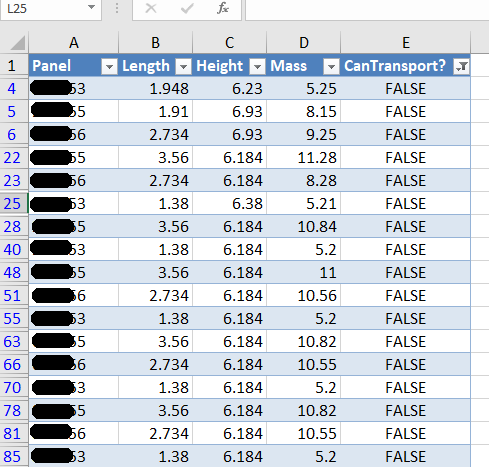
Here is an example of the results:
A sample of the report produced when running the command. This is showing all the panels that failed.
Here are the key server classes:
Summary
Tek1 has the resources and expertise in order to do Precast Panelling jobs fast and
Accurately
These are just the tip of the ice burg in terms of the checks and processes we employ.
User Input is critical. You gotta make the user experience amazing.
Any AutoCAD programmer knows that things which an algorithm may take a million years and infinite computational power to do can sometimes be easily done by a human being instantly. In the same way it is sometimes much easier to give a human being the ability to choose: then you can get an optimum result without complex algorithms.
This post is a code snipped of how you can utilise the CTRL + SHIFT + Mouse Wheel (up/down) mechanisms in order to produce different desired results when operating a custom jig.
Here is the code:
So when the appropriate user input happens, then the jig can respond accordingly. Yes it’s true – the OOP purists will say: “you’re passing a concrete type in there” – I can always change it later if I want.
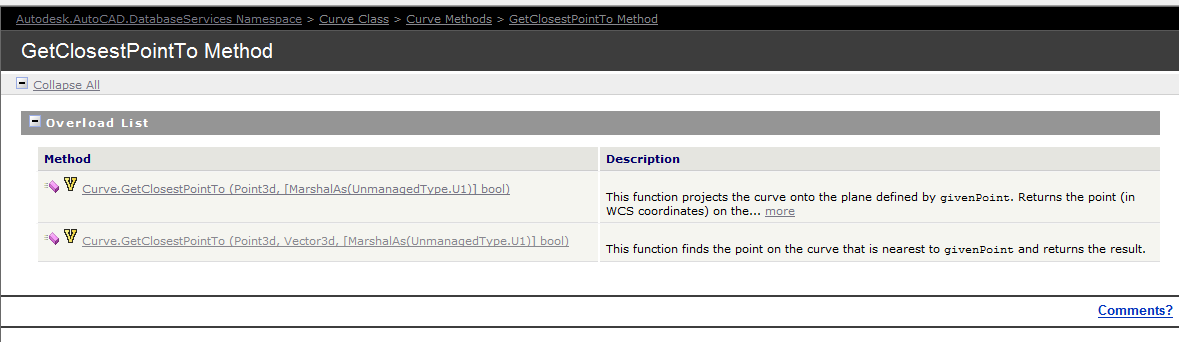
Documentation of the GetClosestPointTo method of the curve object – the overloads are extremely limited. So we have to be somewhat creative in obtaining a solution.
The Genesis of this problem
This is a tricky little problem and I could not find a solution on the forums. So I resolved, upon discovering the solution, to oblige posterity and the public, to publish my findings.
Specific Notes about this problem
Now the following code has been generalised to the specific case of Lines and a non-descript curve (which of course is an abstract base class), but the general principles can be applied to any type of curve.
Notes on implementation
Unfortunately, the curve object exposes a method: GetClosestPointTo, which is only overloaded to accept points and not other curves. In order to deal with this rigmarole we’ll have to first, convert the curve to a `Curve3d` object which is a member of the Autodesk.AutoCAD.Geometry namespace as distinct from the Autodesk.AutoCAD.DatabaseServices namespace.
Drawing these metal edges is time consuming and error prone.
What is the task at hand?
You have a set of 30 panels. You need to draw metal edges around the edges of all these panels. That’s easy, but it’s subject to certain specific requirements.
If it’s a Perth job then:
The metal edge can only be a maximum of 3.0m long.
Minimum distance: 0.4m long.
If it’s an Adelaide job these are the metal edge requirements:
The metal edge can only be a maximum of 2.4m long.
Minimum distance: 0.4m long.
That means you may need to do some maths. And you actually have to draw the things in. It’s a royal pain, and more than likely, you’ll make mistakes.
Video Demonstration of the Draw Metal Edges Tool
This tool obviates the need for manual calculations and drawing by hand. Chances of pick point errors and wrongly stipulating an unmakable and unorderable metal edge is there by significantly diminished.