

Category: Tekla Modelling Tips

This is a blog to give tips and tricks to Tekla users. We will bring you the best and the latest in Tekla and structural steel detailing

  • Tekla Object Locks

    Tekla Structures’ object lock is a crucial feature, particularly in multi-user environments like Tekla Model Sharing, designed to prevent accidental modification and control access to specific model objects and drawings. It acts as a protective measure to maintain model integrity and streamline collaborative workflows.

    Here’s a breakdown of how it works and its key aspects:

    Purpose of Object Locks:

    • Prevent Accidental Modifications: The primary goal is to stop users from unintentionally changing or deleting parts, assemblies, cast units, or drawings that are considered complete or sensitive. This is especially important when multiple users or even different organizations are working on the same shared model.
    • Control Access: It allows you to regulate who can modify specific elements. For example, an organization can lock objects they’ve created to prevent other organizations working on the same project from altering them.
    • Maintain Numbering: Locking objects can prevent changes that would affect the numbering of parts, assemblies, or cast units, which is critical for fabrication and erection.
    • Protect Drawing Integrity: Drawings are linked to the model. Locking drawings helps prevent unintended edits or deletion, especially when they are “issued” or nearing completion.

    How Object Locks Work:

    1. User-Defined Attribute (UDA) “OBJECT_LOCKED”: At its core, Tekla Structures uses a user-defined attribute called “OBJECT_LOCKED.” This is a boolean value (Yes/No or 1/0) that can be applied to various model elements, including:
      • Parts (beams, columns, plates, etc.)
      • Assemblies
      • Cast units
      • Bolts
      • Welds
      • Specific drawing types
      • Reference models (prevents movement and detail updates)
    2. Setting Locks:
      • Manual Locking: You can manually select objects in the model and set their “Locked” UDA to “Yes” through the “Object locks” dialog (Manage > Locks) or the object’s properties.
      • Organization Lock: In Tekla Model Sharing, new assemblies and cast units created by a specific organization can be automatically locked “For others” by default (controlled by the XS_OBJECTLOCK_DEFAULT advanced option). This means only users from that organization can modify them.
      • Drawing Locks: Drawings can also be locked independently through the Document manager.
    3. Effect of Locking:
      • When an object is locked, any attempt to modify it (move, delete, change properties, etc.) will result in a “There are locked objects, see report. The operation could not be performed.” message.
      • Tekla Structures will write the IDs of the locked objects to the session history log, helping you identify what is preventing the operation.
      • Locked drawings can be opened but require manual unlocking to be edited.
    4. Unlocking Objects:
      • Objects can be unlocked by changing their “Locked” UDA back to “No.”
      • The “Object locks” dialog provides a central place to manage locks.
      • There are also methods and even macros to unlock multiple objects or all locked objects in a model, which can be useful if an object becomes “stuck” due to an invisible locked sub-object (e.g., a locked point preventing a part from being unlocked).

    Important Considerations:

    • Hierarchy: If a sub-object within an assembly or cast unit is locked, it can prevent modifications to the entire assembly/cast unit.
    • Tekla Model Sharing: Object locks are particularly vital in shared models to prevent conflicts and ensure smooth collaboration. When a lock is shared, other users will see the locked status.
    • Drawing vs. Freeze: It’s important to distinguish between “locking” and “freezing” drawings. Locking indicates that a drawing should not be edited, while freezing prevents associative objects (like dimensions and marks) from updating automatically due to model changes.
    • Visibility: You might encounter situations where an object seems locked, but you can’t find the lock. This could be due to small, invisible sub-objects being locked. Tekla’s log files provide valuable information in such cases.

    In essence, Tekla Structures’ object lock is a powerful tool for managing and protecting your model data, especially in complex, collaborative projects. It provides a layer of security and control that is essential for efficient and error-free structural modeling.

  • Plate Stringer Sprial Stair

    Expert detailiing of spiral stair with plate stringers.

    Clear drawings and set outs for easy fabrication.

    Here is and example.

    Tek1 has the experience detailing different types of spiral stairs.

    There are challenges for the fabricator. Good drawings help to reduce the issues the fabricator will be facing.

    If you want the Tekla Model for this email me.
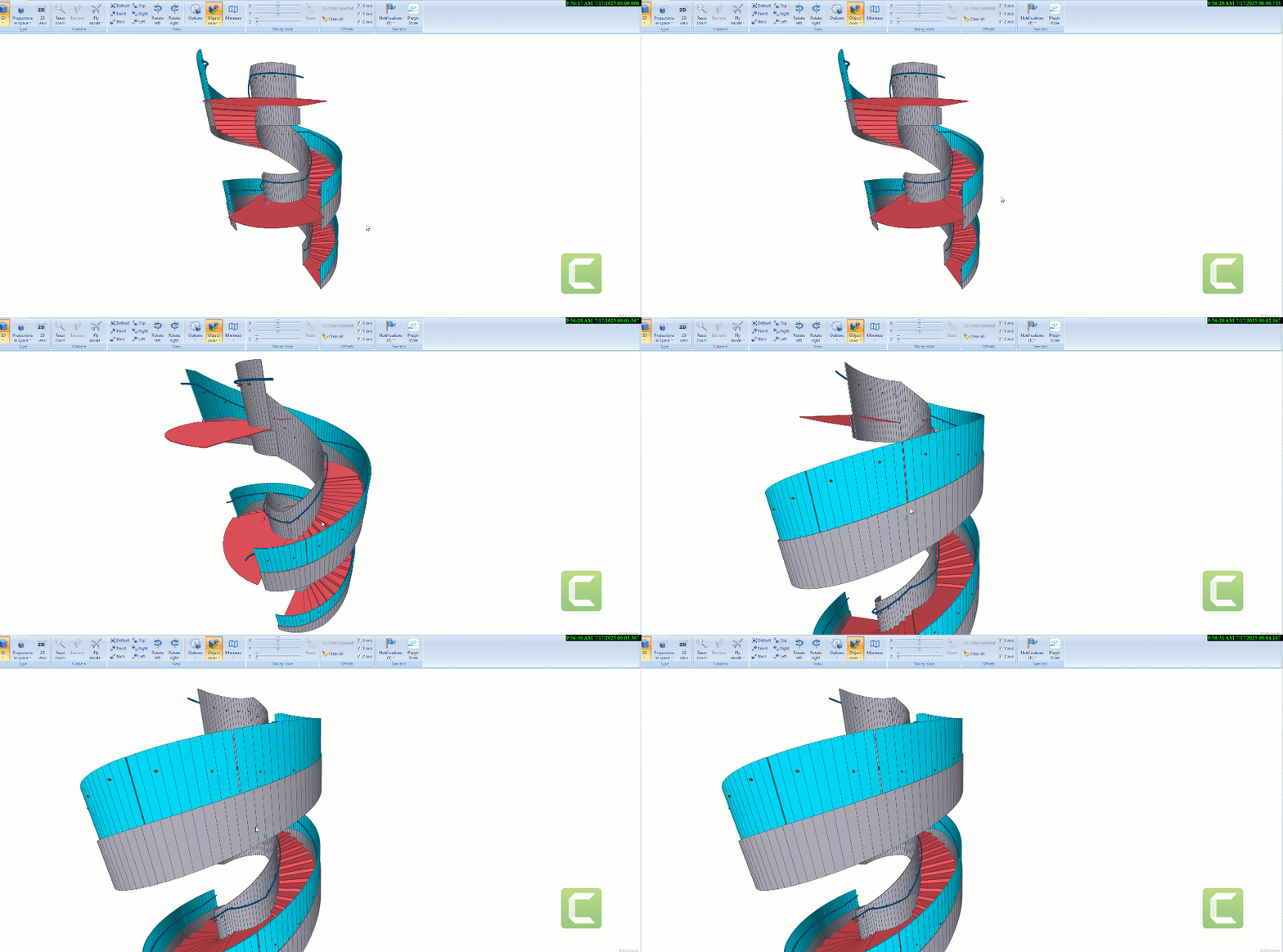
    Spiral Stair
  • Weld Clearance

    Make sure there is sufficent clearance for welds.

    The cost of not providing weld clearance is significant.

    These type of errors chips away at our credibility

  • Purlin Brackets

    Lysaught provides different types of brackets.

    Whe you are modelling choose the appropriate types
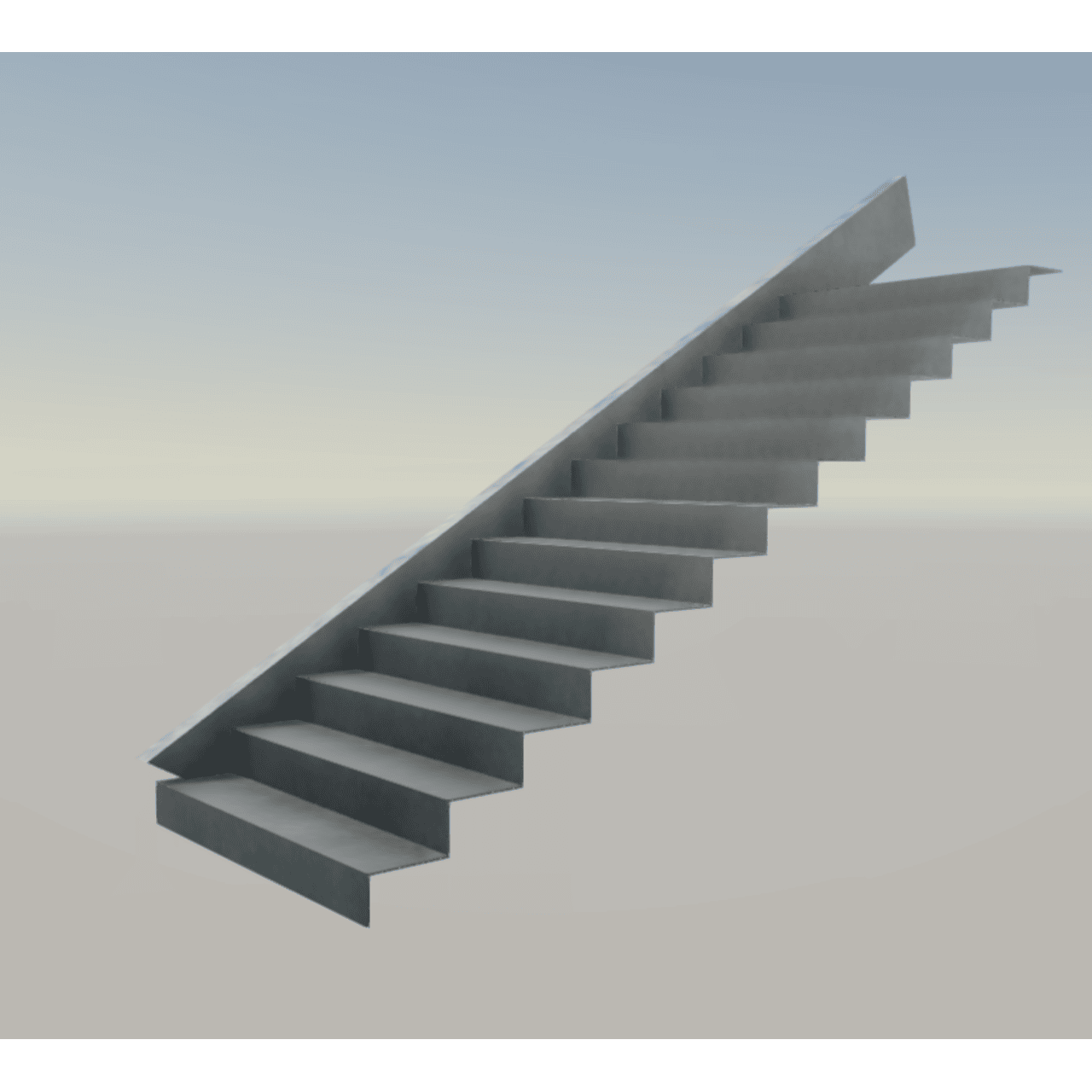
  • Can You Spot the Mistake in This Stair Design?

    Can You Spot the Mistake in This Stair Design?

    Imagine you’re reviewing a staircase drawing, and you see this note:

    “8 THK CONTINUOUS FOLDED PLATE TREADS AND RISERS.”
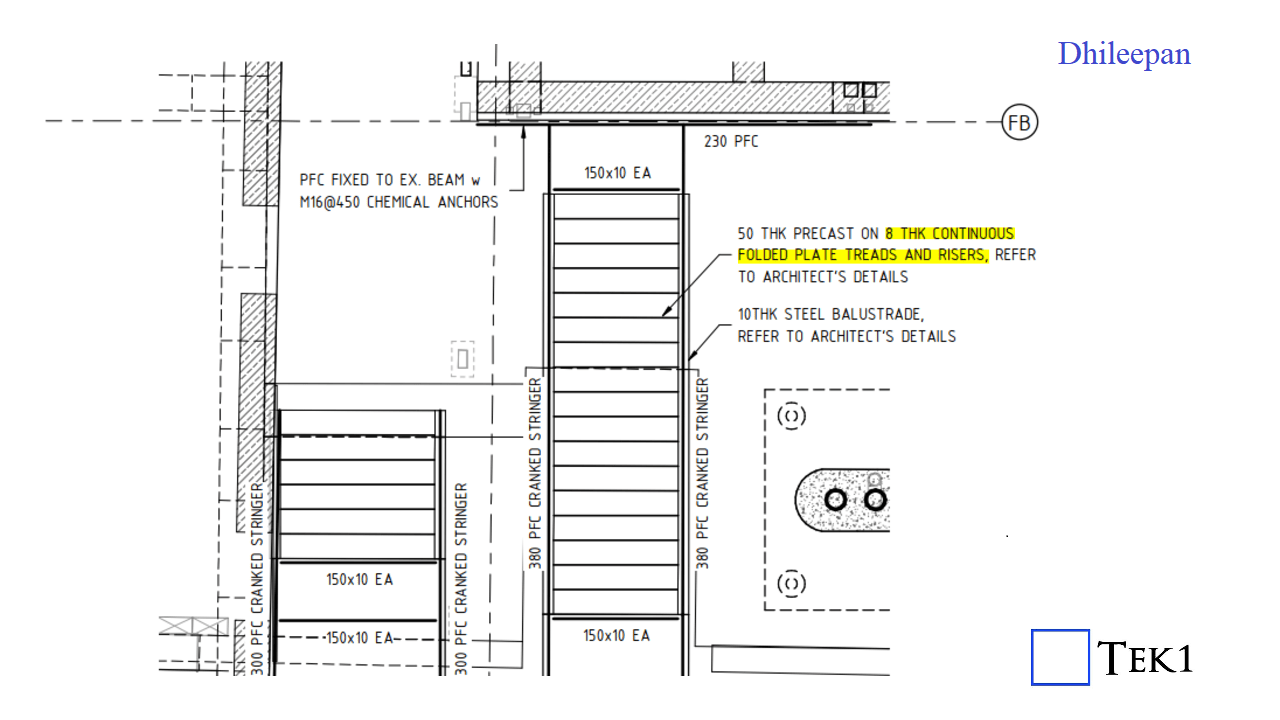
    Sounds fine, right? But here’s the catch—is it actually possible to fold a single plate continuously for an entire stair flight? 🤔

    The Hidden Problem

    A plate cannot be folded continuously to form multiple stair treads and risers because:

    • Fabrication limitations – Bending steel plate repeatedly at stair angles is nearly impossible.
    • Structural concerns – Excessive bending weakens the material and creates stress points.
    • Installation challenges – A long, folded plate is difficult to transport and position correctly.

    The Right Approach

    Instead of one continuous folded plate, each tread and riser should be a separate, single-folded plate. These individual elements can then be welded or bolted together to form a strong and practical staircase.

    So next time you see a similar detail, take a closer look—is it actually buildable?

  • Specifying Ferrule Bolts

    Ferrule bolts do need nuts to be ordered.

    If your bolt report has ferrule bolts, then you have to specify what is the Bolt Dia and Length of the Bolt dia. Also you must specify no nut required.

    The other thing to note is that, You cannot give extra length. Your bolt length should be a bit less than the Thread in the ferrule + the washer + the material to be bolted.

    If we nomintate extra length, then the Bolt will bottom out on the ferrule.

    Problems with Incorrect specifications.

    • Any thing like FEB in bolt report does not make any sense to our clients.
    • Unless we annotate nuts are not required, large number of nuts will be purchased
    • If we give extra length, the bolt cannot be used. Costing significant delays at site.
  • Fabrication drawing requirements : Modelling for Non-Structural Plates: A Guide

    Fabrication drawing requirements : Modelling for Non-Structural Plates: A Guide

    When working with elements like cladding plates, balustrade infills, decorative panels, and chequer plates, the approach to modelling them differs significantly from that used for standard structural plates. Ensuring accuracy in these cases hinges on a thorough understanding of working points and the rotation property, which are essential for ensuring the correct orientation of the visible side when generating drawings or DXF files.

    Understanding the Critical Role of Working Points

    It might seem simple to assume that these sheets can be flipped or rotated as needed after they are cut. However, this is a common misconception that can lead to significant errors during fabrication. The key to avoiding such issues lies in setting up the working points correctly, particularly when dealing with intricate designs or surface finishes.

    The Importance of Proper Rotation

    Take a stair panel, for example. If the panel features any patterns or surface differences, the working point must run in the direction from left to right when facing the stair panel. Additionally, the rotation must be set to either “top” or “front”—never “bottom” or “back.” This ensures that the visible side of the panel is correctly positioned.

    Symmetry Doesn’t Eliminate the Need for Attention

    Even in cases where the pattern is symmetrical or there appears to be no pattern at all, the orientation of the face of the sheet is crucial. It’s easy to think that since the machine will cut the plate according to the DXF file, it doesn’t matter how the drawing is flipped or rotated. However, this is where problems can arise.

    Avoiding Aesthetic Imperfections

    During the cutting process, the machine can leave minor marks on the material. These marks are typically left on the non-visible side of the sheet. Therefore, it’s critical to feed the sheet into the machine with the correct side facing outwards. If not, the marks could end up on the visible side, compromising the aesthetics of the final product.

    Conclusion: Precision is Key to Quality

    Proper modelling and careful consideration of working points and rotation properties are essential when dealing with cladding plates, balustrade infills, decorative panels, and chequer plates. By ensuring the visible side is correctly oriented from the start, you can avoid costly mistakes and ensure a high-quality finish.

  • Create Radius with Polygon Cut

    Create Radius with Polygon Cut

    Important points.

    Do not pick points along the Arch to do a polygon cut.

    Select Extreme end of the Arc and Create tangent to circle at those points.

    Use the intersection of the tangents as one polygon cut node.

    Other nodes should be outside the Arc.

    No node of the Polygon should be on the Arc.

    2 Nodes on the tangent outside the arc.

    1 Node on the Tangent intersction

    4th Node to close the polygon as needs to be.

    The video says any point on the arc. Any point will not do- extreme points of the arc is necessary

  • Copy Elements to Other Drawing in Tekla

    Copy Elements to Other Drawing in Tekla

    For instance, when we intend to include this cloud and text markup in all drawings, our current process involves adding a cloud followed by a text box. However, this repetitive action for each drawing proves to be extremely time-consuming. So, I’m going to share a trick with you (which Tekla already has) as an alternative solution.

    What to do:

    *  First, you need to create a markup exactly how you want it.

    *  Next, select the elements that you want to be included in the markup. Be careful when selecting, as even a line that is selected will be included.

    *  In the Tekla drawing workspace, you’ll find the ‘2D Library’ option. Open it and to add a new detail, click the plus icon


    * Next, you need to select a reference point near the markup. This reference point will serve as the future insertion point for your detail in every drawing


    *  The next step is to select an area that will serve as your reference image, appearing like a thumbnail. after that the detail will be created and the the library looks like this

    * There are others options available to edit these existing details as well. Feel free to explore these options; you won’t need additional tips for that

    *  Finally, if you wish to insert this into another drawing, you just need to select and pick the insertion point in your drawing. The chosen detail insertion point will determine its placement. ( for example, I chose a location where I didn’t want the detail to appear.. 🙂 )

    * You can select and then right-click the mouse to choose the “explode” option, allowing you to select each individual element within the detail markup

    * We have additional blog posts that explain various tips and tricks in Tekla. Feel free to explore those resources as well

    *  If you have any doubts you can mail to koshy@tek1.co.au

    * Blog by – Anson.S

    ****************** linkedin/anson.suhesh ********************