Author: admin

  • Dimensioning Curves Using Jigs (AutoCAD .net, Precast)

    This is a beautiful little plug-in – it allows you to dimension a curve – a complex curve with a jig. It allows the user to choose the types of dimensions that he wants. It’s pretty cool.

    I must do an entire series on jigs.

    And I will slowly, when I get the chance.

  • Tek1 Tools – Panel Comparisons (Precast)

    Demo – Tool To Compare Panels and Easily Identify Differences

    Here’s the situation:

    Someone from the factory floor calls in:

    “Hey can you move a cast in plate across panel number ABC123”

    “Sure – let me just check there are no —”

    “GIVE ME THE DRAWINGS NOW!”

    The problem with handing over the drawings without checking the layout is that you might make a big mistake! Or you might forget to ensure the two drawings link up and are the same.

    You need a tool to easily check the panels, identify differences and to alert the detailer. This will also allow you to easily split up work. – you can assign that work to a junior detailer, so he/she gains experience, while it frees up time for you to focus on other things.

    And if you do find a difference, it’s a big ordeal brining the layout up to speed. With this program, it automatically imports the pertinent block/polyline etc. without you lifting a finger.

    The advantages are many. The simplicity is sublime. Enough talk.

    Here’s the demo of the tool. I hope you enjoy it.

    This tool currently works for only Bubble Deck. But I am going to make it work for all clients across a variety of edge cases and am going to speed up the algorithm considerably. I will post the new tool when it is completed.

    Panel Comparison – Tek1 Tools from Tek1 on Vimeo.

  • Tek1 Courses – AS 1657 & AS 1428 (Australian Standards)

    Experts in AS in Stairs/Handrails/Ladders

    We’ve done a lot of work on Australian Standards – both public and private access. We specialise in Steel Detailing – and have a special focus on stairs and ladders. Since we deal extensively in this area, we require all our staff to be thoroughly versed in the Standards. Consequently, we have developed testing frameworks to ensure that all staff are well trained and accountable.

    Our Testing Infrastructure Now Freely Released to the General Public

    We are now releasing our testing framework to the public at no charge. These tests should help you learn and reinforce your knowledge of Australian Standards – namely, AS 1657 and AS 1428.

    We hope and trust you will find it of immense benefit.

    Keep people safe – design and build according to the safety standards prescribed by law.

    Where are the courses?

    https://training.tek1.com.au

    1. Follow the link:
    2. Click on the relevant course
    3. It is best to create your own account – I know it’s a pain but it’s the best way. If you really don’t want to you can log in with a common account available to the public, but there are serious limitations with that approach – this is because everyone will be using this account and you’ll be picking up where someone else has left off – a half finished test for example. If you want to do the latter, here are the credentials – but I strongly urge you to create your own account: 
      • username: student (only small letter allowed)
      • password: password (must have atleast 1 special character)
      • Must confirm your account from your email once created
    4. Enjoy the course!
  • Pick First Selection in the Model (Tekla Open API)

    The AutoCAD .net/ObjectARX APIs have a handy feature all the pick first selection. This means that prior to running a command, the user is able to select some objects in the model. The command is then able to use these objects. The question is, how to obtain a selection of objects using the Tekla API – prior to running your plug-in?

    It’s really simple (if you already know how):

    And that’s all it is! Hope this helps.

  • How to Set Up a Tekla API Project (Tekla API Application)

    Work faster with the Tekla API

    The object of a Tekla Application is to ensure that things go smoothly on the construction site. You can see the organised chaos that is here. Avoid the real chaos. Plan ahead. 

    For the newbie this post shows how to set up a Tekla Project.

    Let us assume that you are creating a WPF desktop Application. You could also just as easily create a console application – I often do this if I simply want a quick and dirty way to test code.

    1. Go to Visual Studio.
    2. Create a new WPF project.

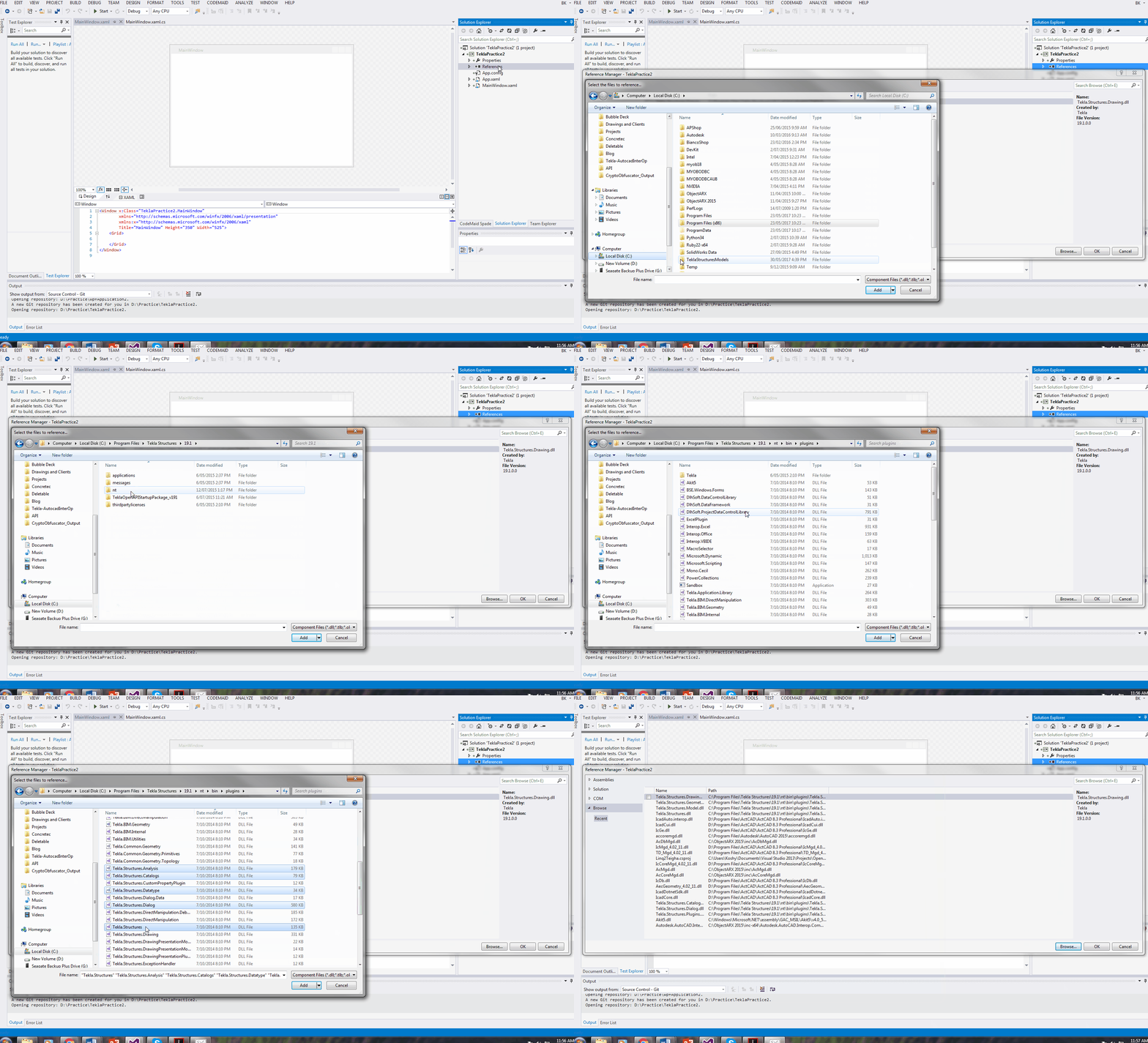
    Follow this gif:

    Setting up a Tekla Project
    How to Set up a Tekla WPF Application
    1. Next you need to add references to Tekla DLLs. They are contained at this location on my PC. C:\Program Files\Tekla Structures\19.1\nt\bin\plugins\ .They may be in a different version on yours. You can also download these dlls using Nuget in your Visual Studio.
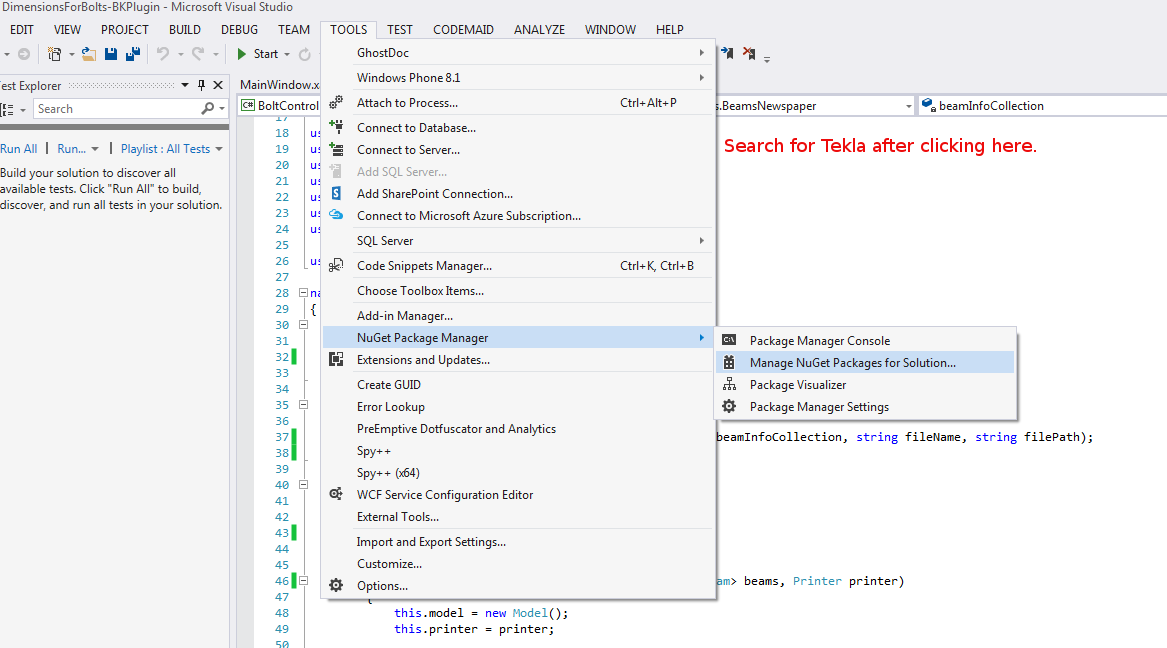
    2. If you are using 19.1i version – then you can download Trimble’s nuget package named thus: 2019.1.50434

    Follow this Gif:

    Adding Tekla References

    Shows how to add references to a Tekla API WPF Project.

    1. The fourth and final step is to add directives and to then get coding.

    Some common directives and aliases that I use:

    I hope this post helps you!

  • Showing an Assembly in the Model via a Tekla Drawing (Part II) Tekla Open API + Code snippets

    We are revisiting a post I made earlier.

    Here’s the problem. You are viewing a Tekla drawing. But you have no idea what you are looking at, or where it is. This macro will take you to that very assembly in the model. It’s actually quite handy. And here is the previous post where I made allusion to the facility (you’ll find a video demonstrating its use):

    http://www.tek1.com.au/tekla-plug-in-2-viewing-an-assembly-in-the-model-from-an-assembly-drawing/

    This post marks the release of the code which does the job! Enjoy!

  • AutoCAD-Tekla Interoperability (AutoCAD .net)

    Tekla – AutoCAD Interoperability Tool

    Tekla licenses are pricey. About $30k + maintenance per license. What if I told you that you needed 30-50% less licenses than you currently hold. That’s a huge cost saving, isn’t it?

    If you only need 5 licenses (as opposed to 10), then you’ve saved $150k instantly, plus maintenance.

    AutoCAD licenses are significantly cheaper.

    But if only the work you did in AutoCAD could be transferred into Tekla? That would save you some licenses. That’s just what I’ve done here in my latest project. Now a significant portion of any modelling job can be done in AutoCAD and simply imported into Tekla.

    You can check it out here:

    Tekla – Autocad Interop. from Tek1 on Vimeo.

    Human Resources Problem

    Interoperability will also help improve the quality of your work: it’s tough finding people who are highly skilled in Tekla. What if I told you that you could use an AutoCAD draftsperson instead of someone well versed in Tekla, to do the same job? Now you have a potentially infinite pool of candidates to draw from.

    Tools

    Click here to download

    Interested In more?

    I’d love to be able to help. Just call or email us.

    How to Download Tekla Catalogues (or Catalogs):

    You need to download the catalogue because the interop DLL connects to the catalog. Without it, we cannot verify that your profiles actually exist in Tekla.

    Here is the cataloge download link: 

    https://github.com/benkoshy/Acad-Tekla-Interop

    Trouble Shooting

    • Ensure you are using the “Steel Detailing” license.
    • Ensure you have AutoCAD 2023, or 2024. Do not use 2025 because this tends not to connect with Tekla.

  • AS 1428 – Section 11 – Nosing and Tread Requirements for Stair Construction (Public Access)

    We continue to release our in-house precis on Stair way construction. Reading the standards is terribly tedious so we have developed a way to easily cross check the requirements and to make sure that stairs are built according to standards.

    Unfortunately it’s too common for us to see designers produce drawings which simply do not comply to the required standards. So it is of the utmost importance that fabricators are able to: (i) know and understand the standards and to independently verify that their drawings do comply. Only a fool would 100% trust in an architect to draw to standards – we’ve seen it way too often. You, the fabricator have to check everything yourself. Here are some of the in-house memos that we use to ensure that our stairs always comply:

    We wish to share it with the world – and we hope it helps you immensely:

    TEK1 AS 1428 11.1 Standards for Stairs

    I hope you find it of benefit and great use.

  • Maximum Frame sizes (Steel Detailing Tips)

    Maximum Galvanizing size generally available in Australia

    • 1400 WIDE X3100 DEEP X 12000 LENGTH

    Maximum width for road transport (laid flat on bed is 2500m)

    Please check out both the documents below.

    http://www.legislation.act.gov.au/di/2006-120/20060623-28031/pdf/2006-120.pdf

    https://www.tmr.qld.gov.au/Safety/Vehicle-standards-and-modifications/Loads-and-towing/Projecting-loads.aspx