Category: Tekla training
-
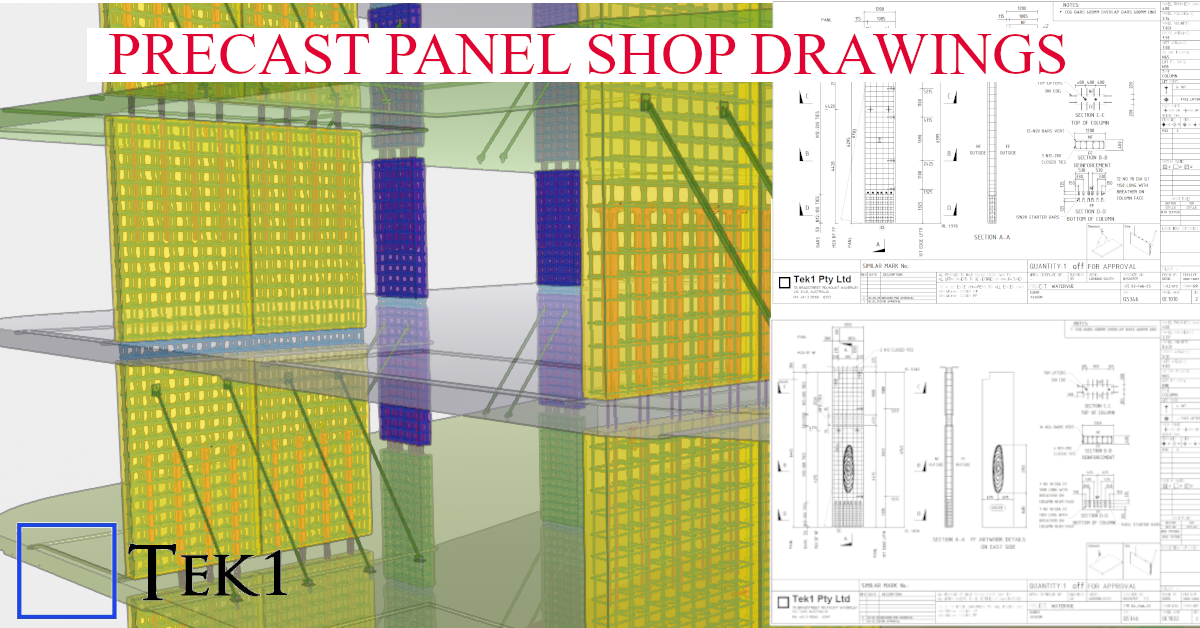
Precast Blade Panels
Project Overview: Reckli Pattern Integration At Tek1, we specialize in transforming complex architectural visions into constructible shop drawings. This model snapshot showcases a recent precast project where aesthetic texture meets structural integrity. Technical Highlights:
-
Get Certified From Tek1
Get trained certified and recruited by Tek1. If you are motivated to self learn, attend our online course (email hr@tek1.com.au for enrollment). Get self certified, Earn your badge. Your potenital employer can verify whether you passed our course. Tek1 is Hiring young engineers with Basic Tekla Training If you have basic Tekla training then email…
-

Avoiding Errors In Updating Modified Drawings
When the model is amended after issuing the first set of drawings, the affected assembly drawings will appear as “Parts Modified” after numbering is completed. While updating such drawings, certain considerations are important to ensure effective and quick detailing. 1. Freeze Option When Freeze is OFF, Tekla automatically updates dimensions according to the movement of…
-
Design Guide for Galvanizers for Design Guide for Hot Dip Galvanizing – best practice venting and draining.
This document outlines the design guide for detailers to provide venting and draining holes for galvanizing.
-
QR Code on Drawings
We are now placing smart QR codes on drawings. Why? What benefit is accrued by doing so? Instructions on how to make it work Rules – To prevent obsolete data from being used or shown Updating the Drawings: Setting up the template
-
Section Profiles for SS and Aluminium
If you are detailing Aluminium or SS sections always confirm the section profiles. If you model without that confirmation, there is good chance that you will be spending additional hours and it will be wasted time for all
-
pedestrian over pass
Bendigo Pedestrian over pass Just revisiting some old projects. This project was fabricated by Third angle, Detailed by Tek1. One of the early pedestrian bridges detailed by Tek1. Many more followed after this.
-
Tekla Productivity Tool1
CNTRL + RIGHT CLICK to set start point Press X, Y, or Z to Lock the co ordinate as the need may be Save time in modelling
-
Tekla Object Locks
Tekla Structures’ object lock is a crucial feature, particularly in multi-user environments like Tekla Model Sharing, designed to prevent accidental modification and control access to specific model objects and drawings. It acts as a protective measure to maintain model integrity and streamline collaborative workflows. Here’s a breakdown of how it works and its key aspects:…